A verification code that appears on a locked iPhone can be read by anyone nearby, even if the phone has a passcode and Face ID. According to an AppleInsider.ru guide, the fix is one iOS setting, Show Previews, in Settings > Notifications. The source author recommends the When Unlocked option for most apps. It keeps notification text hidden until the phone recognizes its owner. For banking and government-service apps, the author suggests going further and choosing Never. In October, Russia’s Interior Ministry placed hiding SMS on the lock screen near the top of its own smartphone-security tips, directly after setting a passcode.
What you need to know
- Show Previews in Settings > Notifications has three options: Always, When Unlocked and Never. The setting applies to all apps unless an app has its own setting.
- With When Unlocked, the lock screen shows only the app name and the word “Notification.” The text appears after Face ID, Touch ID or the passcode unlocks the phone.
- Russia’s Interior Ministry, as reported by Izvestia citing TASS on October 17, listed hiding SMS on the lock screen directly after setting a passcode.
- The source author advises against Always, because it shows notification text on a locked iPhone to anyone.
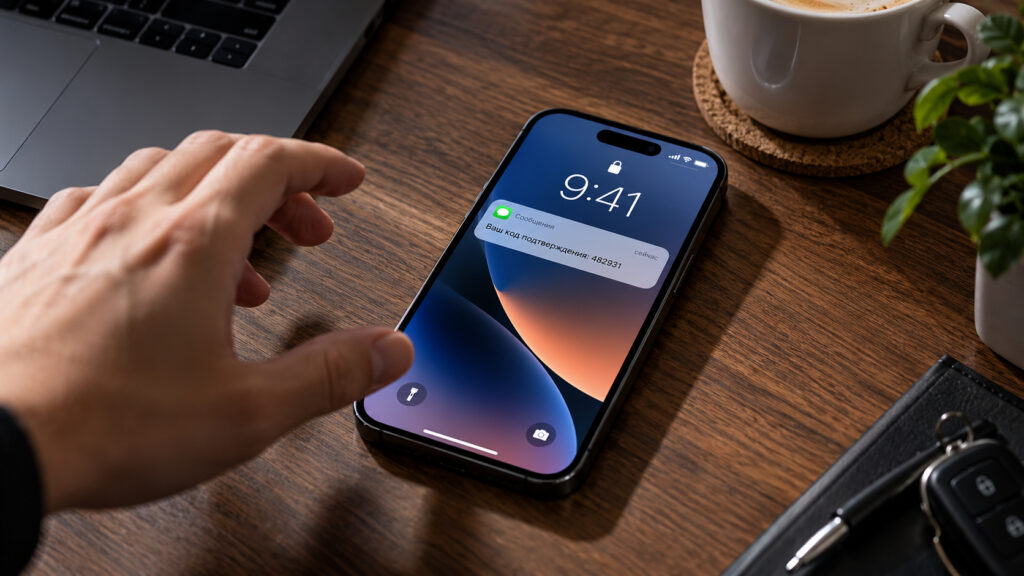
An iPhone lies face up on a table showing a verification code notification on the lock screen while someone’s hand reaches toward it
A passcode does not protect the lock screen
The source describes a simple fraud scenario. An attacker who knows your phone number requests a login code on their own device, and the SMS arrives on your phone. If the iPhone is lying on a desk in an office or a café, the screen lights up and all six digits are visible over the wallpaper. Nobody needs to unlock the phone. A couple of seconds and a glance are enough.
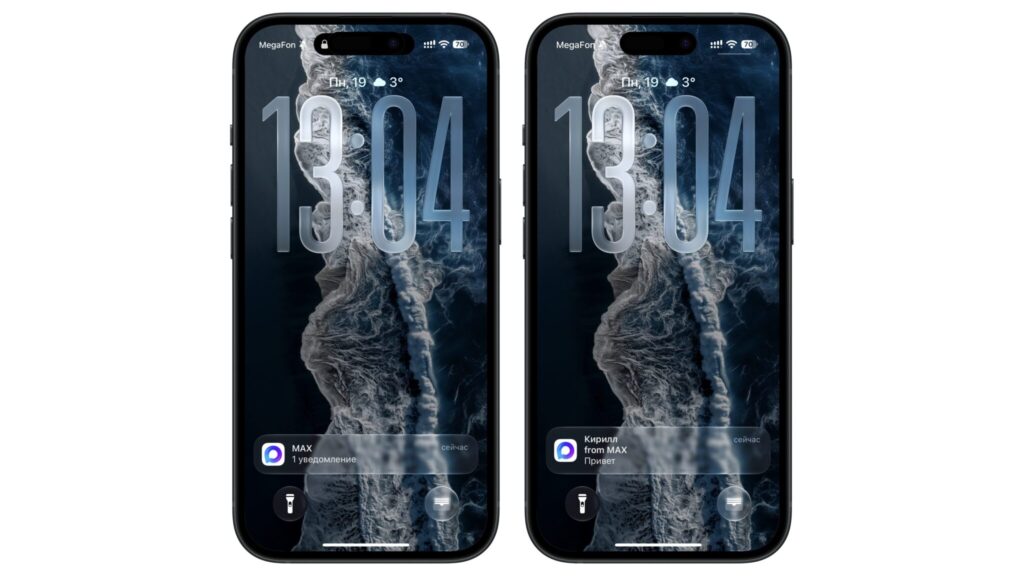
Hidden and revealed notification text on an iPhone screen
Codes are not the only thing a lock screen can reveal. The source notes that banks send purchase amounts and card balances, messaging apps show the start of conversations, and email apps display subject lines. Each item may seem minor. Taken together, they can add up to a revealing profile of the phone’s owner.
What Russia’s Interior Ministry recommended
On October 17, Izvestia, citing TASS, published the Interior Ministry’s recommendations for protecting a smartphone. The ministry advised hiding SMS notifications on the lock screen so that strangers cannot see verification codes. In the list, this advice comes right after setting a passcode. According to the source, the other recommendations were:
- use an unlock passcode of at least six characters instead of a pattern lock;
- use a password manager instead of saving passwords in the browser;
- set up remote locking and data wiping;
- use face or fingerprint authentication for important apps;
- do not leave the smartphone unattended.
The source author argues that iPhone owners already have most of this list covered. iOS has no pattern lock. The Find My feature can lock and erase the phone remotely. Most apps that handle money and documents support Face ID sign-in. In the author’s view, the lock screen is the main item left to configure.
How to hide notification text in iOS
This setting hides the content of notifications, not the notifications themselves. As the source explains, sounds, vibrations and banners still appear, and you can still see which app sent the alert. The text stays hidden until the iPhone recognizes you, so you still know when something important arrives.
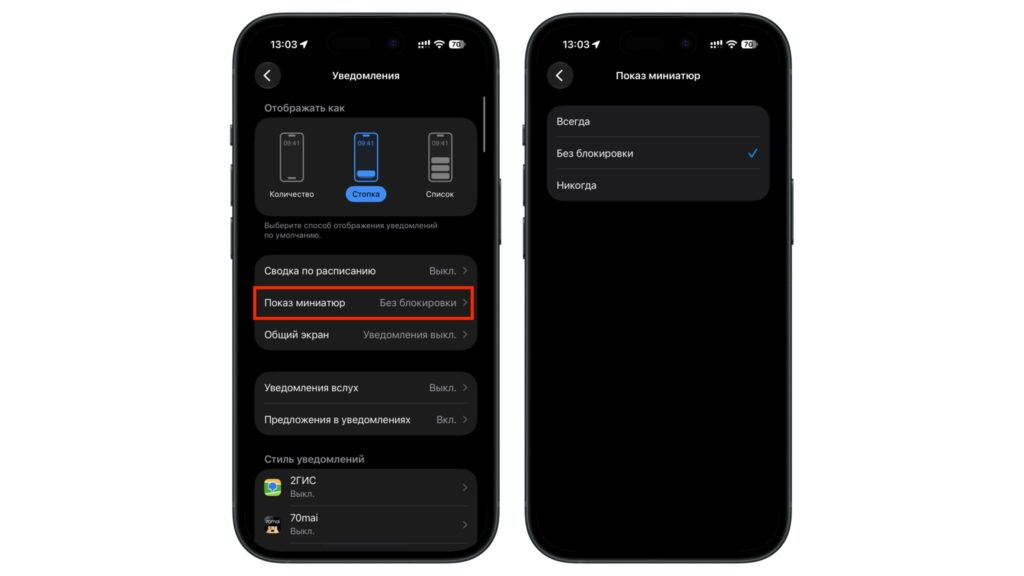
iPhone settings for how notification text is displayed
The steps described in the source:
- Open Settings > Notifications.
- Tap the topmost option, Show Previews.
- Choose one of three options: Always, When Unlocked or Never.
This setting applies to every app at once, not just SMS. Messages, Telegram, banking apps and email all follow it unless you set a different rule for a specific app.
The three options compared
When Unlocked: the source author’s choice
The source author uses When Unlocked. On the lock screen, a notification shows only the app name and the word “Notification.” It shows no message text, not even the sender’s name. When the owner looks at the iPhone, Face ID recognizes the face, the lock icon opens and the text appears without a swipe. The author says the same happens on Touch ID models when you place your finger on the sensor. If you unlock with a passcode, the text appears as soon as you enter it.
The author reports that in daily use this is barely noticeable: notifications expand within a fraction of a second, while someone sitting nearby sees only the app icon. The source also notes that, by default, Face ID checks that the user is looking at the screen with open eyes. According to the source, this means holding the phone up to a sleeping owner’s face would not work.
Never: stricter but less convenient
With Never, notification text does not appear at all, even after unlocking. To read a code or message, you have to open the app itself. The author considers this acceptable for one or two banking apps but inconvenient across the whole phone. This is especially true when codes are filled into input fields directly from notifications.
Always: the option to avoid
The source author would not choose Always under any circumstances. In this mode, anyone can read notification text on a locked iPhone without a face, fingerprint or passcode. This is exactly the situation the ministry’s advice targets: a code arrives, the screen lights up and someone else reads it.
The author suggests people usually choose Always for convenience. One example is reading messages without picking up the phone while it sits on a stand. The author argues that the second saved is not worth losing an account on a government services portal. The source recommends checking this setting now, especially if the iPhone was bought second-hand or someone else set it up.
Also check what works while the phone is locked
The source also points to Settings > Face ID & Passcode. At the bottom of that screen is a section for access while the phone is locked. There you can stop Notification Center from opening, and stop replies to messages, without unlocking the phone.
Set stricter rules for banking apps
The source notes that in Russia, many services now send login codes through messaging apps, not only by SMS. So every app that receives login codes should be covered, not just Messages.
iOS supports per-app settings for this. Go to Settings > Notifications, select an app, such as your bank, and find the same Show Previews option inside it. You can set Never for the bank and keep When Unlocked for everything else. It also works the other way around. According to the author, games and news apps do not send anything sensitive, so their previews can stay visible.
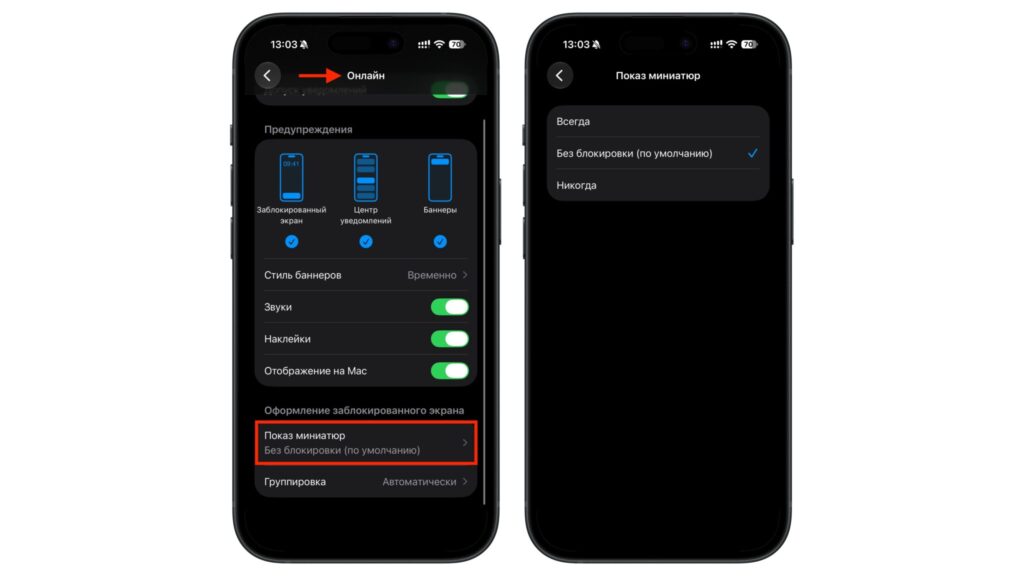
Notification text display setting for a selected app
The bottom line
The source author’s recommendation is simple. If Show Previews is already set to When Unlocked, no change is needed; the author sees it as a sensible balance between convenience and protection. If it is set to Always, the author recommends switching it right away. For banking and government-service apps, choosing Never adds another layer of protection, and the source says it takes less than a minute.