Android Auto can now run games on your car’s display, but only while the car is parked. Google has taken the Android Auto games section out of beta, so any developer can release games for car screens. Games require an Android 15 or newer smartphone and close as soon as the gear selector leaves Park. Below are the requirements, the installation steps and five titles the source author recommends.
What you need to know
- Google announced on its developer blog on September 22 that the games section in Android Auto had left beta, so any developer can now release a game for car screens.
- Games can be played only while parked. Shifting out of P closes the game and makes the games section inactive.
- Playing games on the car display requires a smartphone running Android 15 or newer. On older Android versions, the games run only on the phone itself.
- Google’s GameSnacks runs simple games over the internet from Google’s servers, so it needs a stable mobile data connection.
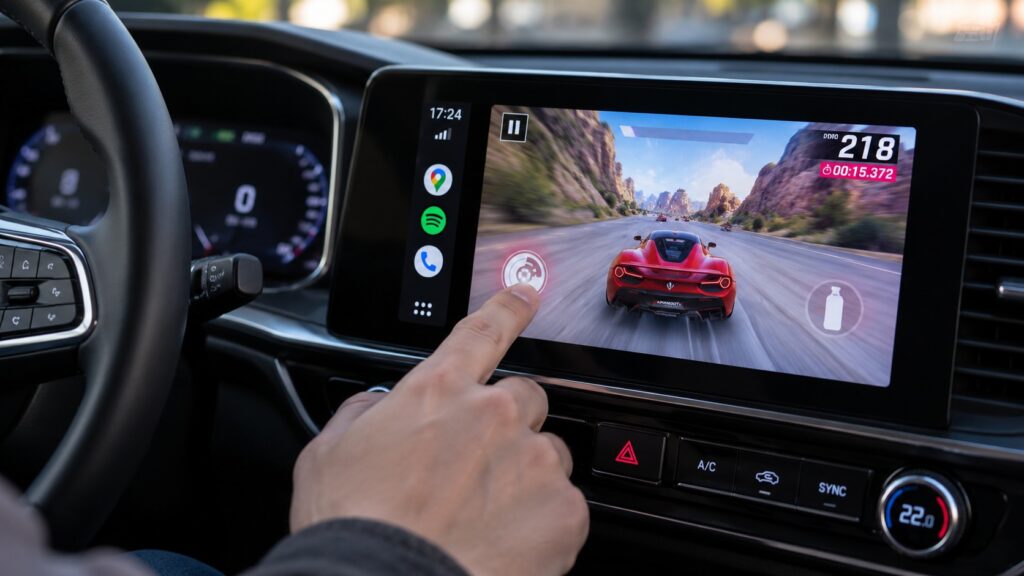
A person playing a game on Android Auto
How games arrived on Android Auto
Android Auto has long handled more than navigation. It already runs maps, music and messaging apps on the car’s screen. On September 22, Google said on its developer blog that the games section of Android Auto had exited beta testing. This means any developer can now publish a game for the car display, and the source expects the catalogue to grow.
The key limitation: Park only
Games work only when the car is parked. As soon as you move the gear selector out of P, the game closes and the games section becomes inactive. The restriction exists to keep drivers from being distracted. That means games are meant for parking stops, not for traffic jams.
You also need a smartphone running Android 15 or newer. On older Android versions, these games can be played only on the phone itself, not on the car screen.
How to install a game for Android Auto
- Download the game to your smartphone from Google Play.
- Connect the smartphone to the car with a cable or wirelessly.
- Park, then open the app list on the Android Auto screen.
- Launch the game.
The source advises checking that a game installs before you set off, because not every title is available in every Google Play store.
Beach Buggy Racing 2: arcade racing in a Mario Kart spirit
Beach Buggy Racing 2 is a colourful arcade racer featuring beach buggies, power-ups, traps and rival drivers. The source author suggests it as a first Android Auto game and says it feels very similar to Mario Kart. According to the author, it looks noticeably more impressive on a wide car display than on a phone.
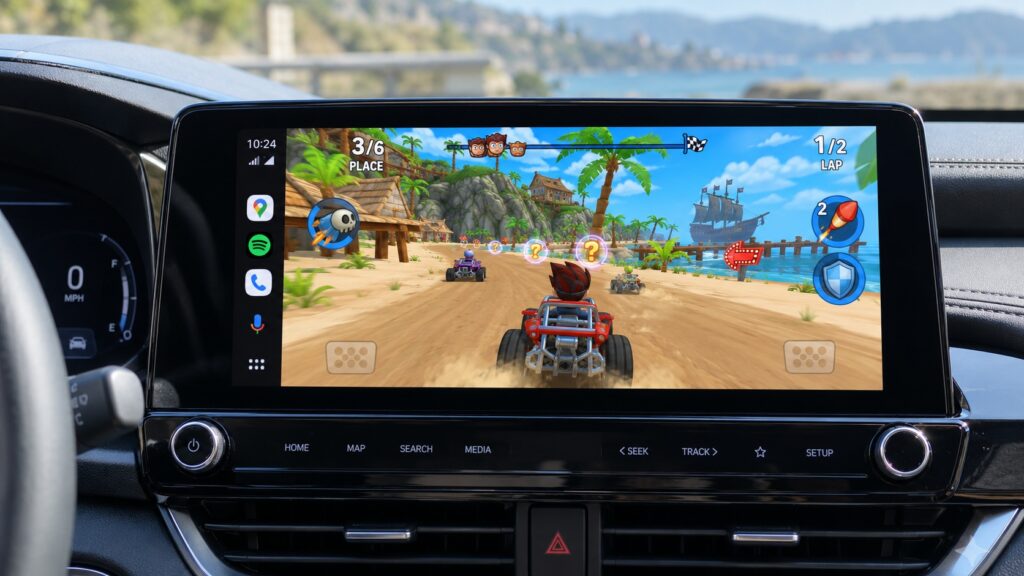
Beach Buggy Racing 2 on Android Auto

You can control it with touch, but the source says a Bluetooth gamepad is more comfortable. Progress is saved, so you can resume a race where you left off. If you forget to pause and pull away, the game closes on its own.
Angry Birds 2: the familiar game on a bigger screen
Angry Birds 2 needs no introduction: angry birds, a slingshot and pigs in fragile structures. According to the source, the touch controls on Android Auto adapt to the car’s screen, and the author finds aiming even easier there than on a phone.
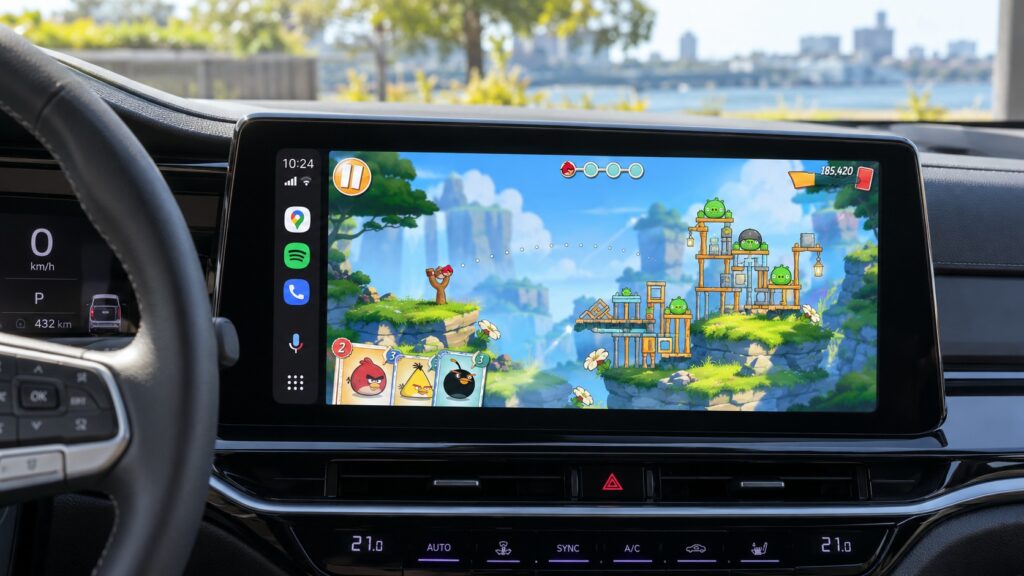
The classic Angry Birds 2 on Android Auto
Angry Birds 2 is free but includes in-app purchases and ads. The source describes it as a good way to fill a few minutes while waiting for someone outside a shop or school.
Candy Crush Soda Saga: progress syncs with your phone
Candy Crush Soda Saga, one of the most popular match-three puzzle games, is now available on the car screen. Its main advantage is shared progress with the smartphone version. A level you complete in the car also counts on your phone.
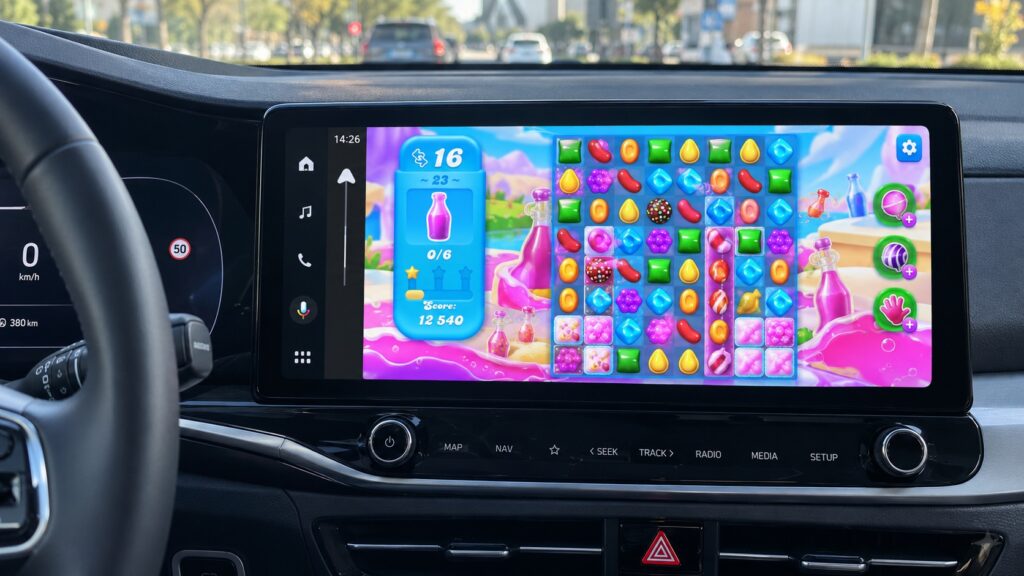
Candy Crush Soda Saga on Android Auto
The game is free. The source author considers it the best option for passengers who often wait in the car, since you can start a level in a car park and finish it at home.

My Talking Tom Friends: for children in the back seat
My Talking Tom Friends is a virtual pet game with six characters: Tom the cat, Angela, Hank, Ginger, Ben and Becca. Players care for them, play mini-games and furnish their home. According to the source, it works the same way as on a smartphone, just on a bigger screen.
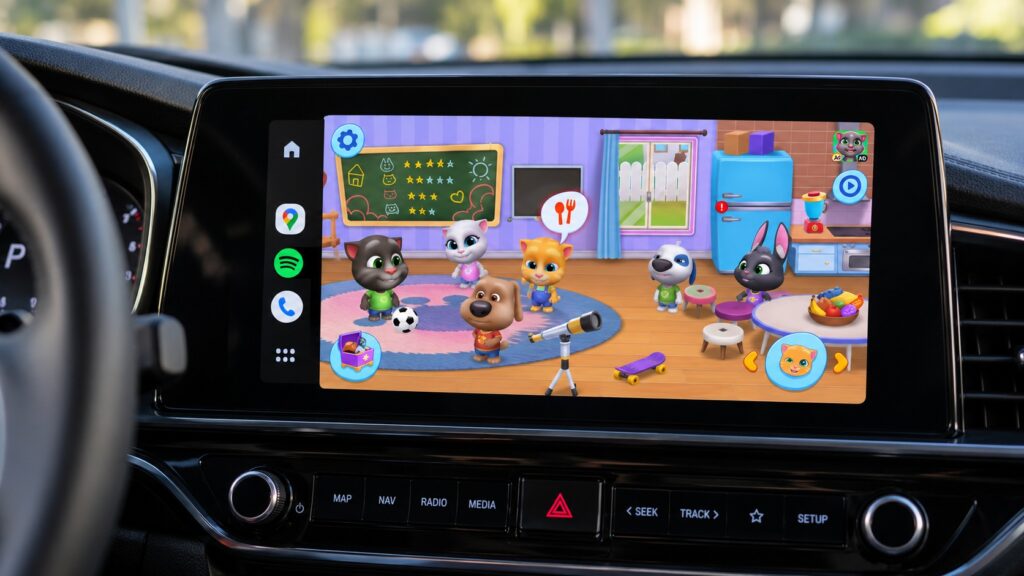
The familiar Talking Tom game
The source suggests it as a way to keep children occupied during a stop, for example while adults refuel or wait in a parking queue. The author adds that adults will likely tire of it quickly, but it is not aimed at them.
GameSnacks: free Google mini-games with no separate installs
GameSnacks is Google’s collection of simple browser-based games. You do not need to download each game individually, because the games run over the internet from Google’s servers. According to the source, only a few of these games are currently available on Android Auto.
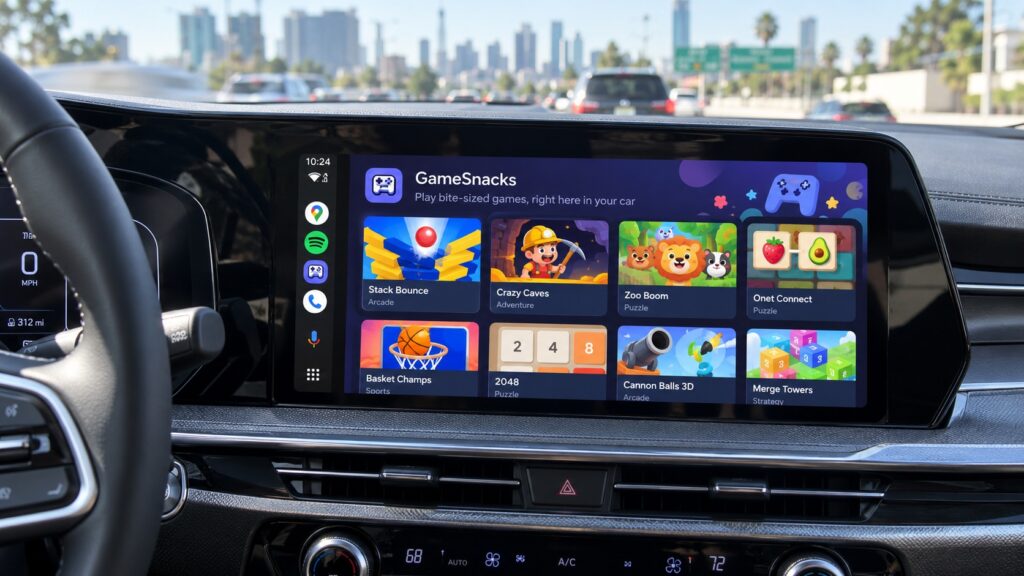
A collection of browser games for Android Auto
The drawback is that you need a stable mobile data connection. If the car is parked somewhere with poor coverage, the games may lag or fail to launch. On the plus side, they are free and take up no storage on your phone.
Consider keeping a Bluetooth controller in the car
Almost all of these games can be played with touch controls, but the source says racing games feel very different with a gamepad. The author recommends keeping a Bluetooth controller in the glovebox so it is ready for your next stop.
More games are coming
Android Auto already offers other games beyond these five, such as the puzzle game Farm Heroes Saga. Now that the section has left beta, the source expects the list to grow quickly. The core rule stays the same, though: in-car games are for parking stops, not for driving or traffic jams. They will not launch while the car is out of Park.