In 2026, you can get a doctor’s appointment without even getting off the couch — everything is done through the Gosuslugi app in just a few minutes. Forget about calling the reception desk that’s always busy, and about standing in live queues at the coveted window. I booked my grandmother a doctor’s appointment this way: opened the app, tapped a few buttons — and in three minutes the appointment was ready. Year after year, Gosuslugi takes on more and more everyday tasks: documents, payments, and even tracking things. Let’s walk through how to book a doctor’s appointment via Gosuslugi on Android.
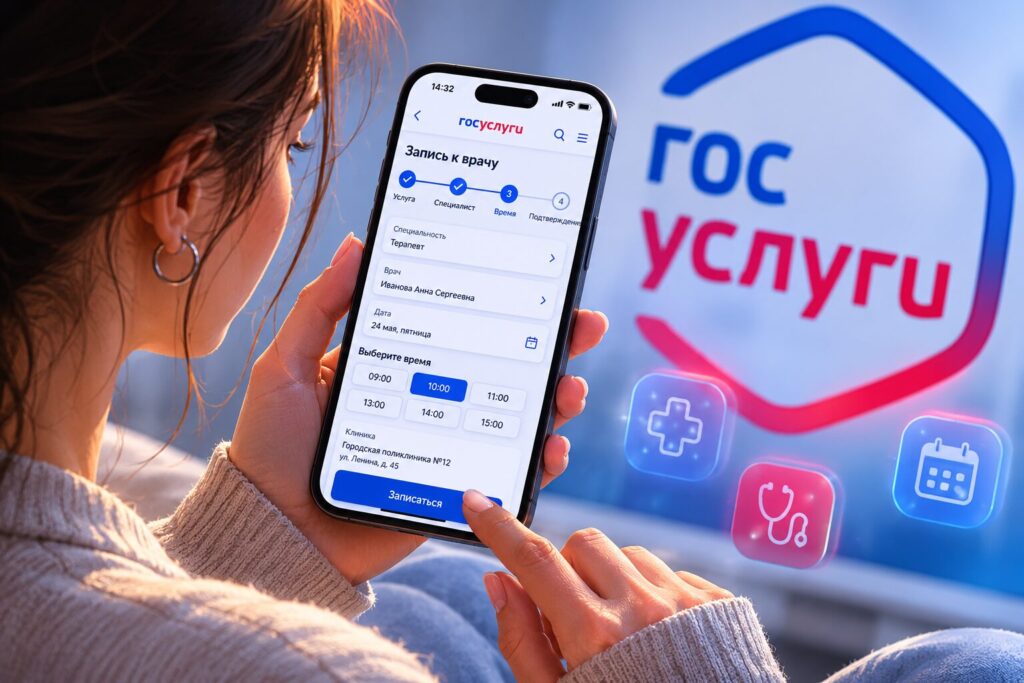
Here’s how to book a doctor’s appointment via Gosuslugi
What You Need to Book a Doctor’s Appointment via Gosuslugi
Before diving into the app, make sure you have everything you need. Otherwise, your doctor’s appointment booking via Gosuslugi will fall apart halfway through. First and foremost, you’ll need a verified Gosuslugi account. A basic profile won’t cut it — the system requires a verified one. You can verify your identity through a bank, MFC (Multifunctional Center), or Russian Post — it takes about fifteen minutes.
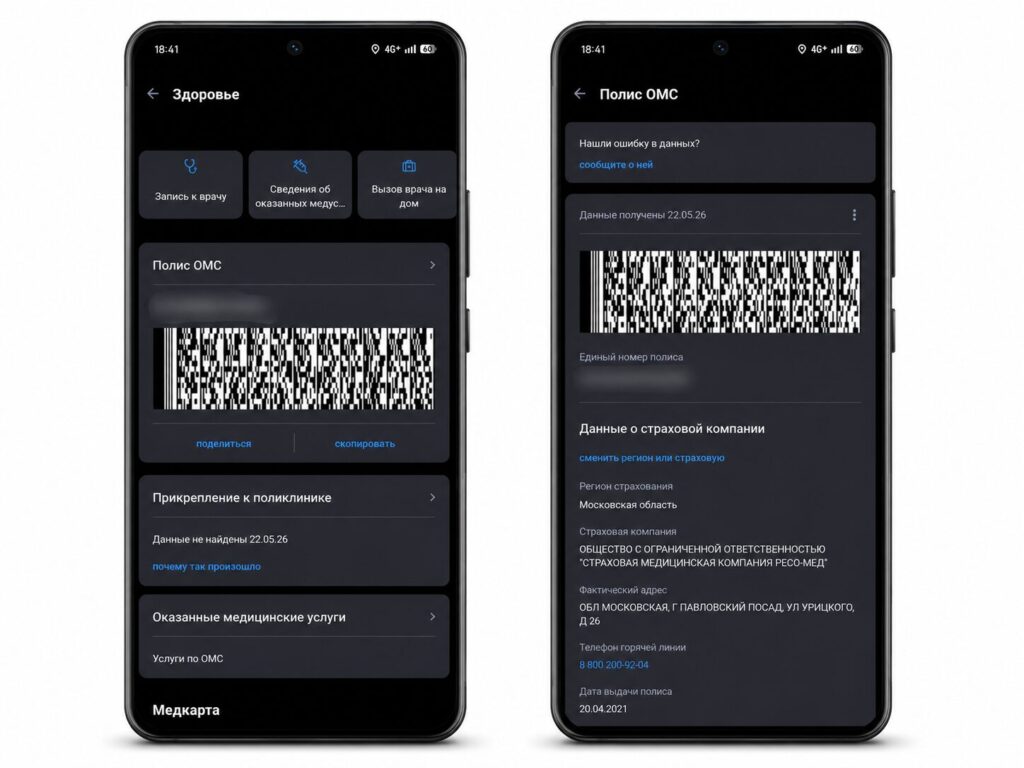
First, check if your account is active and if your insurance policy is linked to it
- A valid OMS (mandatory health insurance) policy. You won’t need to enter anything manually — the data will be pulled automatically. You can verify the number in the “Documents and Data” section, then “Health.”
- Registration at a clinic. This is a mandatory requirement: if you’re not registered, you won’t be able to book. You can find out which clinic you’re assigned to in the “My Clinic” section.
- The Gosuslugi app on Android. It’s free to download from RuStore or Google Play and takes just a couple of minutes.
Since we’re talking about the account, it’s also worth tightening up its security.
Booking a Doctor’s Appointment via Gosuslugi: Step-by-Step Guide
Overall, booking a doctor’s appointment via Gosuslugi on Android is logically organized, but newcomers sometimes stumble on a couple of steps. So let’s go through it in order:
- Open the “Gosuslugi” app and log in, then go to the “Documents” tab.
- Select “Health” and tap the “Book a Doctor’s Appointment” field, then press “Start.”
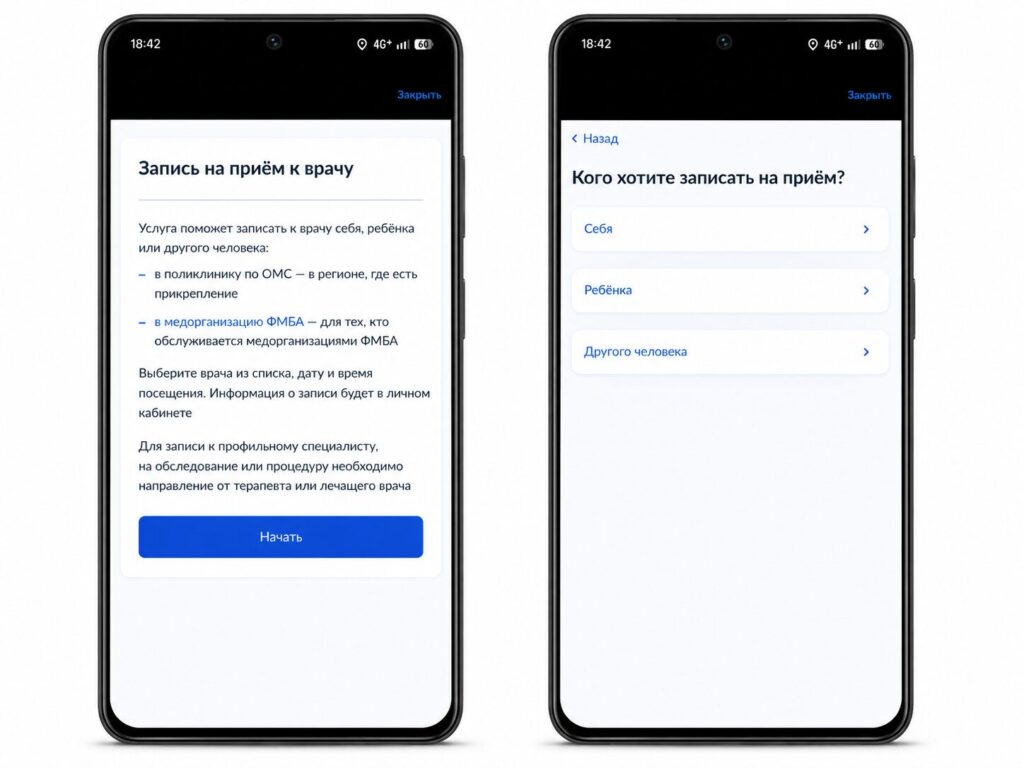
Then go to the booking section and choose a specialist
- Specify who you’re booking for: yourself, a child, or another person.
- Confirm the region — the app will detect it automatically based on your OMS policy data.
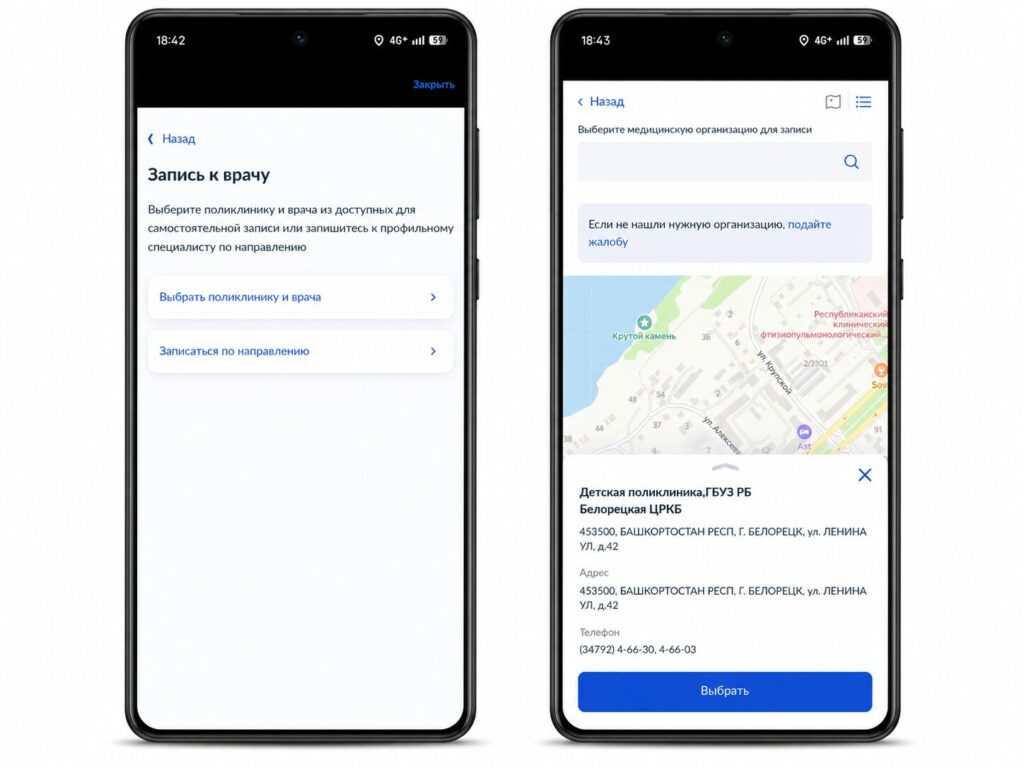
You’ll need to spend a little time searching for the hospital
- Select a medical facility from the list on the map by tapping “Select” next to the one you need.
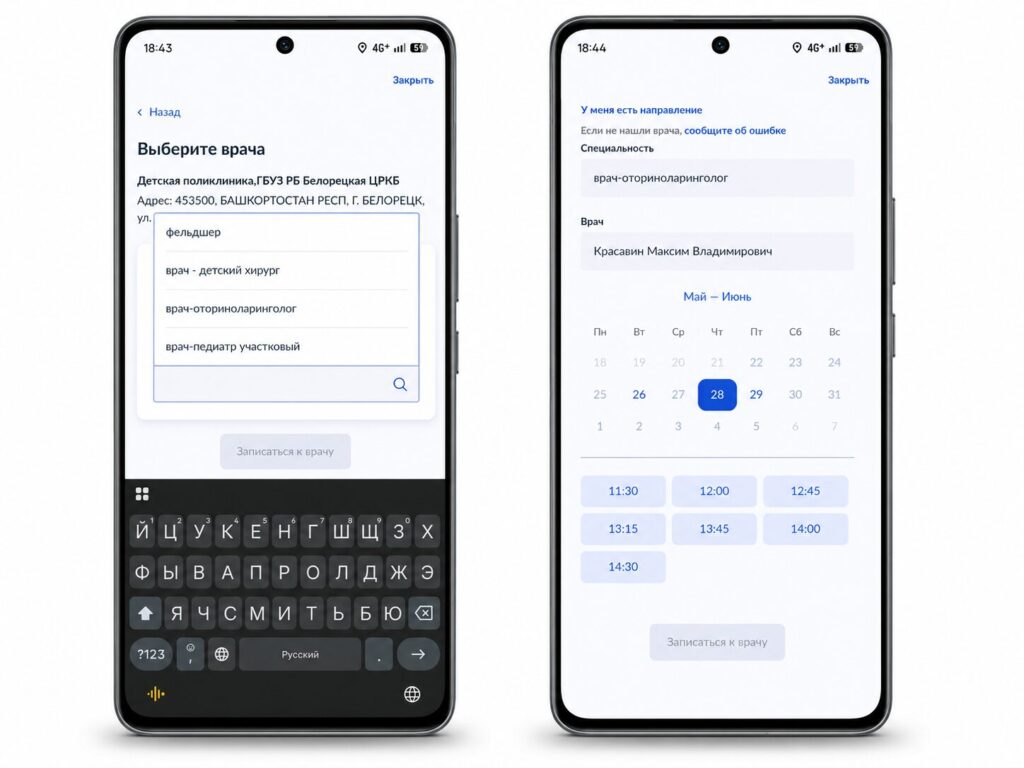
Next, browse available doctors and choose a date
- Select the doctor’s specialty — the list will only show those you can visit without a referral.
- Choose a specific doctor, a convenient date on the calendar, and an available time slot.
- Tap “Book a Doctor’s Appointment” — done, the appointment is confirmed.
Right after that, you’ll receive a notification in the app, and all visit details will be duplicated in the Gosuslugi chatbot.
Booking Another Person Online via Gosuslugi
If you want to book a doctor’s appointment for another person via Gosuslugi, the process is the same. The only difference is that you’ll need to manually enter all the data, including SNILS number, date of birth, and so on. Going forward, the system will remember the data and you won’t need to enter it again — it will automatically fill in the appropriate fields.
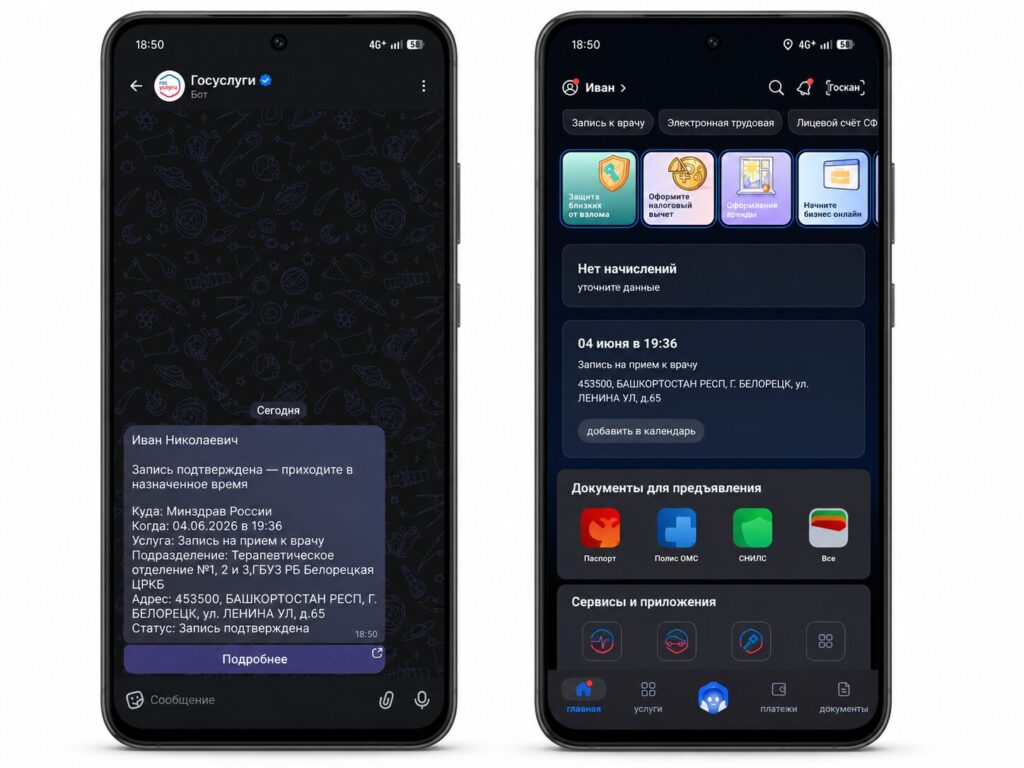
Confirmation arrives right in MAX
You can also book a child’s doctor appointment. But there’s a shortcut here: you can add their data directly through the “Documents and Data” section — “Health,” where all family members are displayed.
How to Book a Doctor’s Appointment via MAX Messenger
Gosuslugi isn’t the only option. Recently, booking a doctor’s appointment via MAX messenger has become available, and sometimes it’s even faster. There’s no dedicated button or section for this — everything revolves around a special bot:
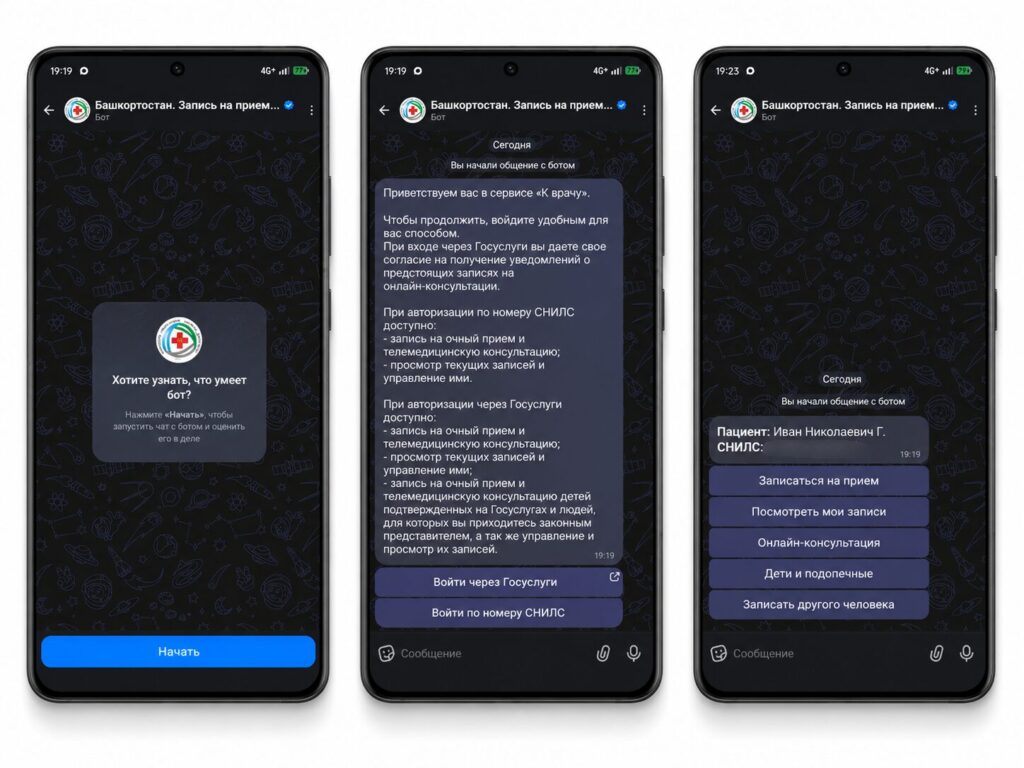
You can also book an appointment through MAX
- Open MAX and find the search bar.
- Type “Book a doctor’s appointment” and add the full name of your region or city.
- Open the bot that appears with a checkmark and launch it.
- Tap “Accept” and enter your SNILS number (you can copy it from the “Digital ID” section).
- Enter your date of birth, tap “Book an Appointment,” and follow the prompts.
The features are practically the same: here you can view all your doctor’s appointments or schedule a visit for a relative without leaving your own account. One thing to note — not all regions are supported yet: currently there are about sixty, with the rest promised to be added later.
Doctor’s Appointment Booking via Gosuslugi Not Working: Causes and Solutions
Sometimes things go wrong at some stage. For example, you might not be able to book through MAX because there’s no clinic registration. Here are other common issues when booking a doctor’s appointment via Gosuslugi:
- No available slots. This means appointments for the next few days have already been taken. Check early in the morning — new slots usually open at the start of the day.
- Clinic not showing up. Most likely, it’s a registration issue. Check it in the “Documents and Data” section, then “Health,” then “My Clinic.”
- Authentication error.


