Apple has significantly overhauled Liquid Glass customization in iOS 27, replacing the limited two-preset system introduced in iOS 26.1 with a continuous transparency slider. The setting has also been moved to a new dedicated “Appearance” section in Settings, consolidating visual options that were previously scattered across different menus. Here’s how the new controls work and how to minimize or effectively disable the glass effect if you prefer a more opaque interface.
What you need to know
- iOS 27 replaces the two Liquid Glass presets (“Transparent” and “Solid”) with a continuous transparency slider that allows fine-grained control.
- The setting has moved from “Display & Brightness” to a new “Appearance” section in Settings, which also houses themes, text size, and interface scale.
- Even at maximum density, the slider cannot fully eliminate the glass effect — complete removal requires Accessibility options (Reduce Transparency and Increase Contrast).
- The same slider is available in iPadOS 27 and macOS 27 Golden Gate; all three updates are currently in public beta with stable releases expected in September.
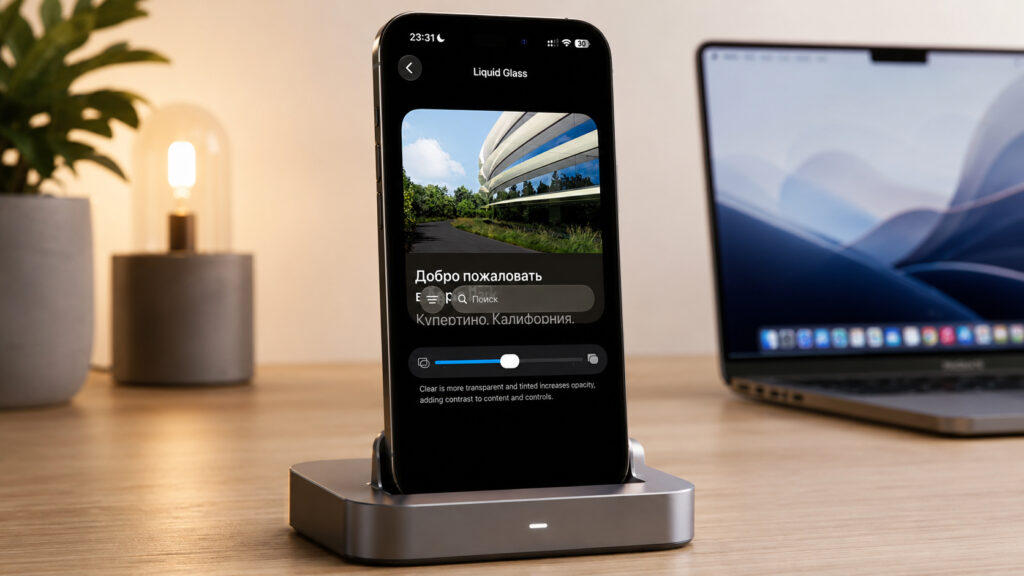
Liquid Glass design can now be customized with much more flexibility
Where to find Liquid Glass settings in iOS 27
In iOS 26, Liquid Glass customization was minimal. Presets only appeared in iOS 26.1, offering just two choices — “Transparent” and “Solid” — buried inside the “Display & Brightness” section alongside theme and text size options.
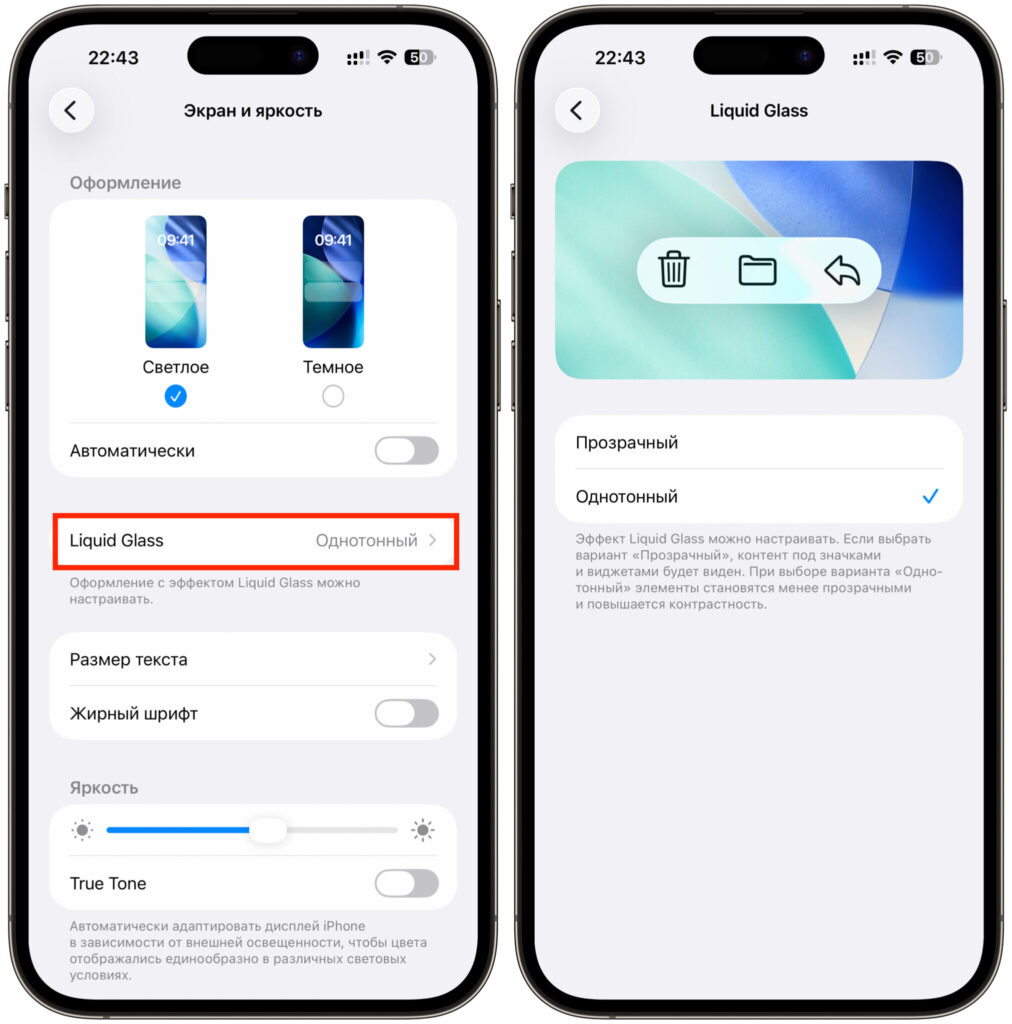
This is how the setting looked in iOS 26
iOS 27 takes a completely different approach. First, the two fixed presets have been replaced by a continuous transparency slider, letting you set the effect anywhere between a barely visible glass and a dense matte fill. Second, the setting has been relocated to a new “Appearance” section in Settings. Apple has consolidated light and dark themes, text size, and interface scale into this same section — options that were previously spread across different areas.
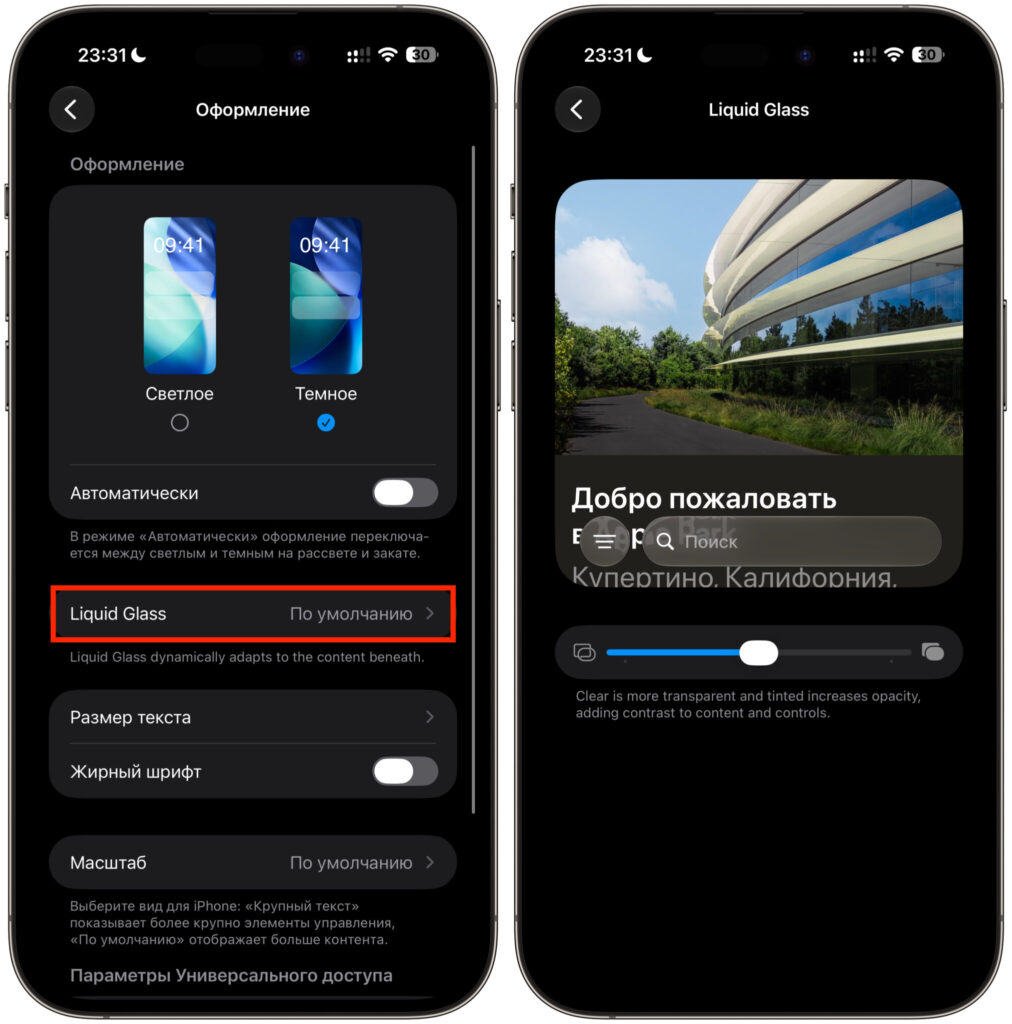
The redesigned interface in iOS 27
The default glass effect has also been refined. According to the source author, Apple says the glass now blurs complex content more cleanly and separates interface layers more distinctly. The icon panel and search bar look noticeably different between iOS 26 and iOS 27 even at the slider’s midpoint.
How to change Liquid Glass transparency on iPhone
When you first install iOS 27, the system presents the transparency slider during setup, so you can configure the glass effect right from the start. If you skipped that screen or want to change it later, follow these steps:
- Open Settings on your iPhone.
- Go to Appearance.
- Select Liquid Glass.
- Drag the slider left for a more transparent effect, or right to add density and tinting.
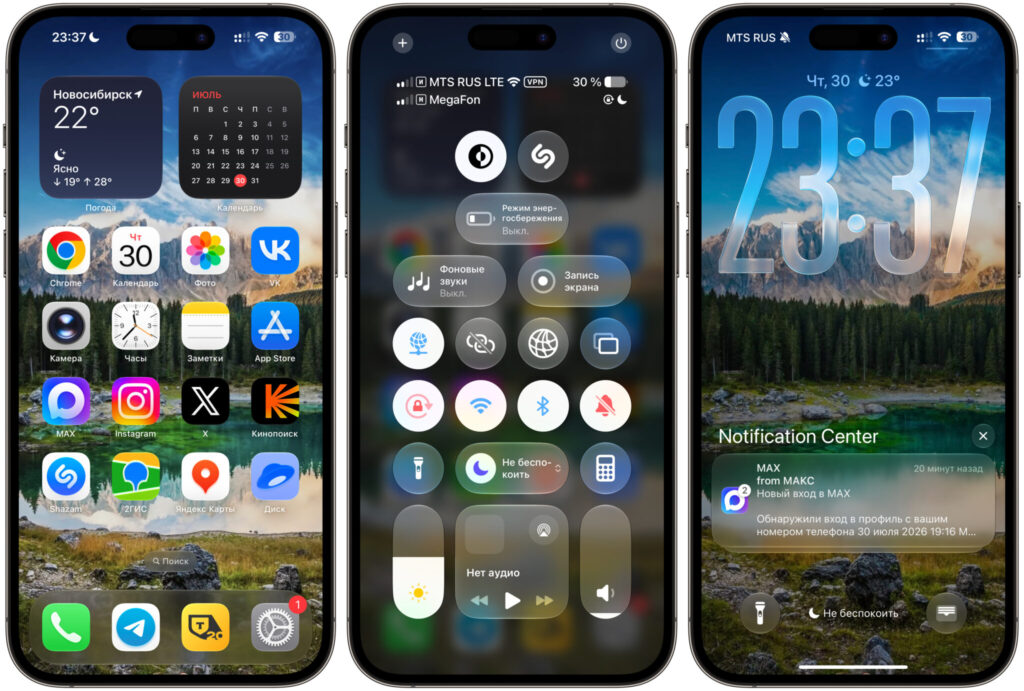
Liquid Glass set to minimum
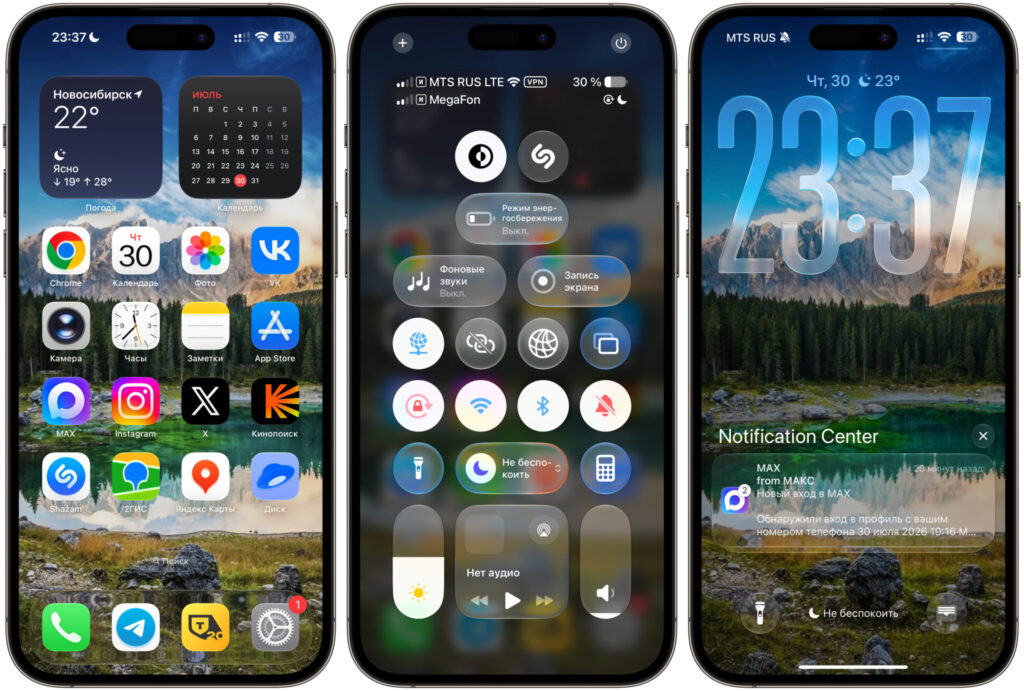
Liquid Glass set to maximum — note the dock and notification background
The middle of the scale represents Apple’s default value. The preview updates in real time as you move the slider, so there’s no need to exit Settings to check the result. Note that this setting applies to the entire interface — it affects Control Center, home screen folders, lock screen notifications, and pop-up panels within apps.
How to fully remove interface transparency in iOS 27
Even at its densest setting, the iOS 27 interface retains some glass-like quality — the slider alone cannot completely eliminate the effect. For a more aggressive reduction, two Accessibility options can help:
- Reduce Transparency removes most translucency, leaving flat, solid backgrounds.
- Increase Contrast makes boundaries between buttons, text, and backgrounds noticeably sharper.
To access these toggles:
- Open Settings.
- Go to Accessibility.
- Select Display & Text Size.
- Enable Reduce Transparency and/or Increase Contrast.
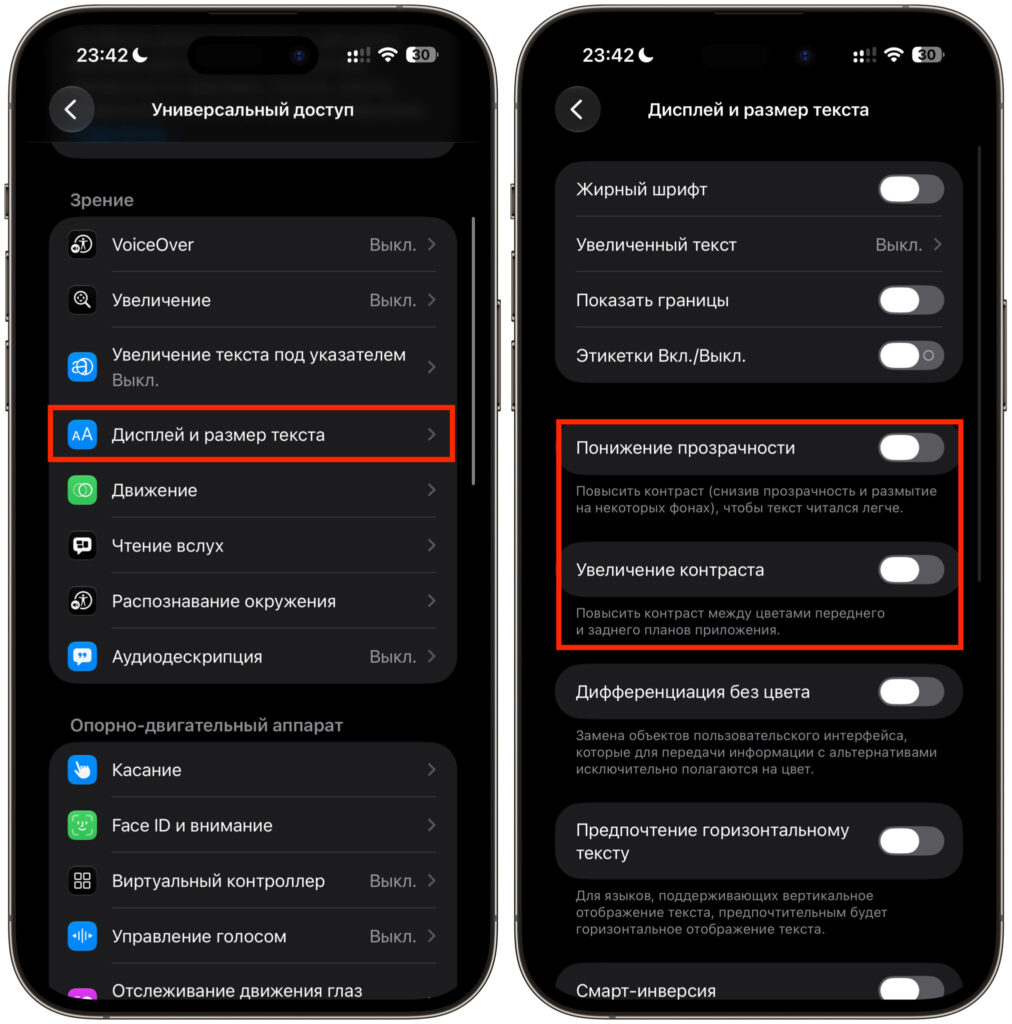
Transparency can also be disabled through Accessibility settings
Both toggles work on top of the Liquid Glass slider, so you can combine them for maximum effect.
Which devices support the Liquid Glass slider
The transparency slider isn’t limited to iPhone. In iPadOS 27, it’s located in the same “Appearance” section, while in macOS 27 Golden Gate it can be found in System Settings.
All three updates are currently available in public beta, with stable releases expected from Apple in September. Since these are beta versions, specific behaviors and menu locations could still change before the final release.
The source author notes that the slider replacing the two-preset system addresses what many felt was missing since Liquid Glass first launched — the ability for each user to find their own balance between visual appeal and readability.


