You can put a visible date on Android photos in two ways. For new shots, many phones’ camera apps offer a date-and-time watermark. For older shots, some built-in gallery editors can stamp the date afterward. If the date stored in the file itself is wrong, fix the photo’s metadata first. The source author walks through each method on a vivo X300. Menu names vary by manufacturer, so treat the steps below as a guide rather than universal instructions.
What you need to know
- Android phones usually save the capture date and time in the photo’s EXIF metadata. You can view it on the gallery’s information screen.
- On many phones, including various Xiaomi and vivo models, the camera’s watermark setting can print the date and time directly onto new photos.
- Some built-in gallery editors, including vivo’s, can add a date watermark to photos taken earlier.
- Changing EXIF data with a tool such as Photo Exif Editor does not change a date that is already stamped onto the image.
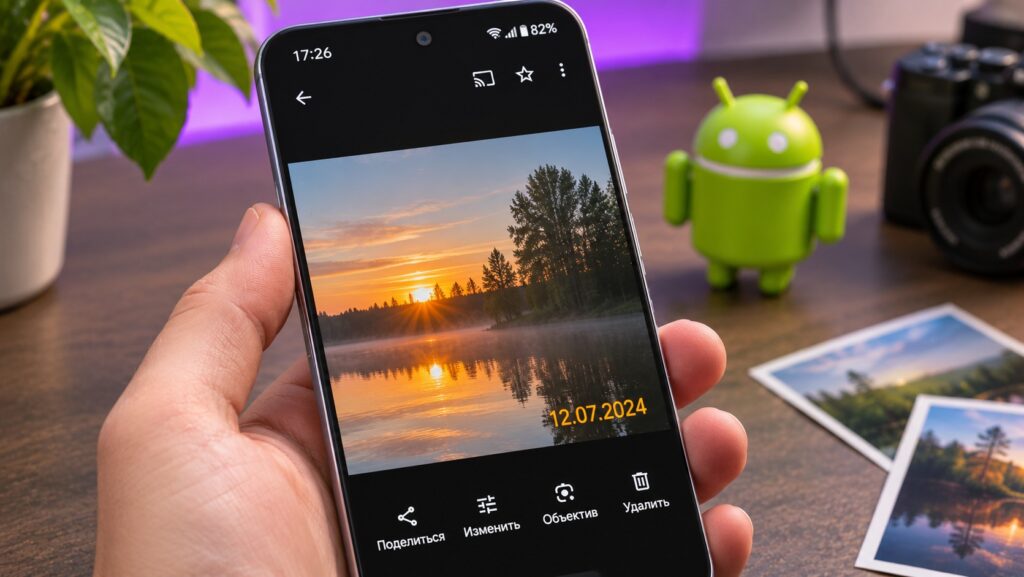
A date on a photo from an Android smartphone
Older digital cameras often printed the shooting date in a corner of the frame. Smartphones usually store this information in the file’s properties instead, so no numbers appear on the picture. A visible date can still be handy, for example when you are building a family archive or sending old photos to relatives.
How to check when a photo was actually taken
A photo with no visible date usually still carries its capture time. The date and time are written into the image’s embedded data, known as EXIF. EXIF can also store the camera model, shooting settings and location coordinates.
You can check a photo’s date with the standard gallery app:

- Open the Gallery app.
- Select the photo you want to check.
- Tap the information icon at the top of the screen.
- Find the capture date and exact time in the details that appear.
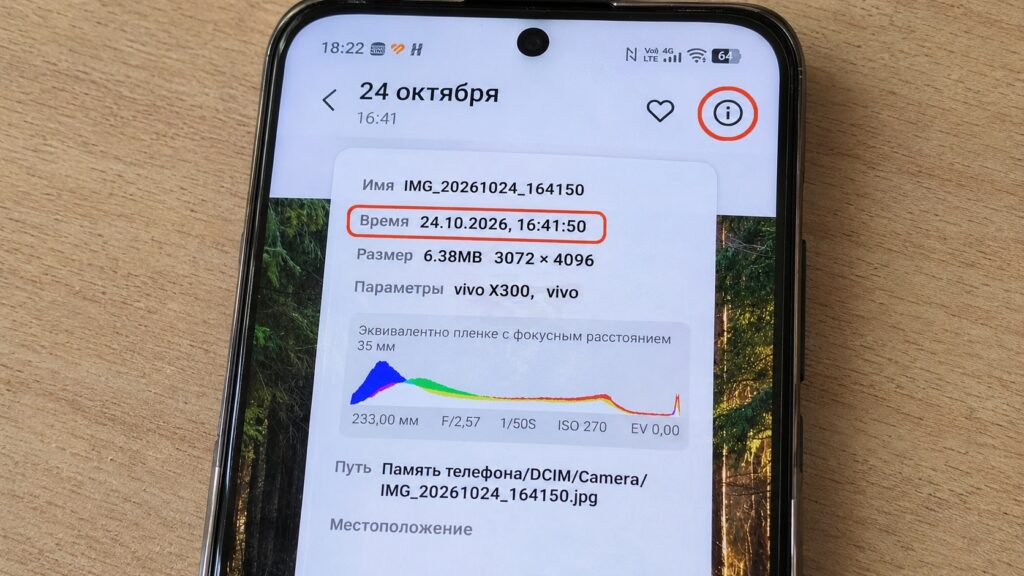
Checking the date and time of an existing photo
The source author reports that on a vivo X300, this screen shows the day and the time down to the second. It also lists the file name, size, resolution, camera settings and file path. Most Android phones have a similar details screen, although on some models you open it through the three-dot menu or a “Details” option.
Why the stored date can be wrong
The date in a photo’s properties does not always match when the picture was really taken. If the camera’s clock was set incorrectly, the stored information will be wrong too. If the photo was sent through a messaging app or edited, some of the original information may have been lost.
How to make the camera stamp the date automatically
To show the date and time on the image itself, use the camera’s watermark feature. According to the source, many current Android phones offer it, including various Xiaomi and vivo models. Menu names and styling options differ between manufacturers. The source author enabled the date on a vivo X300 like this:

- Open the Camera app.
- Go to “More settings.”
- Select “Watermark.”
- Open “Text watermark.”
- Turn on the “Date and time” toggle.
- Change where the text appears, if you want.
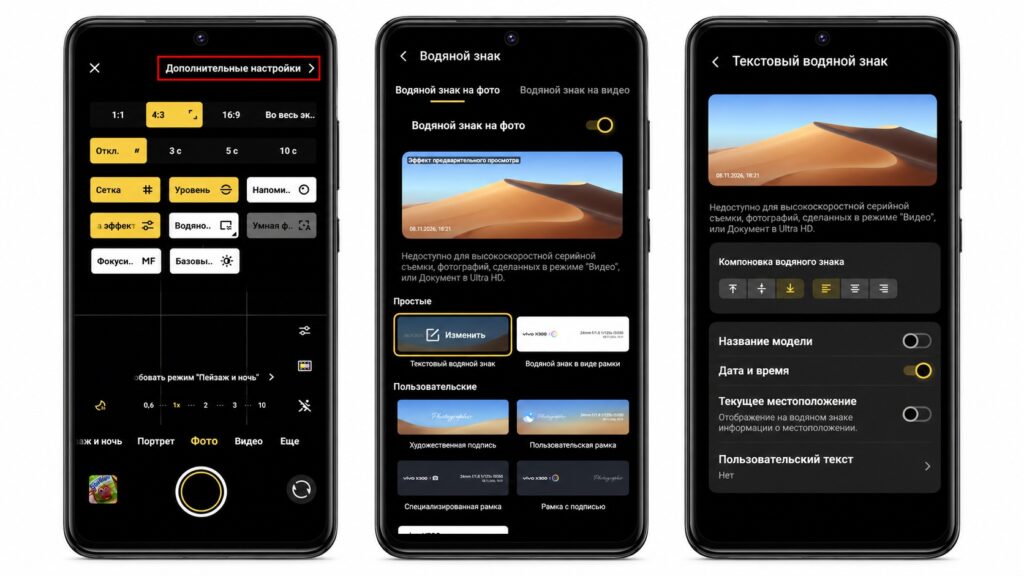
Setting up a date watermark in the camera app
The same menu can also add the phone model name, location details or custom text. If you only want the date, the source suggests turning the other options off. That leaves small, neat numbers in the corner of the photo that do not distract from the image. Once the feature is on, the camera adds the date and time to new shots.
The numbers become part of the image, not just information in the file’s properties. If you send the photo to someone else, the date stays visible.
Xiaomi and Redmi phones also offer similar tools, and the source notes that Xiaomi’s built-in photo editor in HyperOS was recently updated. The source recommends checking what your phone’s own camera can do before installing a third-party app.
How to add a date to photos you have already taken
If you did not turn on the date before shooting, you do not need to retake the photo. Built-in editors on some Android phones can add watermarks to existing images. The source author tested this in vivo’s standard gallery app:

- Open the photo in Gallery.
- Tap “Edit.”
- Choose the “Watermarks” tool.
- Pick a template and open its settings.
- Tap “Date and time” and choose a format.
- Adjust the watermark size and save the photo.
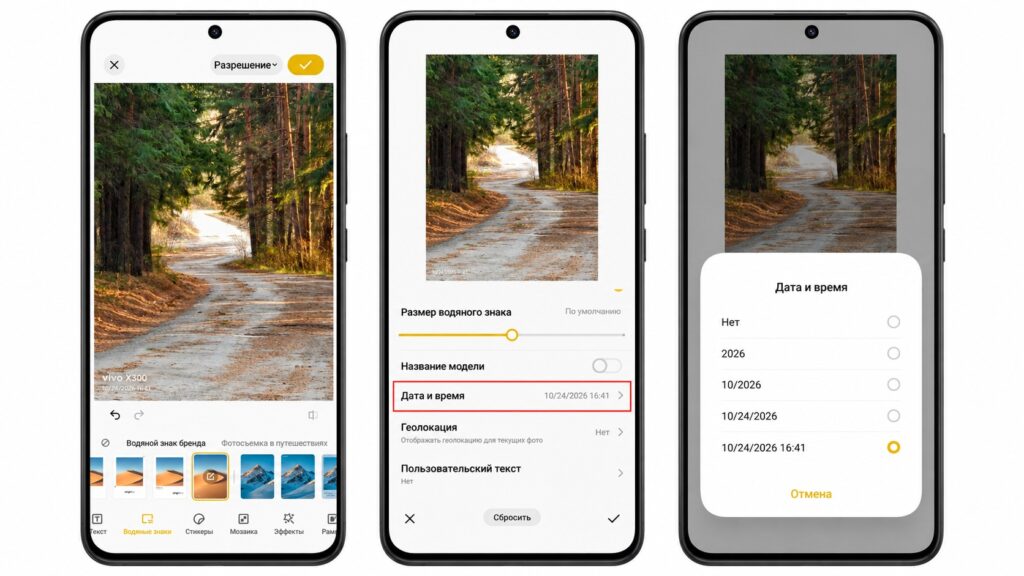
Adding a date watermark through the gallery app
According to the source, the gallery editor offers more options than the camera. You can show only the year, the month and year, the full date, or the date together with the time. You can also change the text size and add the phone model name if you want.
When saving, vivo lets you either overwrite the original or create a copy. The source author recommends saving a copy: the original stays free of text, and you can send the dated version to relatives, print it or keep it in a separate album.
If your gallery has no such tool, a third-party photo editor that can add text is an alternative. However, you may have to type the date in manually.

How to fix a wrong date in a photo’s metadata
Sometimes the stored date is simply wrong. For example, a photo taken on 23 October might show the 24th in its properties. A watermark will not fix this. You need to correct the capture date saved in the file’s metadata.
For this, the source author tried Photo Exif Editor by Banana Studio. The app lets you view and edit a photo’s embedded information, including the capture time. The process works like this:
- Install Photo Exif Editor and open it.
- Tap “Photos” and select the image.
- Find the “Date taken” section.
- Tap the photo’s current date.
- Choose either “Set date” or “Shift by.”
- Enter the correct values and confirm.
- Tap the save icon. If Android asks, allow the app to modify the photo.
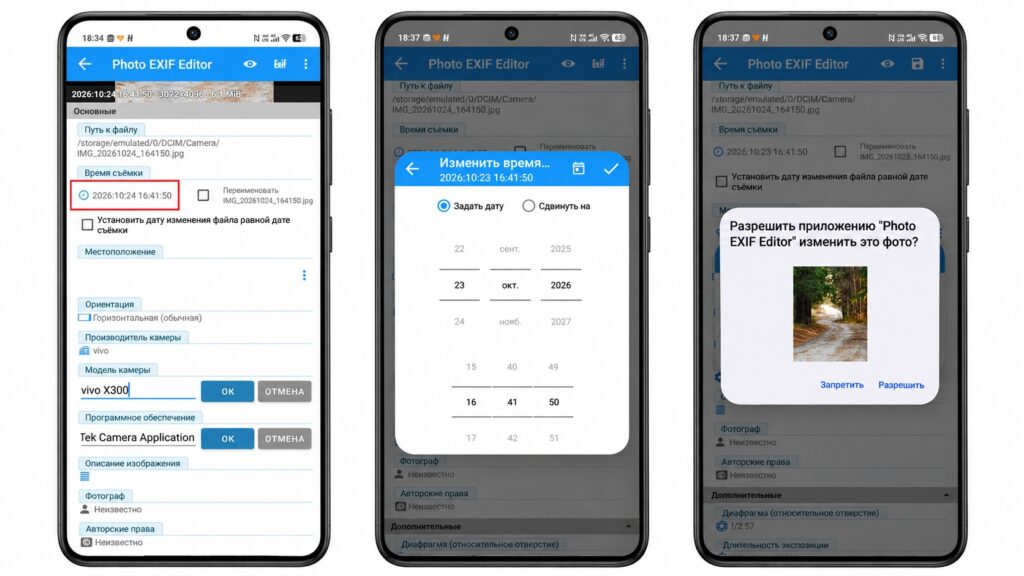
Changing the date in a photo’s metadata
“Set date” lets you enter the year, month, day and exact time yourself. “Shift by” moves the date by a fixed amount, which helps when the camera’s clock was set wrong. The app can also rename the file to match the new date and make the file’s modification date match the capture date.
Fix the metadata first, then add the watermark
Editing EXIF data does not change numbers already stamped onto a photo as a watermark. If you need to correct both the file properties and the visible date, the source advises fixing the capture date first and then adding a new watermark. To be safe, work on a copy of the original image.