Google is testing a redesigned settings menu for Chrome on Android. The menu adds colored icons, drops the separate “Basics” and “Advanced” headers, and moves some options to new locations. For now, the change is limited to Chrome Canary, Google’s experimental build. If the redesign reaches the regular version of Chrome, some familiar toggles will sit in a different section. One example is the toggle that moves the address bar to the bottom of the screen. Google has not given a date for the stable release, and the interface could still change.
What you need to know
- Android Authority found the reworked settings menu in Chrome Canary, Google’s experimental version of the browser.
- Settings entries get colored icons. The “Basics” and “Advanced” headers are replaced by groups separated by blank space.
- Address bar and homepage settings move out of the main menu and into the Appearance section.
- Testers can turn on the new menu with the “Settings IA Reorganization” flag. Google has not announced a date for the stable release.
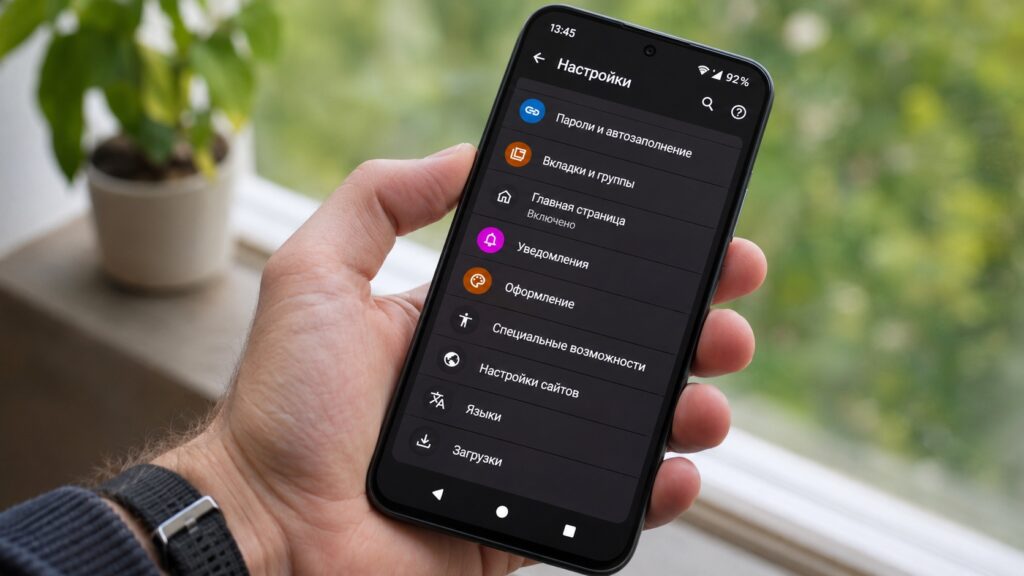
The updated Google Chrome settings menu on Android
Why Google is changing the menu
Chrome on Android keeps gaining new features, but its settings can be hard to navigate. Some toggles are buried so deep that searching online for instructions can be easier than finding them in the app. The redesign in testing goes beyond appearance. It changes where some items are located and removes the menu’s current division into sections.
Colored icons similar to Chrome on iOS
Android Authority spotted the changes in Chrome Canary. The most visible difference is the colored icons next to settings entries. The current Android menu has a plainer look. The new version resembles Chrome for iOS, with separate icons for sections such as privacy, accessibility and appearance. In a long list, this lets users recognize a section by its icon as well as its name.

The “Basics” and “Advanced” headers also disappear. Settings are instead arranged in groups separated by blank space.
Address bar and homepage settings move to Appearance
A more practical change affects where some options are located. In the test version, address bar and homepage settings no longer appear as separate items in the main menu. They are placed inside the Appearance section instead. Both settings control how the browser looks, so the grouping is logical. For example, if you want to move the address bar to the bottom of the screen, you would look for that toggle in Appearance.
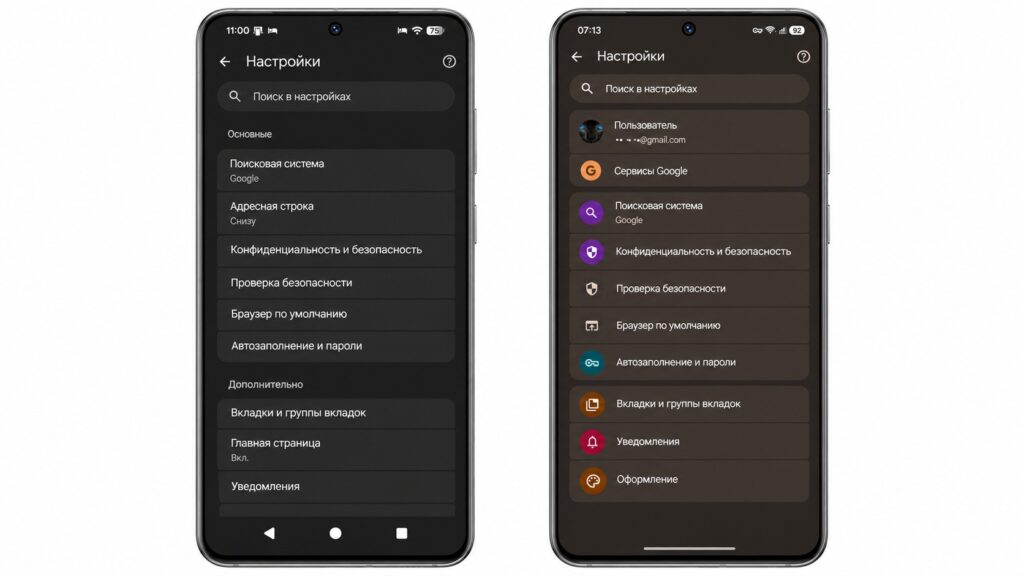
The old and new Google Chrome settings menus on Android

What the redesign does not change
Google has not shown any major new features as part of this test. The work focuses on organizing the settings Chrome already has. The update does not address the limited flexibility of Chrome’s settings compared with some other browsers. It should, however, make familiar options a little easier to find.
How to try the new settings in Chrome Canary
The redesigned settings are currently available only in Chrome Canary. Google uses this experimental build to test changes before a possible wider release. To see the new interface:
- Install Chrome Canary from Google Play.
- Open the browser and enter chrome://flags in the address bar.
- Search for the Settings IA Reorganization flag.
- Set it to Enabled.
- Tap Relaunch to restart the browser.
- Open the Chrome menu and go to Settings.
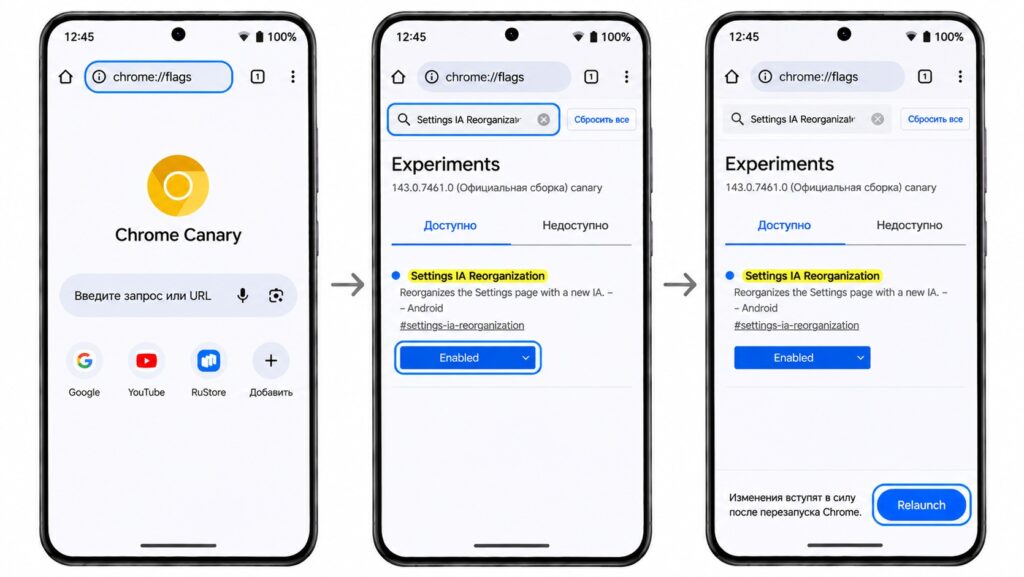
Enabling the new Google Chrome settings design
Caveats
- The new design appears only if the experiment is available in the Canary build you have installed.
- Canary can be unstable, so you do not need to replace your regular Chrome with it.
- Google has not announced when the new settings will reach the stable version of Chrome.
- The interface is still being tested and may change.
What this means for Chrome users
Google’s goal appears to be a clearer, more logical settings menu in Chrome on Android. If you rely on older guides to find specific toggles, some of them may be in different sections if the redesign reaches the regular version of Chrome.