Android does not show a separate line for update data. You can work it out from the per-app data counters, where app stores such as Google Play and the system update service appear as their own entries. App updates arrive often but are usually small. A major system update is the largest single download and can be several gigabytes on its own. The source author checked this on a vivo X300 running OriginOS 6. The steps below show where the counters are, how to keep Google Play and firmware downloads on Wi-Fi, and how to set a mobile data cap. Menu names vary between brands and software versions.
What you need to know
- Android has no dedicated update counter. On the source author’s phone, update traffic appears under Google Play, other app stores and the system update service, with Wi-Fi and mobile data counted in separate places.
- The source cites more than 3 GB for One UI 9 on the Galaxy S25, about 550 MB for interim beta builds, and roughly 5.3 GB for the move to HyperOS 3 on the REDMI Note 14.
- Google Play lets you set automatic app updates to Wi-Fi only or turn them off. A middle option uses mobile data only for the most important apps when Wi-Fi is unavailable.
- On the author’s OriginOS 6 phone, Smart update downloads a new version over Wi-Fi and installs it between 01:00 and 05:00, when the phone is not in use.
A smartphone downloading an update
Your phone downloads updates while you sleep
By default, Android and app stores try to keep everything updated automatically. According to the source, Google Play installs new app versions when the phone is on Wi-Fi and idle. The system also downloads firmware and security patches in the background. Many owners only notice when they see a prompt to restart the phone to finish an update.
This used to matter mainly to people on small mobile data plans. The source frames the question more broadly for readers in Russia, where the Ministry of Digital Development has discussed extra charges for foreign traffic: above 15 GB in the spring, and a 50 GB threshold for 5G in the autumn. The source notes that Android and Google Play updates come from foreign servers. These were proposals under discussion, not rules in force. Even so, the author argues it is worth knowing how much data updates consume and how to slow them down.
Where update traffic shows up
Android tracks data use for each app, including the stores that download updates. On the source author’s phone, Wi-Fi and mobile data usage are listed in separate sections, so you need to check both. Updates usually download over Wi-Fi, so the author suggests starting there. The menu labels below are translated from the author’s vivo device and may be worded differently on yours:

- Open Settings and go to Wi-Fi.
- Scroll to the bottom of the network list and tap Wi-Fi data.
- Select the Month tab.
- Scroll through the monthly traffic ranking and look for Google Play Store, any other app store you use, and the system update service.
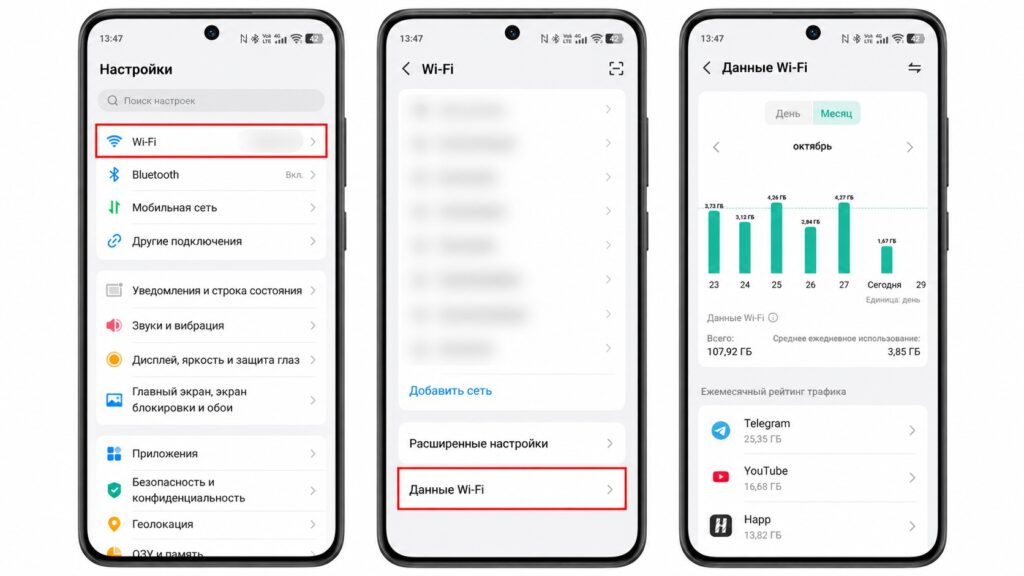
Checking Wi-Fi data usage on Android
The app store entries represent downloaded app updates. Firmware traffic is recorded differently depending on the brand: some phones log it under the system update service, while others fold it into a general system entry. You will probably have to scroll down to find these entries, because messaging and video apps usually sit at the top. The author reports nearly 108 GB of Wi-Fi use in October, with Telegram and YouTube at the top of the list.
If updates are also allowed over mobile data, check the second counter:
- Open Settings and go to Mobile network.
- Tap Data usage management.
- Tap Details next to the average daily usage figure.
- Select the Month tab and look for the app stores in the traffic ranking below the chart.
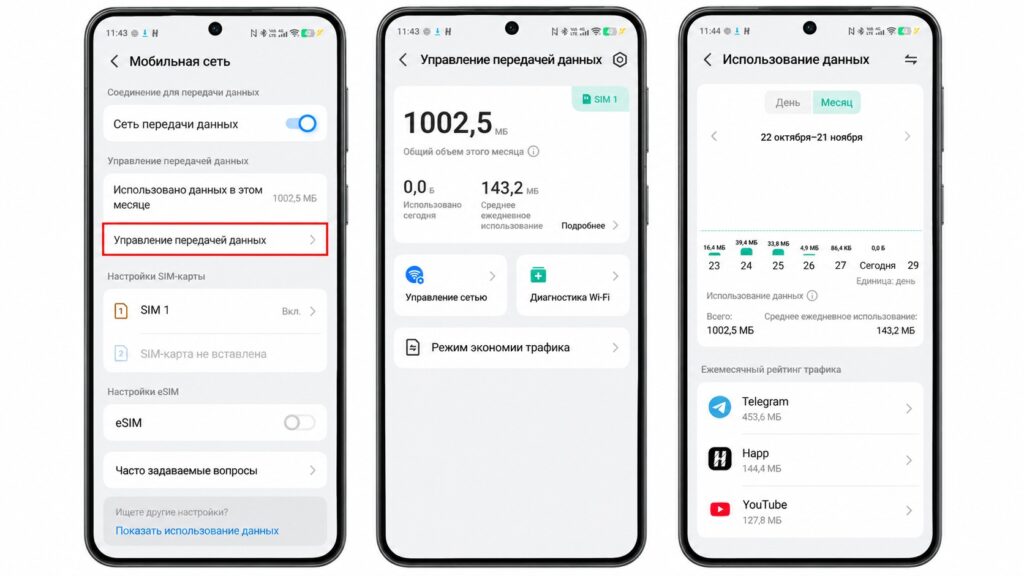
Checking mobile data usage
The author used about 1 GB of mobile data since the start of the billing period. Updates were not allowed over mobile data, so the ranking showed only ordinary apps.
On other brands, menu names may differ, and on Xiaomi phones running HyperOS the counter sits in a separate section. The source suggests the easiest approach is to search the settings for words such as “Data” or “Traffic”. If an app you rarely use appears near the top of the list, it may be using data in the background. That is a separate issue, but worth checking at the same time.

Google Play updates everything by default
If the Google Play entry is large, the usual reason is that every app from the store updates automatically by default, including apps you have not opened in months. You can choose which network these downloads use in the store’s settings:
- Open Google Play and tap your profile icon.
- Choose Settings and expand Network preferences.
- Tap Auto-update apps.
- Choose to update over Wi-Fi only, or not to auto-update apps.
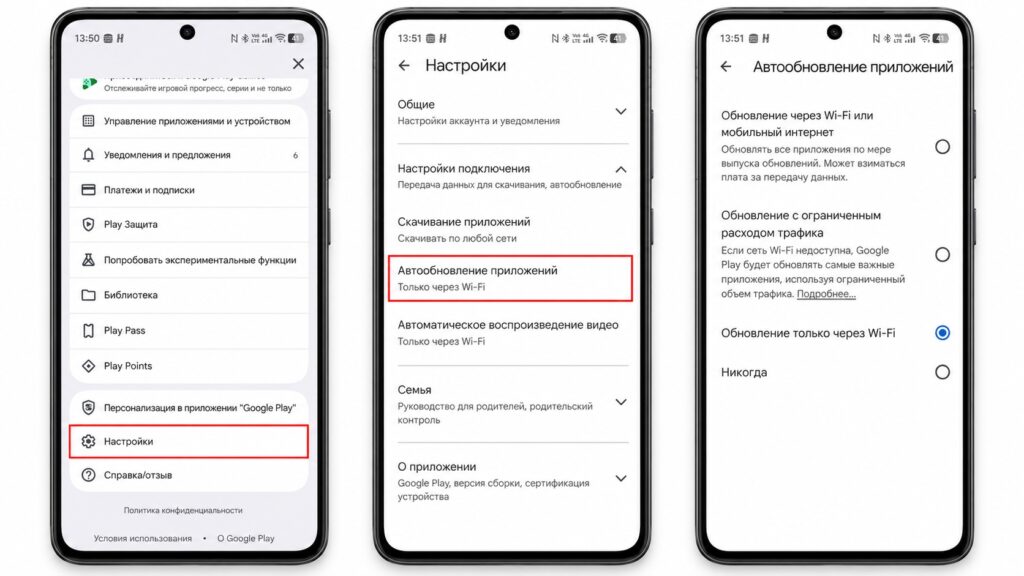
Setting up automatic updates in Google Play
The same menu has an intermediate option for limited data use. When Wi-Fi is unavailable, Google Play will then update only the most important apps over mobile data. The source advises turning updates off completely only if you are prepared to install them manually about once a week, because new versions often fix security holes. Another compromise the source mentions is keeping automatic updates on only for selected apps, such as banking and messaging apps.
Other app stores have their own settings
Apps installed from other stores are not covered by Google Play’s settings, and their updates consume data too. The source uses RuStore, a Russian app store, as an example: it offers no choice of network, only an on/off switch for automatic app updates in its update and download settings.
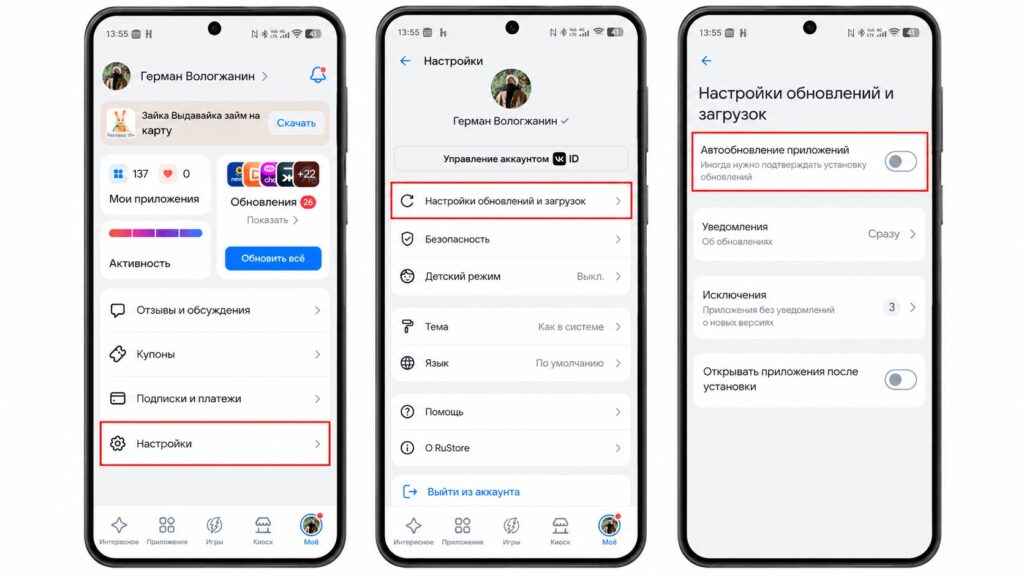
Setting up automatic app updates in RuStore

The author keeps that store’s automatic updates off and reports 26 pending updates, which they install all at once with an Update all button while connected to Wi-Fi. The source also gives one tip for anyone using two stores: if the same apps are installed from both, disable automatic updates in at least one of them so the same updates are not downloaded twice.
Holding back firmware downloads
A new firmware version uses the most data in one go. On the author’s OriginOS 6 phone, firmware can download and even install by itself. The author describes how to turn this off:
- Open Settings and go to System update.
- Tap the three dots in the top-right corner and select Update settings.
- Turn off automatic download over Wi-Fi.
- If you do not want updates to install by themselves overnight, also turn off Smart update.
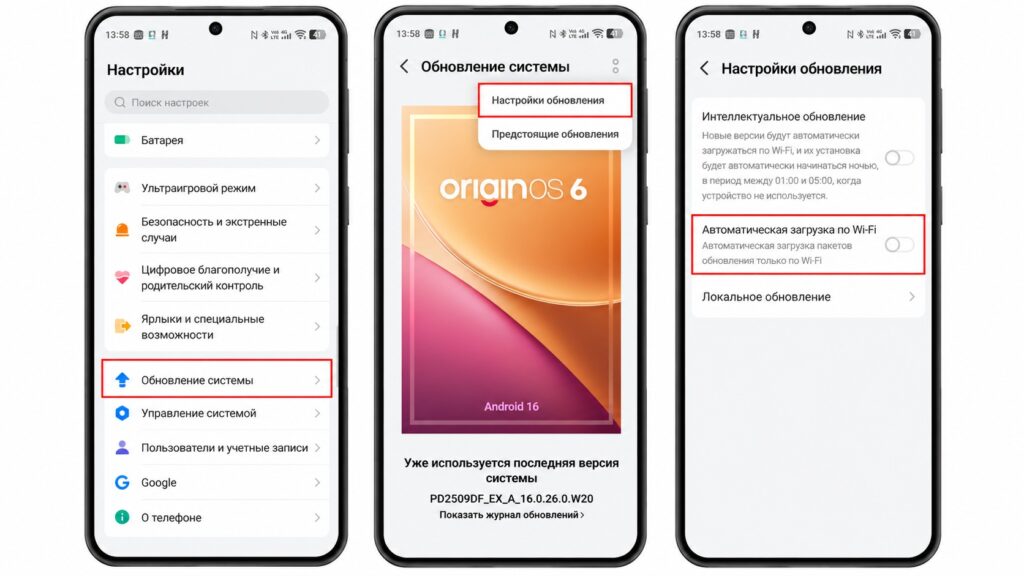
Restricting automatic system update downloads
Smart update downloads the new version over Wi-Fi and installs it between 01:00 and 05:00, when the phone is not in use. It is convenient, but gigabytes are used without asking, and you only find out about the update the next morning.
Menu names differ on other brands. According to the source, Samsung has a similar switch under Software update, and Xiaomi has one in the section showing the HyperOS version. The source advises against blocking system updates entirely. Instead, it suggests installing them manually at a convenient time and not delaying security patches for long.
A safety net for mobile data
If an update does start downloading over a mobile network, a carrier’s data allowance can run out in a single evening. The author’s phone has no hard limit for home Wi-Fi. For mobile data, however, it can both warn you and switch off data once a set amount has been used:

- Open Settings, then Mobile network, then Data usage management.
- Tap the gear icon in the top-right corner.
- Under Billing day, enter the day your carrier resets your allowance.
- Open Data usage limit.
- Turn on the data usage reminder and set a warning threshold.
- Turn on the data usage limit and set the amount after which mobile data will be switched off.
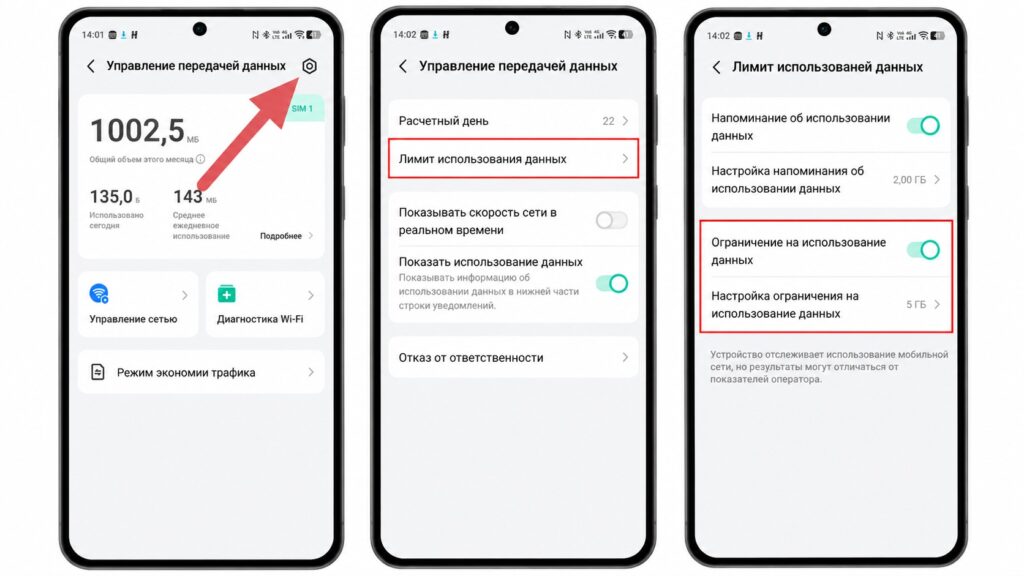
Setting a data usage limit
The author has the reminder set at 2 GB and the cut-off at 5 GB. With those settings, even a large firmware download cannot quietly use up the whole allowance.
The phone measures data use itself, so its figures may differ slightly from your carrier’s. The system warns about this directly below the setting. Menu names may differ on other brands. The same Data usage management section also includes a data saver mode.
One system update is the heaviest download
Apps update frequently but in small amounts, while a major system update can weigh several gigabytes at once. The source cites a report that getting One UI 9 on the Galaxy S25 requires downloading more than 3 GB, while interim beta builds were about 550 MB. According to the source, the move to HyperOS 3 on the REDMI Note 14 required roughly 5.3 GB.
The author concludes that a single system update would still fit within the 5G thresholds discussed in Russia, if such a quota were ever introduced. But if the system, a dozen apps and a couple of games all update at once, a data limit could run out faster than you might expect. The author’s practical advice is to find the app store and system update entries in both counters and set updates to download over Wi-Fi only.