If it feels like your iPhone is bombarding you with notifications every few minutes, it’s not just a feeling — it’s a statistic. On average, a person receives 146 notifications per day, and for younger audiences, the number is even higher. iOS 26 has several built-in tools that help eliminate this noise without third-party apps.
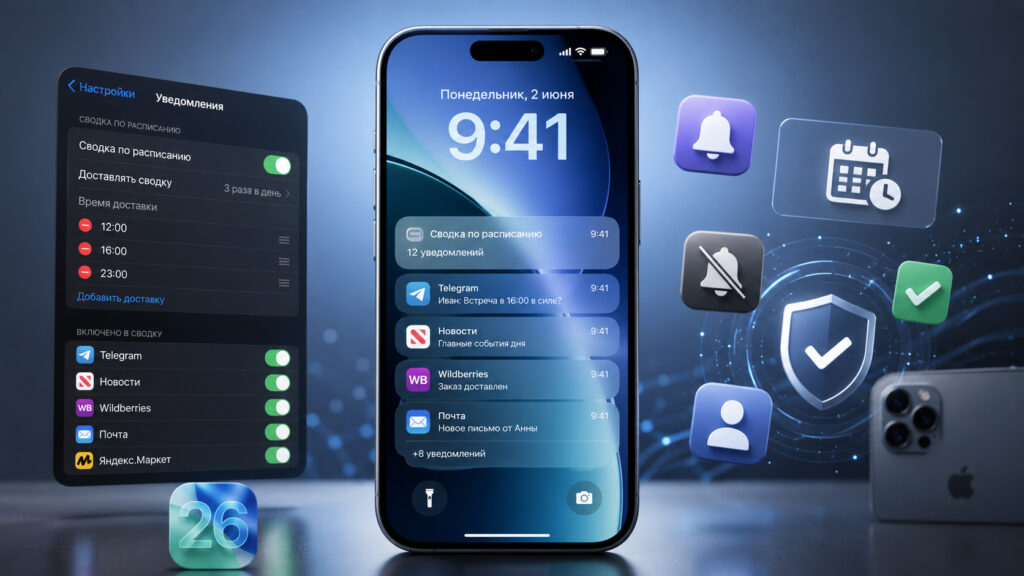
iOS has interesting notification settings that you definitely shouldn’t ignore
How to Set Up Scheduled Notification Delivery in iOS 26
Constant notifications popping up on the screen break your concentration and drain the battery faster because the display turns on dozens of times per hour. That’s why it makes sense to spend five minutes on setup — rather than endure an endless stream of alerts.
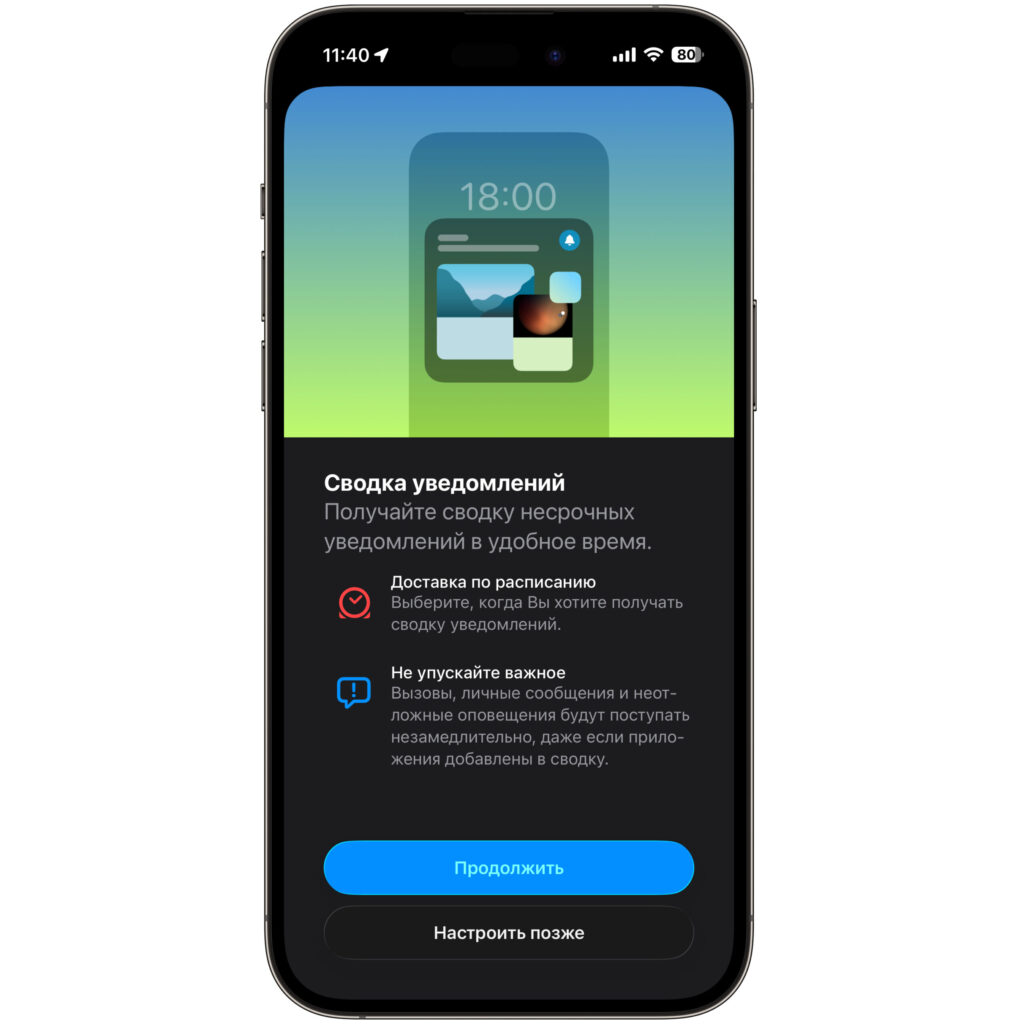
The summary will collect non-essential alerts and deliver them at your chosen time
Often what irritates you isn’t the number of notifications but their frequency. Scheduled Summary collects non-essential alerts into one or two batches per day — for example, morning and evening — instead of constantly buzzing your phone. Urgent notifications still come through immediately. The system automatically analyzes which apps send you the most alerts and suggests adding them to the summary.
How to enable the summary:
- Open the Settings app
- Go to the Notifications section
- Tap Scheduled Summary
- Turn on the Scheduled Summary toggle
- Tap Continue
- Choose the times when summaries should arrive
- Select the apps whose notifications should go into the summary
- Go back to save the settings
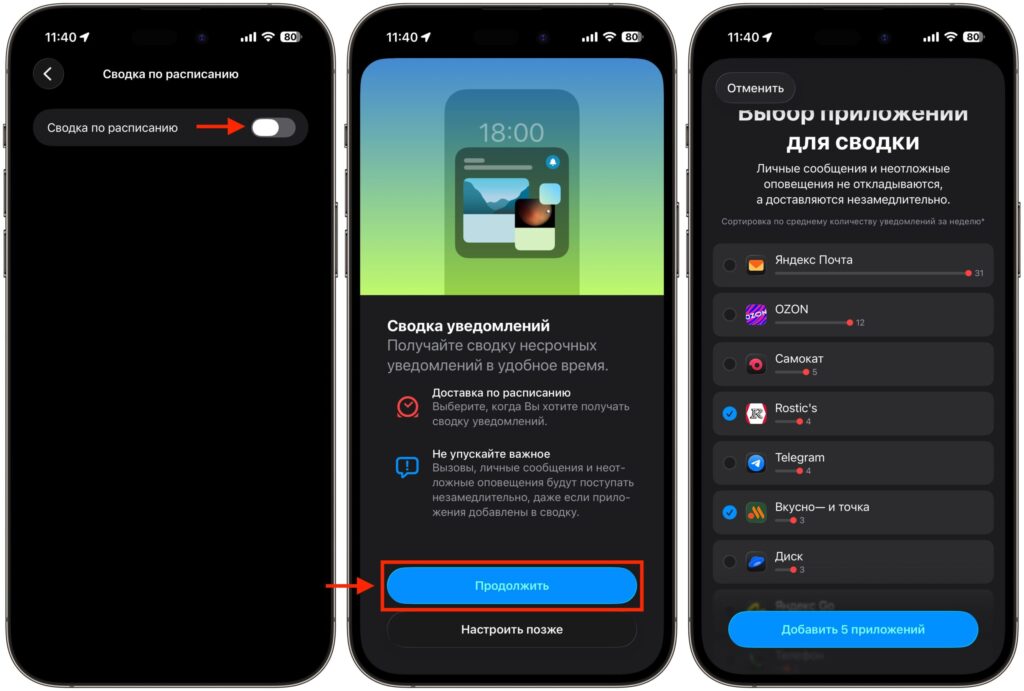
Activate the toggle and start the setup
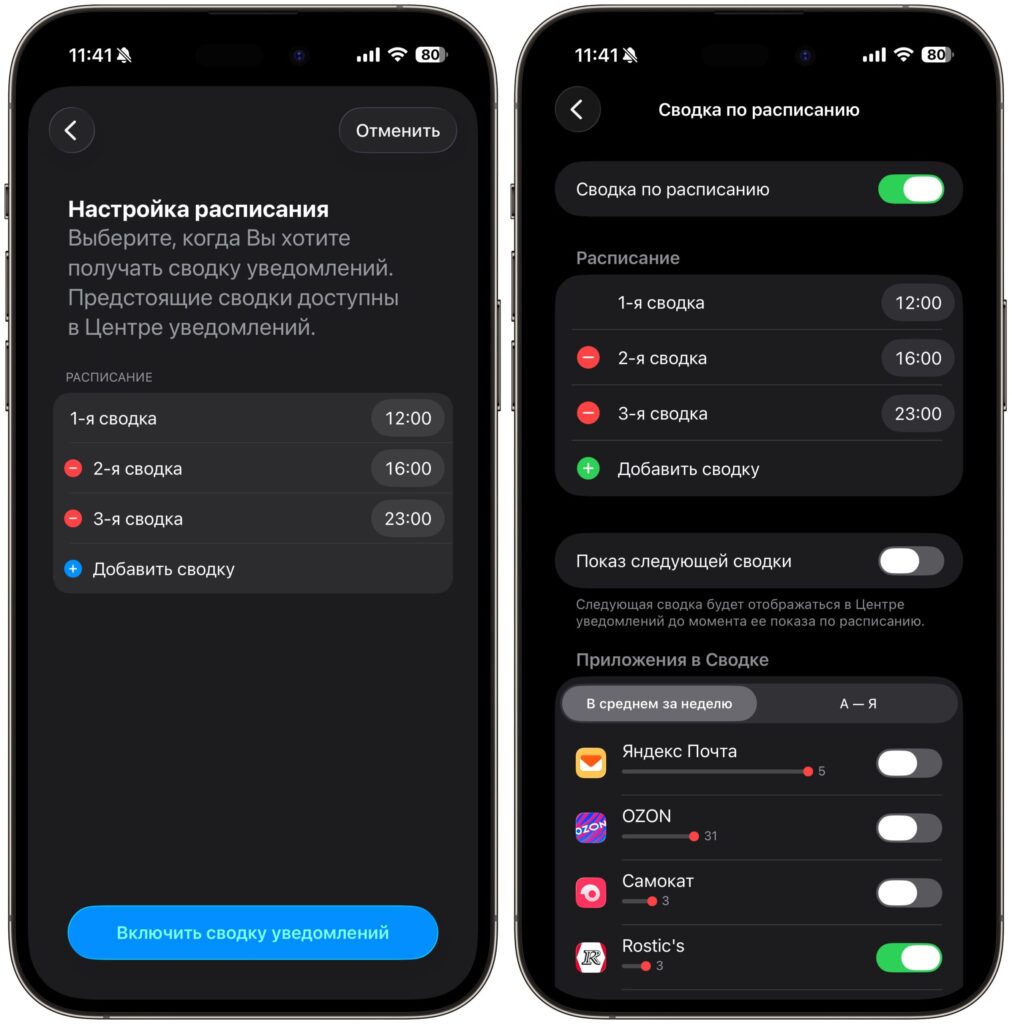
Set the time and add other apps to the summary if needed
The logic is simple: social media, news, marketplaces, and games go into the summary. Messengers, calls, and calendar shouldn’t be placed there — otherwise you might miss something important. I usually set three summaries: at noon, 4:00 PM, and 11:00 PM. That’s just enough to review all alerts. For most users, however, two summaries are sufficient: morning and evening.
Disabling Notifications from an App on iPhone
If an app constantly floods your screen, it’s easier to completely block it from sending alerts. This is handy for apps you rarely use but that send promotional pushes and reminders.
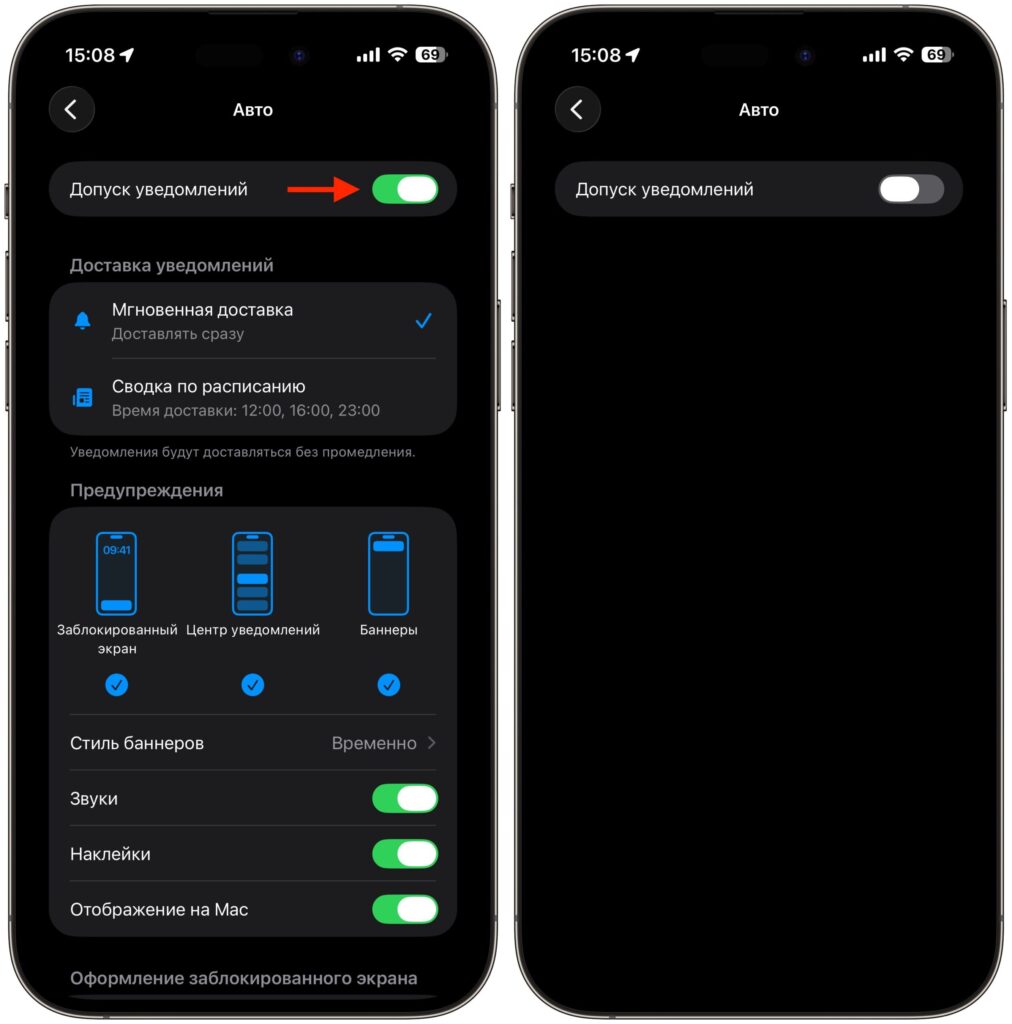
You can simply turn off notifications
- Open Settings
- Go to Notifications
- Scroll through the list and select the desired app
- Turn off the Allow Notifications toggle
There’s also a quick method. When a notification from an annoying app appears on the lock screen, swipe it left and tap Options. From there, you can immediately turn off alerts or send them to the summary — without going into settings.
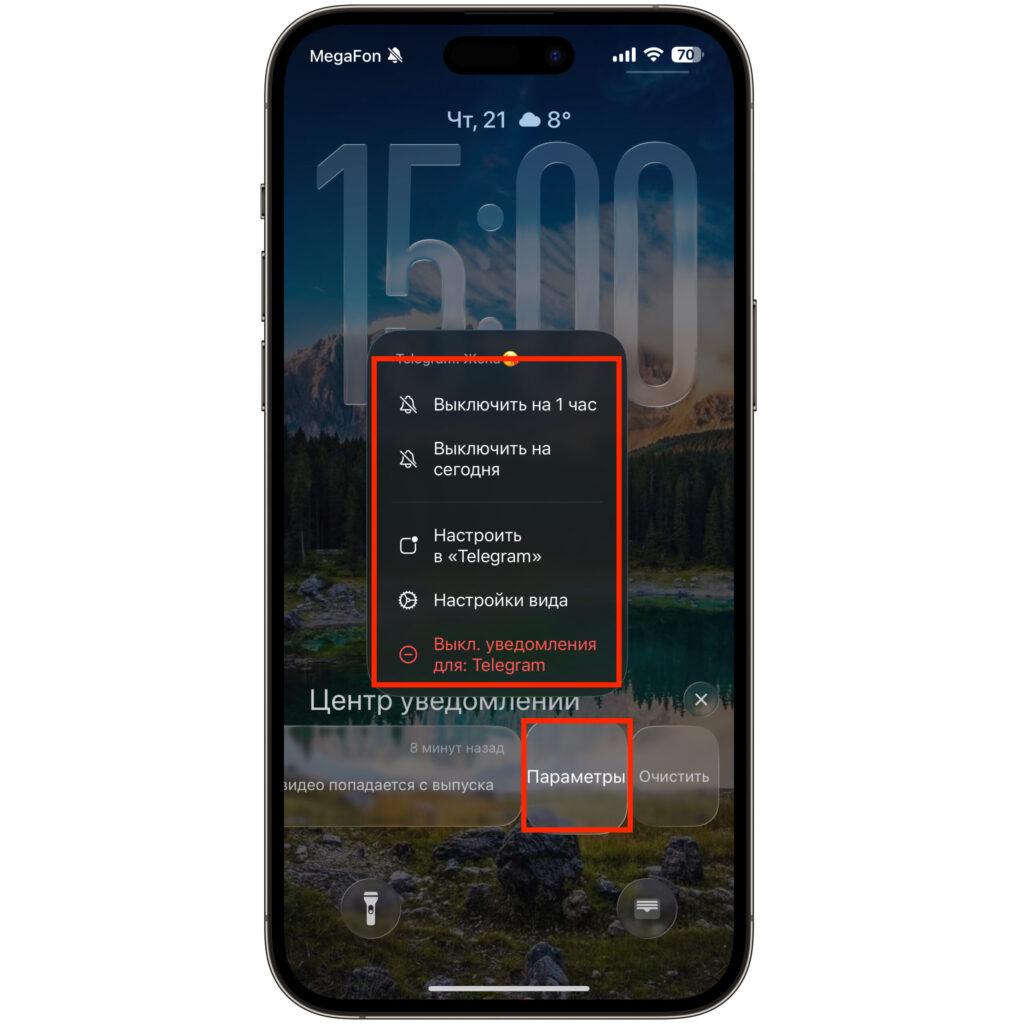
You can manage notifications even from the lock screen
A useful tip — every couple of months, go through the list of apps in your notification settings. Over six months, a dozen apps accumulate that you installed once and forgot about, yet they keep sending pushes. I recently discovered that a food delivery app I hadn’t used for three months had managed to send me over a hundred notifications.
Differences Between Focus Modes, Summary, and Disabling Notifications on iPhone
Here’s a quick logic for everyday use:
- Scheduled Summary — for apps whose notifications are generally interesting to you but not urgent: news, social media, marketplaces
- Completely disabling notifications — for apps you barely use or that only send ads
- Focus modes — when you need to temporarily silence almost everything but keep, for example, calls from close contacts
Each of these tools solves its own task, and you don’t need to choose between them. In practice, a combination of all three methods works best. First, disable notifications for apps you definitely don’t need. Then set up the summary for everything that’s interesting but not urgent. And turn on Focus mode during work or sleep — so your iPhone won’t bother you at all, except for the most important contacts. iPhone notifications can also be mirrored on your Mac.


