In iOS 26, the Messages app has learned to better filter out spam and texts from unknown senders. Unknown sender filtering works right in the system, and spam is automatically moved to a separate folder. Below is how to set everything up so you don’t miss two-factor authentication codes and delivery notifications.
iOS 26 allows you to virtually eliminate all spam in text messages
Unknown Sender Filter on iPhone: How to Set It Up
Apple showcased extended filters at WWDC 2025 and released them as part of iOS 26 in September 2025. This is not a separate app or a subscription — the settings are built into the standard Messages app and work on all iPhones that support iOS 26. After enabling the unknown sender filter, texts from those who are not in your contacts will no longer clutter your main list.
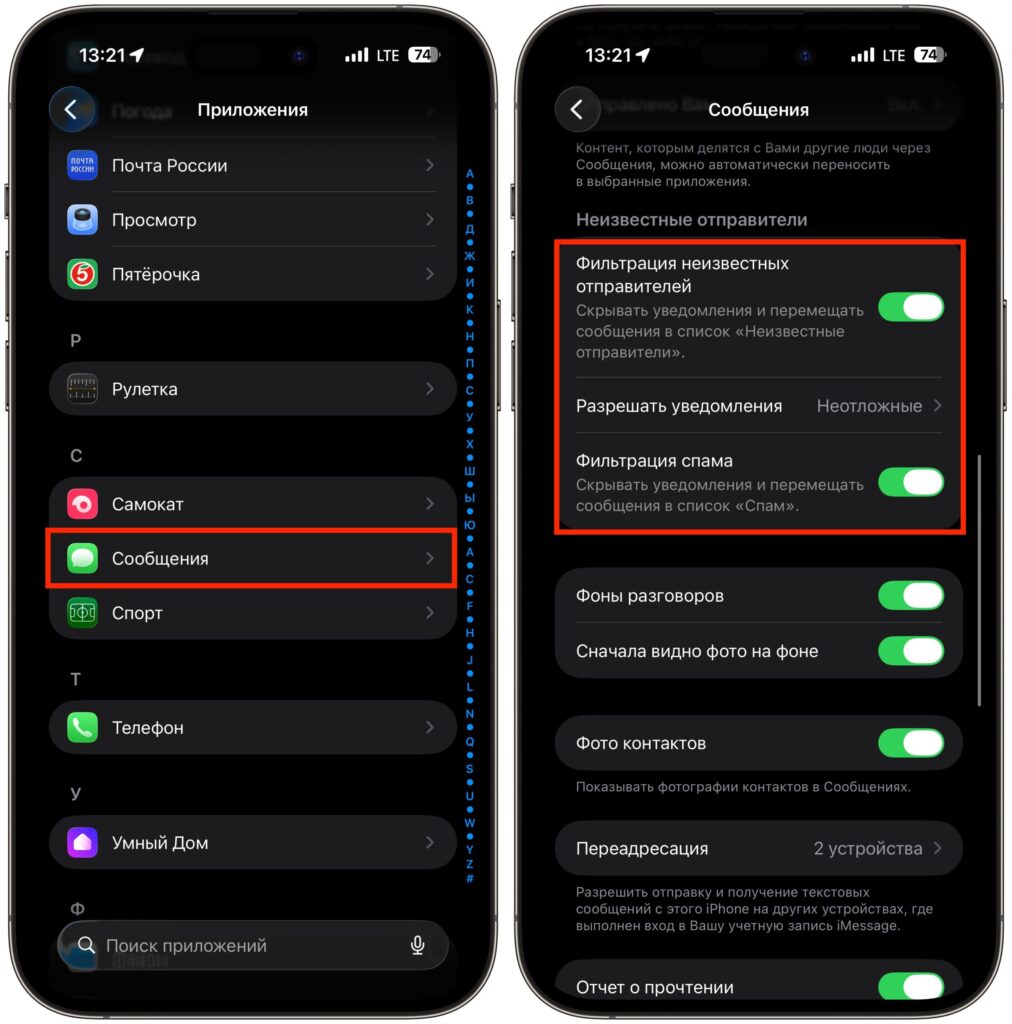
Activate all toggles here
- Open Settings on your iPhone and go to the “Apps” section.
- Select the “Messages” app.
- Scroll down to the “Unknown Senders” section and activate the toggles for “Filter Unknown Senders” and “Filter Spam.”
- In the Messages app, tap the three horizontal lines and select the “Unknown Senders” section.
The main nuance is notifications. If you turn them off completely, you might miss something important: one-time codes from your bank, account login confirmations, delivery status updates. In the same section, there is a sub-option called “Allow Notifications” where you can leave notifications on for urgent messages. This way, two-factor authentication codes and courier alerts will come through as usual, while ads will silently drop into a separate list.
What to Do If an SMS Ended Up in Unknown Senders
Sometimes the filter catches someone you’re actually expecting a message from — for example, a courier or a colleague with a new number. Moving them to “known” takes just a couple of taps.
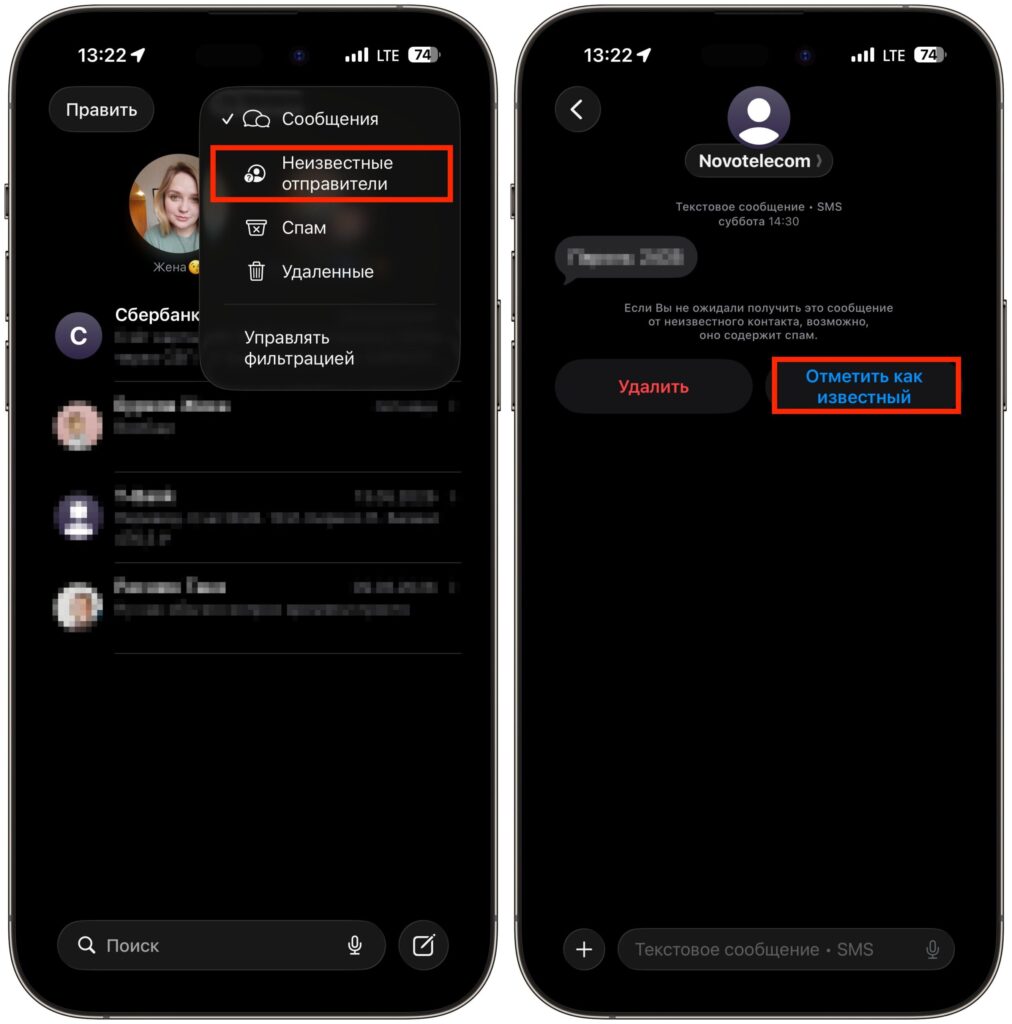
Any message can be marked as known
- Open Messages
- Tap the menu icon in the upper right corner
- Go to Unknown Senders
- Open the desired chat and tap Mark as Known
Another option is to simply add the number to your contacts. After that, the sender is automatically considered known.
How to Delete Spam in Messages and Report It to Apple
Often, the iPhone detects spam on its own and moves it to a separate folder. But if something slips through, marking a message manually is easy.
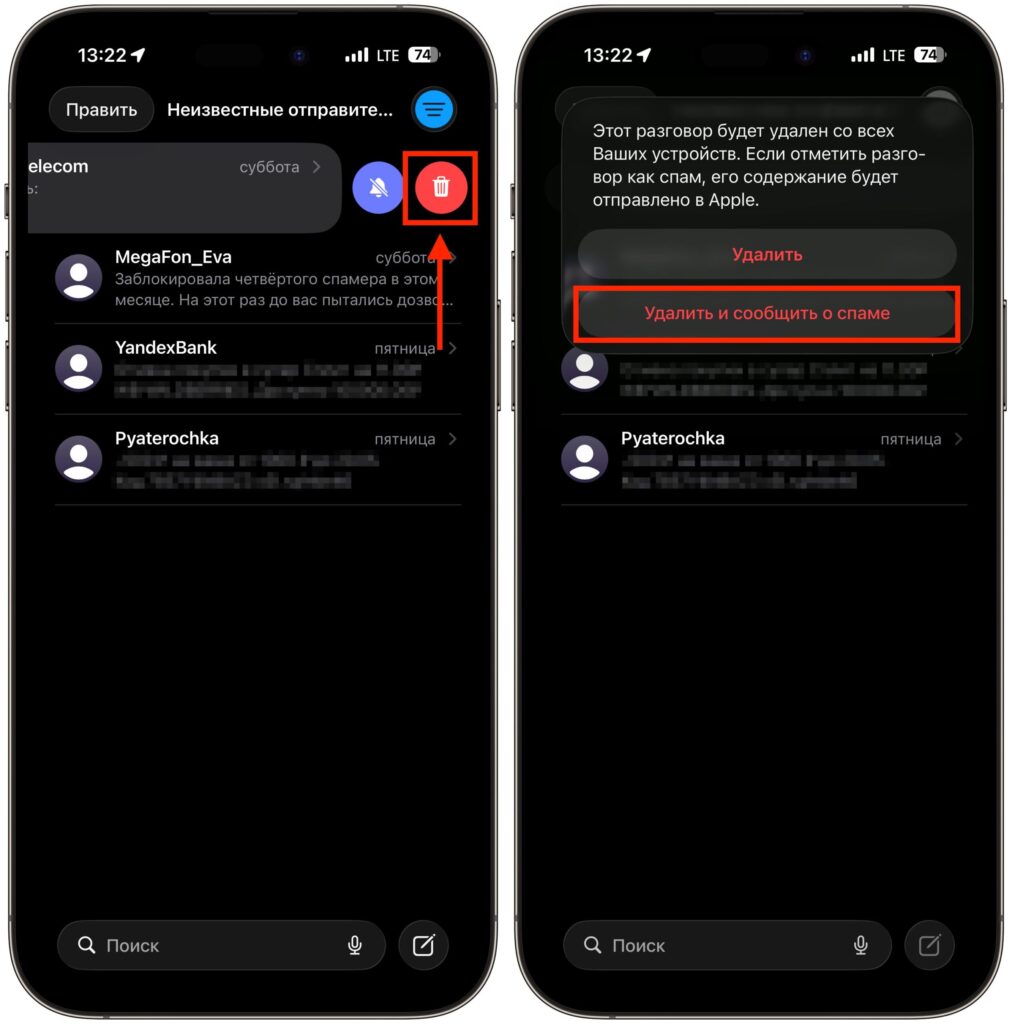
Send reports and Apple will ban such senders
- Open Messages
- Swipe left on the chat, tap the trash icon, and select Delete and Report Spam
- Another way is to long-press on the message; the pop-up menu will include a spam report option
The report goes to Apple and the carrier, and over time the system becomes more accurate at recognizing similar texts.
How to Recover a Message from Spam on iPhone
The filter occasionally makes mistakes — a message from a delivery service or a code from a rarely used service can end up in spam. Restoring such a text can be done manually.
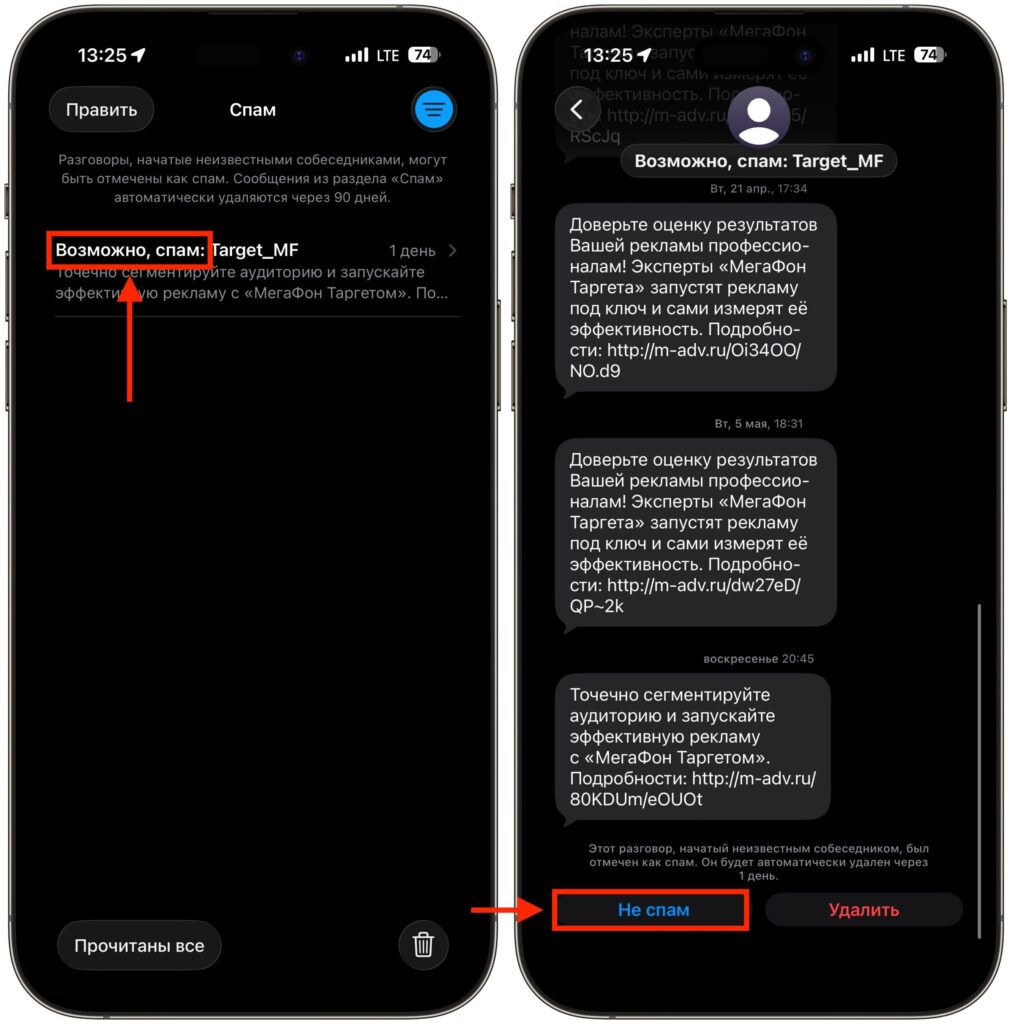
If you’re sure it’s not spam, you can move the conversation out of this folder
- Open Messages
- Tap the menu icon in the upper right corner
- Find and open the desired message in the spam folder
- Tap Not Spam
- Open the menu again and return to the Messages section
If you receive a lot of promotional mailings, unfamiliar numbers, and suspicious links, filtering in iOS 26 is worth enabling right away — it removes the noise without disabling truly important notifications. The key thing is not to forget to leave the urgent messages option enabled; otherwise, you might not receive a bank code in time.


