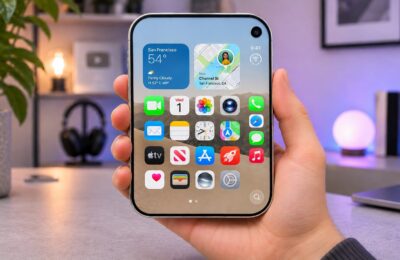
A free, open-source app called HermesEnabler 2 can switch on the Hermès-exclusive watch faces on a standard Apple Watch. The faces are already stored on every Apple Watch. Ordinary and Hermès models share the same hardware, and watchOS shows or hides the faces based on a single system marker that identifies the model. The app changes that marker directly on the watch. There are significant caveats. The developer says it works only on watchOS 27.0 through 27.3 beta 1, it does not work on every watch, and a mistake can leave the watch with no usable faces at all.
What you need to know
- HermesEnabler 2, by a developer known as pookjw, changes the model marker stored in the watch’s MobileGestalt system file so the watch identifies itself as a Hermès model.
- The developer lists support only for watchOS 27.0 through 27.3 beta 1. Some users have reported failures on other versions, and in at least one case on 27.2.
- The app is not in the App Store. You must build it in Xcode on a Mac. A free Apple ID works, but the app then stops opening after about seven days.
- The developer stresses that you use it at your own risk. In the worst case, all watch faces can stop opening. A backup-and-restore function is built in.
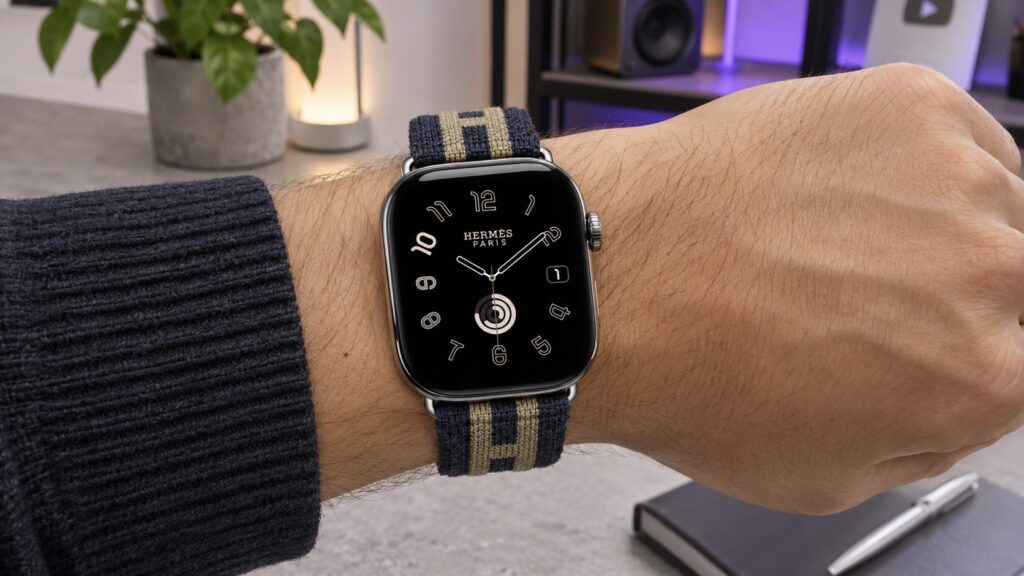
Apple Watch with a Hermès face and a fabric band on the wrist
Why the Hermès faces are already on your watch
Apple Watch Hermès is nearly identical to the standard models: the same case, display and processor. The differences are the branded bands, the engraving and a set of exclusive faces with distinctive numerals and orange accents. The faces themselves are present in the system on any watch. watchOS simply hides them unless it finds the marker identifying the device as a Hermès edition.
The same app also includes toggles for Apple Watch Ultra faces, Always-On Display and the Double Tap gesture. Do not expect too much from these: if the watch lacks the necessary hardware, the feature will not work.
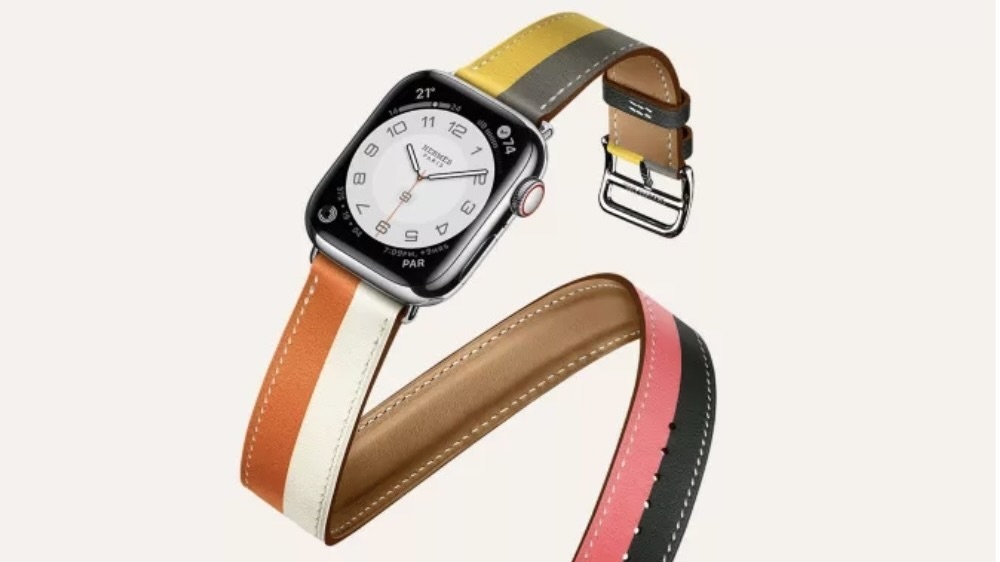
Apple Watch Hermès with a white face and a multicoloured leather band
What HermesEnabler 2 does
The app was created by a developer known as pookjw. HermesEnabler 2 installs directly on the watch and changes the system marker for the model, after which the Apple Watch treats itself as a Hermès version. The project is free, and its source code is publicly available on GitHub, so anyone can inspect what the program does to the watch.
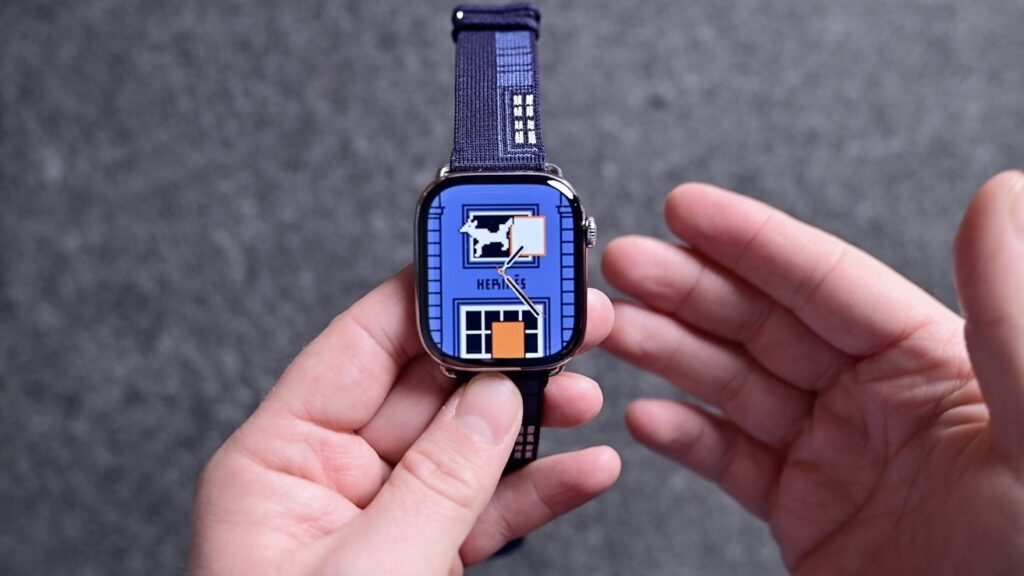
A person holding an Apple Watch with a blue Hermès face showing windows and a horse
Development is moving quickly: the author released four versions on November 10 alone. The latest version groups the interface into categories and adds a backup library, along with region and Apple Intelligence settings. Because updates arrive so often, the steps below may become outdated, and Apple could also close the loophole in a future beta. Check the project page before you start.
Compatibility: the watchOS version matters most
The main limitation is the watchOS version, not the watch model. The developer states that HermesEnabler 2 works only on watchOS 27.0 through 27.3 beta 1. Some Apple Watch Ultra 2 owners reported that it did nothing on watchOS 26.5 and 26.6. At least one user could not get it working even on 27.2.
To check your version on the iPhone:
- Open the Watch app on your iPhone.
- Select the My Watch tab at the bottom of the screen.
- Go to General, then tap About.
- Find the watchOS version line. It should read between 27.0 and 27.3 beta 1. You can ignore the build number in parentheses.
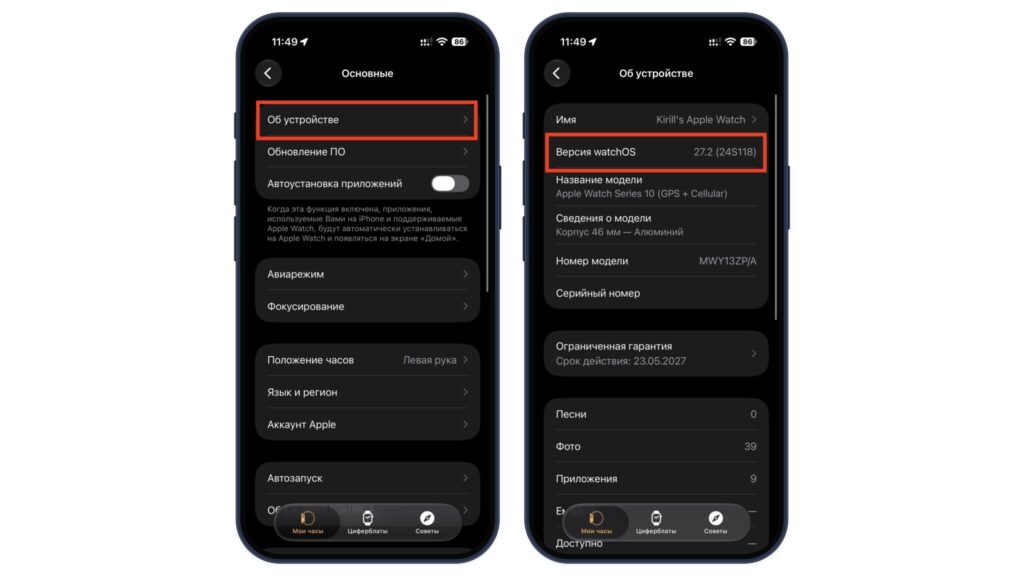
The Watch app on iPhone: the About section and the watchOS version line
You can also check on the watch itself. Open Settings, go to General, tap About and find the watchOS version line.
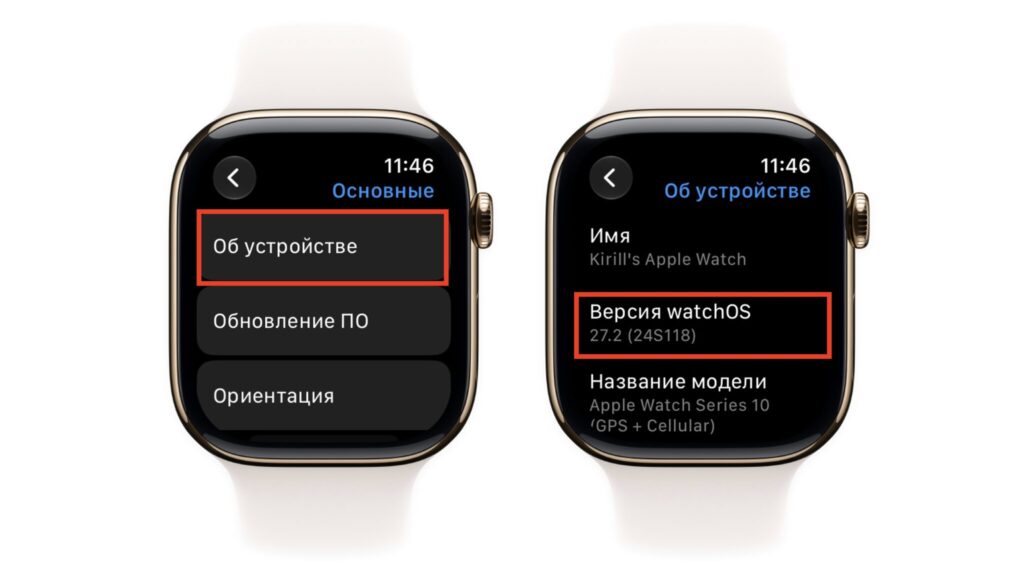
Apple Watch screen: the About section showing watchOS 27.2
What you need
- The iPhone paired with the watch.
- A cable to connect the iPhone to a computer.
- A Mac. Windows will not work, because the app is built in Xcode, which runs only on macOS.
- An Apple ID, which is needed to sign and install the app. A paid $99 developer account is not required; a regular Apple ID is enough.
- A watch charged to at least about half, so it does not die mid-setup.
The risks
The developer specifically stresses that you do everything at your own risk. The method does not work on every watch, and in the worst case all watch faces can stop opening. The app includes a rollback option. Even so, the original guide’s author advises against experimenting right before a trip or an important workout.
Step 1: Prepare the Mac and the project
HermesEnabler 2 is not available in the App Store. You build it yourself in Xcode, Apple’s free developer tool, and send it to the watch from the Mac. No coding is required, because the project is ready to build. The project is available from the developer’s page: HermesEnabler on GitHub.
- On the Mac, open the App Store, search for Xcode and download it. It is a large app, so the download can take a while.
- Launch Xcode. On first launch it will offer to install additional components. Select watchOS and iOS in the list and click Download & Install.
- In the menu bar, open Xcode > Settings and go to the Accounts tab. Click “+” in the bottom left, choose Apple Account and sign in with your Apple ID.
- On the HermesEnabler GitHub page, click the green Code button and choose Download ZIP.
- Open your Downloads folder and double-click the archive to unpack it.
- In the unpacked folder, double-click HermesEnabler2.xcodeproj. The project opens in Xcode.
If Xcode asks whether you trust the project, click Trust and Open. Xcode asks this for any project downloaded from the internet.
Step 2: Connect the iPhone and the watch, then build
Keep the watch next to the iPhone and on its charger to keep the connection between them more stable.
- Connect the iPhone to the Mac with the cable and unlock it. When asked “Trust This Computer?”, tap Trust and enter your passcode.
- On the iPhone, open Settings > Privacy & Security, scroll to the Security section and tap Developer Mode. Turn on the switch, agree to the restart, and confirm once more after the phone turns back on. If the option is missing, complete step 6 first: the option appears once Xcode detects the iPhone.
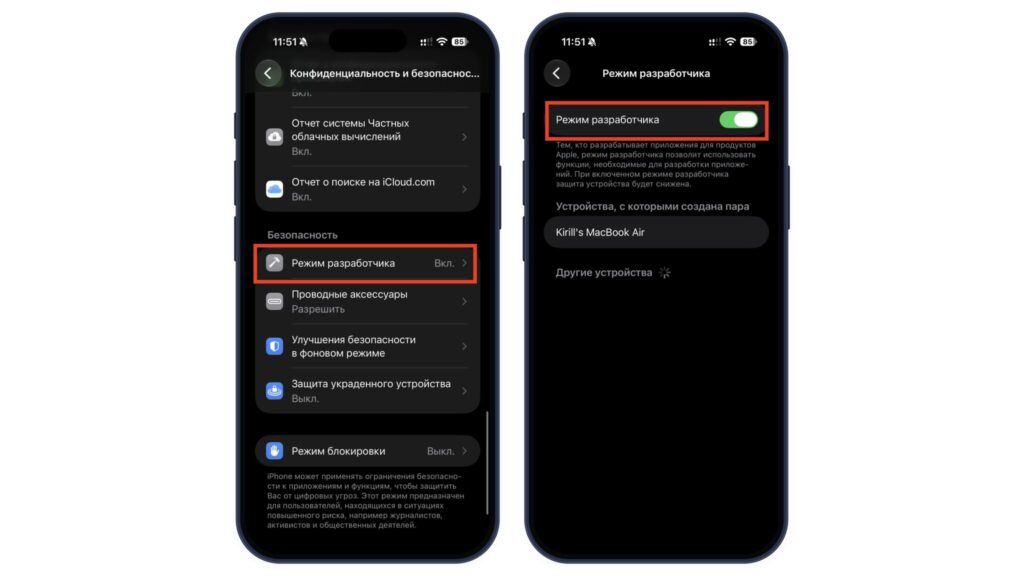
iPhone Settings: the Developer Mode item with the switch turned on
- Lower on the same screen, your Mac should appear in the list of paired devices. If it does not, there is no need to worry: it will appear after step 6.
- On the watch, open Settings > Privacy & Security, scroll to the Security section, tap Developer Mode and turn on the switch.
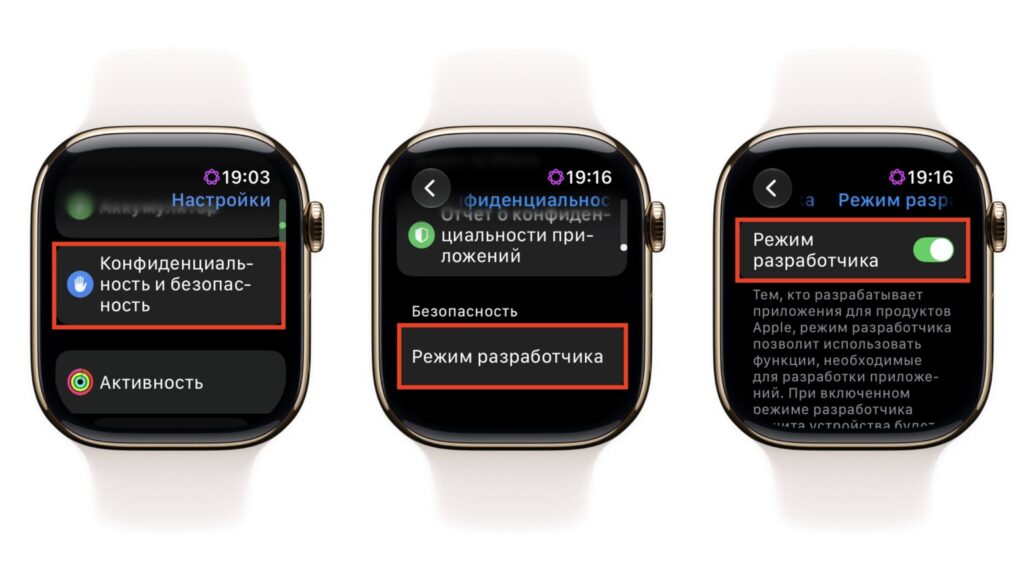
Turning on Developer Mode on Apple Watch in the privacy settings
- The watch will ask to restart. Tap Restart, and confirm Developer Mode again once it turns back on.
- Open Settings > Privacy & Security > Developer Mode on the watch again. In the Devices section, a Pair with line with your Mac’s name will appear. Tap it and confirm pairing by following the prompts on the watch and the Mac.
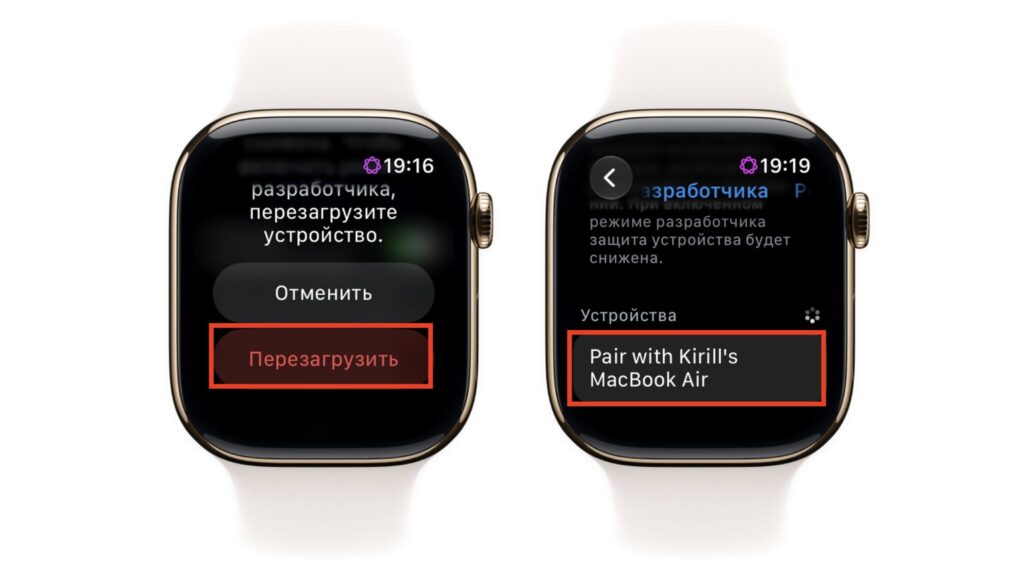
Apple Watch asking to restart and offering to pair with a MacBook
- In Xcode, open Window > Devices and Simulators. Your iPhone should appear on the left, with the watch beneath it. If Xcode offers to prepare them for development, accept and wait. The first time, this can take several minutes.
- Close that window. In the left column of the main window, click the top line with the blue icon. This is the HermesEnabler2 project itself.
- Open the Signing & Capabilities tab. In the Team field, select your Apple ID from the list.
- On the same tab, find the App Groups section. Click “+” and create your own unique identifier, for example by adding your name in Latin characters to the end of the existing one. Untick the old identifier.
- At the top of the window, next to the project name, open the device list and select your Apple Watch.
- Click the Run button (the triangle in the top-left corner) and wait for the message confirming a successful build.
After the build, the app appears on the watch automatically. If Xcode reports a signing error, the identifier is almost always the cause: change it again and click Run. If the watch reports an untrusted developer when you launch the app, open Settings > General > VPN & Device Management on the iPhone, select the profile with your email address and tap Trust.
An app signed with a free Apple ID lasts about seven days. After that it stops opening. To roll back or set it up again, you have to reconnect the iPhone and click Run, so do not delete the project folder.
Step 3: Enable the Hermès faces on the watch
The rest happens on the watch. Press the Digital Crown, find HermesEnabler2 in the app list and open it. The interface is in English and has only a few buttons.
- First, tap Backup MG. The app saves a copy of the MobileGestalt system file, which records which watch model you have. Do not skip this step.
- Turn on the Hermès switch.
- Tap Restart Carousel. This restarts the watch’s interface shell, including the faces, without switching off the watch.
- When the screen returns, touch and hold the current face, swipe left all the way to the end and tap “+”. The Hermès faces should appear in the main list.

A Hermès face with windows and a pixel horse on an Apple Watch with a leather band
You can also add the faces from the iPhone, in the Face Gallery tab of the Watch app.
How to undo it, and when it may not work
If something goes wrong after switching, HermesEnabler 2 has a Restore MG button. It restores the saved copy of the file, and the watch becomes a standard model again. This is why the backup must be made before you flip the first switch, not after.
Sometimes the app installs and opens but cannot change the system data. The developer recommends checking the App Group setting in Xcode, but this does not always help.
If you go ahead, do not update the watch to a new beta until the developer confirms support for it. Otherwise the app may simply stop working.