Droynis is a free, open-source Android app that checks your phone for potentially unsafe settings. It does not scan for malware. Instead, it reviews how the phone itself is protected, including updates, app permissions, screen lock and network connections. It gives the device a security score from 0 to 100 and explains each warning. Over time, many Android users give apps access to notifications, location and even control over other apps, and it becomes hard to track which app has which permission. Android’s built-in protection checks for some threats, but it does not always explain which settings deserve a second look. Droynis is designed to fill that gap. Still, a high score does not mean a phone is fully protected.
What you need to know
- Droynis rates a phone’s security on a 0–100 scale. On an Android Authority journalist’s Samsung Galaxy S24 FE, it gave a score of 76 and flagged 19 items.
- The app explains each warning and offers to open the relevant Android settings, but it does not change anything on its own.
- It runs on Android 8.0 and newer and needs no root for a basic check. It does not request network access or use analytics.
- It cannot tell whether a given APK is malicious and does not replace antivirus scanning or system updates.
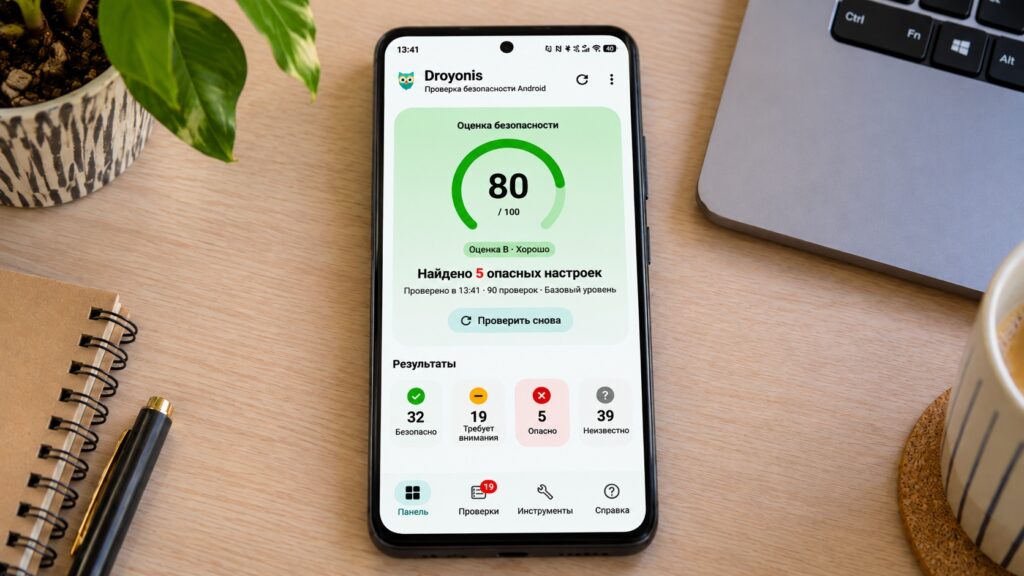
Droynis highlights potentially dangerous Android settings
What Droynis checks and how it differs from antivirus apps
Droynis analyses the state of an Android device to find settings that may be insecure. Conventional antivirus tools look for malicious files. Droynis focuses on the phone’s own defences instead. It looks at installed updates, app permissions, lock-screen settings and network connections.
In early November, a journalist at Android Authority drew attention to the app. On his Samsung Galaxy S24 FE, Droynis gave a score of 76 out of 100 and flagged 19 items that needed attention. These included disabled Advanced Protection, a third-party keyboard and apps installed from outside Google Play. Not every warning pointed to a real problem, though. The owner had changed some of the flagged settings on purpose.
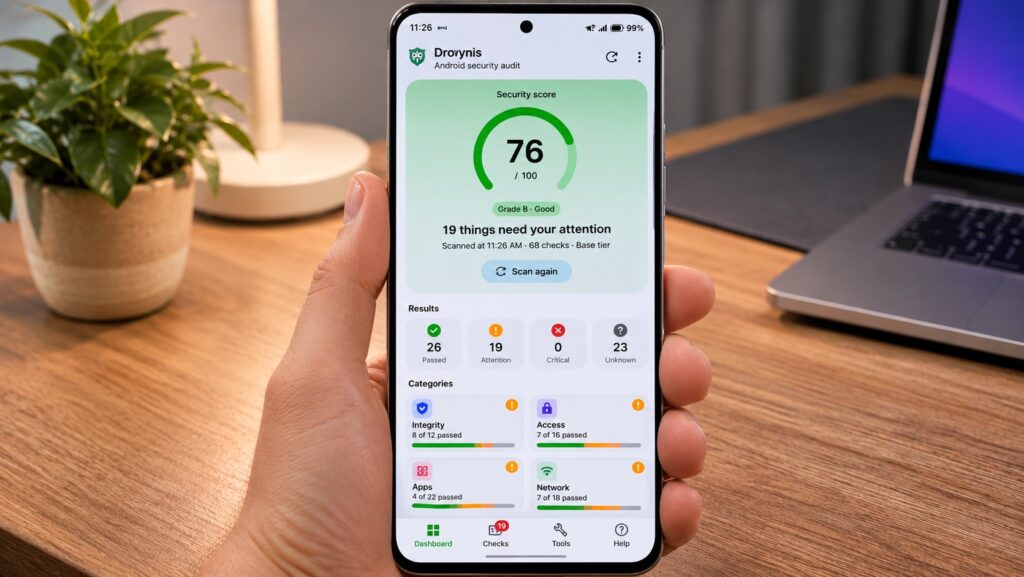
The Droynis check flagged 19 potential risks

This is what makes Droynis more useful than a generic checklist. It does not just show a red icon. It explains the reason for each warning and offers to open the relevant Android settings screen. It never disables anything by itself, so the user stays in full control of the device.
Five settings worth checking first
Droynis covers several security categories, including system status, data access and network connections. Most people do not need to understand every technical metric. The original article’s author suggests starting with five potentially risky settings that the app checks:
- USB debugging. If it stays on after you finish working with a computer, previously authorised devices have an extra way to interact with the system.
- Notification access. Apps with this permission can read the contents of incoming notifications, including messages that contain sensitive information.
- Accessibility services. When granted to a third-party app, this access may let it observe what the user does and interact with the interface.
- Installing apps from unknown sources. This permission is best left enabled only for the apps you actually use to install APKs.
- Screen lock. Without a strong PIN, password or other lock method, someone who finds a lost phone can get to its data more easily.
A warning does not mean the phone has been hacked. Automation apps, for example, may genuinely need accessibility access, and some apps can only be installed as APKs. The key is to know which apps you have given permissions to, and why. Droynis lets you review these settings in one place.
Reviewing installed apps
Droynis can also analyse installed apps. It shows which apps hold special permissions and helps you see how many were installed from outside Google Play. However, sideloading is not the same as infection. Droynis cannot tell whether a particular APK is malware, and it does not replace an antivirus scan.

How to install Droynis and run a first check
Droynis is distributed through the open-source catalogue F-Droid and the developer’s GitHub. It works on Android 8.0 and newer. A basic check does not require root access or a connection to a computer. The interface is in English.
To install the app and run your first check:
- Open the Droynis page on F-Droid or the developer’s official GitHub releases page.
- Install the app through F-Droid, or download the APK from an official release.
- Launch Droynis and run a check.
- Wait for the results and look at the overall security score, which ranges from 0 to 100.
- Open the items with warnings, read the explanations and go to any settings you want to change.
- After making changes, run the check again.
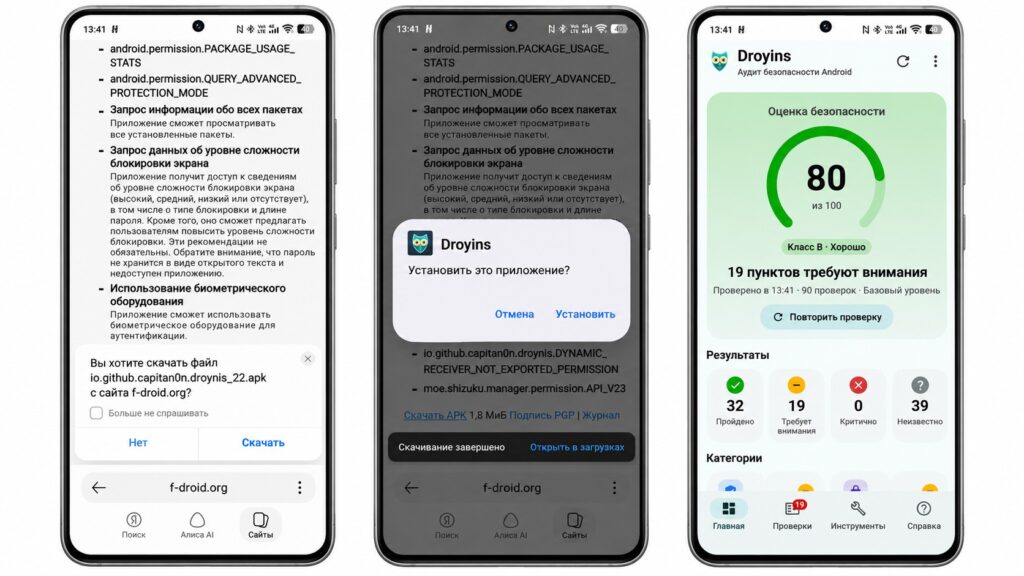
Downloading, installing and launching Droynis
Caveats during installation
Droynis is not distributed through Google Play, so Android may ask you to allow APK installs from the source you are using. It is best to turn that permission off again after installation unless you regularly install apps this way. If Android warns that access to certain permissions is restricted, do not disable that protection unless you really need to.
For deeper diagnostics, Droynis supports additional checks through ADB, Shizuku and root. However, the standard check mode is enough for most users. Tampering with the system just to get a few extra results is unnecessary.

Offline operation and exportable reports
Droynis also works without an internet connection. The app does not request network access, does not use analytics and runs its checks entirely on the device. You can save the results as a report and use it to compare the phone’s state before and after changing settings.
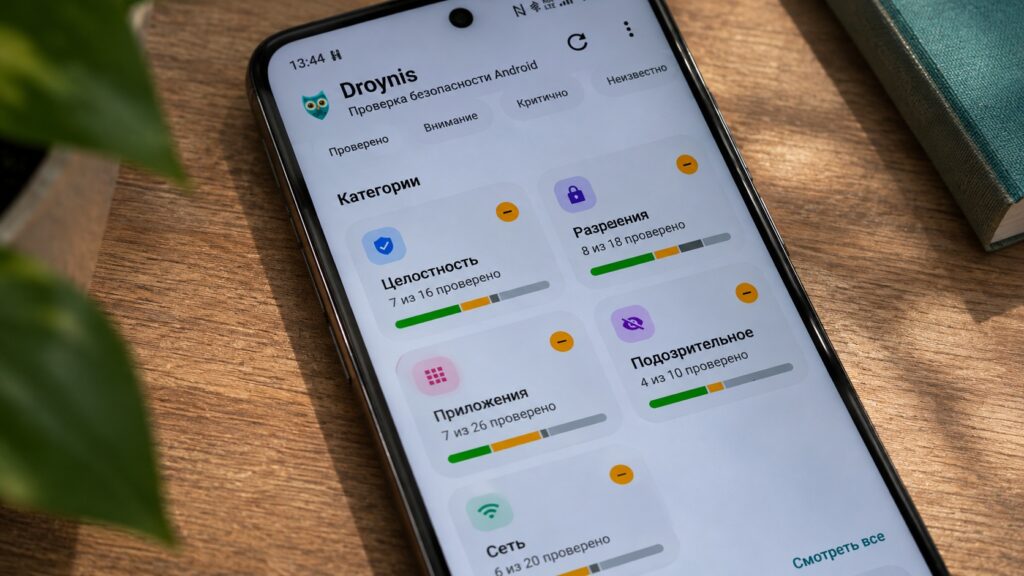
Check categories in the Droynis app
Why even a perfect score does not guarantee safety
The score should not be treated as an absolute measure of security. A phone that scores 100 is not necessarily fully protected against malicious apps or dangerous links. Android does not let ordinary apps check some parameters, and Droynis marks those results as unknown. A high score also does not replace system updates or care when installing apps.
Droynis is best used as an additional checking tool, not as a replacement for Google’s built-in protection.