If your home video constantly buffers or pages load slowly, the blame doesn’t always lie with your ISP. Journalists at How-To Geek have identified reasons why wireless internet can slow down and suggested several non-obvious ways to fix it. Most tips are aimed at Windows and routers, but some of them directly affect the speed on your smartphone or tablet connected to the same home network. Here’s how to speed up internet on Android.
Boosting internet speed with secret methods
Background Apps and Internet Speed
The first and most common cause of a slow connection is apps that constantly consume bandwidth in the background. They download updates, sync data, and do it silently while you’re trying to watch a movie or open a website.
On Android, background update downloads from Google Play and automatic cloud syncing often eat up part of your speed at the worst possible moment. If your home internet has slowed down, it’s worth checking the background restrictions for apps on your phone — this often helps just as much as restarting the router.
Limiting Internet Traffic
Another tip concerns Windows: in the “Network & Internet” section, you can enable the “Metered Connection” feature. When activated, the system becomes more conservative with background traffic.
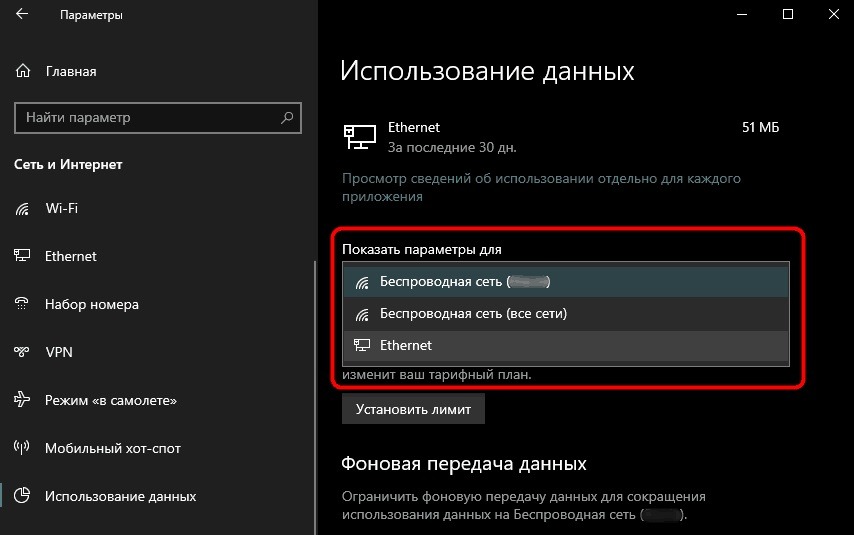
Metered connection can be set for a specific network
The idea is simple: the operating system will limit background traffic, meaning updates and background downloads will stop clogging the channel when you need it for other tasks. On Android, there’s a similar concept in the form of data saver mode, which limits background app activity using the same logic.
Other Features That Affect Internet Speed
The journalists also draw attention to cloud services. According to them, constant syncing can silently share data with servers and affect connection speed, so when you need the full bandwidth, clouds can be temporarily disabled.
In addition, the article lists more technical steps:
- update network drivers and router firmware — this fixes bugs and improves stability;
- clear the so-called DNS cache — temporary data about which addresses websites open at;
- configure your Wi-Fi connection to the 5 GHz frequency, if your device and router support it.
The 5 GHz tip is especially useful at home: this band is usually less congested and provides higher speeds at close range from the router. If you haven’t updated your router firmware in a while, that’s the best place to start — outdated router software is often the very “hidden” cause of slowdowns.
Router Overheating and Internet Speed
At the end of May, BGR authors named overheating as the main cause of router failure. The advice is obvious but effective: place the device away from direct sunlight and ensure proper ventilation — don’t stuff it into a closed cabinet.
Router overheating slows down internet
Overheating affects not only the router’s lifespan but also the stability of your connection right now. If speed noticeably drops by evening and the device’s case is hot, the problem might be exactly this, not your ISP.
Who Will Benefit from Hidden Internet Speed-Up Methods and How to Apply Them
Most of How-To Geek’s recommendations are aimed at Windows computers, so smartphone-only owners will find some points irrelevant. But the basic ideas are universal: limit background traffic, update router firmware, switch to the 5 GHz frequency, and don’t let the device overheat — this works for the entire home network, including Android devices.
Before calling your ISP and complaining about your plan, it makes sense to go through this list — often the problem is solved in a couple of minutes in the settings.


