A hidden accessibility feature in macOS lets you mark the edges of a MacBook trackpad as dead zones that ignore touches. It can stop the cursor from jumping when your palm brushes the trackpad while you type. The feature does not appear in System Settings by default. You turn it on with two Terminal commands and a restart, and you can remove it the same way. According to MacGeneration, it is present in macOS 26 Tahoe and in the current macOS 27. Apple has not officially announced it.
What you need to know
- The feature is called Trackpad Inactive Regions. It was publicly spotted by the X user pdfu.
- You can set an inactive zone separately for the top, bottom, left and right edges, with each size given as a percentage. The zones can also be shown on screen.
- The setting is in the Accessibility section, under Pointer Control, rather than in the regular Trackpad settings.
- It is enabled through a feature flag that requires an administrator password and a restart. Apple could change or remove it in any update.
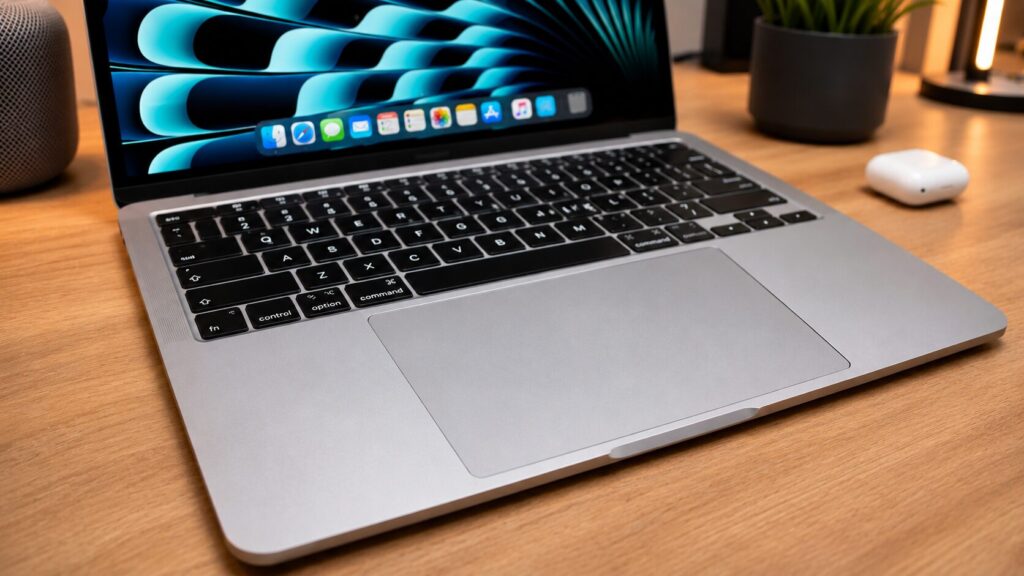
Close-up of a silver MacBook Pro on a wooden desk showing the keyboard and large trackpad, with an AirPods case and a HomePod speaker nearby
What the hidden setting does
The finding was published on X by the user pdfu. Inside the system, the feature is called Trackpad Inactive Regions. You choose areas of the trackpad that stop responding to touch. In effect, these are dead zones along the edges, and you set how wide each one is.
Each side is configured independently. For example, you could disable a strip along the bottom, where palms usually rest, and leave the top untouched. A right-handed user who steers the cursor from the centre could trim only the left edge. If you turn on the option to display inactive regions, macOS marks them on screen so you can see how much usable surface remains.
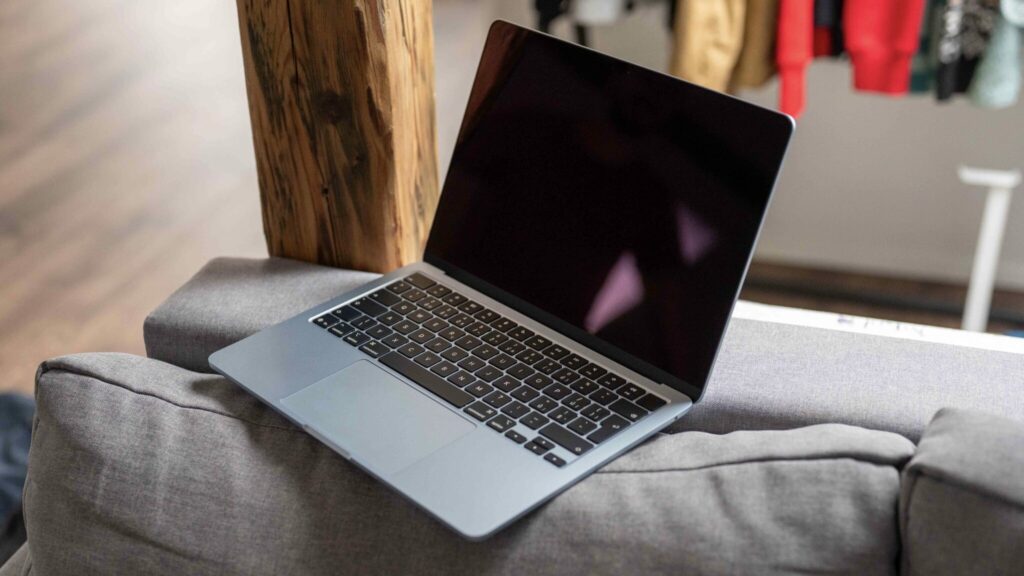
An open MacBook Air resting on the arm of a grey sofa, with the trackpad taking up almost the entire area below the keyboard
One notable detail concerns feedback. According to pdfu, when a finger lands in a disabled zone, the trackpad produces close to the strongest haptic response they had seen. That may sound odd, but the purpose is clear. You feel immediately that you have strayed into an area where touches do not count, rather than wondering why the cursor isn’t moving.
According to MacGeneration, the feature exists in macOS 26 and in the current macOS 27. The source notes that you do not need to update to macOS 27 to use it, because it also works on Tahoe.
Why a large trackpad can get in the way
The source points out that MacBook trackpads have grown with almost every generation. On the 16-inch MacBook Pro, the trackpad is a large glass surface, and the heels of your hands rest directly on its lower corners while you type. Accidental-touch rejection in macOS is good, but it relies on guesswork. Over a surface that large, guessing correctly is harder.
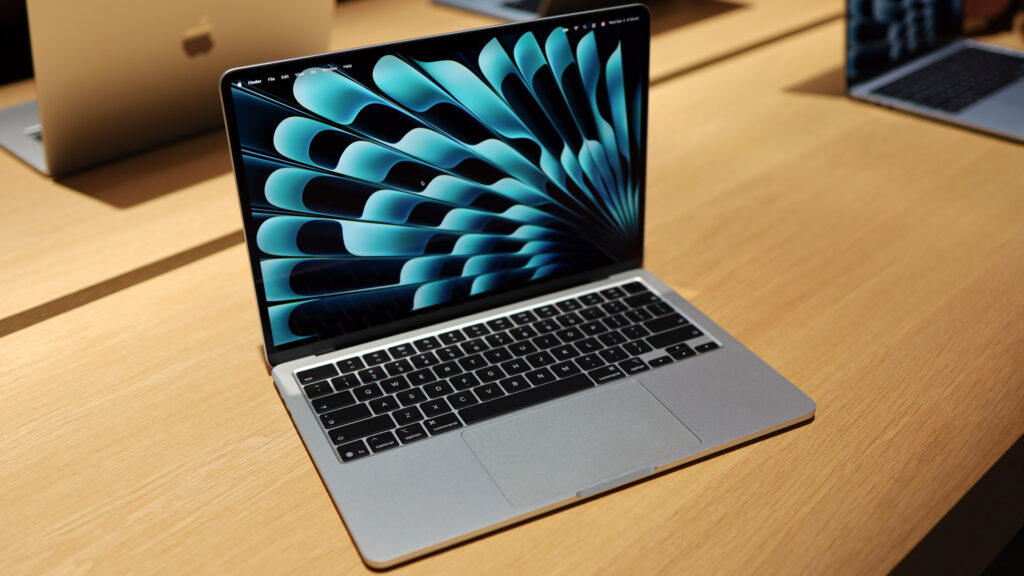
A MacBook Air on a wooden table in a store, with a wide trackpad visible below the keyboard
Palm touches with tap to click
The problem is worst with tap to click enabled. The system can read a light brush of the palm as a click and move the cursor somewhere unexpected. In a text editor, a chunk of text lands in the wrong place. In a spreadsheet, you end up typing into the wrong cell. If you disable a strip of a couple of centimetres along the bottom, your palms can rest there freely. The fingers you actually use to move the cursor rarely go there.
A stopgap for a faulty corner
The second scenario is more mundane. Sometimes a trackpad starts acting on its own, with the cursor twitching and phantom clicks registering. The cause may be hardware. After a drop or a coffee spill, for example, only one corner might misbehave. Until the laptop can be repaired, you can switch that corner off and keep working. The source stresses that this does not replace a repair, but it may help you get by without a mouse for a while.
An accessibility feature first
Apple keeps this option under Accessibility, next to the Pointer Control settings, rather than in the Trackpad section. The source argues that this placement explains a lot. People with tremors, the after-effects of injuries or Parkinson’s disease may find it hard to hold a hand above the trackpad. They lean on it instead, and each of those touches turns into an unwanted cursor movement.
With dead zones in place, the edge of the trackpad can be used as a resting area for the hand. The centre stays active, and the strong vibration signals where the boundary lies even if the user is not looking at the trackpad. According to the source, for these users the difference goes beyond convenience. It can make it possible to work without a mouse or third-party utilities.
Apple has not explained why the feature is not exposed in the regular settings. MacGeneration suggests it may still be experimental or intended for specific use cases. The source considers this plausible, since Apple often keeps unfinished features behind so-called feature flags until it decides they are ready.
How to enable the feature in Terminal
There is no toggle in System Settings by default. It has to be unlocked with two system commands. You will need your Mac’s administrator password and a restart at the end. The source advises copying the commands in full rather than typing them by hand, because a single typo means nothing will appear.
The steps, as described by the source:
- Open Terminal. Press Command + Space, type “Terminal” and press Enter.
Paste the following commands, press Enter and enter your administrator password:
sudo mkdir -p /Library/Preferences/FeatureFlags/Domain
sudo defaults write /Library/Preferences/FeatureFlags/Domain/Accessibility TrackpadInactiveRegionCustomization -dict Enabled -bool true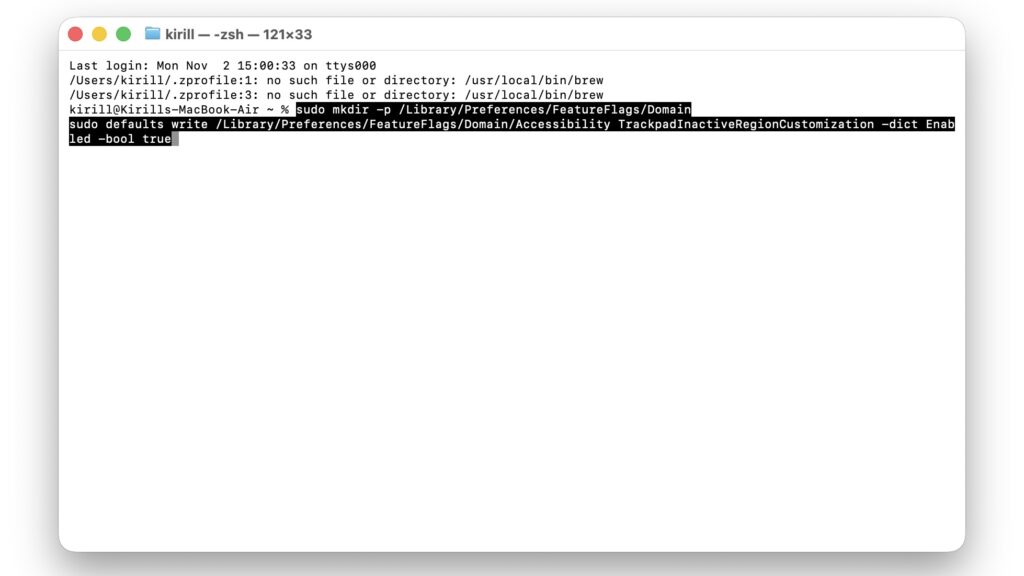
A Terminal window on a Mac with two commands entered: one creates the FeatureFlags folder and one enables the TrackpadInactiveRegionCustomization flag
- Restart your Mac.
Open System Settings, then go to Accessibility, then Pointer Control, then Trackpad Options.
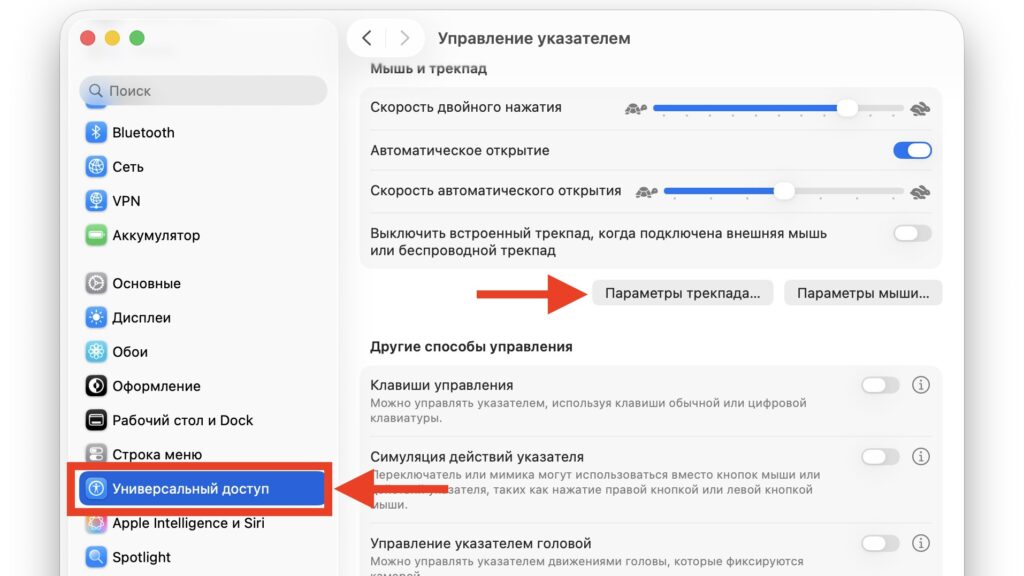
The Pointer Control section of macOS System Settings, with arrows pointing to Accessibility in the sidebar and to the Trackpad Options button
After the restart, a new trackpad inactive regions section appears in this window. It contains a main toggle, an option to show inactive regions on screen, and four fields for the top, bottom, left and right edges. The size of each zone is set as a percentage. The menu and section names here are translated from the Russian-language source, so the exact English labels on your Mac may differ slightly. If you turn on the on-screen display and adjust the numbers, the changes take effect immediately. A second restart is not needed.
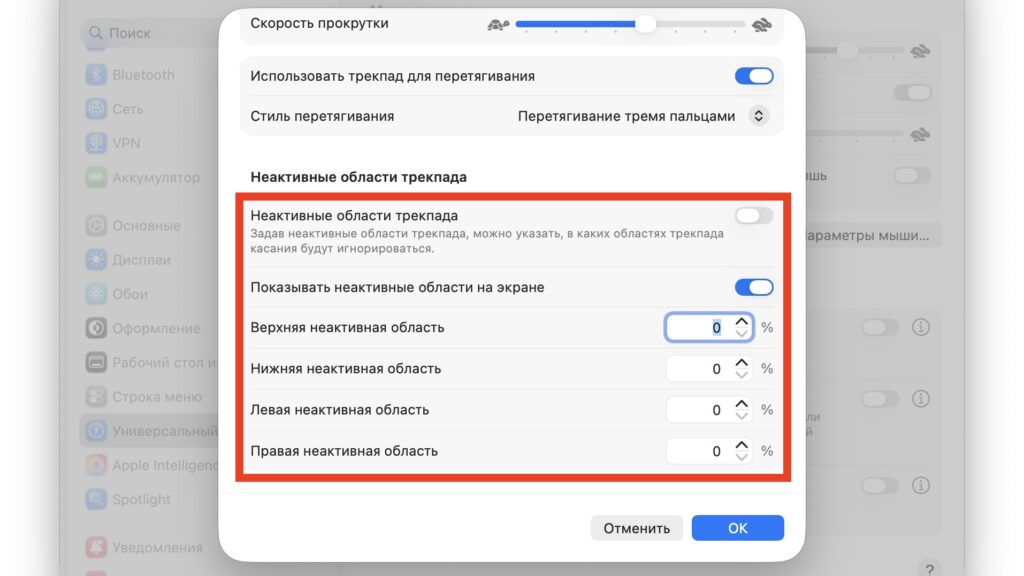
The Trackpad Options window in macOS with the new trackpad inactive regions section: a toggle, an option to show regions on screen and four percentage fields, one for each edge
Start small
The source recommends starting with a small percentage at the bottom and working that way for a couple of days. If your palms no longer cause problems and your fingers still have enough room, keep the setting. If the cursor keeps hitting an invisible wall, reduce the zone.
How to undo it
If the setting doesn’t suit you, you don’t have to delete anything manually. Enter the following command in Terminal and restart your Mac again:
sudo defaults delete /Library/Preferences/FeatureFlags/Domain/Accessibility TrackpadInactiveRegionCustomizationThe inactive regions section will disappear, and the trackpad will return to normal behaviour. According to the source, the empty Domain folder left behind does no harm.
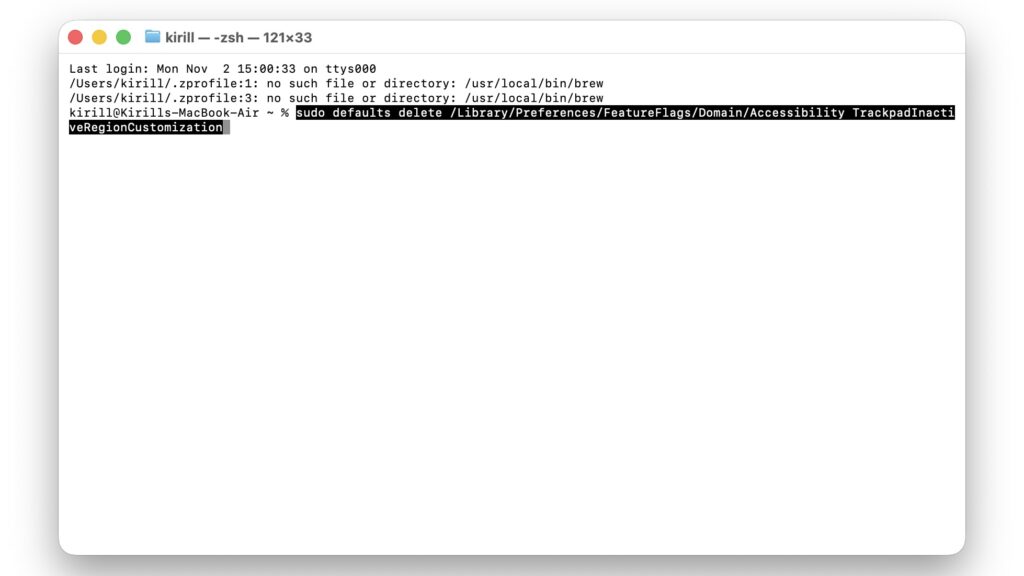
A Terminal window on a Mac showing the sudo defaults delete command, which disables the trackpad inactive regions feature
Caveats
The feature has not been officially announced. MacGeneration does not specify which MacBook models or which Magic Trackpad it works with, and Apple could rework or remove it in any update. For that reason, the source author advises against enabling it on a work Mac right before an important deadline. The author also suggests saving the undo command somewhere handy, such as in your notes.
The source author believes a narrow dead strip along the bottom will be enough for most people. The author also finds it strange that Apple still keeps such a simple option hidden instead of placing it alongside the other trackpad settings.