A video with a bold claim has been making the rounds online again: supposedly Google deliberately lets your inbox fill up with spam, hides this from users, and cleverly pushes you to buy more cloud storage. It sounds like a proper conspiracy theory, and for the most part, that’s exactly what it is. But there’s a grain of usefulness in it: Gmail has long had a separate screen that collects all your subscriptions, and you can unsubscribe from unwanted ones in just a couple of clicks. Today we’ll break down this lifehack for those who simply want to clean up their inbox.
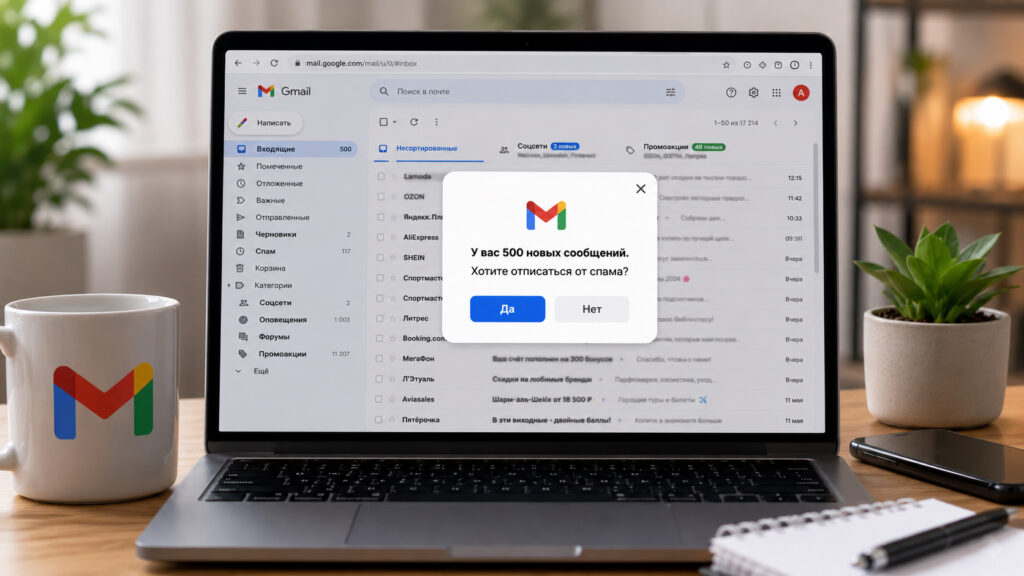
Getting rid of spam in Gmail
Where Does Gmail Spam Come From
The truth is far more mundane than a corporate conspiracy. Your inbox overflows not because someone orchestrated it, but because we ourselves leave our email address on dozens of websites: online stores, delivery services, news feeds, promotional campaigns. Every checkbox during registration means another mailing list that drips into your inbox for weeks and months.
All it takes is one order or one promo code, and your address goes into a database that sends you emails for years, even if you never visit that site again. The storage theory also doesn’t hold up: the free 15 GB is shared between Gmail, Drive, and Photos, and text emails take up mere crumbs compared to photos and videos. The problem is real, though — just different: behind a pile of promotional emails, it’s easy to miss something truly important — a verification code, a message from your bank, or a work-related reply. So cleaning up subscriptions is useful not for saving space, but to make sure important emails don’t get lost. The feature itself has a nice perk — the unsubscribe process is legitimate.
Gmail sends an unsubscribe request to the sender on your behalf, rather than simply hiding emails in a separate folder. However, there are some nuances: the tool is designed for personal Google accounts, not corporate Workspace inboxes, and it’s being rolled out gradually across different countries and devices.
How to View All Subscriptions in Gmail
That very trick from the video actually works and noticeably saves time. Instead of searching for the right section in the menu, you edit the URL directly in the browser. The steps are extremely simple:
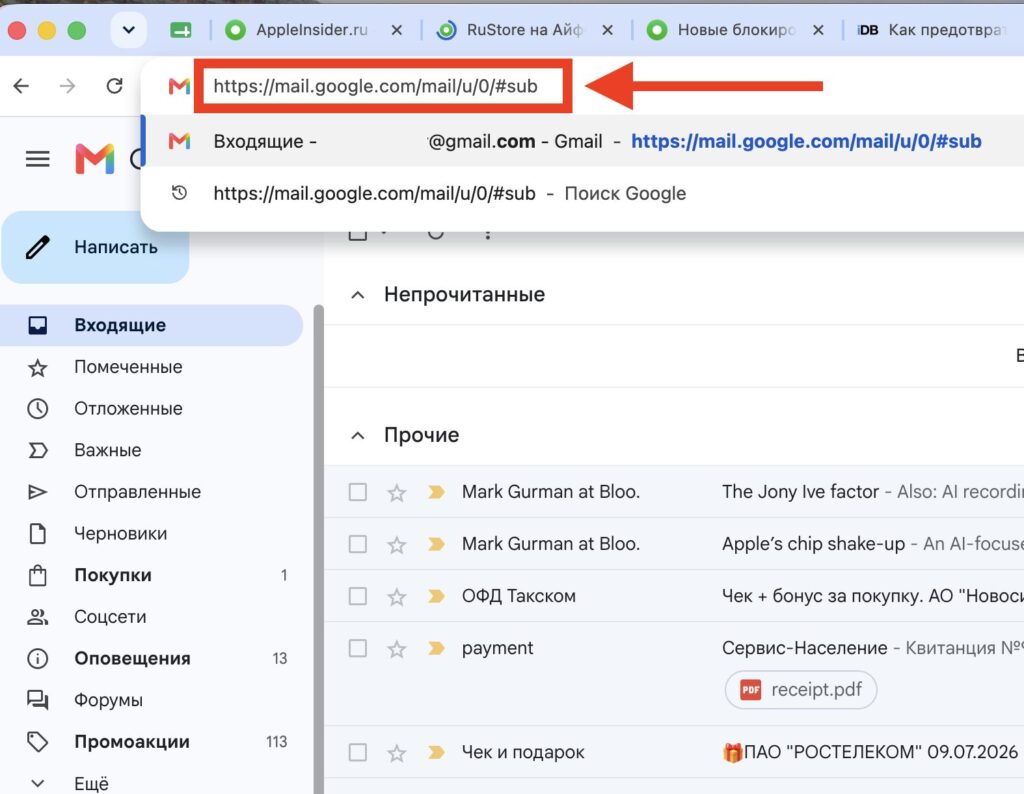
After this, all that’s left is to disable subscriptions
- Open Gmail in a browser on your computer and sign in to your account.
- Click on the address bar at the top so you can edit the URL.
- Delete the tail end of the URL starting from # — usually a fragment like u/0/#inbox.
- Type #sub in its place and press Enter.
- A list of companies whose mailing lists you’re subscribed to will appear on screen.
From there, everything is straightforward: next to each sender there’s an unsubscribe button — click it and confirm the action. Essentially, it’s a shortcut link to the same subscription management screen, just without the extra navigation. One thing to note: the browser must already be logged into the correct account, otherwise after signing in you’ll be thrown back to the Inbox.
How to Disable Unwanted Mailing Lists in Gmail
If the address bar trick didn’t work for you, there’s the standard path through the menu. It’s more reliable and, importantly, available even in the Gmail mobile app on iPhone.
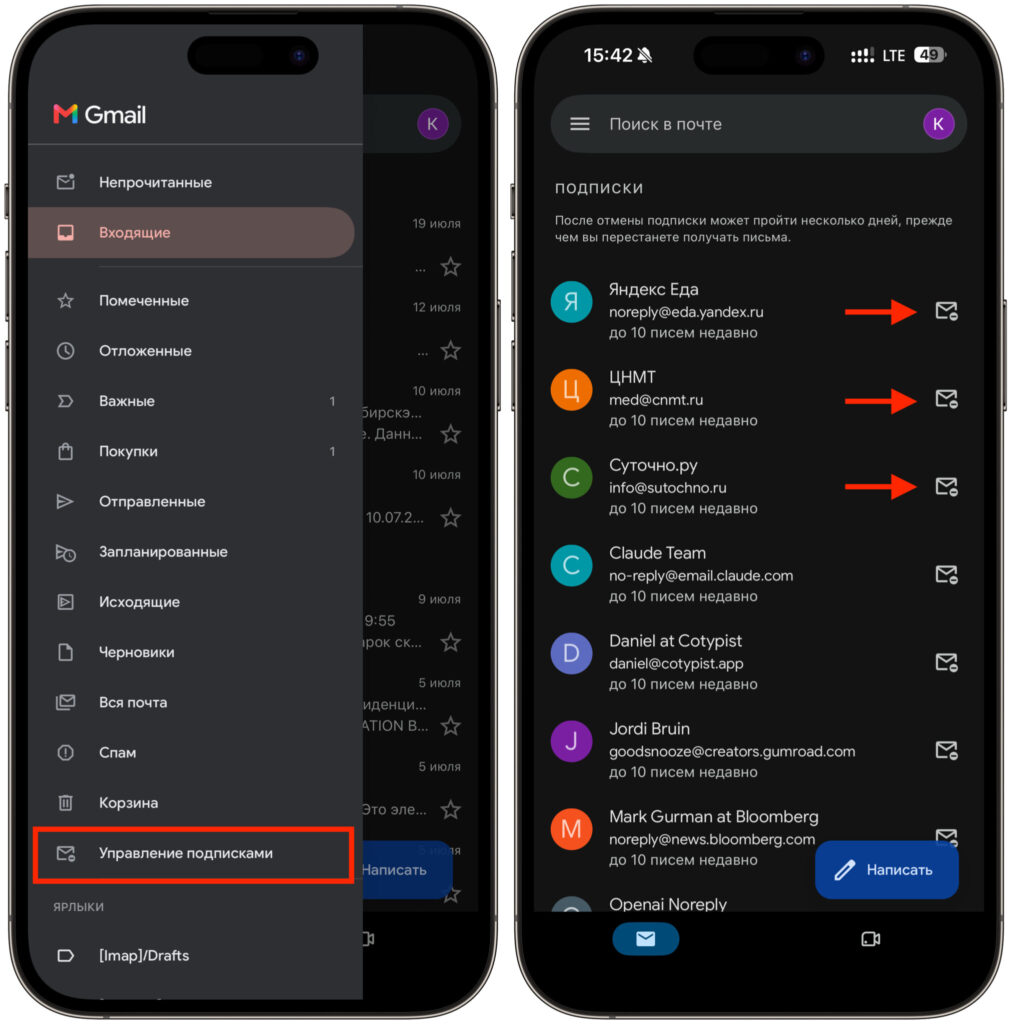
You can also cancel subscriptions on iPhone
- Open Gmail on your computer or smartphone.
- Tap the menu button — three horizontal lines in the top left corner.
- Select “Manage subscriptions” from the list of sections.
- Scan through the senders — they’re sorted by email frequency over the past few weeks.
- Tap “Unsubscribe” next to the ones you no longer want to see.
This view is convenient because the most persistent senders appear at the top — they’re usually the ones filling your inbox to the brim. Keep in mind: the sender needs a few days to process the request, so one or two emails after unsubscribing may still arrive by inertia — this is normal. If you don’t want to wait at all, you can use the adjacent button to immediately block the sender, and then their emails will automatically go to spam, bypassing your main inbox.
Why Gmail Doesn’t Show Subscription Management
The feature is being rolled out in waves, so for some users it doesn’t appear right away. Here, only patience helps — typically, the section reaches your account within a few weeks. On corporate Workspace accounts, it may not appear at all, so for work email this method isn’t universal yet. While the section hasn’t arrived, the good old method saves the day: open any promotional email and click the “Unsubscribe” link next to the sender’s name. Most of these emails hide in the “Promotions” tab — that’s exactly where Gmail puts store and advertising mailing lists, so it makes sense to start cleaning from there.
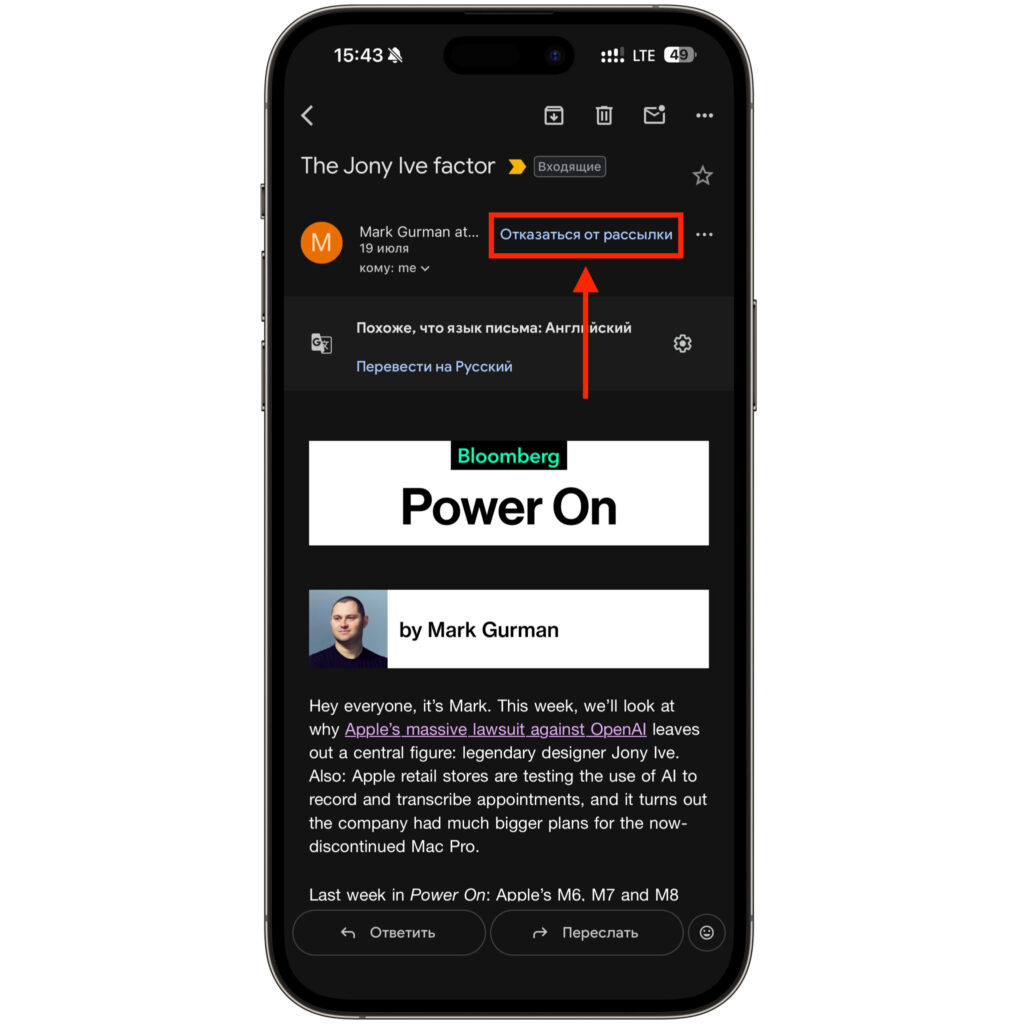
You can disable subscriptions individually directly from the email
To prevent new spam from piling up again, it’s convenient to set up a temporary email for one-time registrations on questionable sites, while keeping your real inbox clean. This kind of prevention saves far more nerves than sorting through backlogs after the fact.


