Google Messages is getting a sizeable batch of new features in September 2026. According to the source report, the stable version is adding an integration with Google Keep that lets you create and share notes and lists without leaving a conversation, plus a new “Chat theme” option that replaces the older colour-change setting. Other changes, including redesigned read receipts, quoted replies in RCS chats with iPhone users and a new attachment grid, are still confined to the beta channel. The rollout is staged and controlled server-side, so updating the app does not guarantee you will see everything at once.
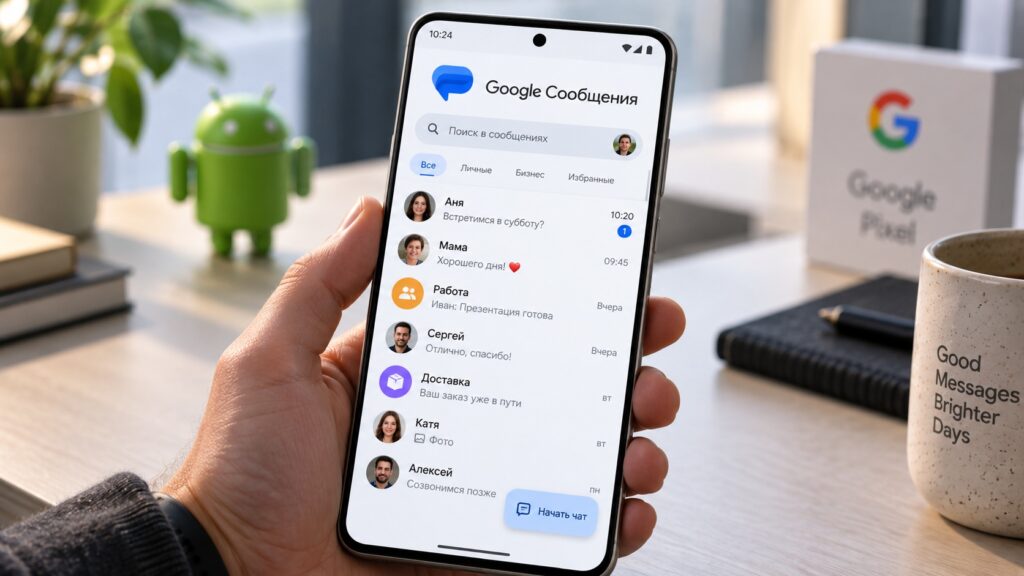
The Google Messages app on an Android smartphone
What you need to know
- Google Keep integration is arriving in the stable app: a “Keep Notes” tile in the “plus” menu lets you create or pick a note and send it as a live preview in the chat. It cannot be enabled manually; the rollout was still incomplete in early September.
- “Chat theme” replaces the 2024 “Change colours” option with nine bubble colour schemes and custom or Google-supplied wallpapers, but the theme is visible only on your own device.
- In the US, Samsung is moving users from Samsung Messages to Google Messages on Android 14 and newer; the source describes this only for the American market.
- Quoted replies and emoji photo reactions in Android–iPhone RCS chats are in beta and, per the source, also depend on Apple shipping iOS 27.
Create Google Keep notes directly in a chat
The newest addition to the stable release is Google Keep integration. Without leaving a conversation, you can create a note or a checklist and send it to the other person. The obvious use case, the source notes, is planning a shopping trip or a journey: instead of a dozen scattered messages, everything lands in a single list.
In some chats the app will proactively show a “Create list” suggestion. If it does not appear, open the “plus” menu next to the text field and look for the new Keep Notes tile. A panel slides up from the bottom showing your existing notes along with a “Create note” button. Once you pick or create a note, a send button appears in the lower-right corner, and the note shows up in the conversation as a live preview.
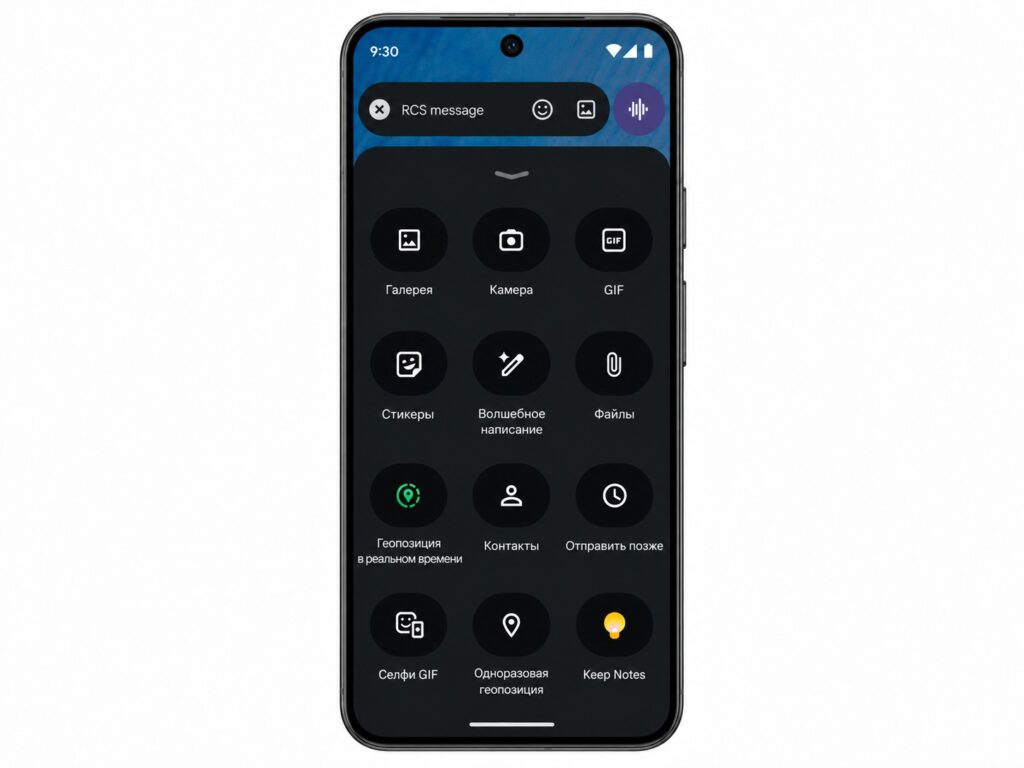
Keep Notes integration inside the Google Messages app
As of early September the rollout was not finished. If the Keep tile is missing even after updating the app, the only option is to wait: the feature cannot be switched on manually.

Chat themes replace the old colour setting
The second major feature is “Chat theme”. It replaces the “Change colours” option introduced in 2024 and does considerably more. You will find it in the three-dot menu inside a conversation; when the feature reaches your phone, a red badge appears on that menu.
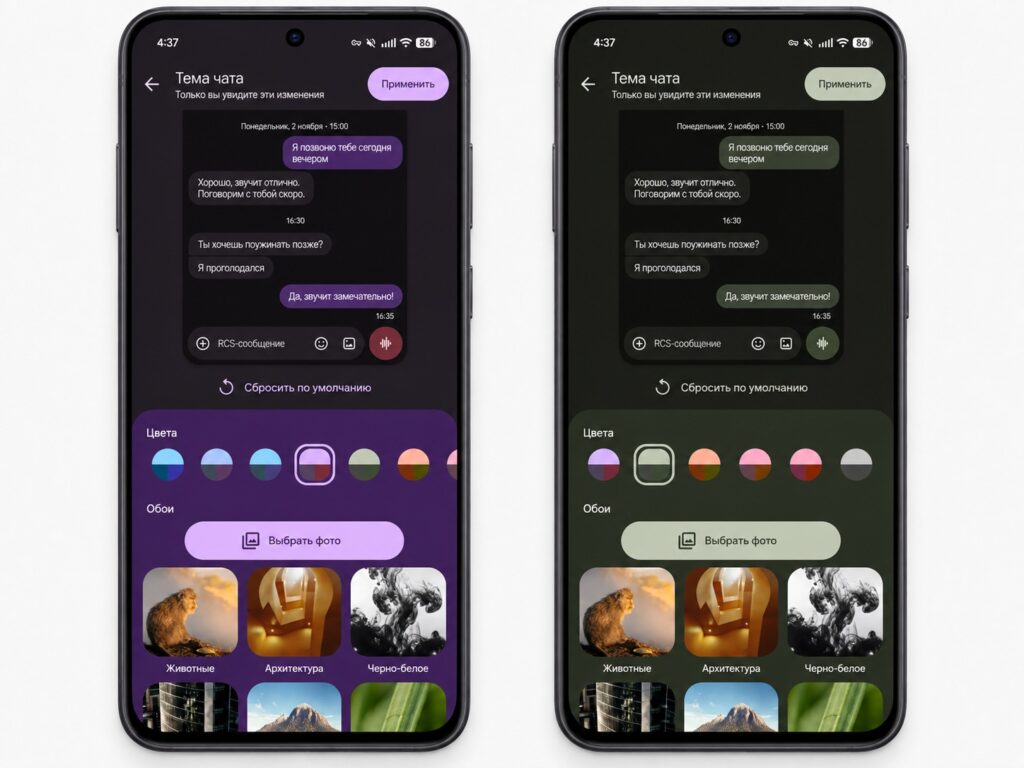
Changing a chat theme in Google Messages
The setting has two parts:
- Colours: a carousel of nine message-bubble styles. The first is a dynamic colour that adapts to the chat background.
- Wallpaper: the conversation background. You can upload your own image or pick from Google’s ready-made collections: animals, architecture, black and white, cityscapes, nature, macro, space, sunsets and textures.
One caveat worth knowing before you spend an evening choosing wallpapers: the theme is shown only on your own device. The other person keeps seeing the conversation in their own styling, so this is personal decoration rather than a shared chat setting of the kind some messengers offer.
Samsung Messages gives way to Google’s app in the US
In the United States, Samsung is migrating users from its own Samsung Messages app to Google Messages. On devices running Android 14 or newer, the Google app takes the old app’s place in the home-screen dock after the switch. The source stresses that this applies only to the US market, and there is no basis for extending it to other countries.
Galaxy owners who already use Google Messages see no change. Those who have stuck with Samsung Messages may want to get used to Google’s interface ahead of time: the source sees a clear trend towards a single RCS client on Android, even if it is limited to the US for now. Some of these changes are delivered not through the app store but through system-level updates to Google’s services.
In beta: quoted replies with iPhones and new read receipts
The most interesting change for people who message iPhone owners is tied, according to the source, to the release of iOS 27. In RCS conversations between Android and iPhone, users should gain replies that quote a specific message and photo reactions with real emoji instead of text descriptions such as “liked an image”. The feature is currently in beta, and the outcome depends not only on Google but also on Apple shipping its update.

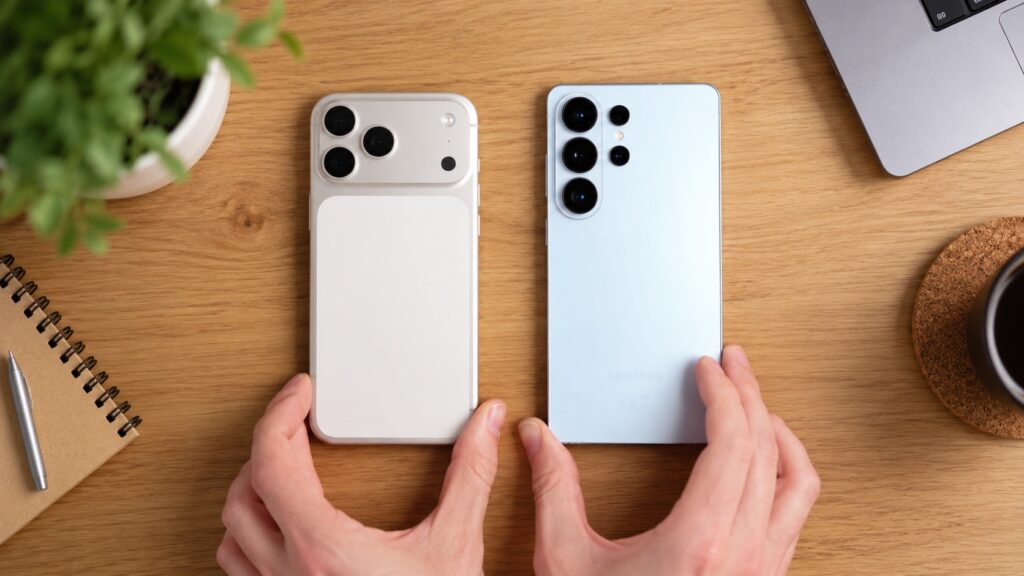
iPhone 17 Pro Max and Galaxy S26 Ultra
Google is still experimenting with read receipts. The first redesign moved the indicators into a circle at the lower-right corner of a message or image bubble: an ellipsis means sending, a single tick in a ring means sent, two ticks in a ring means delivered, and two ticks in a filled circle means read. This version is already widely available in beta and partly in the stable release.
In recent weeks, however, Google has largely reverted to two circles beneath the message and is testing yet another variant: the old icons remain, but the timestamp and encryption icon move. To see them you swipe a message to the left; swiping right triggers a quick reply. If your read receipts suddenly look different, the source says it is not a bug but another test. A few more small changes in beta:
- a new attachment grid — Google is testing two layouts, one of which takes up more of the screen;
- a long press on a message or image opens a floating menu over a blurred background instead of a toolbar at the top, and a second press lets you copy just part of the text rather than the whole message;
- a larger Gemini button and updated camera and gallery icons.
How to update Google Messages on Android
New features arrive with an app update from Google Play, but they are switched on from Google’s side, so the latest version does not guarantee you will see everything immediately. Without the update, though, there is no chance at all:
- Open Google Play and tap your profile icon in the top-right corner.
- Choose “Manage apps and device”.
- On the “Overview” tab, tap “Updates available” and find Google Messages in the list, or search for the app by name in the store.
- Tap “Update” and wait for the installation to finish.
- Open Messages and check the “plus” menu and the three-dot menu in any chat — that is where Keep Notes and “Chat theme” appear.
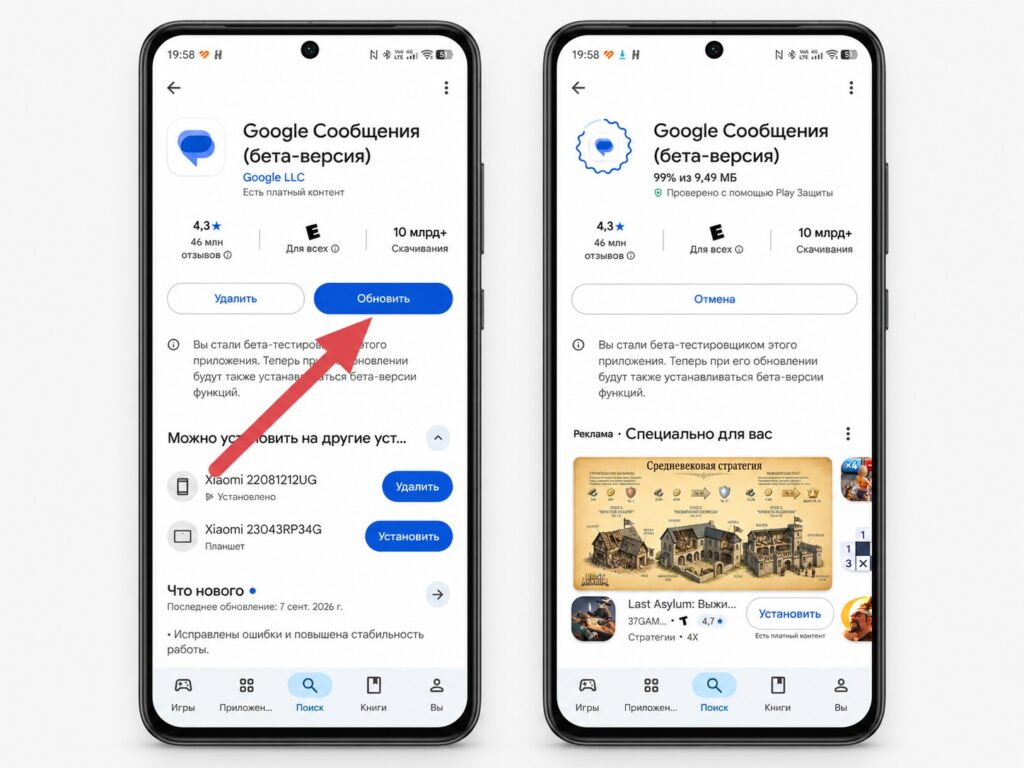
Updating Google Messages through Google Play
If you want to try features ahead of everyone else, you can join the beta programme from the app’s page in Google Play — that is where the new read receipts and attachment menu currently live. The downside of the beta is occasional glitches and constant interface reshuffles, so on a primary phone it makes sense only for those prepared to put up with experiments.


