Your keyboard app sees everything you type — passwords, card numbers, private messages. That makes it one of the most sensitive apps on your phone. Gboard, Android’s default keyboard made by Google, is functionally excellent, but it belongs to an advertising company and collects some usage data under the umbrella of diagnostics and usage statistics. While much of this can be disabled and the data is described as anonymized, users concerned about privacy may want an alternative that doesn’t rely on trust alone. FUTO Keyboard is one such option: it offers familiar features like swipe typing, autocorrect, and word suggestions — all processed entirely on-device with no internet connection required for any function.
What you need to know
- FUTO Keyboard is free with no ads; optional payments support development, but all features are available without paying.
- Its source code is available for inspection, though the app is not described as fully open-source in the traditional sense.
- All features — including voice input based on a Whisper-type model — run entirely on-device; no data leaves the phone.
- The app requires Android 7.0 or newer and is available on Google Play, F-Droid, and GitHub via Obtainium.
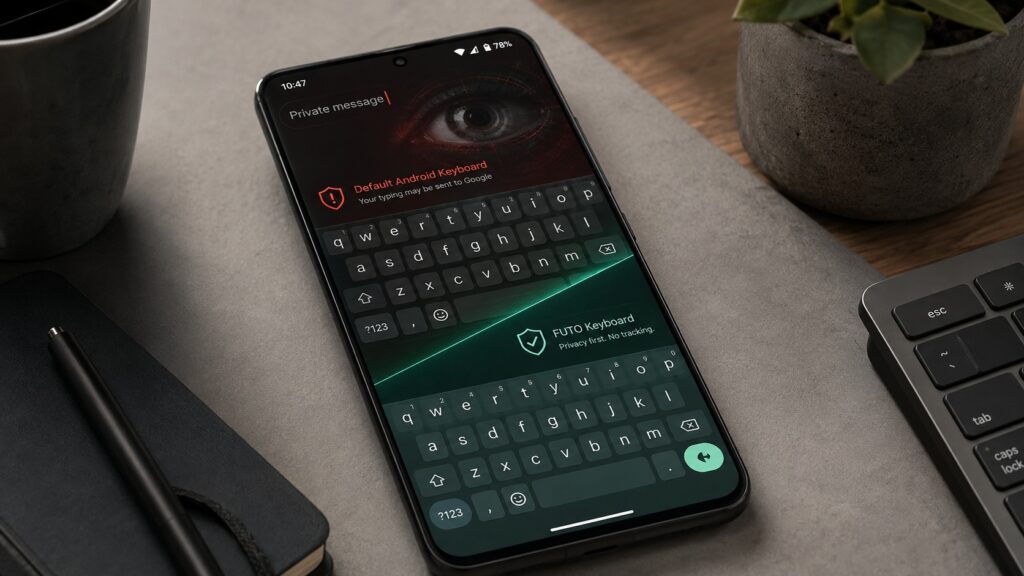
A keyboard that doesn’t watch what you type
Why reconsider Gboard?
The concern isn’t that Gboard works poorly — it doesn’t. The issue is what happens to the data that passes through it. Gboard collects some data under the guise of usage statistics and diagnostics. While much of this collection can formally be disabled and the data is described as anonymized, the keyboard still belongs to a company whose core business is advertising. The source author reports that the main benefit of switching was psychological: no longer worrying about whether typed passwords or personal messages were being processed by an ad-driven platform.
How FUTO Keyboard handles privacy
FUTO takes a different architectural approach. According to the source, the app’s source code is available for inspection — anyone can examine how it works internally — though it is not described as fully open-source. No account creation is required, and there are no hidden telemetry toggles or persistent prompts to “help improve the app.”

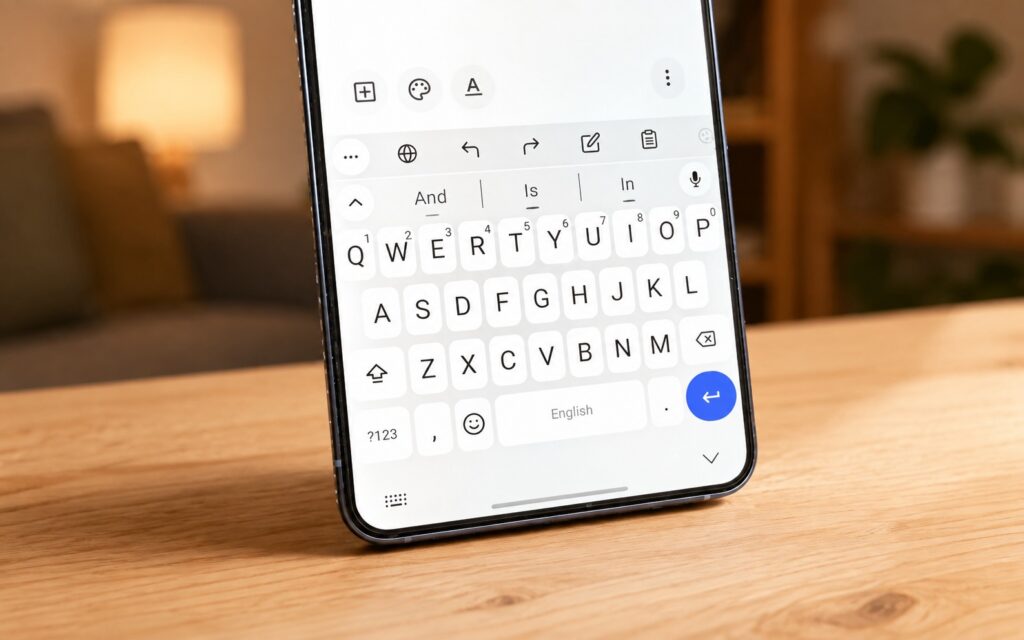
FUTO Keyboard is designed not to track what you type, unlike Gboard
In essence, FUTO is described as what a keyboard should have been from the start: a local tool that does its job and stays silent. FUTO Keyboard is free and ad-free — voluntary payments support development, but all functionality is available without paying.
Features: What FUTO actually offers
There are other privacy-focused Gboard alternatives — HeliBoard and OpenBoard, for instance, also work offline and don’t collect data. The source author chose FUTO because it reportedly comes closest to Gboard in look and feel without cutting important features.
According to the source, FUTO includes themes, autocorrect, swipe typing, word suggestions, and a personal dictionary. The key difference is implementation: no internet connection is needed for any function — everything is processed directly on the phone.

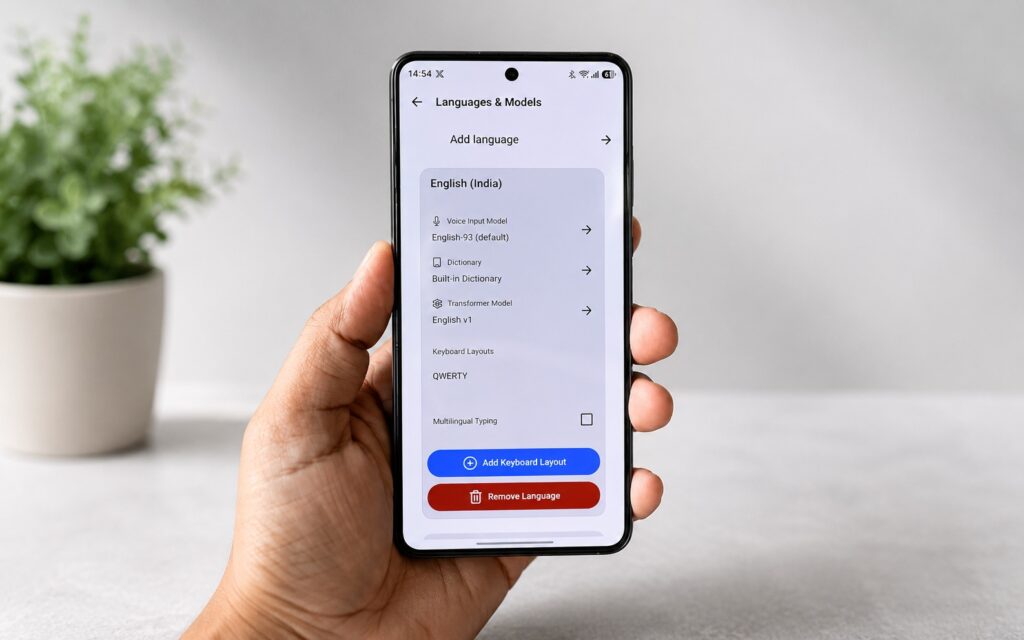
FUTO Keyboard offers a wide range of settings
On-device voice input
The source highlights FUTO’s voice input, which is built on a Whisper-type model running entirely on-device. A base model is included and reportedly works well, but additional models can be downloaded: some optimized for speed, others for accuracy, and some seeking a balance. Multilingual models are also available, though the source author recommends these only for flagship devices, as they are more resource-intensive. Crucially, no audio data leaves the phone.
How to install and set FUTO as your default keyboard
FUTO Keyboard is officially available on Google Play. It can also be found on F-Droid or installed via Obtainium from its GitHub repository. The minimum requirement is Android 7.0 or newer.

According to the source, the setup process is as follows:
- Download and install FUTO Keyboard from Google Play or another source.
- Open the app and follow the on-screen prompts — they will guide you through enabling the keyboard.
- When prompted, allow FUTO to be used as an input method in your device’s input method list.
- Select FUTO Keyboard as your active input method.
- Verify the result by opening any text field and confirming that FUTO appears.
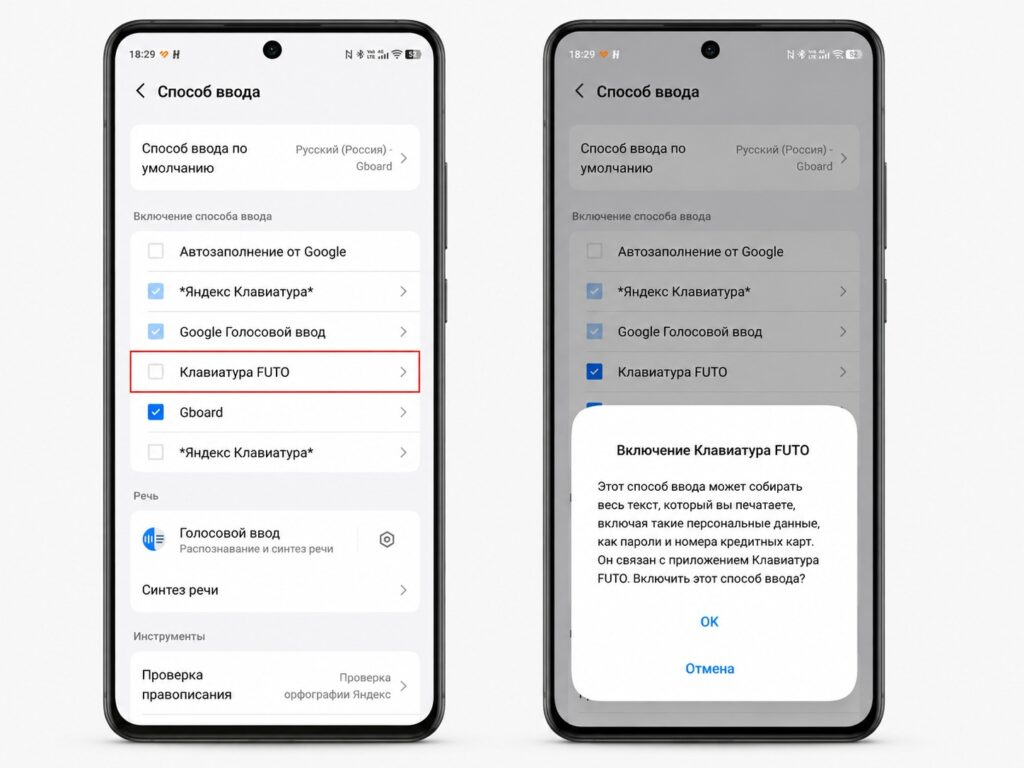
Set FUTO Keyboard as your default keyboard
If the guided setup doesn’t work, navigate manually to your phone’s Settings → System → Language & Input → Virtual Keyboard (the exact menu name may vary by manufacturer) and assign FUTO manually. You can keep your previous keyboard enabled as a fallback or disable it entirely.
Is it worth switching?
The source author is candid: if you’re satisfied with Gboard and data collection doesn’t concern you, there’s no urgent need to switch. But for users who want an offline keyboard without telemetry that doesn’t sacrifice familiar features like swipe typing and autocorrect, FUTO is described as one of the strongest current options. Since it’s free, there’s no cost to trying it out.


