Your Android phone’s camera can do much more than take pictures. The source article describes four practical uses: scanning paper documents with the scanner built into Google Drive, reading small print with a camera-based magnifier, photographing a problem and asking Gemini to explain it, and using Google Lens to identify objects or pull text out of an image. The source author reports switching to these tools for everyday tasks, such as dropping a separate scanning app. The notes below cover how each one works and its main limitations.
What you need to know
- The Google Drive app for Android has a document scanner that detects page edges, straightens the image, removes shadows, and saves to PDF or JPG.
- Google’s Magnifier app turns the camera into a magnifying glass, but it is available only on Pixel 5 and newer models.
- In the Gemini app, you can take a photo and ask about it by text or voice. The source notes that Gemini is not officially available in every country.
- Google Lens can identify plants, animals, landmarks, and products, and it can copy, translate, or act on text in the camera frame.
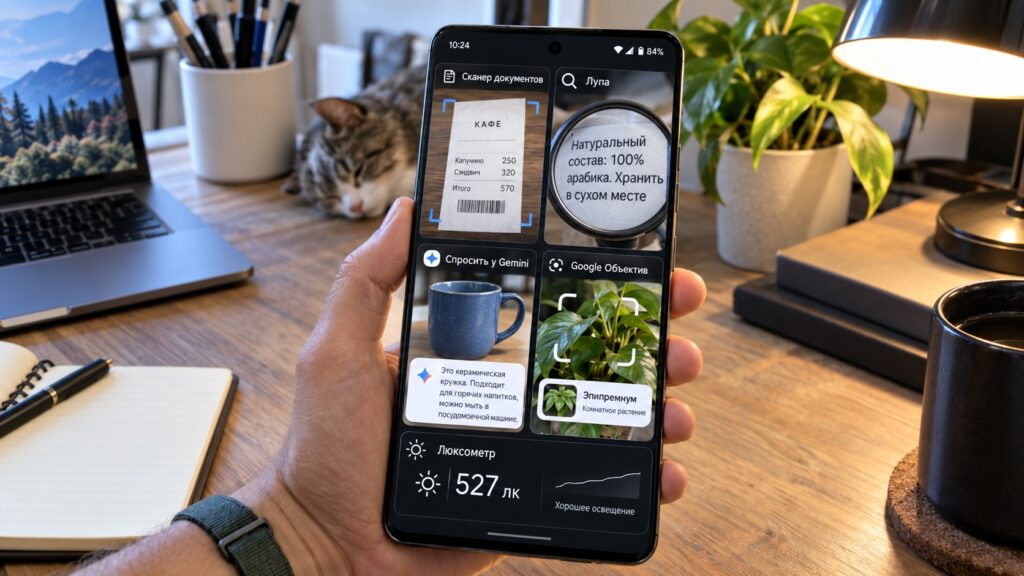
Hidden features of an Android smartphone camera
1. A document scanner is already built into Google Drive
The source author used to rely on a separate app to scan paper documents, then found it was unnecessary. The Android version of Google Drive has its own scanner. It automatically finds the edges of the page, straightens the image, removes shadows, and saves the result as a PDF or JPG. According to the source, you can use it to digitize receipts, letters, bills, and handwritten notes, then throw away the paper originals.
How to scan a document in Google Drive
- Open Google Drive and tap the camera icon in the bottom-right corner.
- Point the phone at the document. The app outlines the page borders in blue and captures the page automatically or when you tap the shutter.
- If needed, crop, rotate, or apply a filter. For multi-page documents, add more pages.
- Tap “Done”, name the file, and choose PDF or JPG. Optionally pick a folder, then confirm the upload.
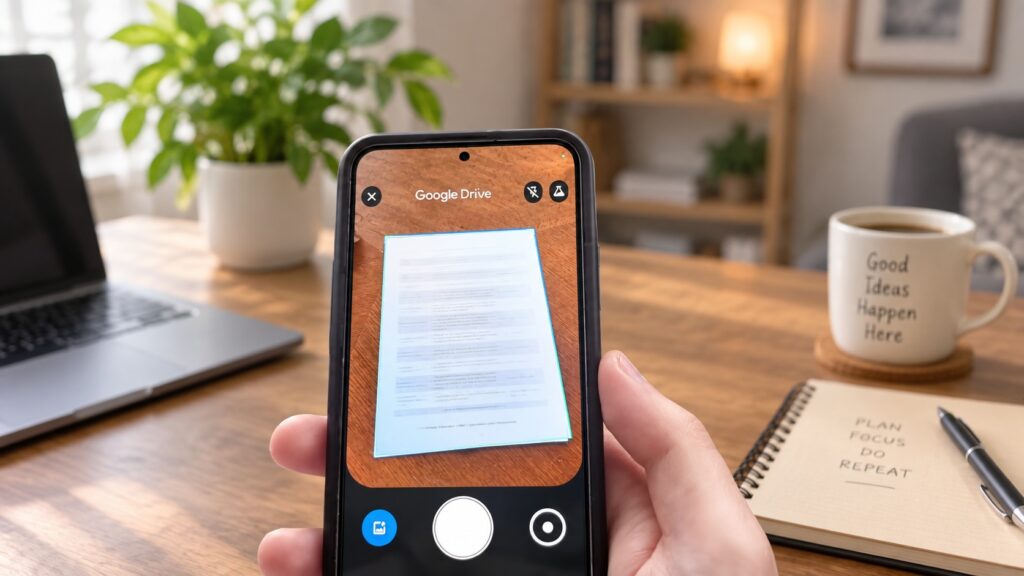
Scanning a document with Google Drive
Tip: To avoid opening the app every time, the source author added the Drive scan widget to the home screen. One tap opens the camera, ready to scan a document.
2. A magnifier for small print: Magnifier on Pixel, plus an alternative for other phones
The source argues that a phone’s camera zoom is most useful for reading, not for photographing the moon. Google Pixel phones, for example, have a dedicated Magnifier app that turns the camera into a magnifying glass. It enlarges small text and distant objects and brightens the image in the dark. It can also adjust contrast and apply color filters when something is hard to make out. The app can even search for a specific word in the live camera view.
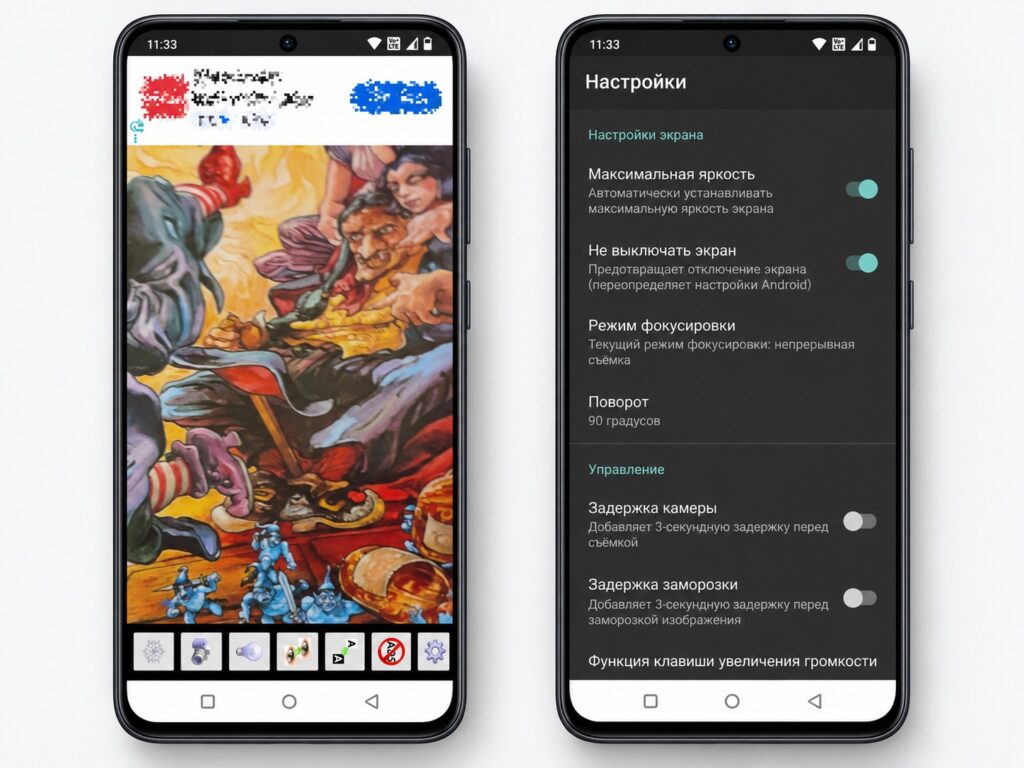
Magnifier app interface and settings

The app is simple to use. Open Magnifier, point the camera, and choose the zoom level. On-screen buttons switch brightness, contrast, and filters. The main limitation is that the app is available only on Pixel 5 and newer models. For other Android phones, the source recommends the third-party Magnifier + Flashlight app from App2U. It also magnifies through the camera and adds a flashlight, frame saving, and color inversion.
3. Gemini can analyze a photo when a problem is hard to put into words
The source author describes tasks that are difficult to phrase as a search query. Examples include a washing machine control panel covered in twenty unfamiliar symbols, a handwritten shopping list you want to turn into a checklist, and a shelf of groceries with no obvious meal in mind. Instead of searching for the right words, the author takes a photo and asks Gemini what it shows and what to do. According to the source, the assistant can also summarize a complex official notice in plain language and highlight the key points.
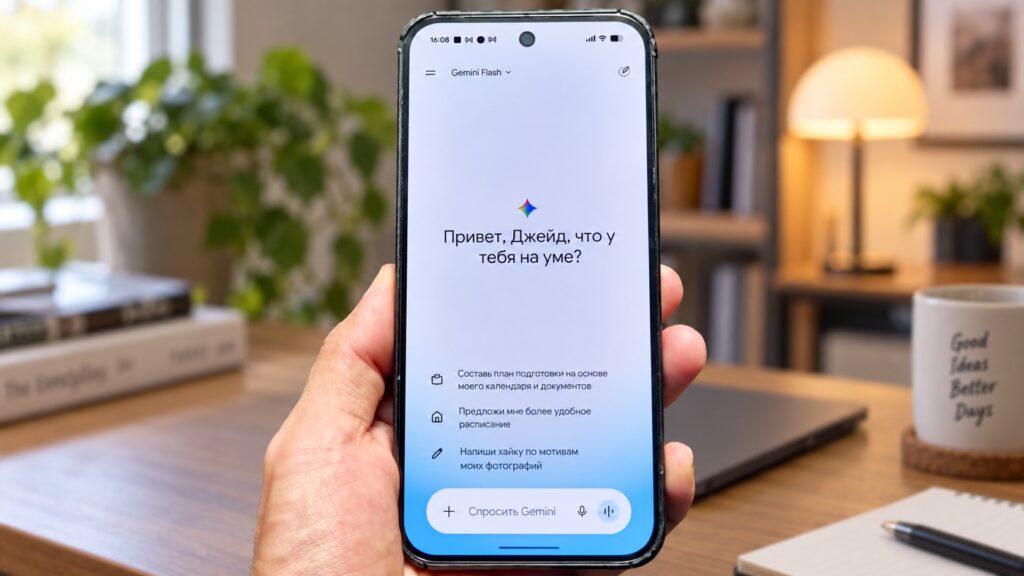
Gemini app interface
To try it, open the Gemini app on Android, start a new chat, tap the plus button, and select “Camera”. Take a photo, then ask your question by text or voice. One caveat: Gemini is not officially available in every country. The source notes, for example, that Russia is not on Google’s official list of supported countries and that the app does not appear in the Russian Google Play store. Check whether Gemini is offered where you live.
4. Google Lens searches by image and extracts text from the frame
The source calls this probably the most versatile way to use the camera beyond photography. Google Lens recognizes plants, animals, landmarks, and products, and it finds similar images and related websites. If the frame contains several objects, you can select just the part you want after taking the picture and search for that alone.
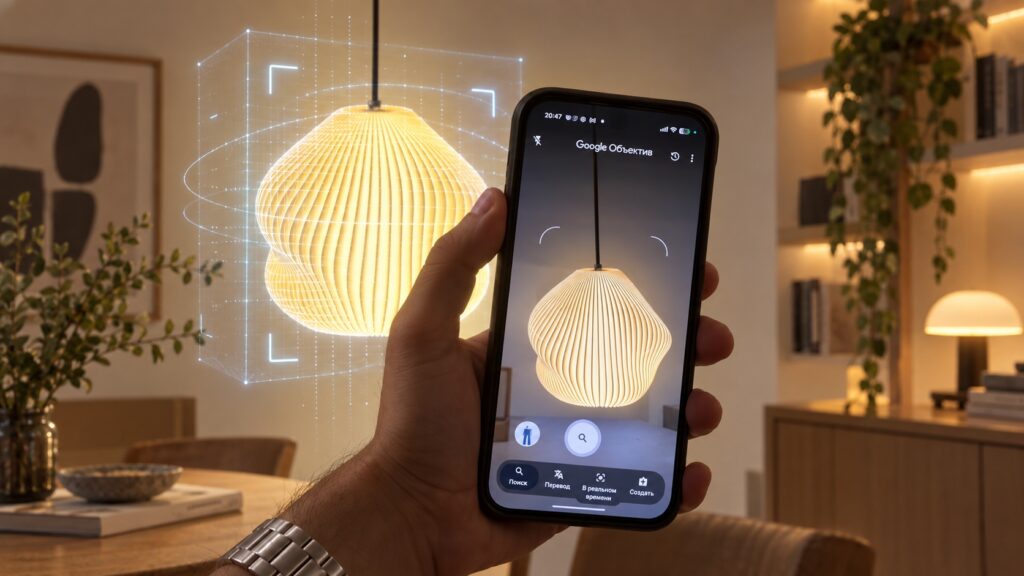
Scanning objects with Google Lens
The source author especially values how Lens handles text. Point the camera at a phone number, an address, or a paragraph in a book, and select the text. You can then copy it, search for it, translate it, call the number, or open the address in Maps, without retyping anything.