Android Auto can be calmer, cooler and less distracting after four small changes on the phone: remove messaging apps from the car launcher, stop music from auto-playing when the engine starts, hide message previews on the car screen, and—on a Samsung phone—set up an automation that trims heat-generating features whenever the car connects. According to the source author, none of these options is buried deeply and the whole process takes a couple of minutes, but the cumulative effect is that getting into the car no longer starts with a ritual of switching things off.
What you need to know
- Messaging apps such as WhatsApp and Telegram can be removed from the Android Auto launcher via the phone’s Android Auto settings (“Customize launcher”).
- A separate autoplay toggle in Android Auto’s settings stops podcasts or playlists from resuming on their own every time the car starts.
- The notification section has an option to hide the first line of incoming messages while still announcing that a message arrived.
- On a Galaxy S25 Ultra, the author uses Samsung’s Modes and Routines app to disable Always On Display and fast charging, lower the performance profile and switch from 5G to LTE whenever Android Auto connects.
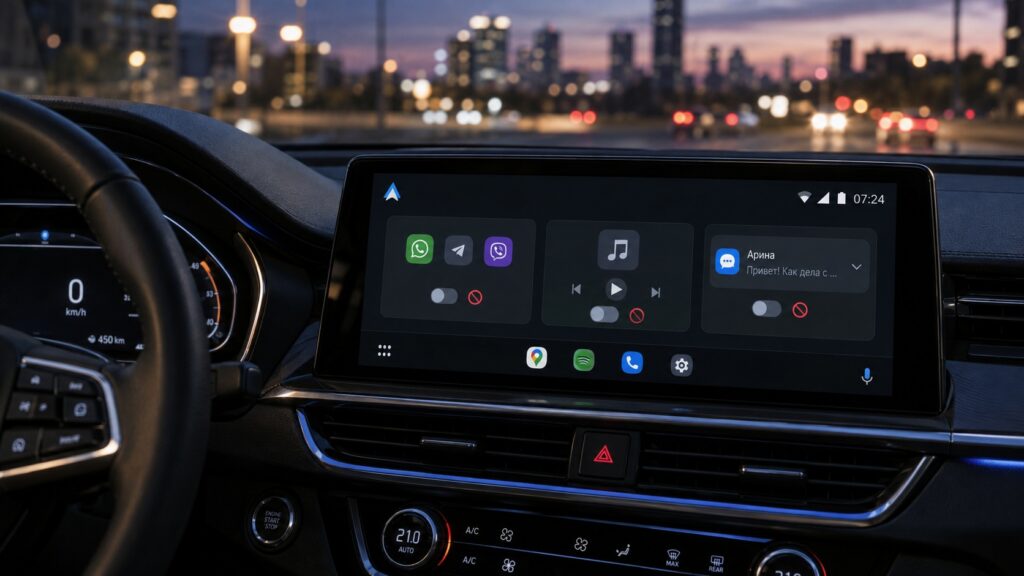
Android Auto features that make the drive worse, not better
1. Remove messaging apps from the car screen
The first thing the author removed from the Android Auto launcher was WhatsApp and Telegram. The reasoning is simple: reading and answering messages while driving is not something they need, and having messages read aloud turned out to be more of a hindrance than a help—particularly with passengers in the car, when nobody wants private conversations broadcast to the whole cabin.
This does not mean losing touch entirely. When something needs to be sent, the author asks Gemini by voice—for example, to send an arrival time to a specific person in WhatsApp. The assistant handles it in a few seconds, and the messaging apps themselves stay off the screen for the whole trip.

How to remove apps from the launcher
- On the phone, open Settings, then Connected devices, Connection preferences and Android Auto. On many firmware versions it is faster to find this entry through the settings search.
- Select Customize launcher.
- Untick WhatsApp, Telegram and any other apps you do not want to see on the car display.
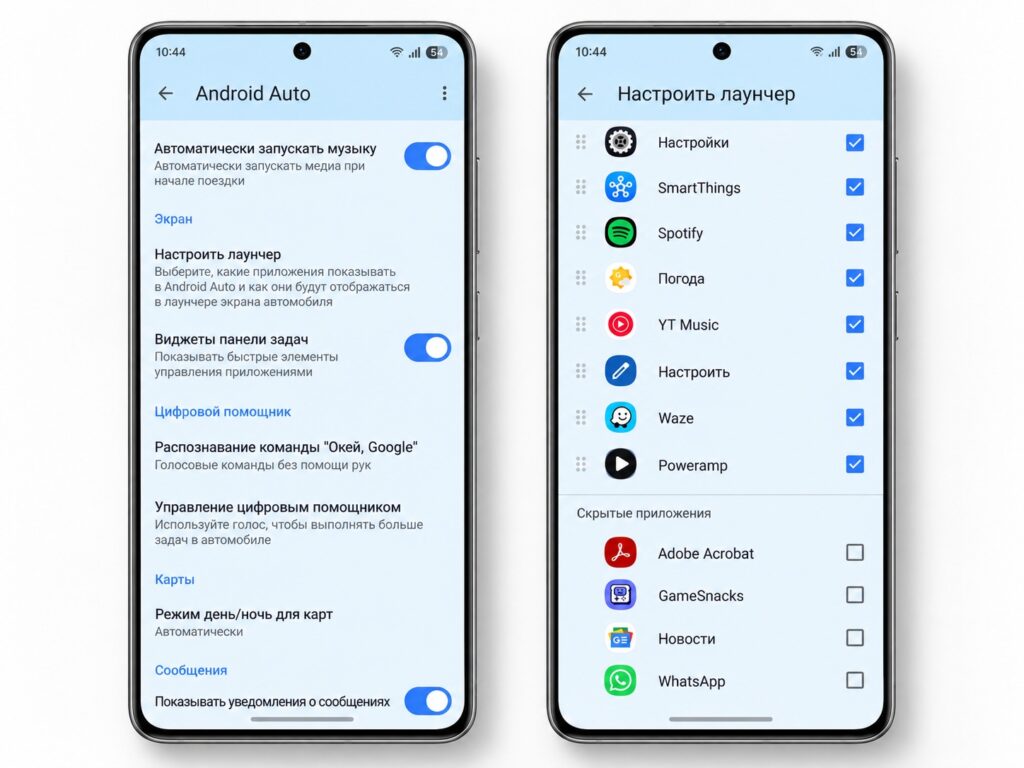
Removing messaging apps from the Android Auto home screen
2. Stop music from playing automatically
The second change is media autoplay. Android Auto tended to decide what the author would listen to: as soon as the car started, a podcast or playlist paused hours earlier would resume—even on trips where the goal was simply to turn on navigation and drive in silence. It is a small thing, but it happened every day and was one more action to deal with before pulling away.
With autoplay off, nothing plays until it is requested: the author launches YouTube Music or Spotify manually, or asks Gemini for a specific playlist. The source notes this is especially welcome on short trips where audio is not needed at all, and that the moment of connection becomes calmer because navigation, notifications and music no longer all arrive at once.
How to disable autoplay
- Open the Android Auto settings on the phone using the same path as in the first section.
- Find the toggle for automatically starting music (labelled “Autoplay music” or similar).
- Switch it off. The exact name and location of the option may differ slightly depending on the app version and firmware.
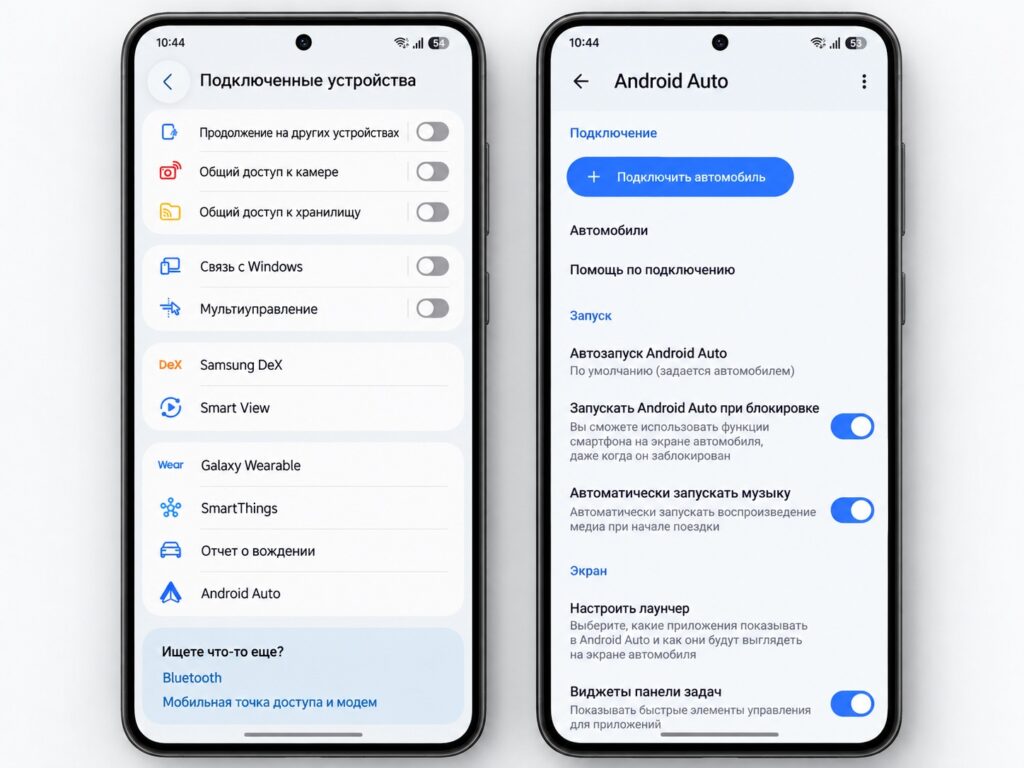
Turning off autoplay in Android Auto

3. Hide the first line of incoming messages
The third setting controls whether the first line of an incoming message appears on the car display. Even a short fragment of text pulls the eye, the author argues, especially when it comes from someone familiar or looks urgent. There is a privacy dimension too: colleagues, friends or relatives in the car do not need to see the opening of every message.
Hiding the preview does not cut the driver off. Android Auto still announces that a new message has arrived—just without its content—and the author deals with it once parked. The source describes this as the first item on a checklist of Android Auto settings to review before a long drive.
How to hide message text
- Open the Android Auto settings on the phone.
- Scroll to the notifications section.
- Turn off the option to show the first line of messages.
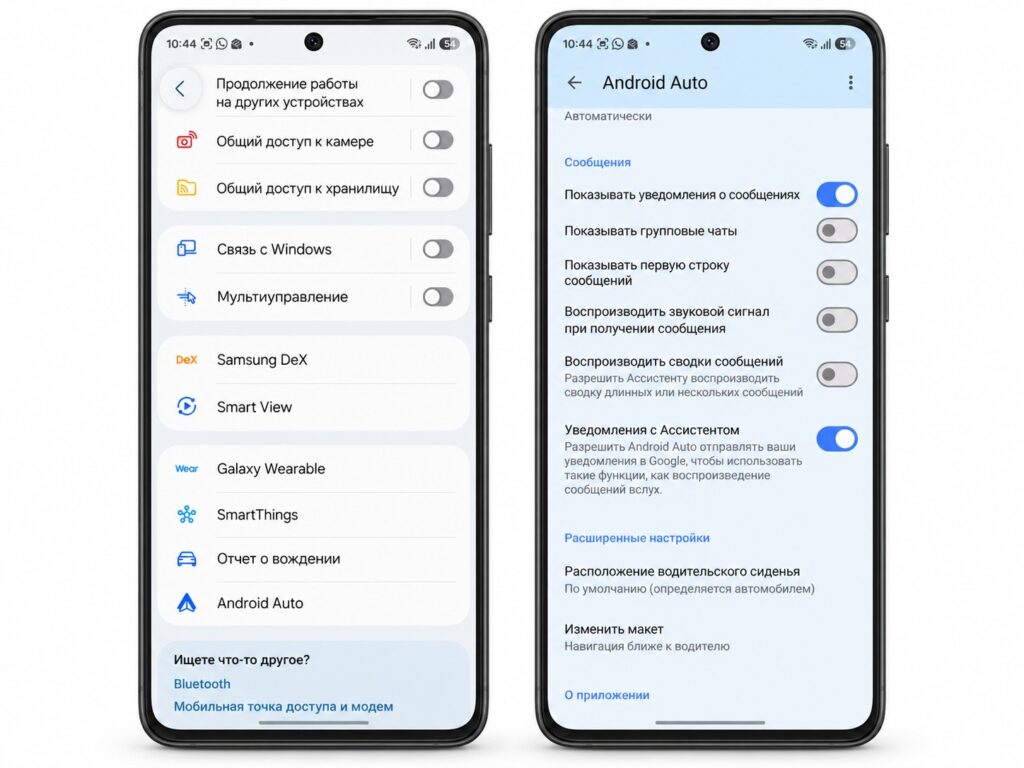
Disabling message previews in Android Auto

4. A Samsung routine that trims heat when the car connects
The change the author calls the most useful has nothing to do with Android Auto’s own settings—it lives on the phone. Using a Galaxy S25 Ultra, they built a rule in Samsung’s Modes and Routines app: as soon as Android Auto connects, the phone turns off Always On Display, disables fast charging, switches to a lighter performance profile and drops from 5G to LTE. Nothing has to be remembered before each trip, and when the phone disconnects from the car, everything reverts automatically.
The main motivation is heat. On a long drive the phone is already running navigation, music, voice commands and everything else; add fast charging, 5G and a permanently lit screen, and the temperature climbs quickly. With the routine in place, the author says the phone stays at a normal temperature and they did not notice any slowdowns on long routes. This is the author’s own observation, not a measured test.
How to create the routine on a Samsung phone
- Open Settings and go to Modes and Routines.
- Tap + and set the condition: connection to Android Auto.
- Add the actions: turn off Always On Display, disable fast charging, change the performance profile and switch the network from 5G to LTE.
- Save the routine and check that it fires the next time the phone connects to the car.
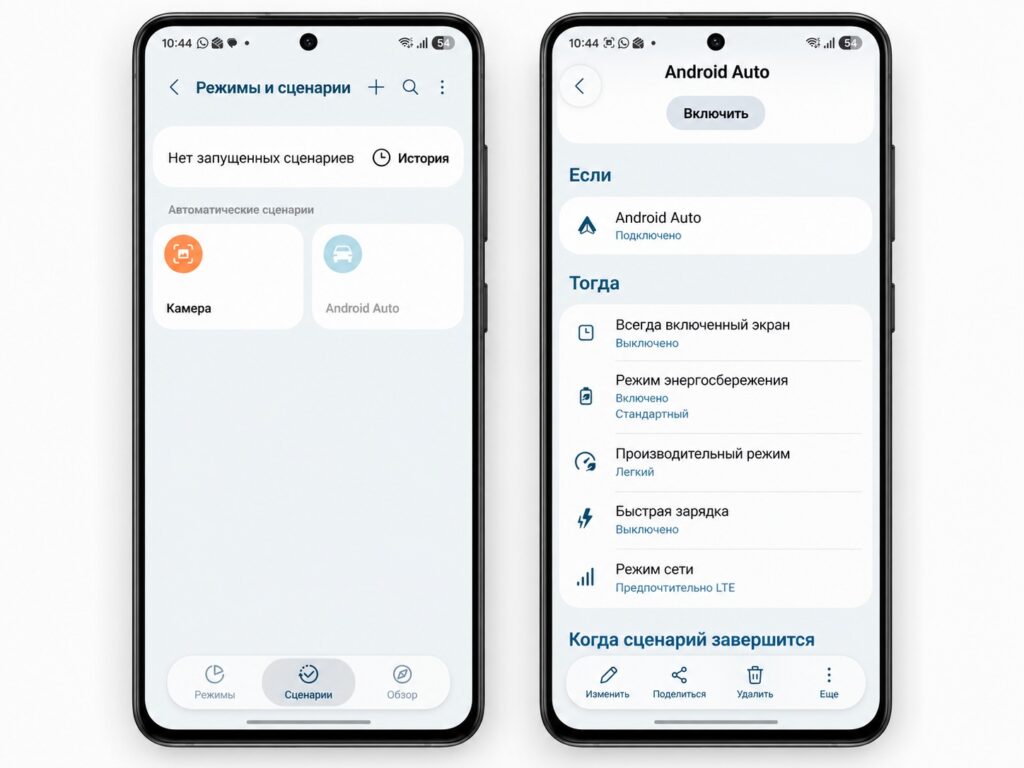
Creating a routine on a Samsung smartphone
Limitations
Phones from other brands may not have a built-in equivalent of Modes and Routines, so some of these settings would need to be toggled manually or handled through third-party automation apps. Menu names and positions inside Android Auto can also vary by app version and device firmware, so the paths above may not match exactly on every phone.