When dozens of dialogs, channels, and bots pile up in the MAX messenger, navigating through them becomes increasingly difficult. You just opened the app — and you’re faced with a mess of work groups, personal conversations, and channel subscriptions. Folders help you organize everything in just a couple of minutes. Let’s figure out how to create a folder, add the right chat to it, and set up the MAX messenger on iPhone so that everything important is at your fingertips.

Organizing MAX with folders
What Are Folders in MAX and How They Work
Folders in MAX are a way to sort everything into categories. You can gather work chats and channels in one, personal conversations in another, and news subscriptions in a third. Moreover, the same dialog can be in multiple folders at once: for example, a chat with a colleague who’s also a friend can end up in both “Work” and “Friends.” Nothing gets duplicated — these are simply different filters for the same list.
An important point: a folder works as a filter, not as a move. When you add a chat to a folder, it still remains in the general “All” list. This means you can delete a folder without any risk of losing your conversations — all dialogs will stay in place. Even if you accidentally delete the wrong folder, nothing bad will happen.
Folders are especially convenient when you have many subscriptions. Say, all news channels in one folder, all work groups in another, bots in a third. Instead of scrolling through an endless feed every time, you simply switch between tabs. This saves time and nerves — especially when you need to quickly find a specific dialog among hundreds of others.
Creating a Folder in MAX on iPhone
Creating a new folder takes literally half a minute. No hidden menus or complicated settings — everything is right on the surface. Here’s what you need to do:
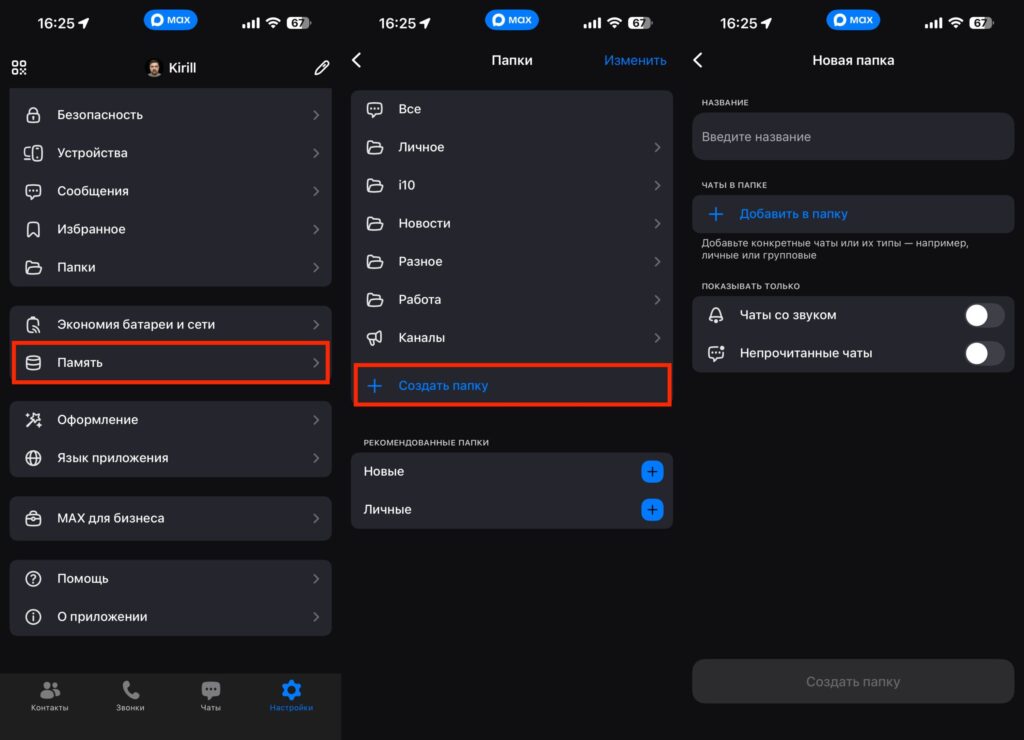
A folder is created in just a few taps
- Open MAX on your iPhone and go to the “Profile” section — the icon in the bottom right corner of the screen.
- Find the “Folders” option and tap on it.
- Tap the “Create Folder” button.
- Come up with a name — 20 characters maximum. You can add emoji: folders with icons are easier to distinguish than plain text ones. For example, 💼 for work chats or 📰 for news.
- Tap “Add Chats” — a full list of your dialogs, channels, and groups will open.
- Select the chats you need and confirm your selection.
You can also create an empty folder — just skip the step of adding chats and fill it later. This is convenient when you’re planning your structure in advance but haven’t yet decided what goes where. By the way, the maximum number of folders is unlimited — you can create as many as you actually need. But don’t overdo it either: five to seven usually cover all your needs.
Adding a Chat to a Folder in MAX
If the folder is already created and you need to add a new dialog to it, you don’t even need to go into settings. Everything is done right from the general chat list:
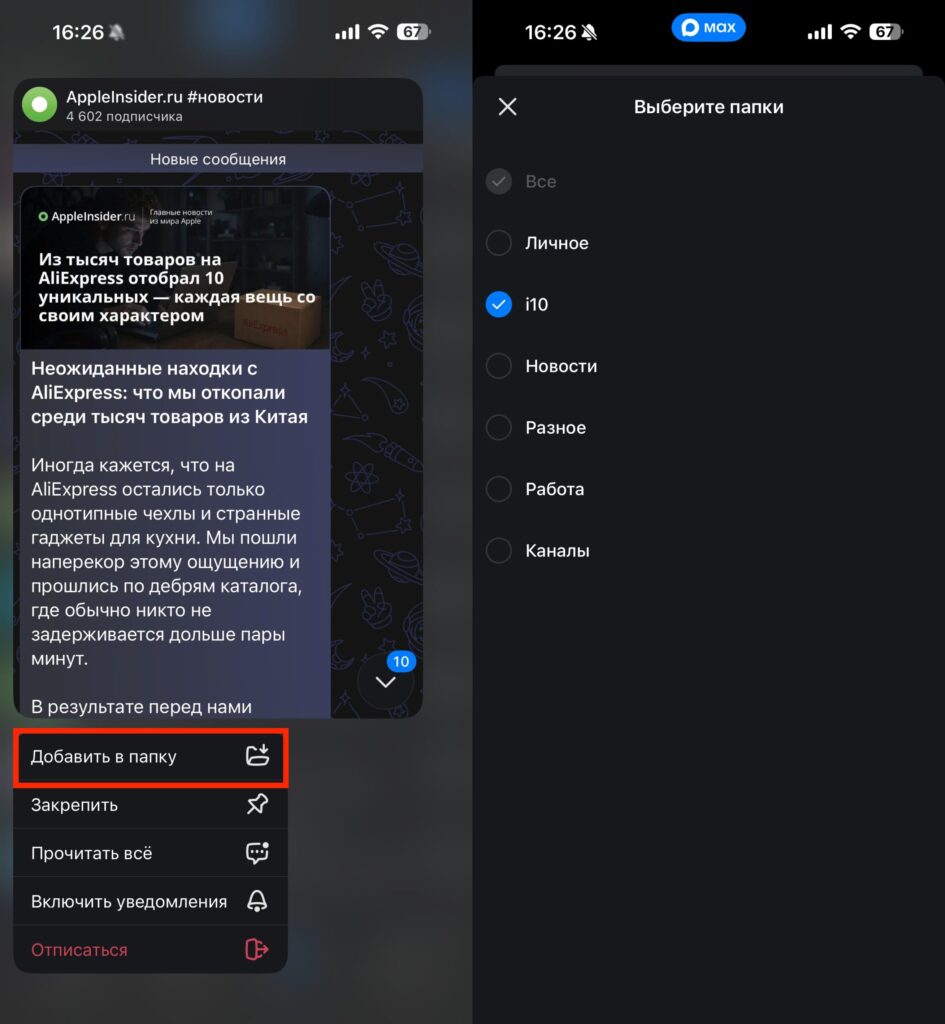
You can add a chat to multiple folders at once
- Open MAX and go to your chat list.
- Find the chat you need and long-press on it — a context menu will appear.
- Select “Add to Folder.”
- Check one or more folders where this chat should go.
There’s also a second way — through settings. Go to “Profile → Folders,” tap the desired folder, and select “Add Chats.” The same list of dialogs for selection will open.
Both methods work the same way; the only difference is convenience. If you’re already scrolling through the feed and see the chat you need — it’s easier via long press. And if you want to add multiple dialogs at once, it’s more convenient to go through the folder settings and select everything in one go.
Removing a Chat from a Folder in MAX Without Losing Your Conversation
Sometimes a chat ends up in a folder by mistake or simply becomes irrelevant. You can remove it from there without deleting the folder itself or affecting other dialogs like this:
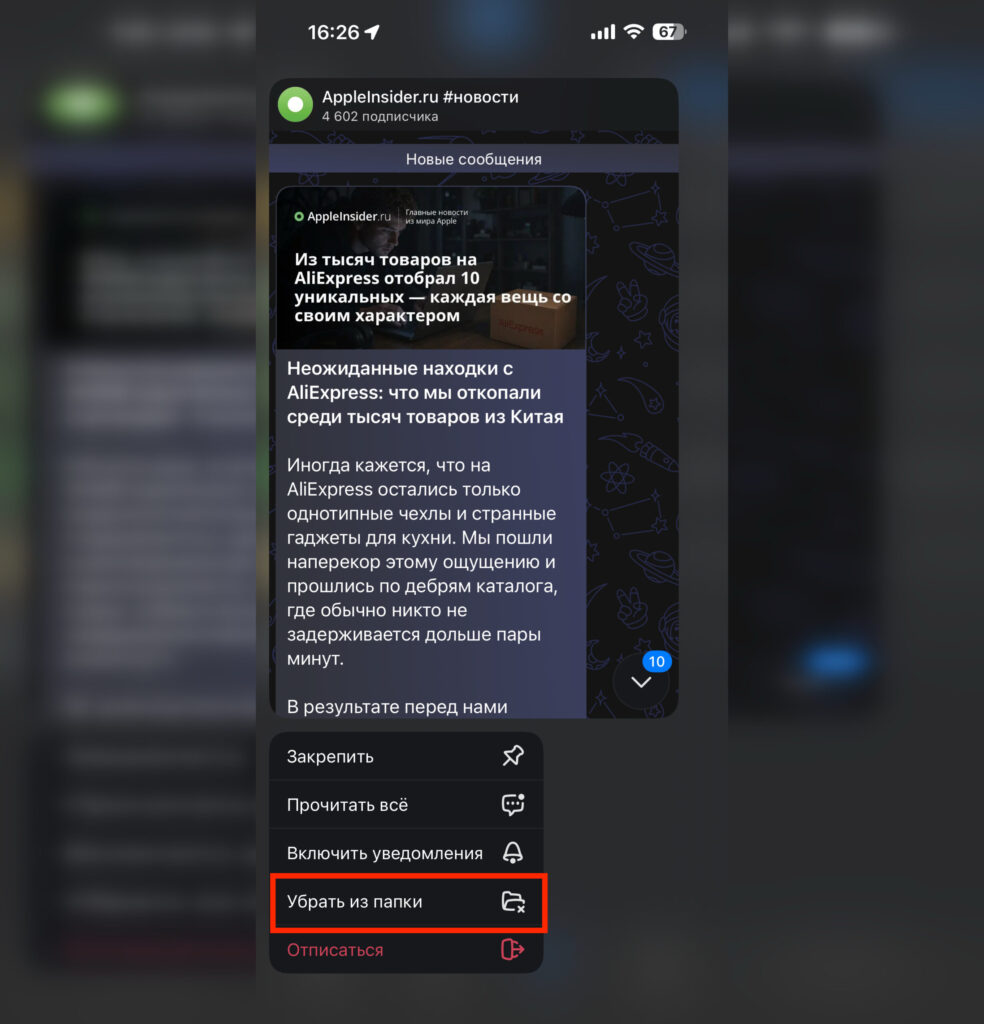
Removing a chat from a folder is even faster than adding it
- Go to the folder from which you want to remove the chat.
- Hold your finger on the chat until the context menu appears.
- In the menu, tap “Remove from Folder.”
After that, the chat will remain in the general “All” list and in other folders if it was there. It will simply disappear from this specific folder. No conversation loss will occur — only the filter is removed, while the dialog itself with all messages stays in place.
By the way, you can quickly reorganize folders the same way: remove unnecessary items from one and immediately add them to another. Flexible folder customization is one of MAX’s advantages that truly saves time.
How to Delete a Folder in MAX and What Happens to Chats
Deleting a folder is even easier than creating one. And most importantly — it’s completely safe. All chats that were in the folder will remain in the general “All” section safe and sound:
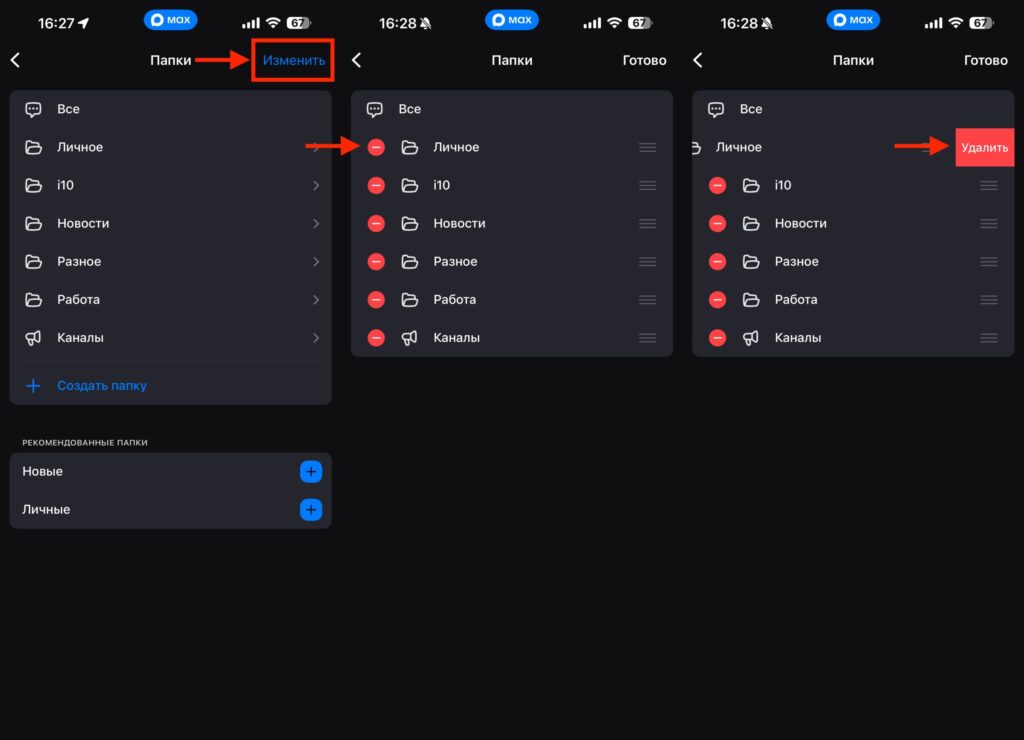
It’s easier to delete the folder itself from settings
- Go to “Profile” and open “Folders.”
- Tap “Edit” in the upper right corner.
- Tap the circle with the minus sign.
- Select “Delete” and confirm the action.
The folder will disappear, but not a single chat will be affected. Folder setup in MAX doesn’t permanently bind dialogs — it’s always a fully reversible action. Deleted a folder, changed your mind — create a new one and add the same chats again. There are no restrictions on re-creating them. Overall, folders are the kind of feature that seems minor until you start using it. And then you wonder how you ever managed without it. Especially if you have work conversations, channels, and bots in MAX — all in one pile.


