We’ve already figured out the proper basic setup of MAX messenger. Now it’s time to move on to the next level: organizing chats using folders. When dozens of conversations pile up in the MAX app (work chats, news channels, bots, personal messages), it becomes difficult to make sense of this chaos. Folders in MAX solve this problem simply and elegantly. Here’s how they work and how to use them.

Learning how to use folders in MAX
Why You Need Folders in MAX
Folders in the MAX app are a tool for organizing everything that has accumulated in the messenger. You can gather work chats in one folder, news channels in another, and personal conversations in a third. The same chat can be in multiple folders simultaneously: for example, a work conversation with a friend can end up in both “Work” and “Friends.”
Folders in MAX are filters, not moves.
An important detail: a folder with channels in MAX and any other folder works as a filter, not as a move. Chats are copied into the folder for quick access but don’t disappear from the general “All” list. This means you can always delete a folder without the risk of losing your conversations.
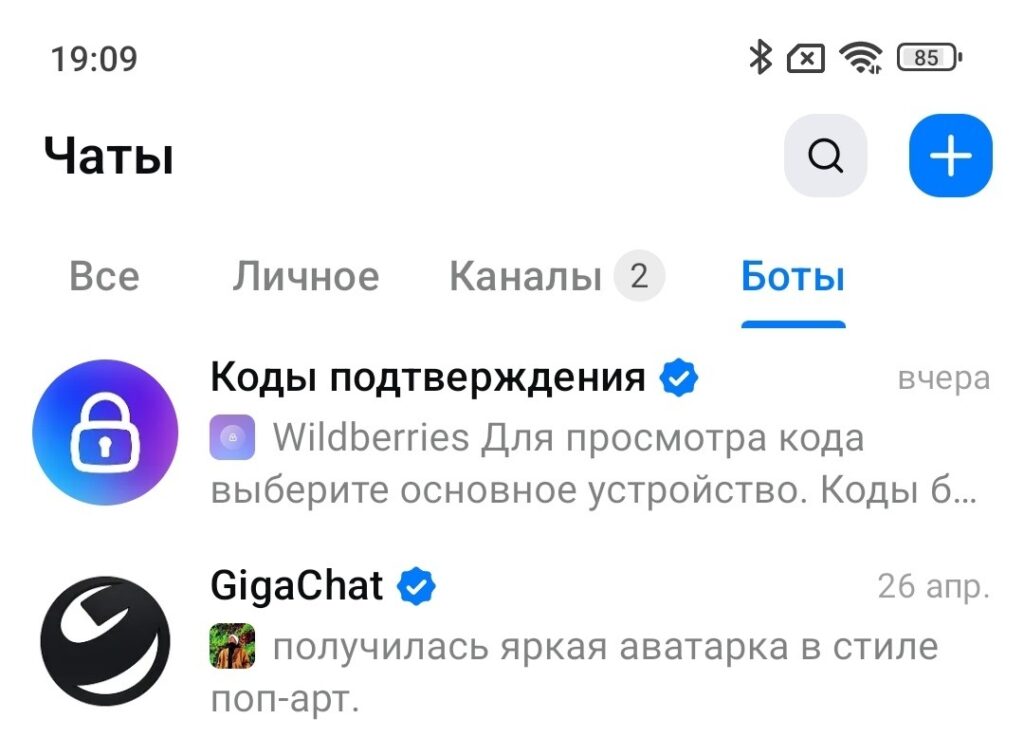
Folders in MAX help organize chats, channels, and bots
Folders are especially convenient when used alongside other features. For example, if you use voice message transcription in MAX, it’s handy to keep work chats where voice messages frequently arrive in a separate folder for quick access.
How to Create a Folder in MAX
Creating a new folder in MAX takes about half a minute. Instructions for Android:
- Open MAX on your phone and go to the “Profile” section (icon in the bottom right corner of the screen).
- Find and tap the “Folders” option.
- Tap the “Create Folder” button.
- Come up with a name (maximum 20 characters). You can use emoji instead of text or together with it: folders with icons are visually easier to distinguish.
- Tap “Add Chats” (a full list of your conversations, channels, and groups will open).
- Select the desired chats and confirm your choice.
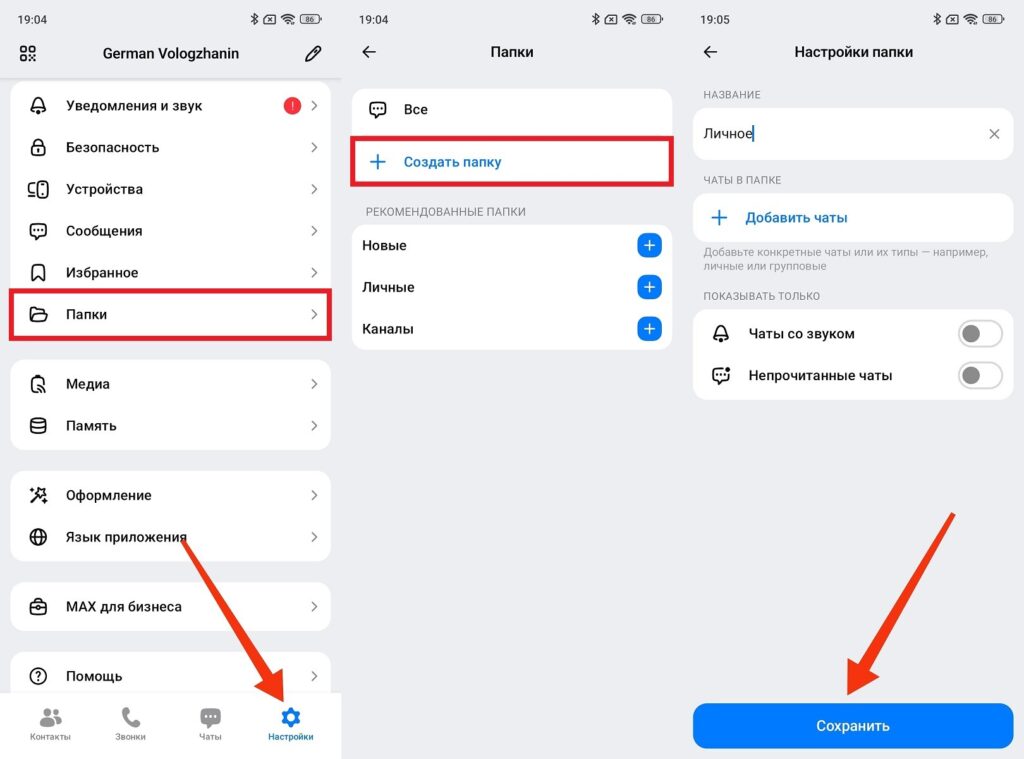
A folder is created through the messenger’s settings
You can also create an empty folder: simply skip the step of adding chats and fill it later. This is convenient if you’re planning your structure in advance but haven’t yet decided what goes where.
How to Add a Chat to a MAX Folder
If a folder has already been created and you need to add a new chat to it (this is done directly from the chat list, without going into settings):
- Open the MAX app on Android and go to the general chat list.
- Find the desired chat and long-press on it (a context menu will appear).
- Select “Add to Folder.”
- Check one or more folders where this chat should appear.
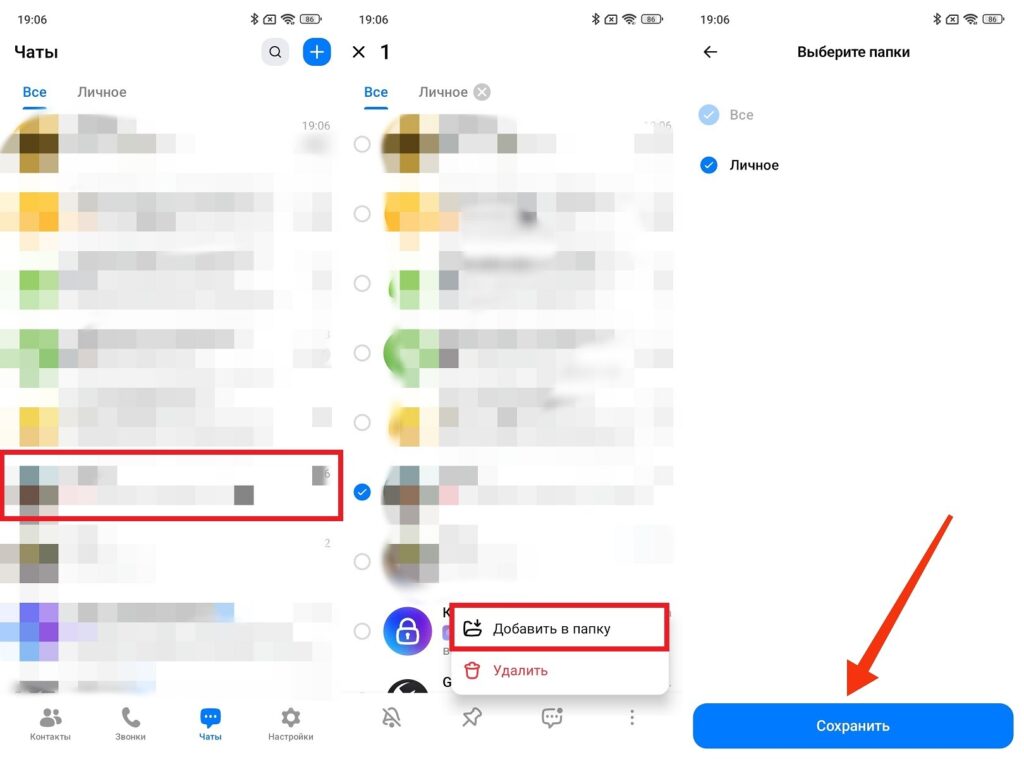
Any chat can be added from the general list
The second method is through the folder settings. Go to “Profile — Folders,” tap the desired folder, and select “Add Chats,” after which the same list of conversations will open for selection.
How to Remove a Chat from a Folder in MAX
To remove a specific chat from a MAX folder without deleting the folder itself or affecting other conversations, do the following:
- Go to “Profile” and open the “Folders” section.
- Tap the folder from which you want to remove the chat.
- Find the desired conversation in the folder’s chat list.
- Tap the delete button (it looks like a trash can).
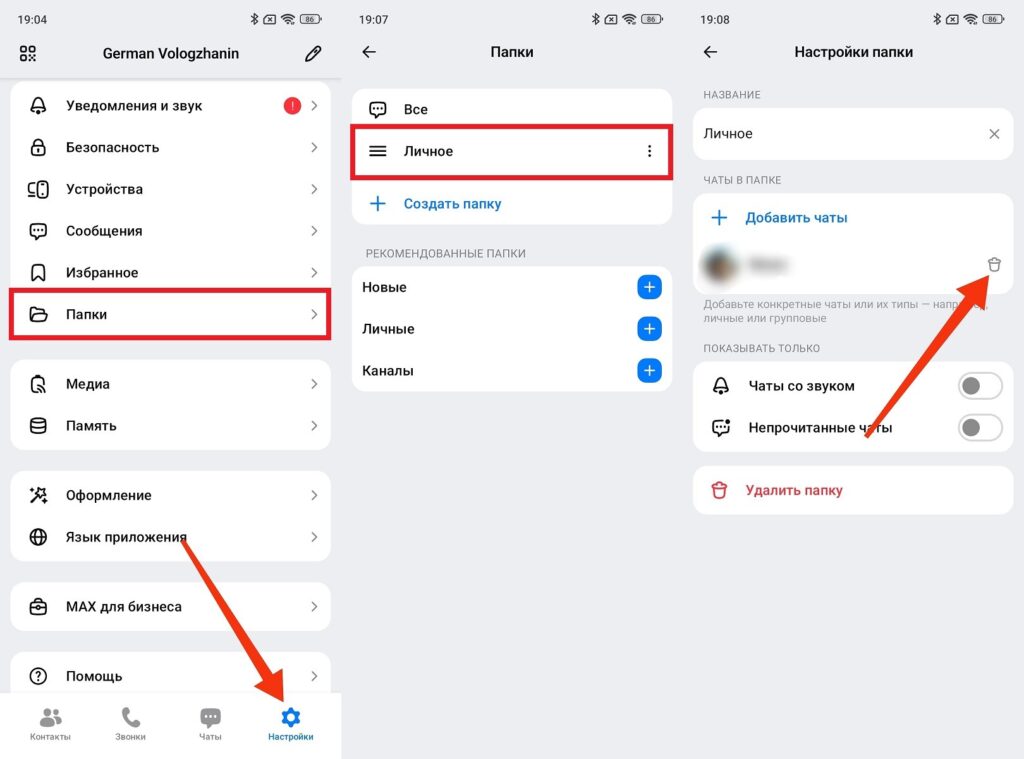
Chats can be easily removed from folders too
After this, the chat will remain in the general “All” list and in other folders if it was there. It will simply disappear from that specific folder. No loss of conversations.
How to Delete a Folder in MAX
Deleting a folder in MAX is even easier than creating one. And most importantly, it’s completely safe: all chats that were in the folder will remain in the general “All” section intact:
- Go to “Profile” and open “Folders.”
- Find the folder you want to delete.
- Tap the three dots next to its name.
- Select “Delete” and confirm the action.
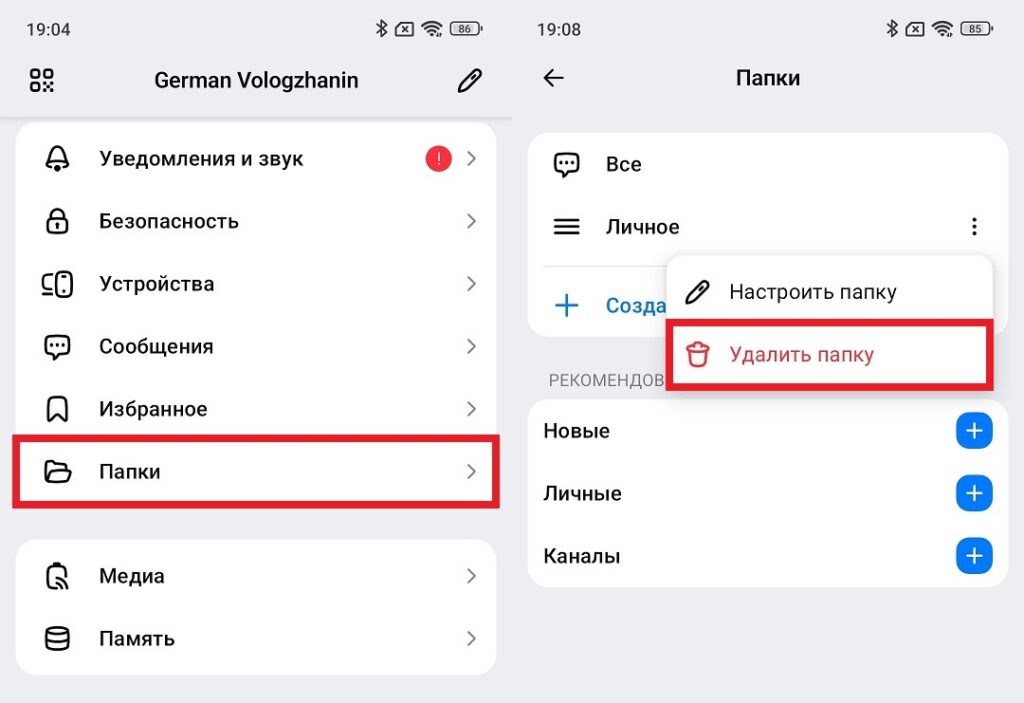
Any folder can be completely deleted
The folder will disappear, but not a single chat will be affected. Setting up folders in MAX doesn’t permanently bind chats. These are always reversible actions. Deleted a folder and changed your mind — create a new one and add the same chats again.


