Samsung’s One UI software, rather than raw hardware, is the main reason the source author says they stay with Galaxy phones. Writing from experience with a Galaxy S24 Ultra, the author singles out five features that stock Android does not offer in the same form: the free Good Lock customization app, the built-in Modes and Routines automation tool, the hover-capable S Pen, the Galaxy AI Audio Eraser, and the DeX desktop mode. This article lays out how each works, what has changed across recent One UI versions and Galaxy generations, and where the author notes trade-offs between models.
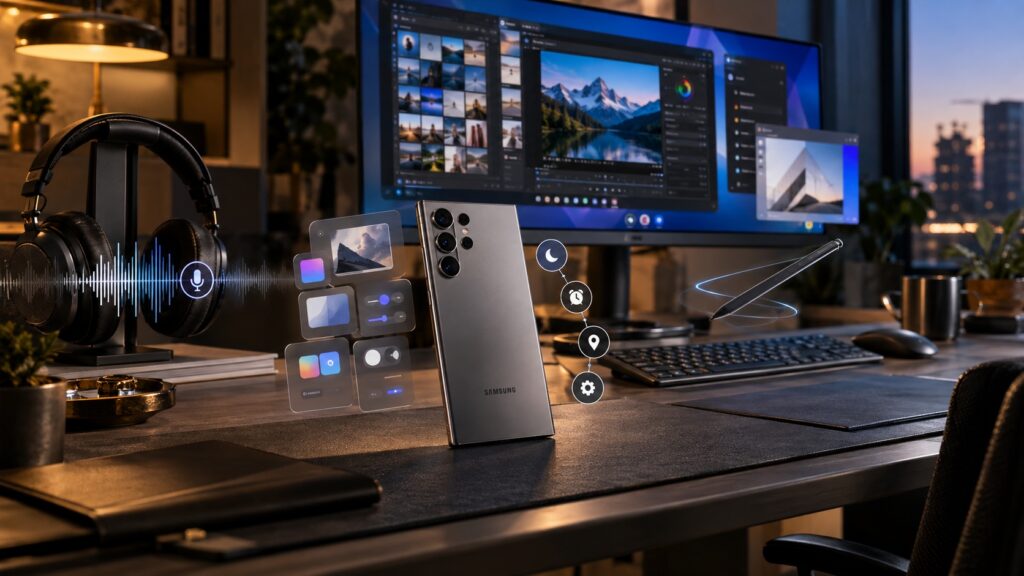
Distinctive Samsung smartphone features worth knowing about
What you need to know
- Good Lock is a free Samsung app that hosts modules such as RegiStar, One Hand Operation+ and NotiStar, giving deep interface customization without root access.
- Starting with the Galaxy S25 Ultra, Samsung dropped the Bluetooth S Pen: the stylus no longer needs charging or pairing, but the remote camera shutter button is gone.
- Audio Eraser arrived on the S24 series with One UI 7, expanded to the voice recorder and Samsung Notes in One UI 8, and on the Galaxy S26 works live inside streaming apps such as YouTube and Netflix.
- One UI 8.5 gave DeX up to four desktops, persistent window sizes and positions between sessions, and a lock button that hides the workspace behind a password.
Good Lock: fine-tuning One UI without root
The first thing the source author installs on any Galaxy phone is Good Lock, a free Samsung app. On its own it does very little: it acts as a shell for separate modules, each responsible for one part of the interface. The author, who says they spent years using custom themes and firmware, describes Good Lock as offering similar control without replacing the system interface and without root access, which would void the warranty.
The author considers three modules essential. RegiStar lets you rearrange items in the Settings app and assign an action, such as taking a screenshot, to a double tap on the back of the phone. One Hand Operation+ adds invisible handles along the screen edges; each recognizes a straight swipe and two diagonal swipes, and the author uses them to open notifications without stretching a thumb to the top of the 6.8-inch display. NotiStar keeps a searchable log of every notification, including ones that were accidentally dismissed.
According to the source, setup is straightforward:
- Open the Galaxy Store (Good Lock is also available on Google Play) and install Good Lock.
- Launch the app and choose the module you want, such as RegiStar or NotiStar.
- Install the module using its own button inside Good Lock, then open its settings.
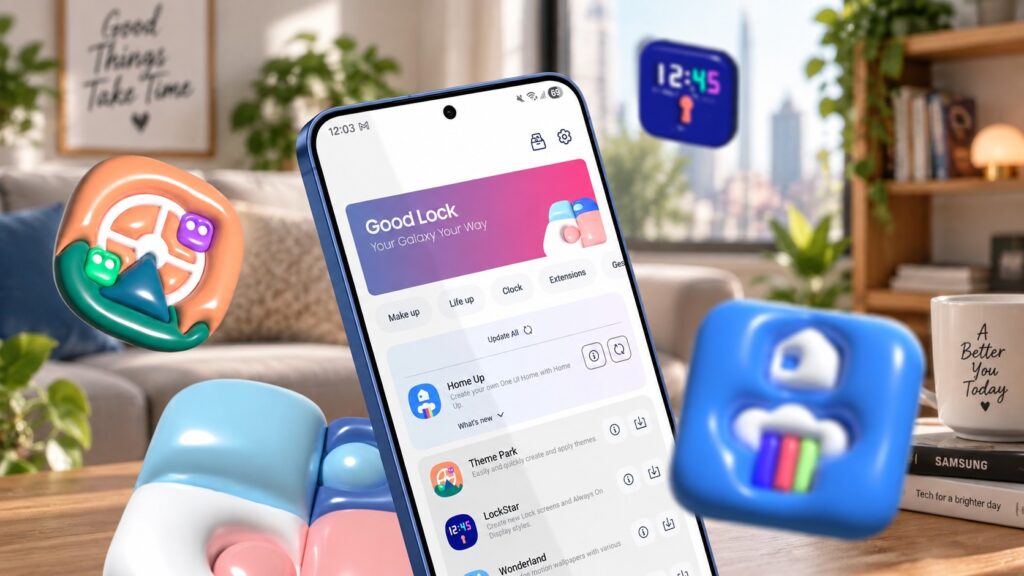
The Good Lock app for customizing Samsung phones
The author places this in the category of manufacturer-specific features that are not available on Google’s stock Android.
Modes and Routines: automation in about a minute
Modes and Routines is One UI’s built-in automation tool, working on an “if X happens, do Y” basis. Each routine consists of a condition and a set of actions that the phone performs automatically once the condition is met. Conditions can include connecting to a specific Wi-Fi network or Bluetooth device, the battery dropping below a set level, or simply the time of day.
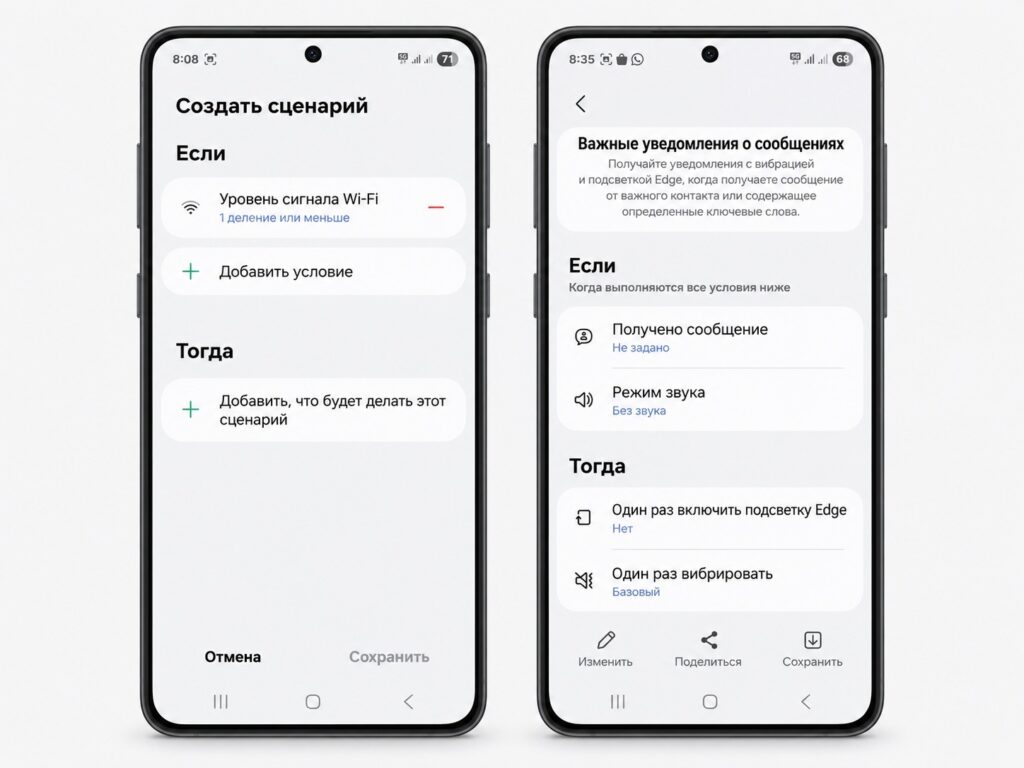
Modes and Routines in a Samsung smartphone’s settings
The author’s most-used routine is simple: when headphones connect, the phone sets media volume to a chosen level. Third-party tools such as Tasker and MacroDroid can do more, the author acknowledges, but they rarely have the patience to configure them, whereas their first One UI routine was working in under a minute. Samsung adds new actions with each One UI release, and the Routines+ module in Good Lock adds tap macros on top: recorded sequences of screen taps.
S Pen: input without touching the screen
The S Pen stows inside the body of the S24 Ultra, so the stylus is always at hand. Its key difference from cheap capacitive styluses, the author explains, is that the phone detects the pen while it hovers above the screen. That is what makes the S Pen useful beyond drawing.

Hovering the pen over a photo in the Gallery shows a preview, and Magnify enlarges small text without pinch-zooming. “S Pen to text” converts handwriting into typed text in any search field or address bar. “Screen off memo” saves notes to Samsung Notes even when the display was never turned on. Removing the pen opens the Air command menu of tools; the author most often uses translation there, hovering the pen over a word to see its translation.
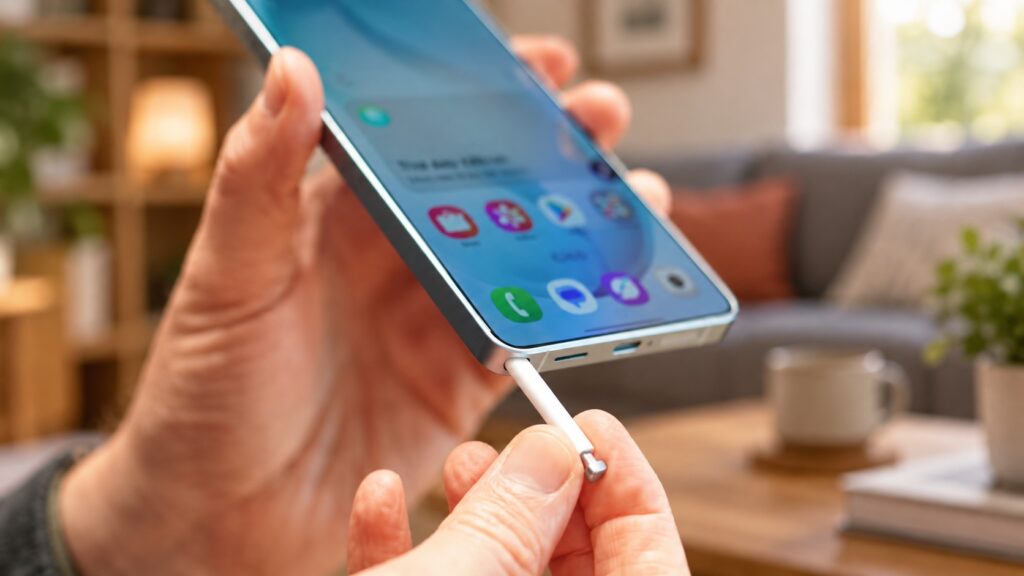
The S Pen in the Galaxy S24 Ultra
A caveat for newer models
There is a catch for anyone considering newer Ultra phones. On the author’s S24 Ultra, the pen connects to the phone over Bluetooth, and its button can trigger the camera for group photos without touching the screen. Starting with the Galaxy S25 Ultra, Samsung dropped the Bluetooth pen: on the S26 Ultra the stylus needs no charging or pairing, but the camera remote function is gone. The other hover features remain, according to the source.
Audio Eraser: removing noise from recordings and streams
Audio Eraser is part of the Galaxy AI suite. It separates a clip’s soundtrack into categories: voices, music, noise, crowd, and nature. Each can be reduced or muted entirely, compared against the original, and saved as a copy. On the S24 series it arrived with One UI 7, and One UI 8 added it to the voice recorder and Samsung Notes.
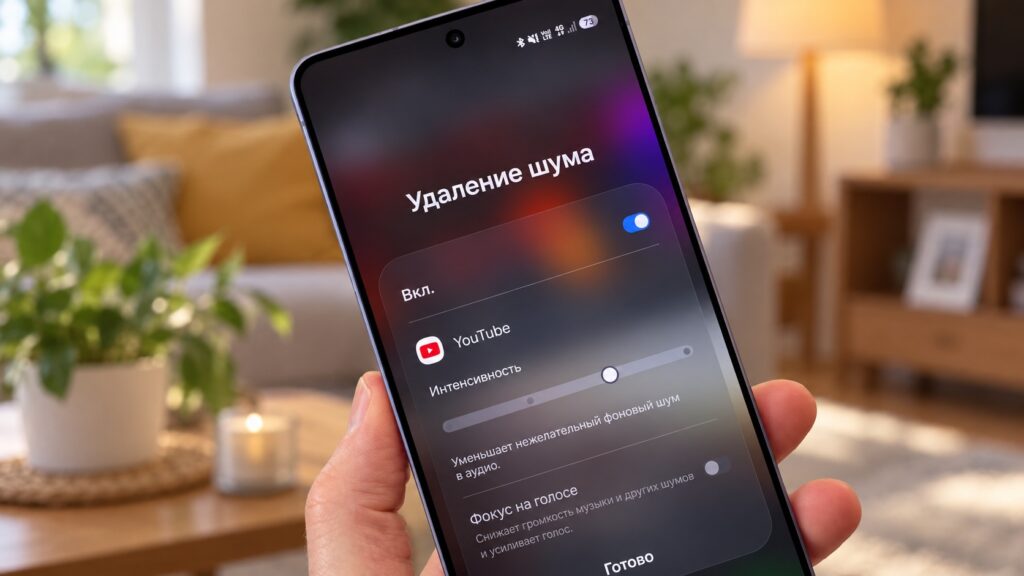
Removing noise from YouTube playback through Samsung settings
The author most often uses it to clean up voice memos recorded in noisy rooms: the background drops out while speech remains. It also works on call recordings from the Phone app, which the author finds handy when replaying a conversation to take notes. On the Galaxy S26, Samsung went further and built Audio Eraser into streaming apps from YouTube to Netflix. A toggle in the quick settings panel removes background noise during playback, with a strength slider and a separate Voice Focus mode that emphasizes speech. That turns Audio Eraser from an editing tool into something used while watching. The S24 Ultra does not have this streaming component, which the author says is worth weighing when choosing between generations.
DeX: turning the phone into a desktop
DeX turns the phone into a PC as soon as it is connected to a monitor. All that is needed is a USB-C to HDMI adapter plus a Bluetooth keyboard and mouse; a taskbar appears on the external display and apps open in resizable windows.
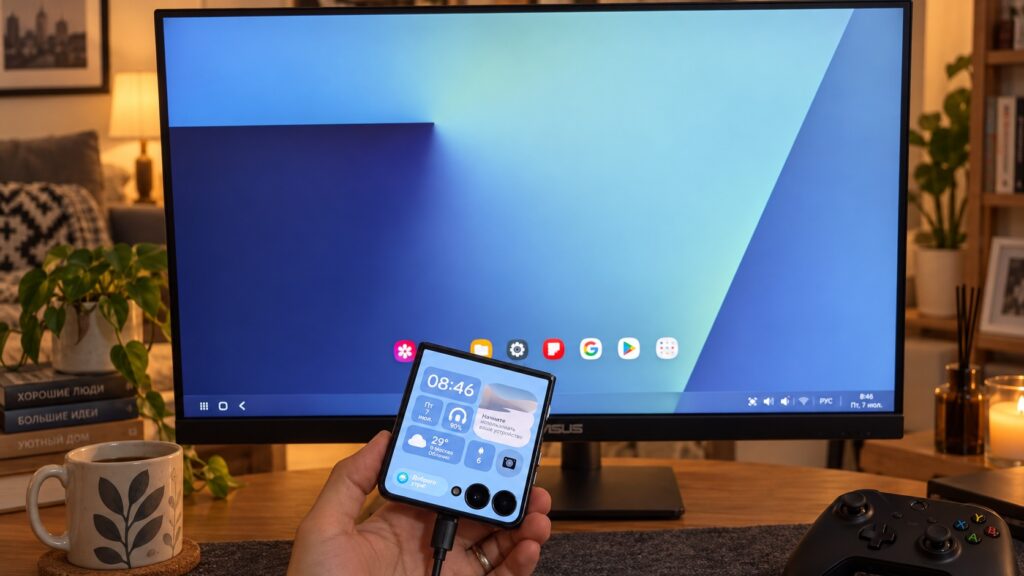
A Samsung smartphone connected to a monitor in DeX mode
In One UI 8, Samsung rebuilt DeX on the desktop windowing system it developed with Google for Android 16. In effect, years of Samsung’s work now live inside Android itself, which the author says makes them like the platform even more. But the biggest practical difference, in the author’s view, came with One UI 8.5: up to four desktops, DeX remembering the size and position of every window between sessions, and a new lock button that hides the workspace behind a password when the user steps away from the desk.
Choosing between generations
The source’s own comparison highlights a trade-off: the S24 Ultra keeps the Bluetooth S Pen with its camera remote but lacks the live Audio Eraser for streaming apps that Samsung introduced on the Galaxy S26, while from the S25 Ultra onward the pen has no Bluetooth at all. Good Lock, Modes and Routines, and DeX, by contrast, are software layers that Samsung continues to evolve with each One UI release.