Samsung has started rolling out the stable version of One UI 9: according to the source, Galaxy S26 phones began receiving it on September 16, with other models expected to follow. The update brings a set of new features, and the source author singles out five to try on day one: a home-screen search bar for Samsung Finder, a fully rearrangeable Quick Settings panel, the My FanCam video tool, custom Now Brief cards, and Google’s Motion Assist for motion sickness. Two caveats apply from the start: some of these features are limited to flagship models, and one of them is not a Samsung feature at all but comes from Google and arrives separately from the firmware.
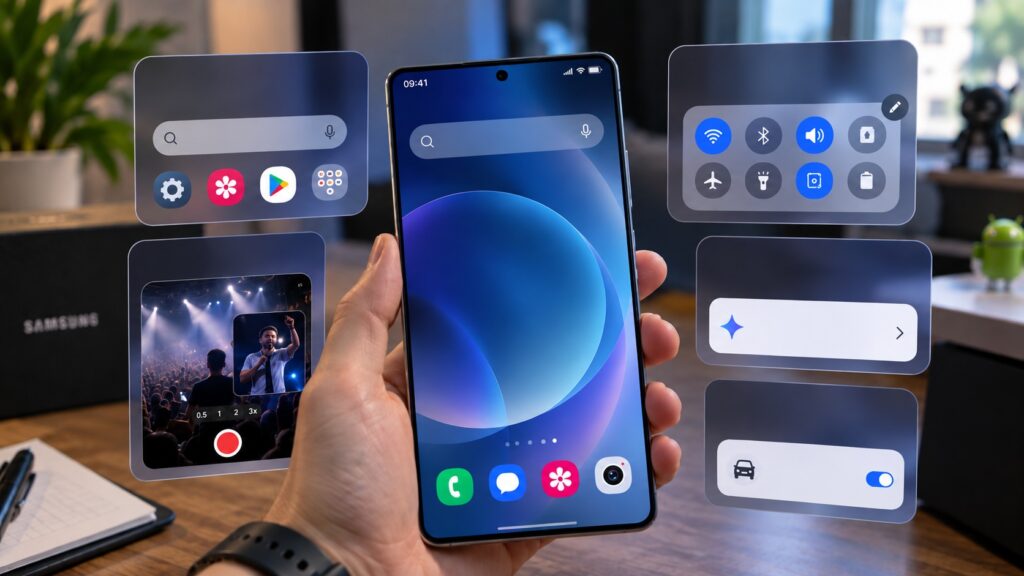
New One UI 9 features on Samsung
What you need to know
- The stable One UI 9 rollout began on September 16 with the Galaxy S26, according to the source; other Galaxy models are expected to follow.
- Samsung Finder can now be pinned to the bottom of the home screen, alongside or instead of Google Search.
- My FanCam, which re-crops a group video to follow one chosen person, works only with people and only on flagships from the Galaxy S24 series onward.
- Motion Assist is a Google feature delivered through Google Play services, not part of Samsung’s firmware; it requires Android 17 and may appear later because of a staged rollout.
Samsung Finder on the home screen instead of the app drawer
Samsung Finder searches everything stored on the phone: apps, contacts, settings entries, files, and Samsung Calendar events. Previously you had to reach it through the app drawer; in One UI 9 the search bar can be pinned to the bottom of the home screen. Next to it, or instead of it, you can also enable Google Search, which handles web queries.
To turn it on:
- Pinch two fingers together on the home screen to open editing mode.
- Tap Settings.
- Select the option to show search on the home screen.
- Enable Samsung Finder, Google Search, or both toggles at once.
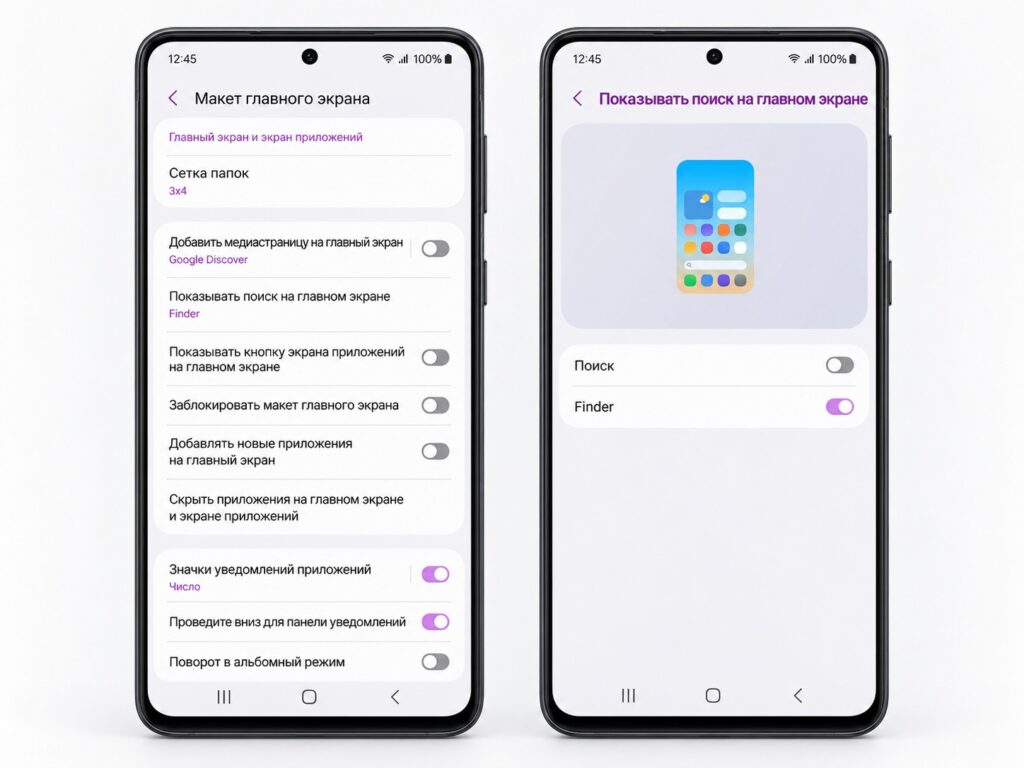
Enabling Finder search on a Samsung phone
If you activate both, each search gets its own bar. If you switch both off, the familiar home-screen page indicator returns in that spot. For anyone who keeps dozens of apps installed and regularly loses track of a setting, this saves a few taps each time, which adds up over a day.
The Quick Settings panel can now be rebuilt entirely
The Quick Settings shade in One UI 9 is considerably more flexible. Buttons and widgets can be rearranged, rarely used ones removed, and the most important ones moved to wherever is easiest to reach one-handed. The brightness and volume sliders can be switched between horizontal and vertical orientation, and the sliders and the media player can be resized:

- Swipe down from the top-right corner of the screen to open the full panel.
- Tap the edit button with the pencil icon.
- Drag buttons and widgets into the positions you want and delete any you don’t need.
- Optionally, change the slider orientation and adjust their size.
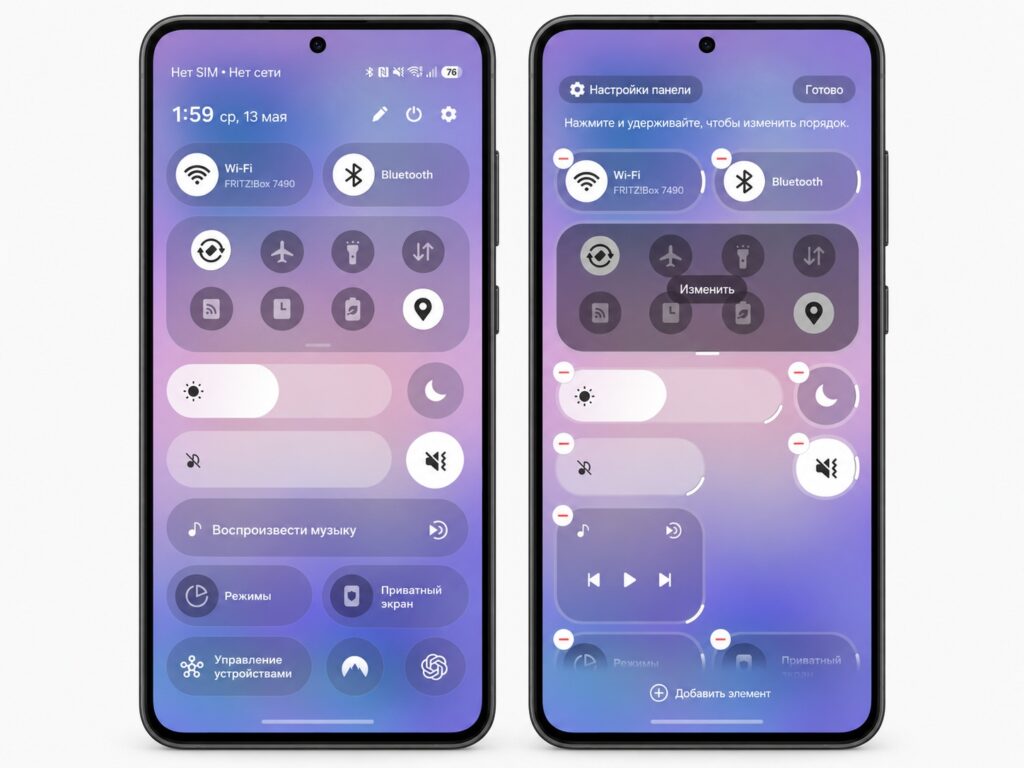
Flexible Quick Settings panel customization in One UI 9
The source author notes that a perfect layout is unlikely on the first attempt, so some experimentation is needed. The payoff is a panel where nothing has to be hunted for, because you decided where everything sits.
My FanCam turns a group video into a clip about one person
My FanCam takes a video with several people in the frame and builds a new version that follows one chosen person. The feature crops the footage, tracks the subject as they move, and keeps them close to the center of the frame. The obvious use cases are concerts, school performances, and sports matches, anywhere your child or friend is surrounded by a crowd:
- Open the video in the Gallery app.
- Tap the Galaxy AI button.
- Select My FanCam and wait while the phone analyzes the clip.
- Pick the person to follow.
- Choose the orientation and aspect ratio, then tap Follow.
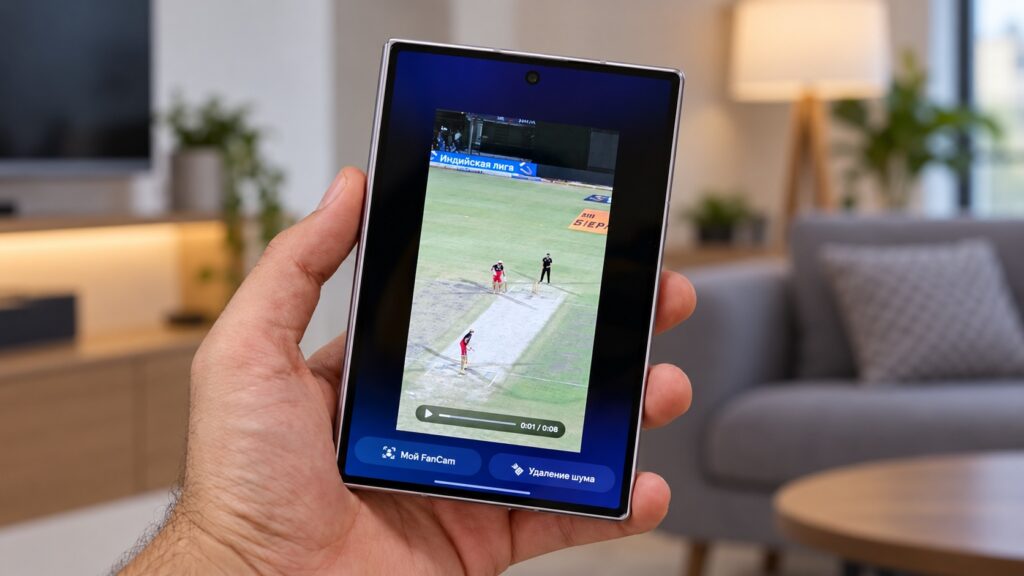
The new My FanCam feature in Samsung Gallery
If the phone fails to detect anyone, move the slider to a moment in the video where people are more clearly visible and try again. There are two limitations: the feature works only with people, not animals or objects, and it is available only on flagships starting with the Galaxy S24 series.
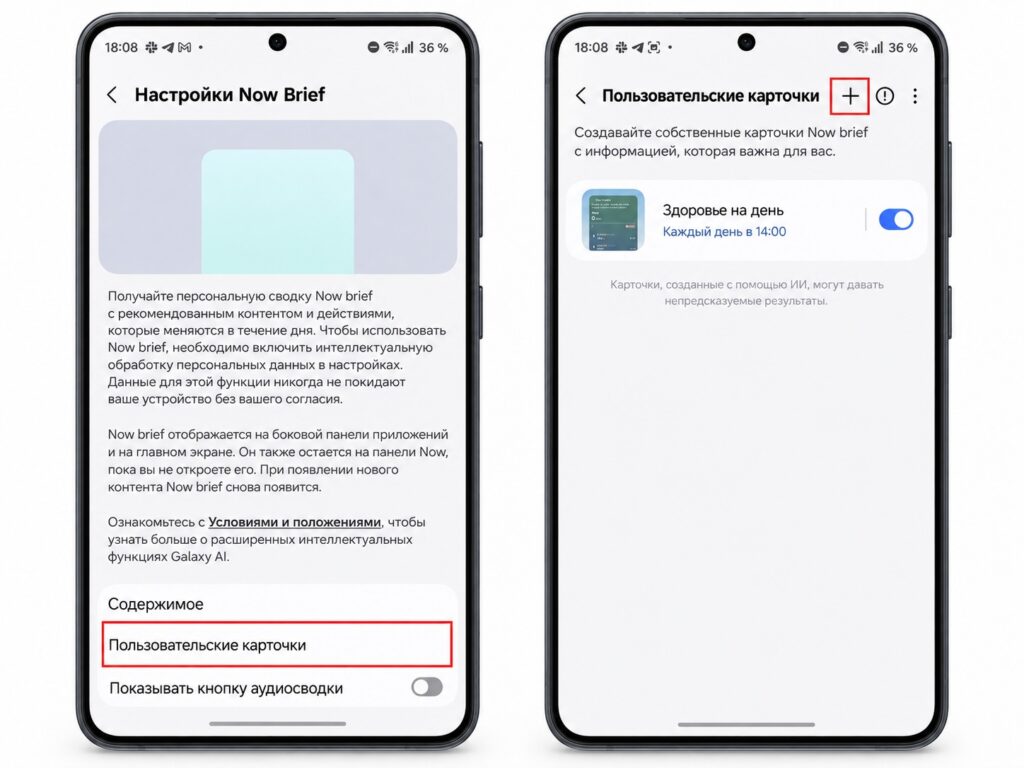
Now Brief shows cards based on your own request
Now Brief is the Galaxy AI digest that surfaces information the phone considers useful throughout the day. The problem has been that the default categories don’t always match what a given user actually cares about. One UI 9 adds custom cards on weather, health, and video topics.

Samsung offers ready-made options, but you can also type your own request, for example a card with sleep data and an energy score, weekly running statistics, or a step count. A separate card type recommends videos on a specific sport, athlete, or topic:
- Open Now Brief and go to add a new card.
- Pick one of the suggested options or enter your own request.
- Wait while the system checks the request and shows a preview of the card.
- Set the days and times the card should appear, then save it.
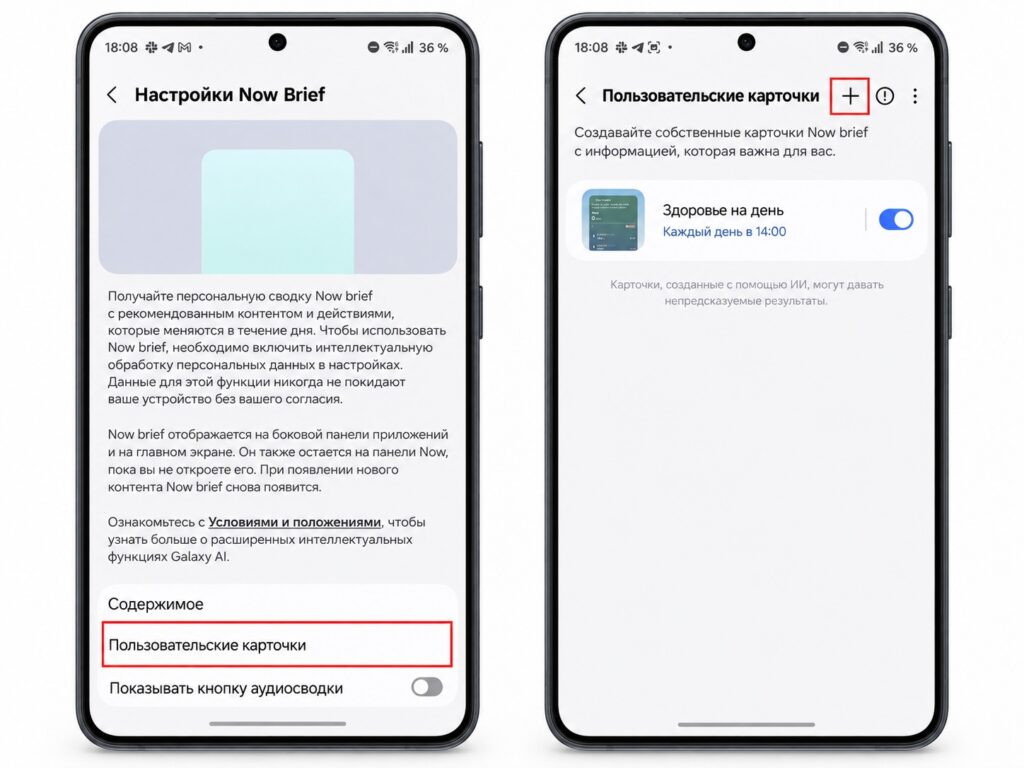
Creating custom Now Brief cards
Cards can be edited and deleted later. The catch is a quota: according to the source, Samsung limits the number of card creations and edits per day, and once you hit the ceiling you can only continue the following day. It is therefore better not to cycle through ten different phrasings in a row; decide up front what you actually want to see.
Google’s Motion Assist against motion sickness on the road
iPhone owners have had Vehicle Motion Cues for some time: dots on the screen that move in sync with the car and help reduce motion sickness when reading in transit. Android 17 has now received an equivalent called Motion Assist. Moving shapes appear along the edges of the screen, responding to the vehicle’s acceleration and turns, which may make reading, browsing, and messaging easier during a trip.
An important detail: this is not a Samsung feature. Motion Assist is made by Google and delivered through Google Play services rather than with the firmware. The only requirement is Android 17, which on Galaxy phones means One UI 9. If the option does not appear in Settings right after the update, the source notes it may be due to a staged rollout on Google’s side. To enable it:
- Open Settings and tap your Google profile.
- Go to the All services tab.
- Find the Motion Assist entry.
- Enable automatic activation in moving vehicles, or add a tile to the Quick Settings panel for manual switching.
- Optionally, change the appearance of the shapes.
Motion Assist in Google settings
According to the source, Google recommends using both methods together: the automatic mode turns the cues on by itself in a car, while the tile lets you quickly switch them off if they get in the way. Officially, the feature only “may” reduce motion sickness. Nobody positions it as a medical remedy, and its effect will vary from person to person.