Personal Hotspot on iPhone comes in handy all the time. Share internet with your laptop at a café, share connectivity with a tablet on the road, connect a smartwatch to the network where there’s no Wi-Fi. But sometimes this convenient feature becomes a source of frustration, and that’s exactly what happened to me the other day. I installed a new SIM card, MTS specifically, and set up Personal Hotspot — the right toggle appeared in the menu. I turned it on, tried to connect my MacBook, and nothing. I grabbed my wife’s iPhone, an iPad, then even an Android device — same result for all. Devices simply wouldn’t connect.
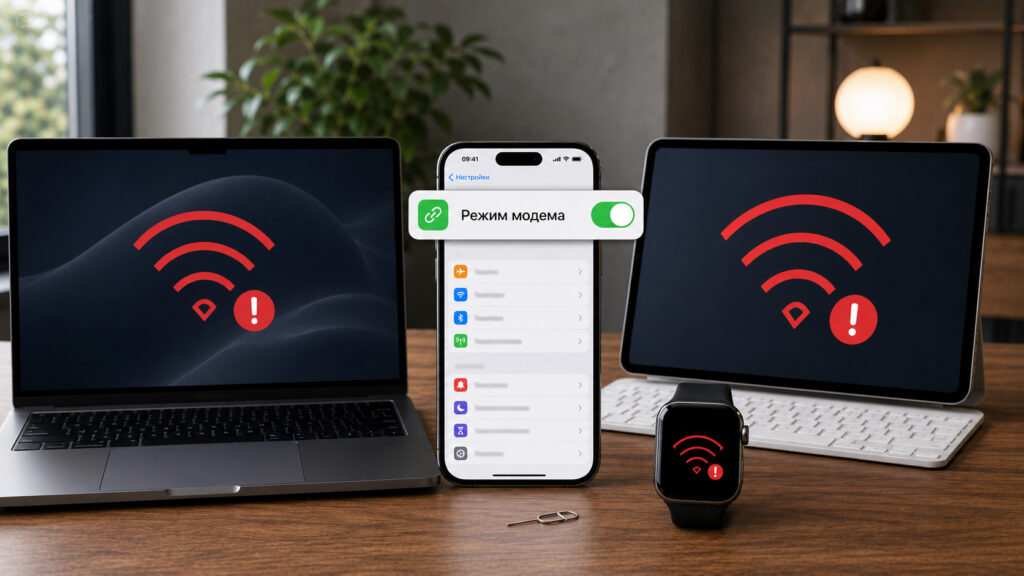
Personal Hotspot on iPhone sometimes throws unexpected challenges
And this wasn’t a case where the connection exists but the internet doesn’t load. It was worse: the connection itself kept failing — the device could see the hotspot, tried to join it, and threw an error. I tried a bunch of things, restarted the phone, reset network settings, changed the hotspot password. Only one solution worked, and it turned out to be somewhere I wasn’t even looking. Let me walk you through it step by step so you don’t waste half a day on it like I did.
Why Devices Won’t Connect to iPhone Personal Hotspot
For mobile internet and iPhone tethering to work, the phone uses carrier settings — the so-called APN (Access Point Name). It’s a short address that tells the phone which carrier gateway to use to access the internet. Usually these settings are pulled automatically as soon as you insert a SIM card, or the carrier sends them via a separate settings SMS. But in Russia, starting with iPhone 14, this doesn’t work.
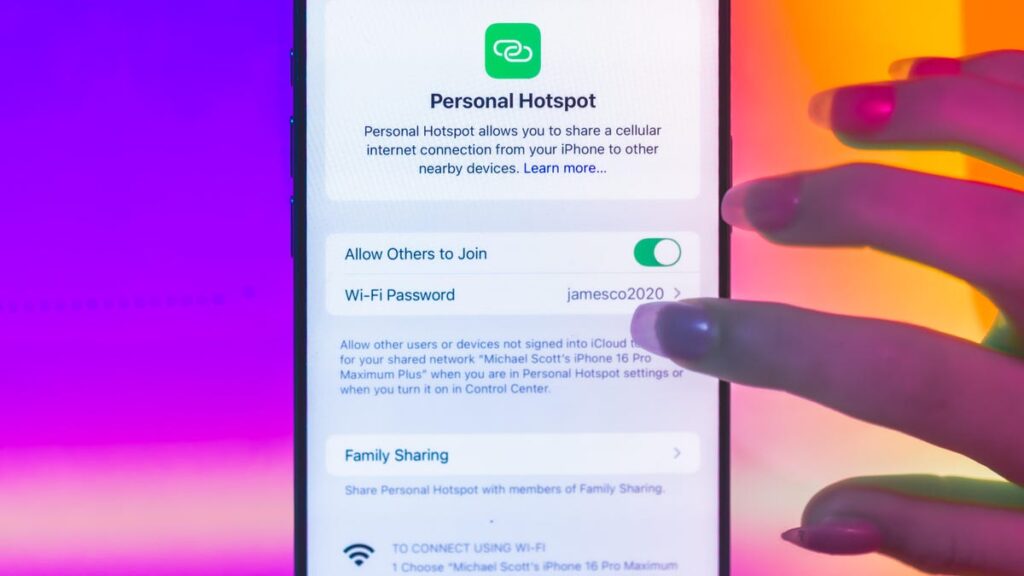
Flipping the toggle in settings isn’t enough — you also need to actually connect from another device
The settings are either partially filled in or not filled in at all. And you end up with an imbalance: there’s enough data for regular internet access, but tethering doesn’t work. The main gotcha is that iPhone APN settings are split into separate sections. There’s a section for regular cellular data, a section for LTE, and a separate section specifically for Personal Hotspot.
The logic is this: the phone can use different access points for different tasks. In my case, the Personal Hotspot section was filled in, but the other two sections were left empty. As a result, the phone could access the internet itself but couldn’t share it with other devices, even though Personal Hotspot was successfully activated.
Setting Up APN on iPhone for Personal Hotspot to Work
The solution is essentially simple: you need to fill in the carrier details in all sections, not just in the Personal Hotspot section. Then iPhone assembles the full configuration and stops acting up. It sounds trivial, but this little detail is exactly what costs people hours, because the Personal Hotspot itself appears to be turned on and working. Let me show you right away where the needed menu is, because it’s hidden in a non-obvious place. Have your carrier’s three parameters ready: APN, username, and password. Then follow these steps.
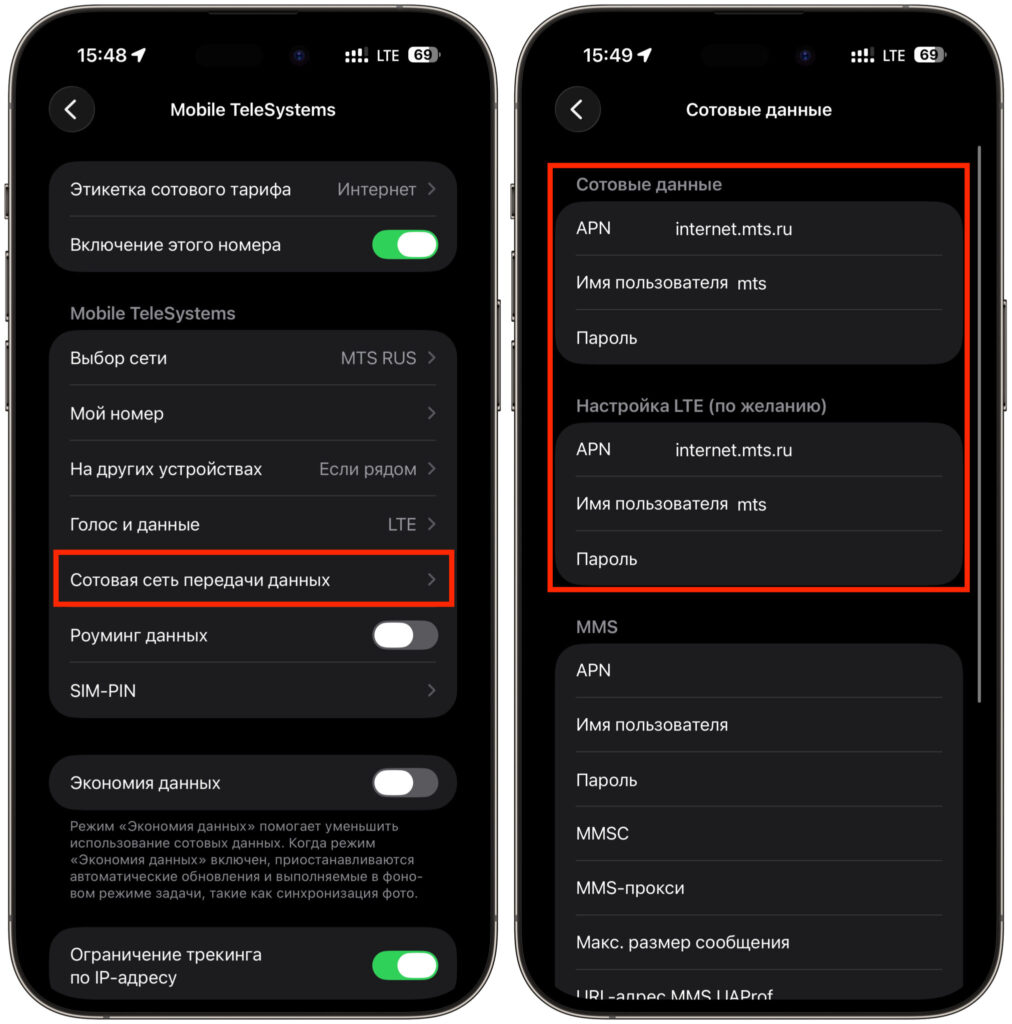
This is where you enter the needed settings, and you’ll be all set
- Open Settings and go to the Cellular section.
- If your iPhone has multiple SIMs, select the one that shares internet (the entry with your plan or carrier name).
- Go to Cellular Data Network. This is exactly where the needed sections are hidden.
- In the Cellular Data section, fill in three fields: APN, username, and password. This section was exactly what was empty in my case.
- Enter the same values in the LTE Setup section. It’s also easy to skip, but you shouldn’t.
- Check the Personal Hotspot section and if necessary, duplicate the parameters here as well.
- Go back, restart your iPhone, and turn on tethering again.
After restarting, the phone picks up the settings in full, and devices start connecting to the hotspot without errors. My MacBook connected on the first try, followed by the iPad and my wife’s phone.
APN Settings for MTS, MegaFon, Beeline, T2, and T-Mobile on iPhone
To save you from searching through forums, I’ve compiled ready-made settings for five carriers that are used most frequently. Enter these values in all three sections I mentioned above.
| Carrier | APN | Username | Password |
|---|---|---|---|
| MTS | internet.mts.ru | mts | mts |
| MegaFon | internet | gdata | gdata |
| Beeline | internet.beeline.ru | beeline | beeline |
| T2 | internet.tele2.ru | leave empty | leave empty |
| T-Mobile | tt | leave empty | leave empty |
If your carrier isn’t on the list, current APN values are always available on the provider’s official website in the internet settings section, or you can get them from support. Virtual carriers often have a different access point than the base network, so make sure to check with your specific carrier.
How to Fix iPhone Personal Hotspot Errors
If tethering is still acting up after all these steps, try the following things one by one.
- Reset network settings via Settings → General → Transfer or Reset iPhone → Reset → Reset Network Settings, then re-enter the APN settings.
- Check that your plan actually allows tethering — some carriers offer this as a separate paid option, and on cheaper plans it’s sometimes restricted.
- Make sure Wi-Fi is enabled on the receiving device — a simple reconnection sometimes solves everything on its own.
- Try a different sharing method: if Wi-Fi isn’t working, connect your laptop via cable or Bluetooth — this can help identify where the issue is. And keep both devices close to each other during the initial connection.
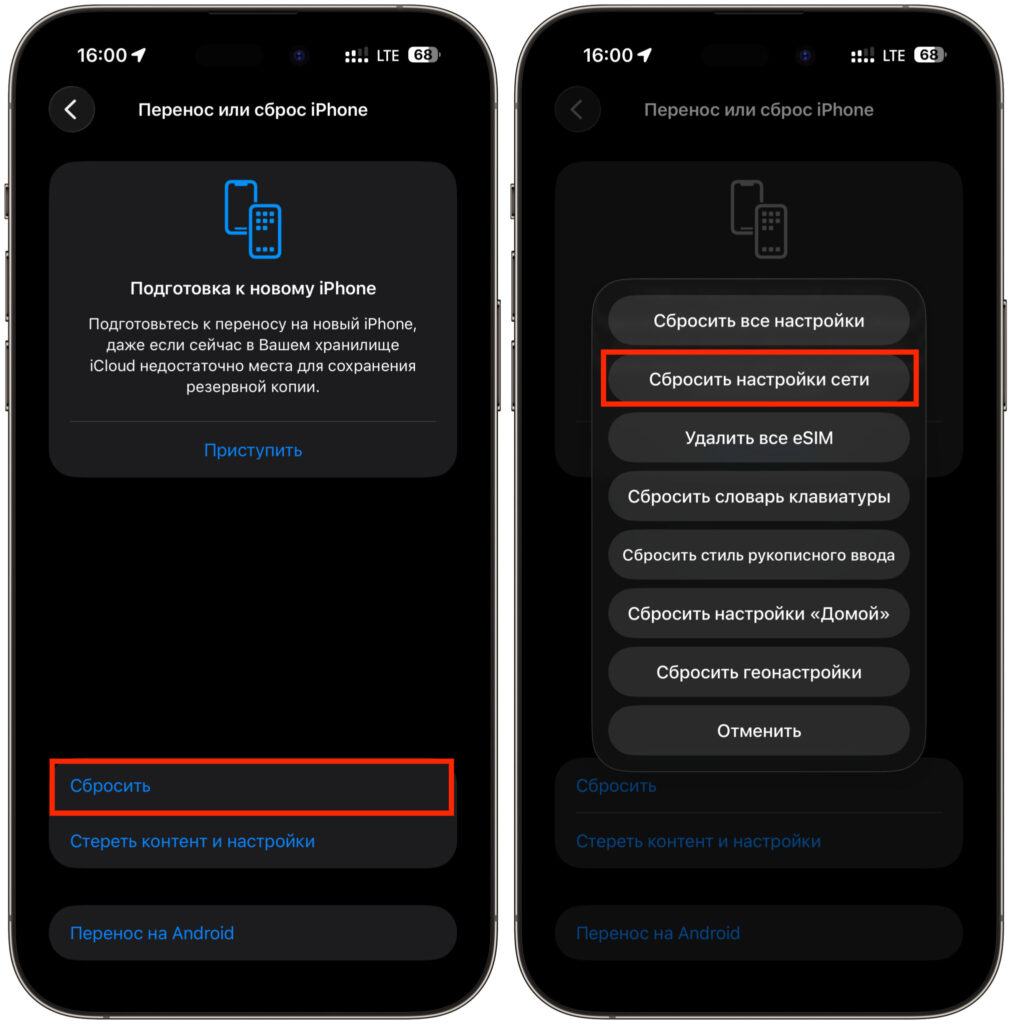
Reset network settings, but keep in mind that saved Wi-Fi networks will also be deleted
In my case, the problem was specifically the incompletely filled APN sections, and manual configuration resolved the issue in a couple of minutes. So if Personal Hotspot turns on but devices won’t connect to it, don’t rush to blame the SIM card or the iPhone. Most likely, the phone is just missing a couple of lines in the network settings, and you can add them yourself in literally a minute.