MAKS messenger allows anyone who knows your phone number to call you by default, which increasingly opens the door to spam and scam calls as the platform’s user base grows. The good news: you can restrict incoming calls to your contacts only in about a minute, using either the mobile app or the web version. The setting syncs across your account, so you only need to do it once.
What you need to know
- By default, any MAKS user who knows your phone number can call you — changing the “Call” setting to “Contacts only” blocks all unknown callers.
- The setting works identically in the mobile app and the web version, and it syncs across all devices tied to your account.
- The Security section also offers controls for who can invite you to chats, find you by phone number, and a “Safe Mode” that restricts both calls and messages to contacts only.
- A separate “Family Protection” feature lets parents control who can call, message, and invite a child’s account, plus enable a content filter.
Why restrict calls from strangers
Scam patterns familiar from regular phone calls are migrating to MAKS: fake bank employees, bogus contract renewals, fictitious prize notifications — all designed to pressure you into sharing SMS codes or transferring money. Restricting calls to contacts only breaks this scenario entirely, because unknown accounts simply cannot reach you.
Child safety is another important reason. Setting a child’s account to contacts-only prevents strangers from calling them directly. Only people already in the phone’s contact list will be able to place a call.
It is worth noting that this setting controls calls specifically — it is separate from message privacy or encryption settings.
How to block unknown callers in the MAKS app
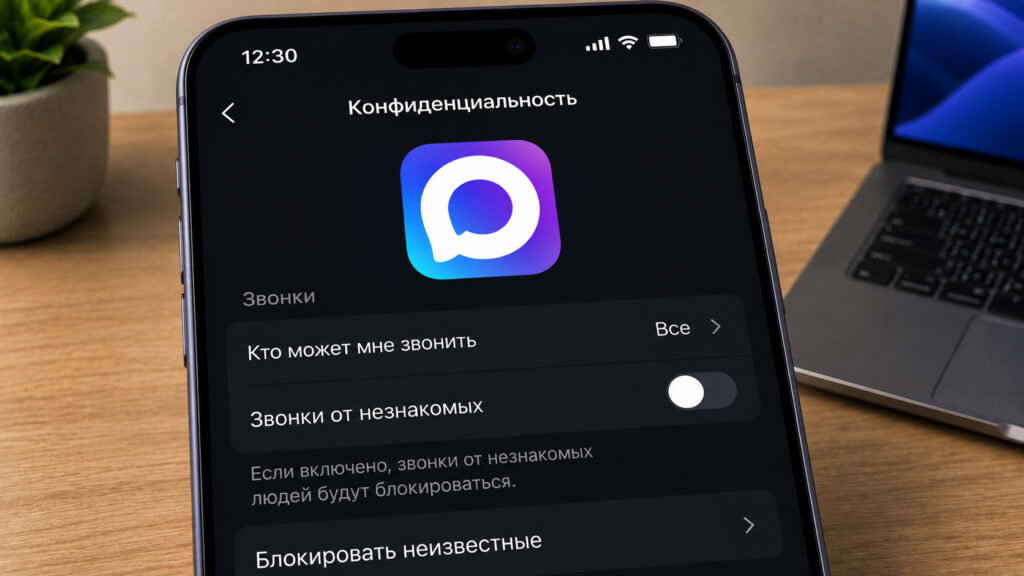
Configuring call settings in MAKS
- Open MAKS and tap your profile icon (bottom-right corner).
- Go to Settings.
- Open the Security section.
- Find the “Call” option.
- Select “Contacts only”.
The change takes effect immediately — no app restart required. After this, only people saved in your contacts can call you through MAKS; everyone else will either not see the call button or receive a rejection.
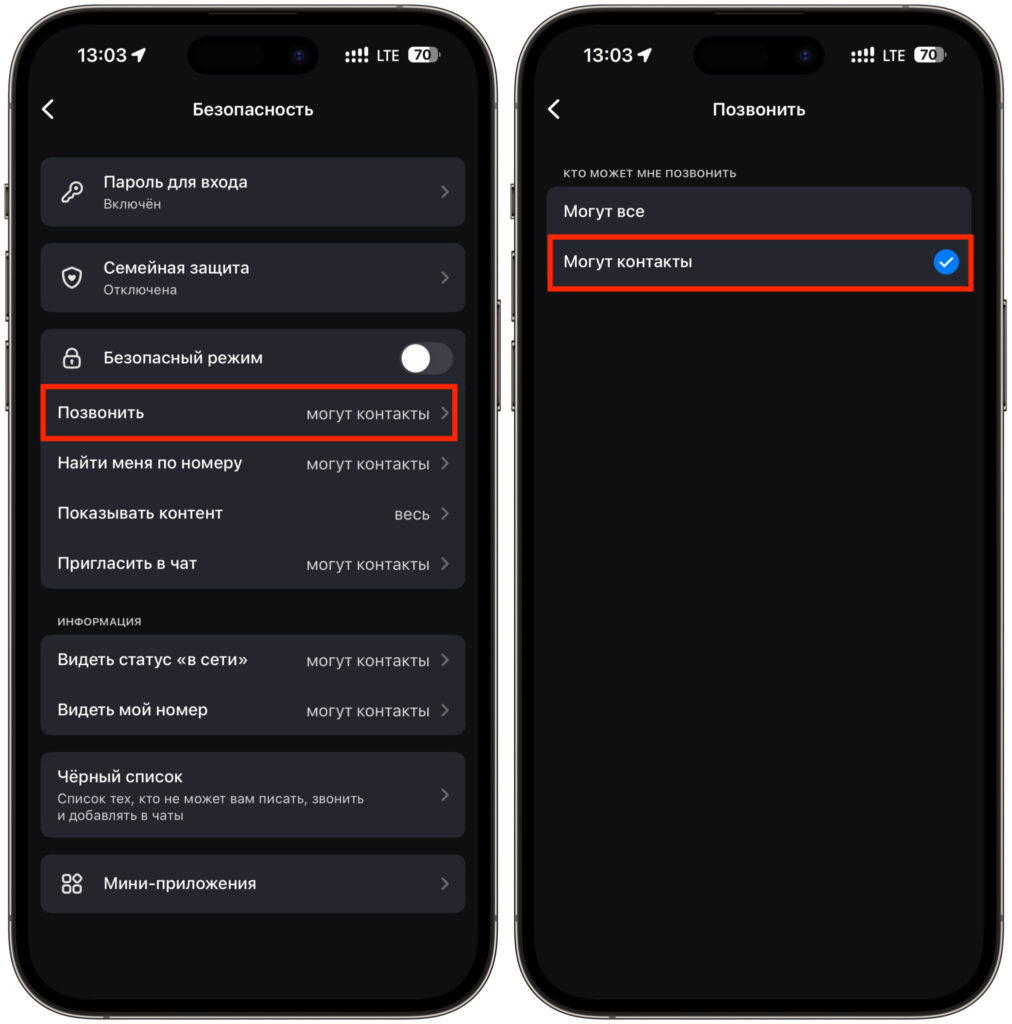
A couple of taps and strangers can no longer call you
Caveat: If you recently switched phones or reinstalled the messenger, verify that your phone’s contact list is up to date. Otherwise you might accidentally block calls from people you do want to hear from.
How to do the same in the MAKS web version
The MAKS app was removed from the App Store, so many iPhone users rely on the web version instead. The web interface offers the same call-restriction setting:
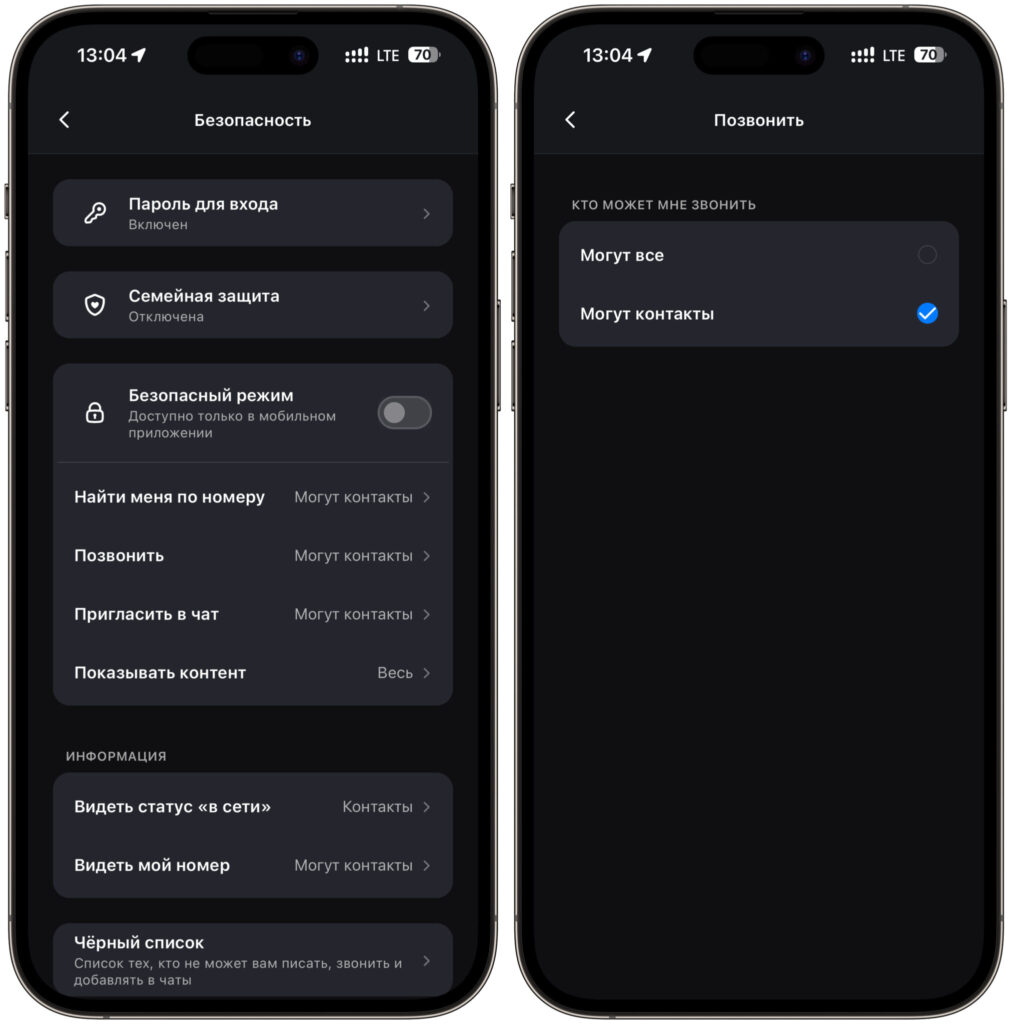
The same steps work in the web app
- Open a browser, navigate to the MAKS web version, and log in.
- Click your profile and open Settings.
- Go to the Security section.
- Find the “Call” option.
- Select “Contacts only”.
Because the setting is tied to your account rather than a specific device, a change made in the browser will also apply on your phone, and vice versa. You do not need to repeat the process on each device.
Other useful settings in the Security section
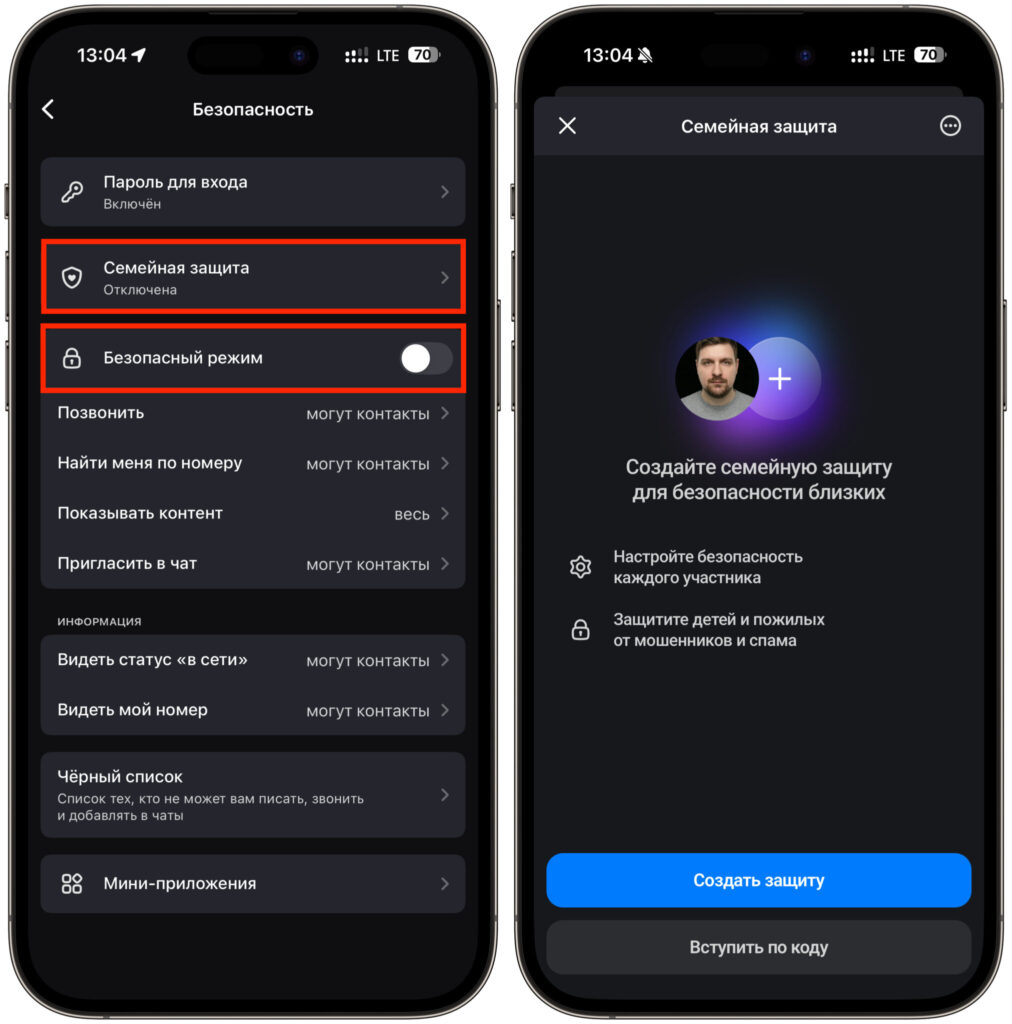
Review the additional security settings while you are there
While in the Security section, it is worth reviewing several adjacent options:
- Chat invitations: You can restrict who is allowed to add you to group chats, which helps cut down on spam group additions.
- Phone number discoverability: You can control whether other users can find your account by your phone number.
- Safe Mode: A single toggle that hides your profile from search and restricts both calls and messages to contacts only.
- Family Protection: Designed for children’s accounts, this lets a parent define who can call, message, and invite the child, and enables a filter for unwanted content.
All of these security settings are free and available to every user — no paid subscription is required for basic protection.


