I’ve already written about how to delete MAX from your phone. Apparently, many people followed that guide. After all, MAX triggers a strong urge to immediately uninstall it: a government messenger, pre-installed without consent — skepticism toward it is completely understandable. But then it turns out that someone you need is on there, you received a notification from Gosuslugi, or you needed Sferum. And the question arises: how do you restore the MAX app? Let’s figure it out.
Restoring MAX after a hasty deletion
What Happens After Deleting the MAX App
When you delete the MAX app on Android, only the app itself is removed from the smartphone. This is an important point to understand before you start restoring. Here’s what happens:
- the app is completely removed from the device (the icon disappears, the occupied space is freed up);
- all chats in MAX and conversations remain on the messenger’s servers (they are linked to your account, not to a specific device);
- contacts, profile settings, and message history don’t disappear anywhere;
- MAX cloud stores data as long as your account exists.
In other words, conversations in MAX don’t disappear after deleting the app — they wait for you on the server. This works the same way as Telegram: you deleted the app, reinstalled it, logged into your account — everything is in place.
Deleting the app does not delete your account.
There is one exception: if you didn’t just uninstall the app but went through the MAX account deletion procedure — then the data is permanently deleted from the servers. But that’s a completely different scenario that requires separate actions within the app.
Can You Restore a Deleted MAX on Android
Yes, and it’s easier than it seems. Restoring a deleted MAX simply means reinstalling the app. No special procedures, no contacting support, no data loss.
MAX is easily restored after deletion
You can get MAX back on your phone at any time, as the app is available from several sources. After installation, simply log into your account using your phone number, and all your message history, contacts, and settings will return automatically. This is the main advantage of cloud storage: restoring MAX after deletion simply means downloading it again.
How to Restore the Deleted MAX App
There are several ways. The choice depends on which services are set up on your smartphone.
Via Google Play:
- Open the Google Play app on your smartphone.
- In the search bar, type “MAX” or “MAX messenger”.
- Find the official app and tap “Install.”
- Wait for the installation to complete and open the app.
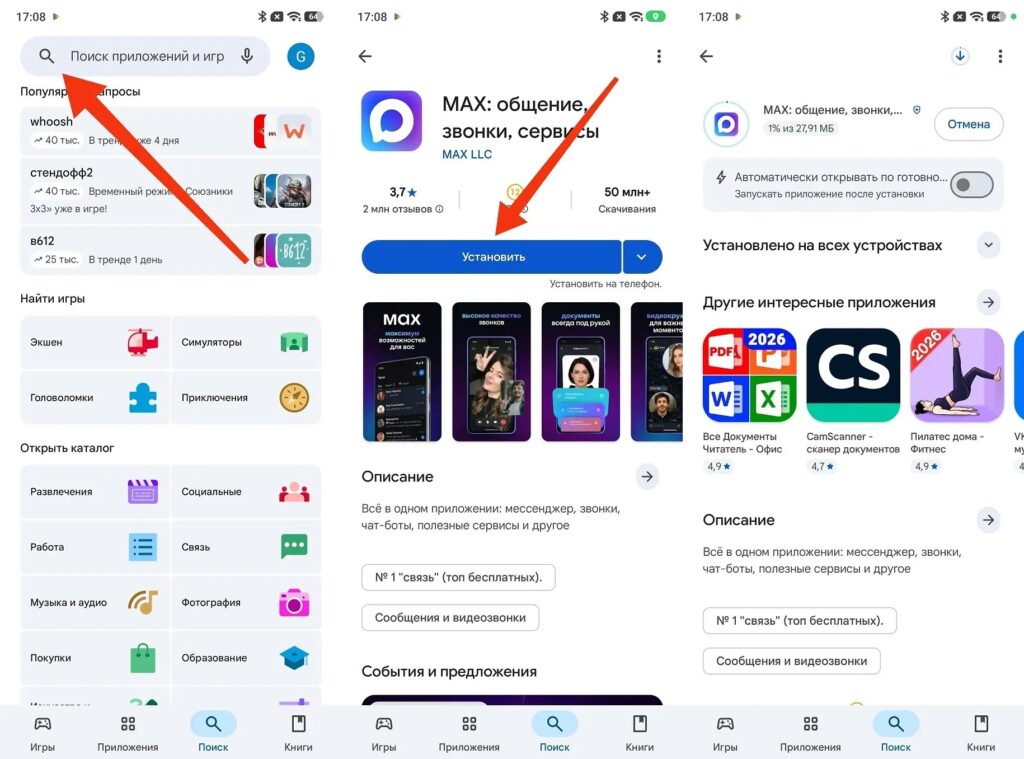
The standard method via Google Play
Via RuStore:
- Open RuStore — the Russian app store, pre-installed on most smartphones.
- Type “MAX” in the search and find the official app.
- Tap “Install” and wait for the download to complete.
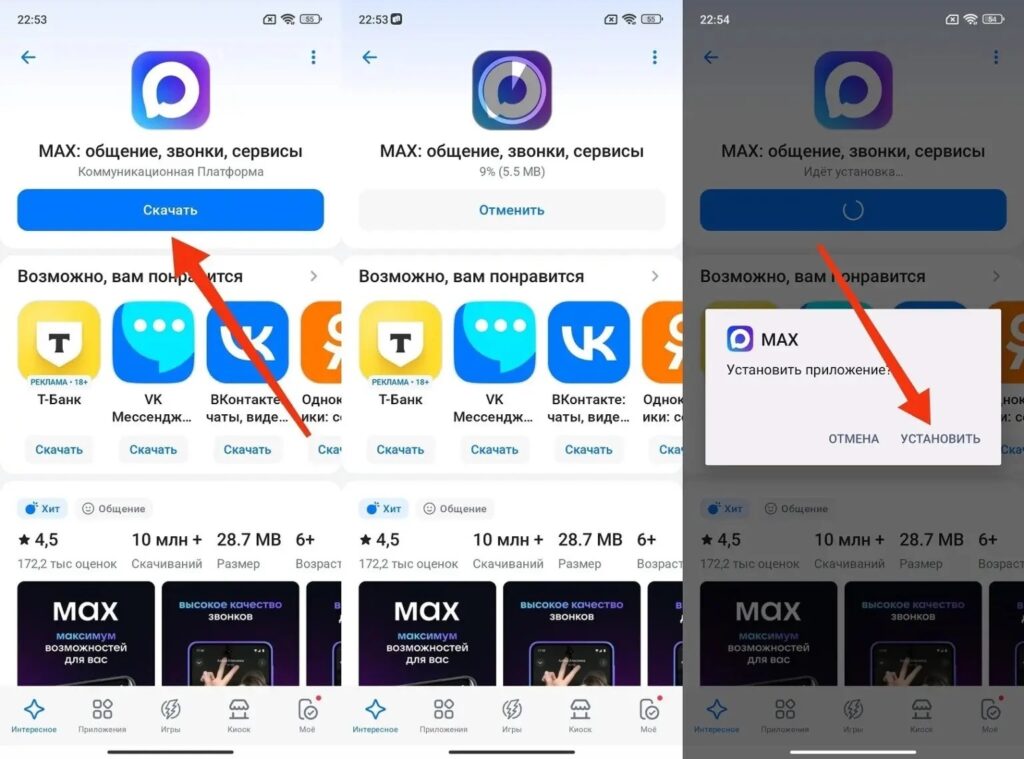
An option for RuStore fans
Via APK file:
This method is suitable if you don’t have access to app stores. You can download the APK from the official messenger website max.ru. After downloading:
- Allow installation from unknown sources in Android settings (“Settings — Security — Install unknown apps”).
- Open the downloaded APK file through a file manager.
- Confirm the installation and wait for it to complete.
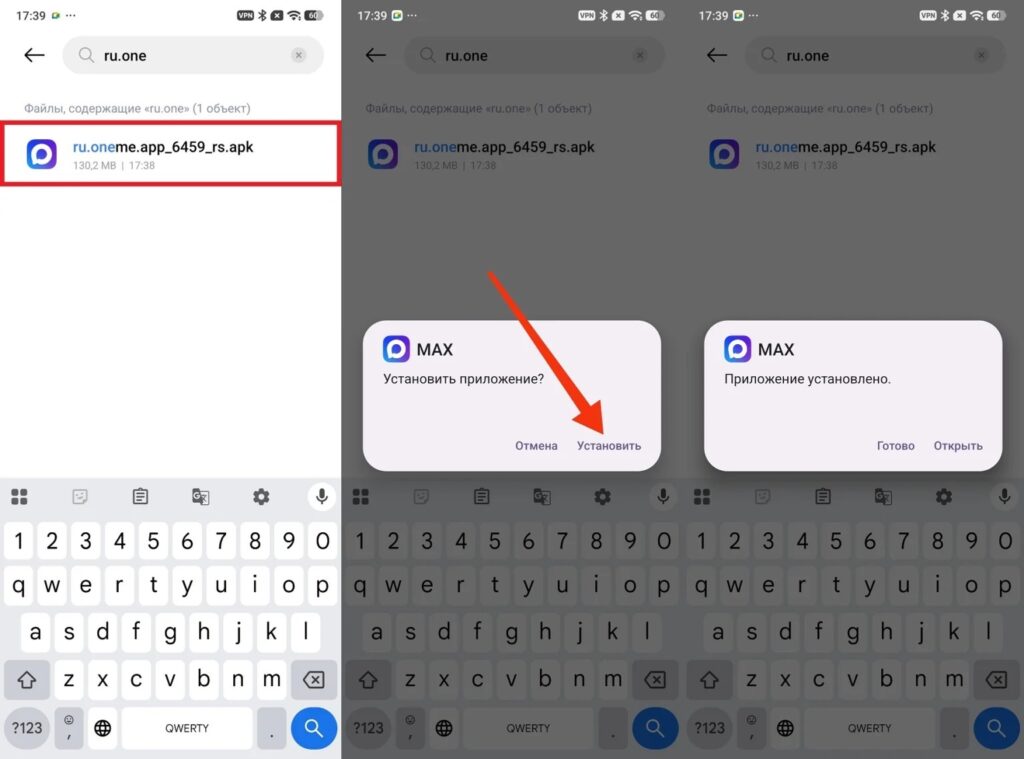
A method for the most daring Android users
After restoring the MAX messenger using any of these methods, all that’s left is to log into the messenger account. There’s a separate and very detailed guide on how to do this on our website.
MAX Won’t Install on Android — What to Do
Sometimes restoring MAX on your phone doesn’t work on the first try. Here are typical causes and solutions:
- insufficient memory on the device (free up space by deleting unnecessary files or apps and try again);
- unstable connection during download (connect to Wi-Fi and try again);
- Google Play error (clear the app’s cache via “Settings — Apps — Google Play — Storage — Clear cache” and try again);
- blocked Google Play (on some devices without Google services, installation via Google Play is unavailable — use RuStore or APK).
If none of the methods helped, try restarting your smartphone and repeating the installation from scratch. In most cases, this solves the problem.


