Deleting a photo from your Android gallery does not necessarily remove every copy of it. According to the source author, an image can disappear from the gallery but remain in several other places. Some of those copies still use phone storage, while others stay online. The five places to check are the gallery trash, Google Photos, Telegram’s cache, separate Android folders, and leftover thumbnails. The author began looking into this after deleting a photo and later finding the same image again in a messenger.
What you need to know
- Photos deleted from the gallery usually go to a trash folder, where they typically stay for 30 days and continue to use storage.
- If Google Photos backup is turned on, deleting a local file may leave a cloud copy. Items in the Google Photos trash are currently kept for 60 days.
- Telegram caches received photos. A copy you saved to the gallery is a separate file, so deleting one copy does not necessarily delete the other.
- Files by Google has its own trash, where files deleted through the app are kept for up to 60 days.
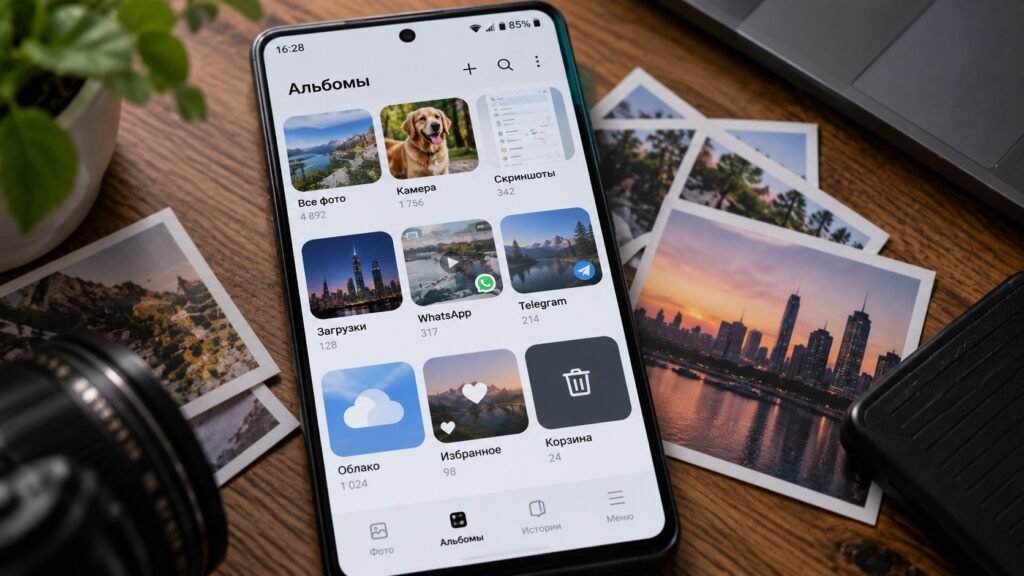
Photo albums on an Android smartphone
1. The gallery trash keeps photos for about a month
This first location is obvious but easy to forget. When you delete a photo from the gallery, it usually goes to a trash folder instead of disappearing right away. Photos are typically kept there for 30 days, and they can keep using storage during that time.
To delete them permanently:
- Open the Gallery app.
- Tap the menu icon and select Trash (sometimes called Recently deleted).
- Select the photos you no longer want.
- Tap Delete and confirm.
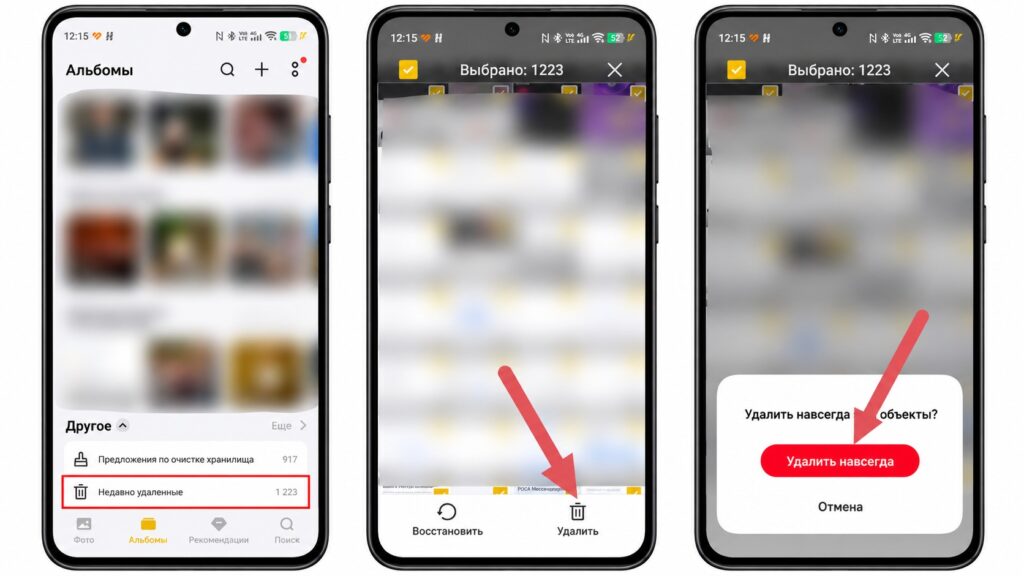
Emptying the photo trash on Android

Xiaomi, realme and other Android phones have similar sections, although the trash may be in a different place. Once the trash is emptied, the photos can no longer be restored using the gallery’s standard tools. If you deleted an important photo by accident, check your recovery options first, including restoring from backups.
2. Google Photos can keep images that are no longer on your phone
This is where things get more complicated. If Google Photos backup is turned on, your photos are uploaded to the cloud automatically. Deleting a local file therefore does not always remove its online copy. For example, the “Free up space on this device” feature intentionally removes photos from phone storage while keeping them in your Google account. The image is gone from the phone, but you can still view it.
To check your cloud storage:
- Open Google Photos in a browser or use the Android app.
- Sign in with the account you use on your phone.
- Look for photos that are no longer in your local gallery.
- Check the Trash section and the “Free up space on this device” section.
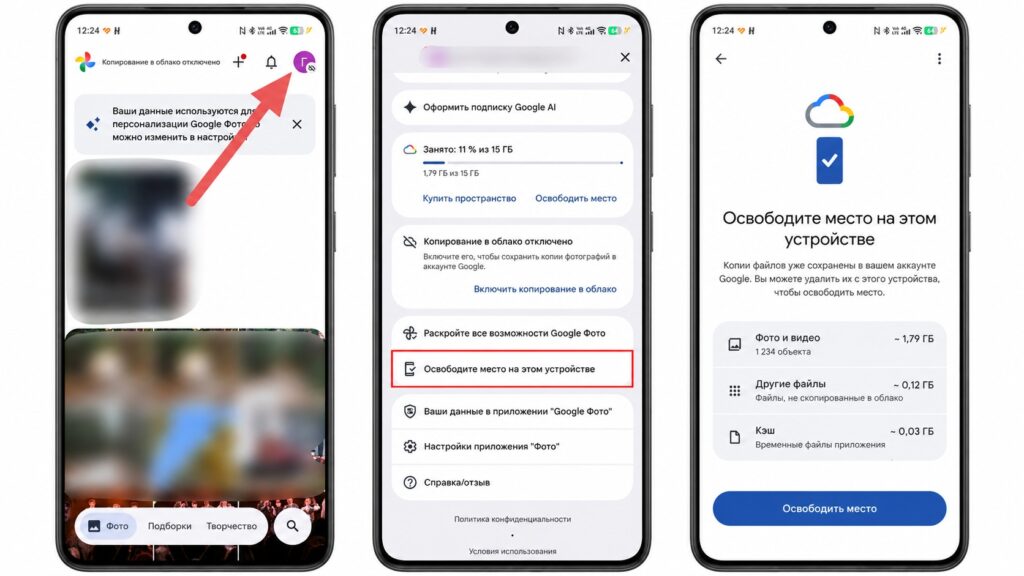
Freeing up space with Google Photos
According to the source, deleted items are currently kept in the Google Photos trash for 60 days.
Be careful: if you delete a photo inside the Google Photos app while backup is turned on, it may be removed from both the cloud and the phone. Act cautiously, especially if you want to clear your cloud storage but keep your local gallery.

3. Telegram can hold gigabytes of old photos
When someone sends you a photo on Telegram, the app saves it to a cache so it does not have to download the file again when you reopen the chat. If you also save the image to your gallery, a separate copy is created. Deleting one of these copies does not necessarily affect the other.
Over time, Telegram can build up gigabytes of media files. To check them:
- Open Telegram Settings.
- Go to Data and Storage.
- Select Storage Usage.
- See how much space photos are taking up.
- Tap Clear Cache and choose the categories you want to remove.
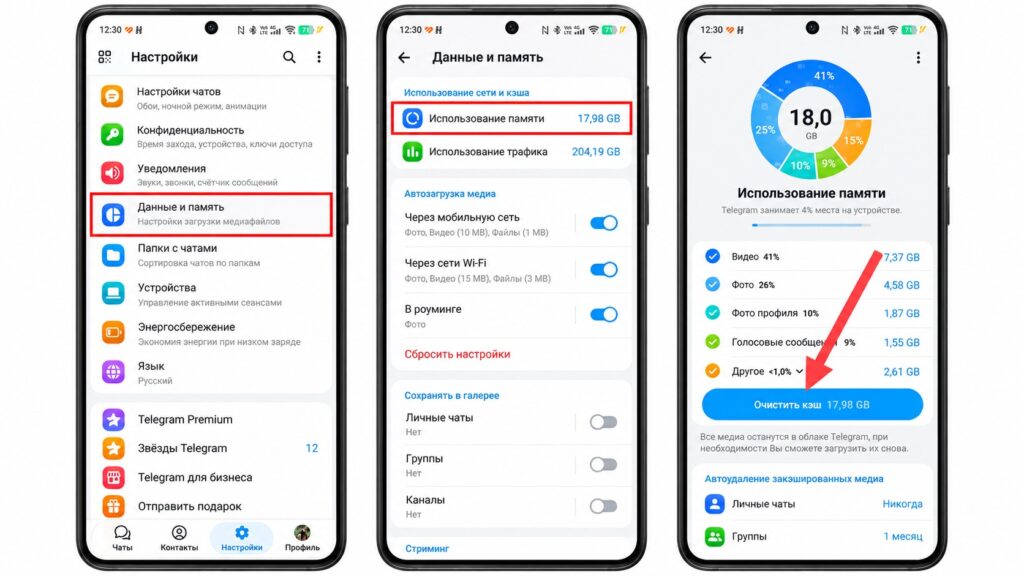
Clearing the cache on an Android phone
Your chats will remain after you clear the cache. Photos from regular cloud chats will download again if needed. Clearing the cache frees up storage, but it does not remove images from the conversations themselves. The source also notes that Telegram can be set to clear its cache automatically, so you do not have to repeat this process regularly.
4. Separate copies can sit in Android folders
Photos are not always stored in the camera folder. An image downloaded from a browser may be in Downloads, a screenshot may be in its own folder, and a picture saved from a messenger may be in that app’s folder.

The source author suggests checking these locations with your phone’s file manager or Files by Google:
- DCIM/Camera: photos taken with the camera;
- Pictures/Screenshots: screenshots;
- Download: downloaded images;
- Pictures: photos saved by apps;
- Android/media: media files from some messengers.
The folders themselves may differ depending on the phone. The important point is that if an image was copied to a separate folder, deleting the original will not necessarily remove the duplicate.
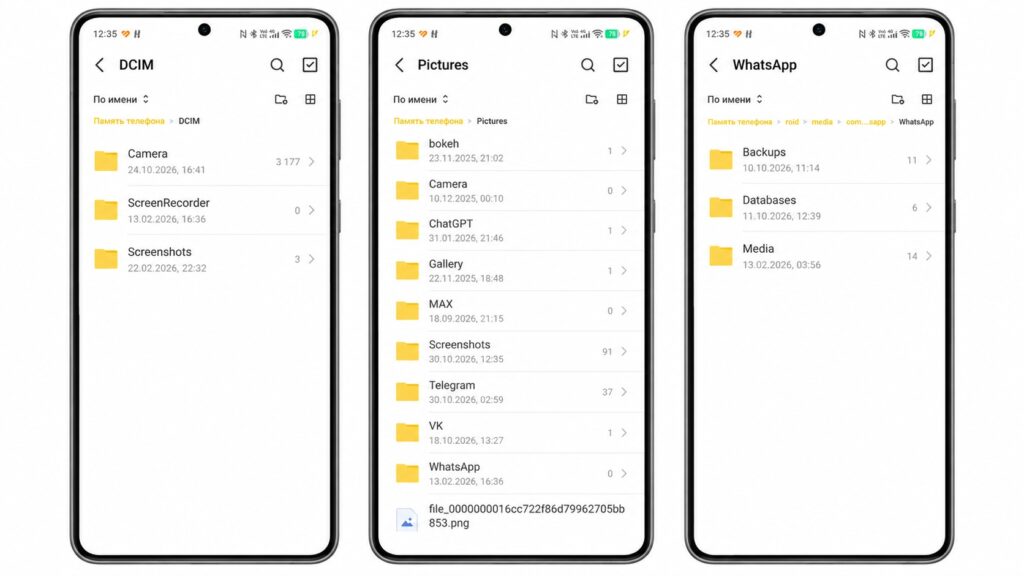
Checking folders on Android
Files saved by messengers can be especially hard to find, and not all of them appear in the standard gallery. Files by Google also has its own trash, where files deleted through the app are kept for up to 60 days. Check it as well if you want to free up storage completely.
5. Thumbnails can remain after deletion
This last location is less obvious. To show photos quickly while you scroll through the gallery, Android and apps may create smaller versions of them called thumbnails. These files sometimes stay in the cache after the original is deleted. They are not full photos, only small preview images, but they still take up space.
To clear this temporary data in Settings:

- Open Settings and go to Apps.
- Find your Gallery app.
- Open the Storage section.
- Tap Clear cache.
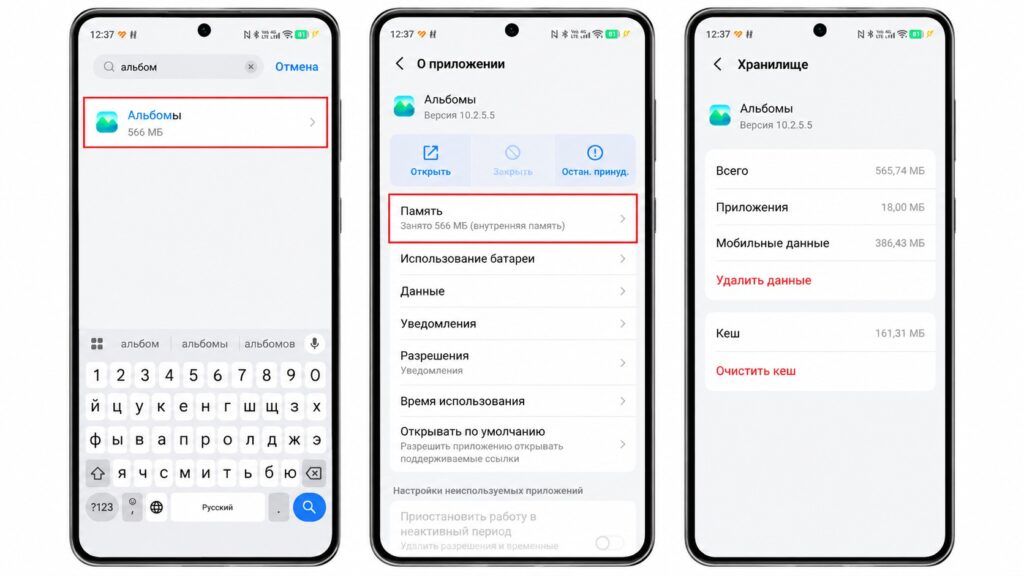
Clearing the gallery cache on Android
Do not confuse clearing the cache with clearing an app’s data. Clearing data can remove settings and other app information, so the two are different operations. Thumbnails may also reappear over time. This is normal gallery behavior and does not mean your deleted photos have come back.
Deleting from the gallery alone is not enough
The source author concludes that Android does not necessarily keep only one copy of a photo. Cloud services, messengers and file managers work with their own copies, so deleting an image in one place does not guarantee it is gone everywhere else.
To get rid of a specific image completely, check the cloud, saved files, chats and app trash folders in addition to the gallery. If your goal is simply to free up storage, the source recommends starting with the trash and Telegram’s cache.
Keep one limitation in mind: cleaning your own phone will not delete photos that other people have already downloaded. Once an image has been sent to someone else’s chat, you can no longer fully control how it is stored.