Comments in MAX channels are a feature that turns a dry feed of publications into a lively conversation. Subscribers ask questions, debate, and share opinions right under posts, while the author receives feedback without any extra effort. However, for iPhone owners, this feature isn’t as smooth as they’d like, and it’s not about user error at all.

Now posts in MAX can be commented on
Limitations of Comments in MAX on iOS
It’s important to set things straight right away. The MAX app was removed from the App Store a long time ago, so downloading it on an iPhone the usual way is no longer possible. Notifications don’t work, there are no updates, and new users just see an error in the Apple store. This is exactly why iPhone owners have to enable and write comments through the web version of the messenger in a browser.
It sounds like a workaround, and essentially it is, but this method works reliably. The web version opens through Safari and can do virtually everything the full Android app can. To avoid fiddling with bookmarks every time, it’s more convenient to add a shortcut directly to the home screen.
How to Add Comments to a MAX Channel
By default, comments in a new channel are disabled, and subscribers only see the publications themselves with no way to respond. To fix this, you need to go into the channel settings. On iPhone, all actions are performed in the web version, but the logic is exactly the same as in the app on other platforms, so it’s hard to get confused. The main thing is to find the right toggle in the settings. The whole procedure takes less than a minute and looks like this:
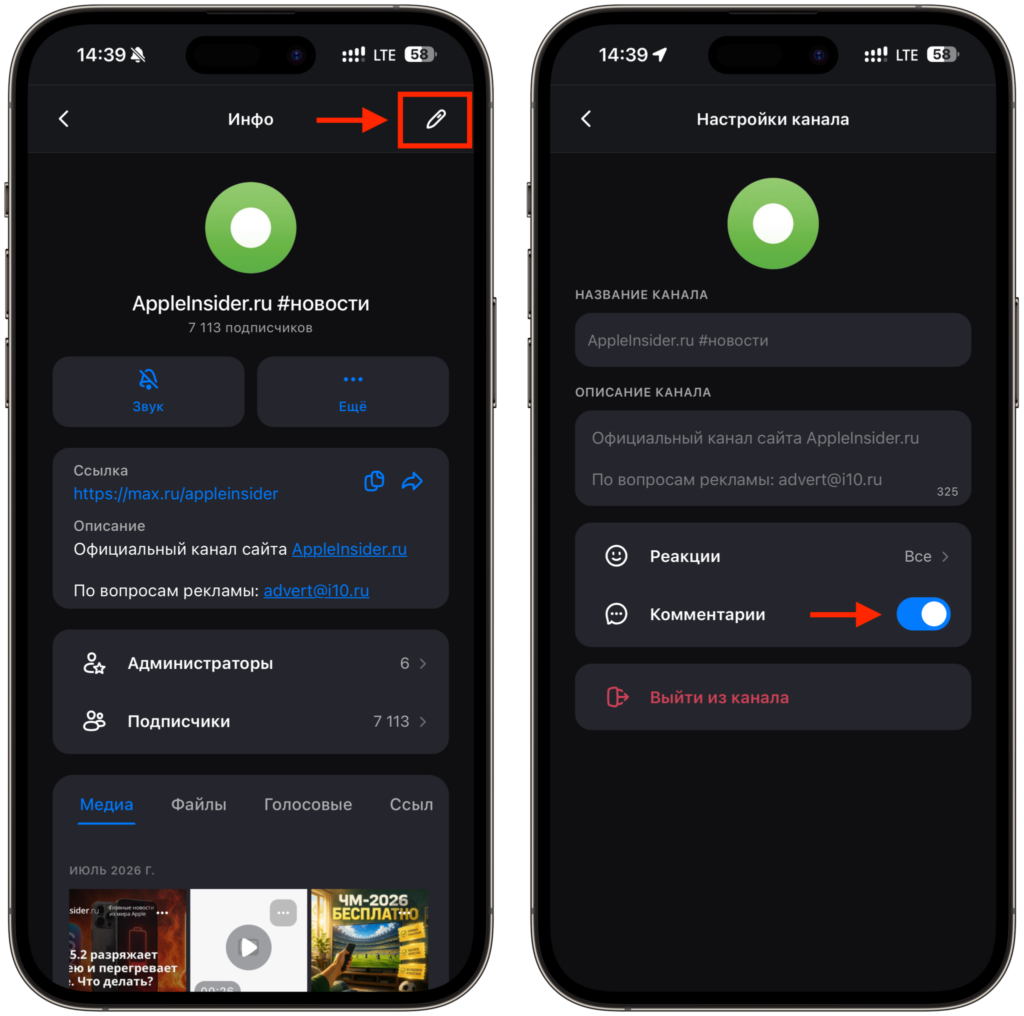
If you’re the channel owner, you first need to activate posts
- Open the desired channel in the MAX web version through the browser.
- Tap on the channel name at the top of the screen to access its profile.
- Tap the pencil icon in the upper right corner of the screen — this will put you into editing mode.
- Find and activate the “Comments” toggle.
That’s it, now the ability to leave comments will appear under your publications, and subscribers will be able to write responses. The feature is enabled for the entire channel at once, not for individual posts, so you won’t need to toggle it before every new entry.
How to Write a Comment Under a Post in MAX
Now let’s look at the situation from the perspective of a regular reader. Let’s say the channel author has already enabled comments, and you want to write something under a post you liked. No secret knowledge is needed here; the whole process is intuitive and follows the familiar logic of any social network. The only difference is that on iPhone, you do this through the web version of the messenger.
To leave your comment, follow these steps:
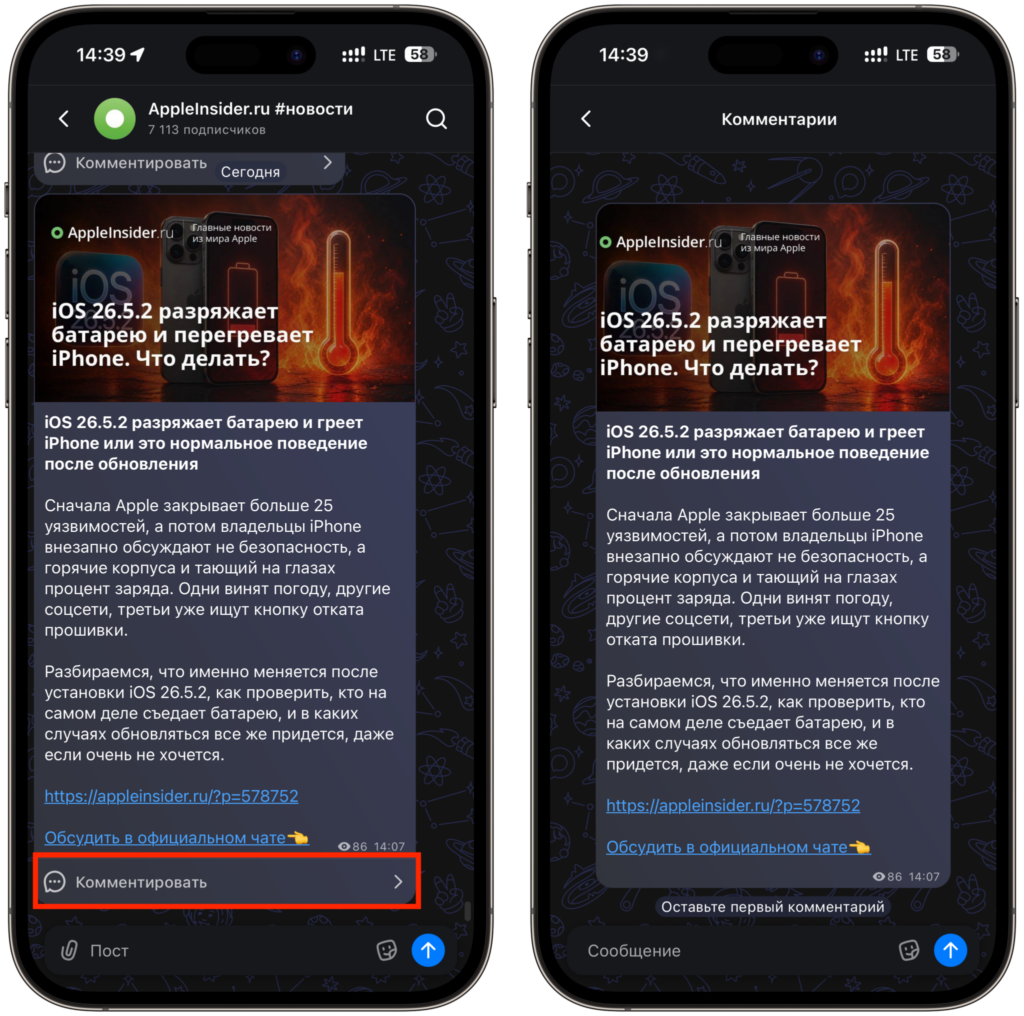
Enter your comment and start chatting with other subscribers
- Open the desired channel in the browser on your iPhone.
- Select the publication you want to comment on.
- Tap the “Comment” button.
- Type your message and send it.
Done — your comment will appear in the general discussion thread, and other subscribers will see it. You can also reply to other people’s comments and follow the discussion right there, so the channel turns into something like a full-fledged forum.
Why There’s No “Comment” Button in MAX
This is where the most common misunderstanding begins. Sometimes a user opens a post, looks for the coveted button, and it’s simply not there. The first thought is that something is broken or it’s a web version issue. In reality, the reason is much simpler: the channel admins haven’t enabled comments yet. Until the author activates that toggle in the settings, there won’t be any button under posts, and this is completely normal behavior.
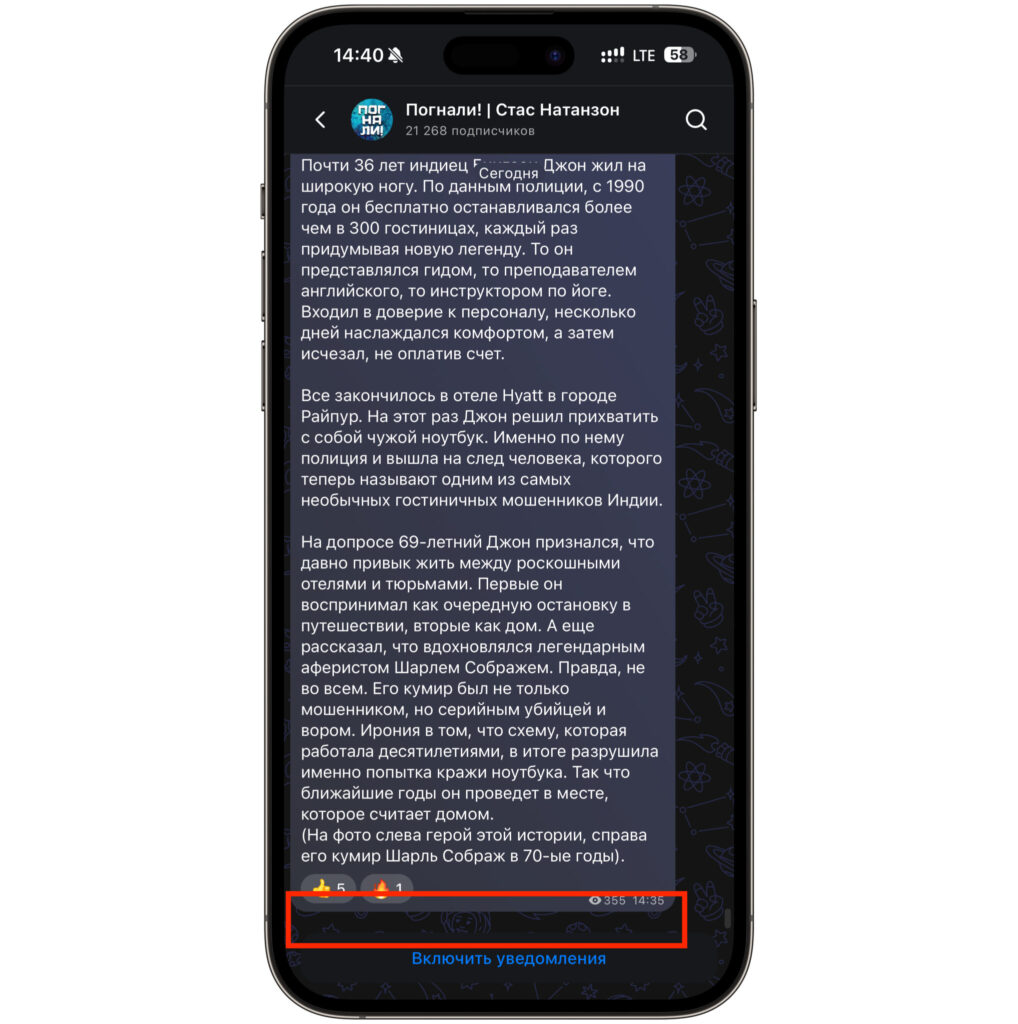
Comments are not enabled in all channels
What’s important to understand: as a subscriber, you’re powerless here. No reboots, shortcut reinstalls, or any kind of tricks will help, because the decision is entirely on the channel owner’s side. There’s only one working option:
- Make sure you’ve opened a channel publication specifically, not a post in a group or chat.
- If there’s no button — simply wait; comments may appear later.
- If you wish, message the author directly and ask them to enable discussions.
In my experience, many authors don’t enable comments right away but only once they’ve built up an active audience, so a little patience usually solves the issue. Ultimately, the whole scheme comes down to a simple rule: the author flips the toggle once, and subscribers get the ability to chat under every post. Considering that on iPhone everything runs in the browser, there’s a bit more hassle, but there’s nothing terrible about it.


