Chrome has long been criticized for eating up RAM and slowing down your computer when you have a lot of tabs open. However, few people know that Google’s browser has a feature that solves this problem without buying a new device. It puts tabs you’re not using to sleep and returns memory to other programs. Today we’ll look at what this magical feature is, how it works, and what it actually delivers.

I changed just one setting in Google Chrome on Mac, and the browser stopped lagging
Why Chrome Lags with Many Tabs
The cause of slowdowns isn’t always heavy extensions. Every active tab uses memory, and how much depends on what’s loaded in it: a heavy site with ads and video consumes more than a simple text page.
The second factor is also important — how long a tab has been open. The longer dozens of tabs stay open, the more RAM they collectively consume, and the less remains for the system and other applications. On a weak laptop, this is especially noticeable: even closing extra tabs starts to lag, and launching any program is accompanied by a long “thinking” cursor.
How to Enable “Memory Saver” in Chrome
The setting you need is called “Memory Saver” and has been available in Chrome since version 110 in 2023, but many people didn’t even know about it. And yet it takes just a few clicks to enable:
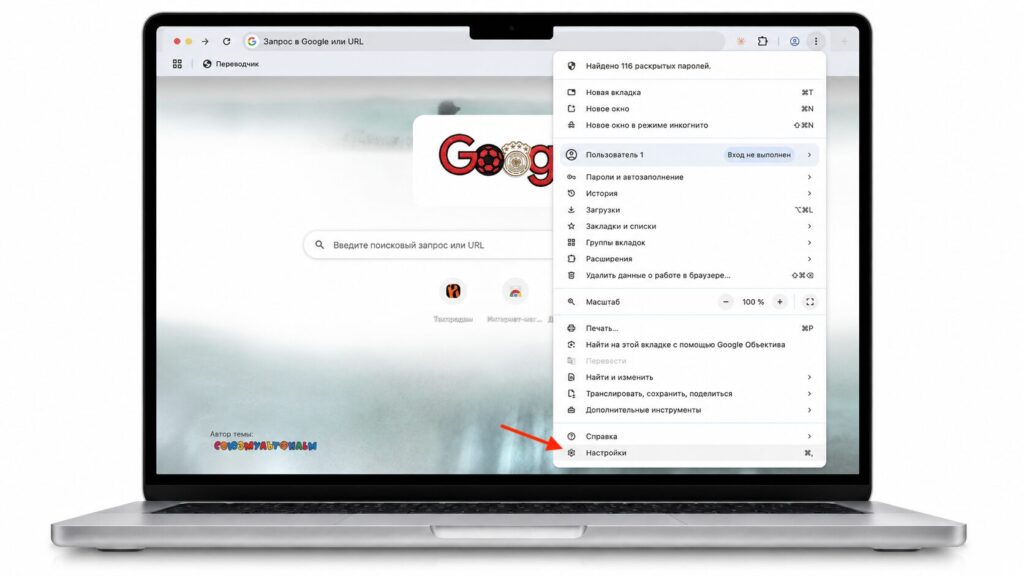
First, go to settings
- Open the three-dot menu in the corner of the Chrome window
- Select “Settings”
- Go to the “Performance” section
- Turn on the “Memory Saver” toggle
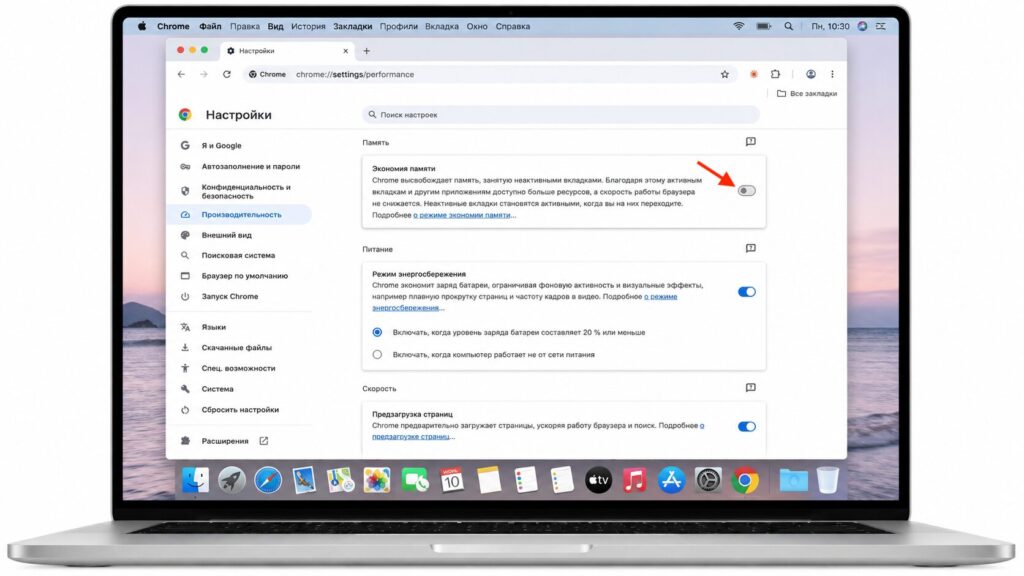
Enable this setting and everything will fly
The principle is simple. The feature deactivates tabs you’re not currently using and frees up memory for active tabs and other programs. When you return to a sleeping tab, it will reload — this takes a couple of seconds or a bit more.
Three Memory Saver Modes in Chrome and Which to Choose
By default, Chrome selects the balanced mode — tabs are put to sleep after an “optimal” period of time. This is a compromise: memory is saved, but tabs remain at hand.
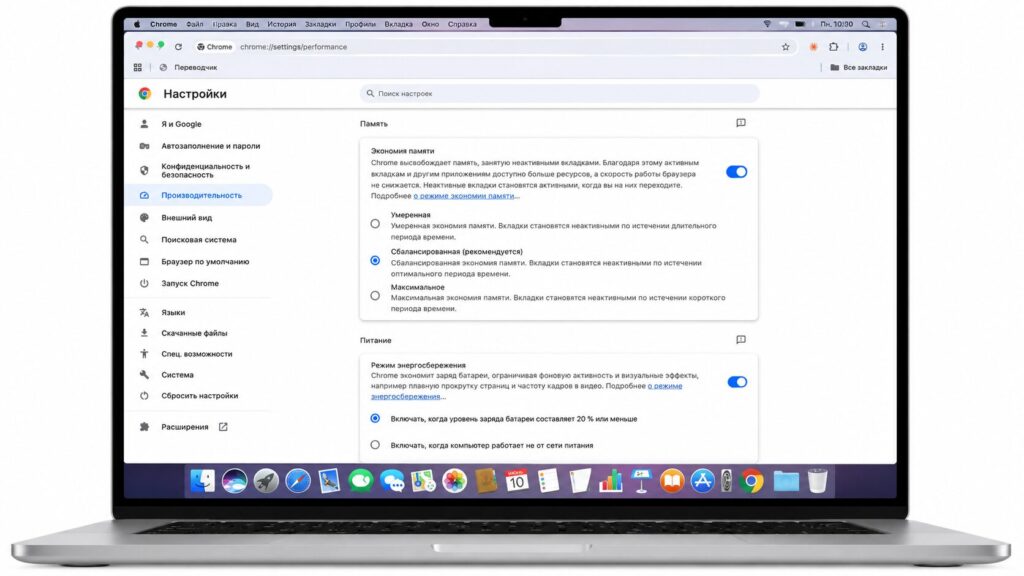
You need to choose the saving mode wisely
There are two more options at opposite ends:
- Moderate — puts tabs to sleep after the longest delay, saves memory less aggressively
- Maximum — puts tabs to sleep quickly, saves memory more aggressively, but you’ll have to wait for reloads more often
The original author prefers the default mode: it gives the best of both worlds — it saves memory and doesn’t make you wait every time you switch tabs. The logic is clear: few people want to wait a couple of seconds every time they return to a tab.
What Else Slows Down Chrome Besides Tabs
Extra tabs aren’t the only cause of slowdowns. An outdated version of Chrome, ad-heavy websites, and poorly optimized extensions also hurt the speed of the browser and your entire computer.
Some of these factors are under your control: keep Chrome up to date and don’t install outdated extensions. But you can’t control the amount of ads, scripts, and auto-playing videos on websites — which is why “Memory Saver” automatically takes on part of the load.
Who Should Enable This Setting
This feature will definitely be useful for those who work on a weak or not-so-new laptop and keep dozens of tabs open at the same time. If you have a powerful Mac with plenty of memory and rarely open more than a few tabs, the difference will be barely noticeable — you can skip it.
The main trade-off is honest: you save memory but sometimes wait a couple of seconds for a sleeping tab to reload. For most people, that’s far more pleasant than a frozen cursor and having to restart the entire computer. If Chrome regularly slows down your work — it’s worth enabling “Memory Saver” at least to test it out. It’s free and reversible.


