We’ve already covered the proper setup of the MAX messenger, and now it’s time to move on to the interesting stuff. One of the most useful features of the messenger is channels in MAX. This is where the main public content is concentrated: news, technology, entertainment, and official accounts of government services. Let me break down what they are, how to search for the channels you need, and how to use them.
Searching for channels in MAX and subscribing to them
What Are Channels in MAX and How They Differ from Chats
What a channel in MAX means — it’s a platform for one-way content publishing. The author publishes posts, subscribers read them. You can’t write anything in response — you can only leave a reaction or a comment if the author has enabled that feature. This is the fundamental difference from a group.
A channel is a feed of publications from an author. A group is a shared chat.
Let’s break down the difference visually:
- channel or group in MAX: in a channel only the author publishes content, subscribers read; in a group all participants can send messages;
- reactions in a MAX channel: available to all subscribers, it’s a quick way to react to a post without a comment;
How many channels are in MAX right now? Already more than 166,000. For a young messenger, that’s a serious number. The list of channels in MAX covers more than 40 thematic categories: news, sports, technology, business, entertainment, education, and so on. If you have questions about working with channels or other features, the MAX support team responds in the official chat right inside the messenger.
How to Find Channels in MAX on Android
Searching for channels in MAX works in several ways depending on whether you know what you’re looking for or want to discover something new.
Method 1: through the built-in search
- Open MAX and tap the search icon.
- In the menu that opens, select the “Channels” tab.
- Enter the name, nickname, or keyword related to the topic.
- Select the desired channel from the results and tap on it.
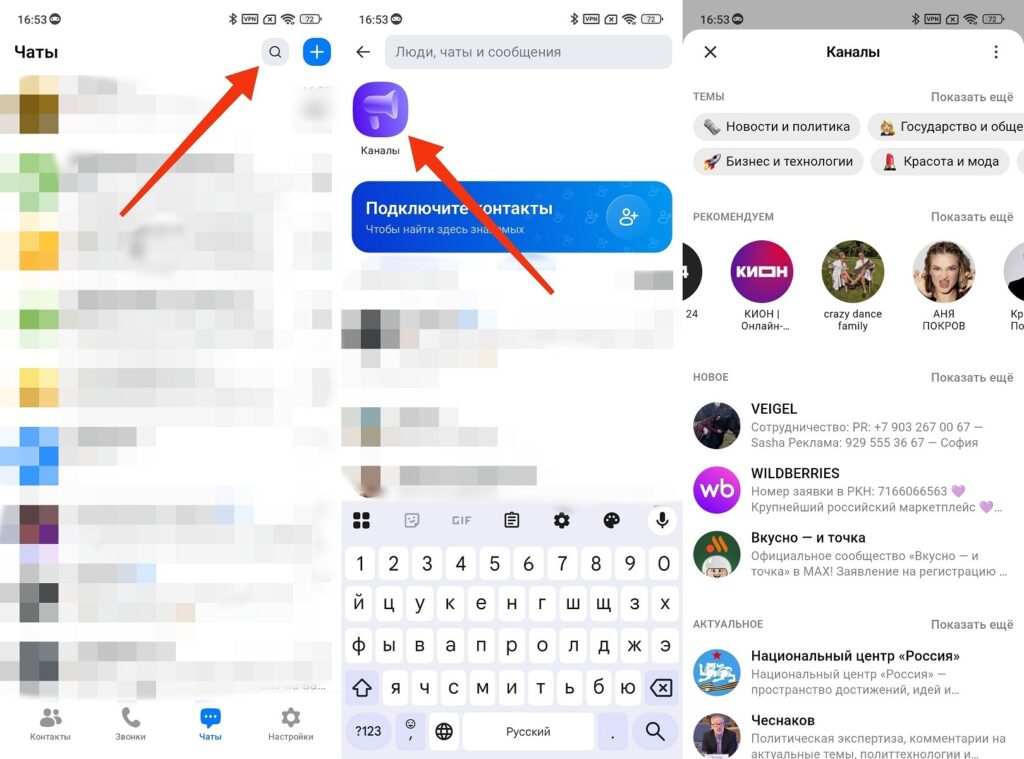
There’s a channel catalog in MAX, and you can also search for them through search
Method 2: through external catalogs
Third-party services like mxstat.ru have compiled catalogs with analytics on all public channels. There you can search by topic, number of subscribers, and activity. It’s convenient for finding popular channels in MAX in a specific niche.
Private channels are not visible in search — you can only get in via a link from the author.
An important nuance: private channels don’t appear in search. You can find a private MAX channel only by following an invitation link — there’s no other way.
How to Subscribe to a Channel in MAX
You can subscribe to a channel in MAX in two ways.
Through search:
- Find the desired public channel in MAX through search or catalog.
- Tap on it — the channel page will open.
- Tap the “Subscribe” button.
- The channel will appear in your subscriptions list in the “Channels” section.
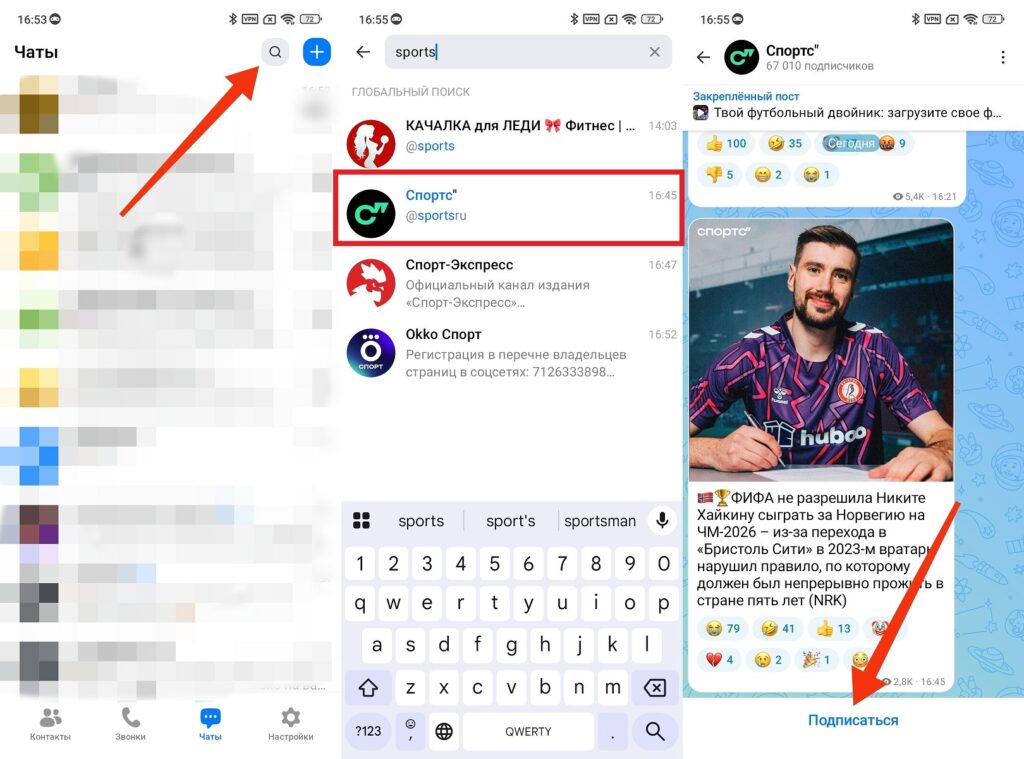
You can subscribe through search or the catalog
Via direct link:
- Get the channel link — it looks like max.ru/… or t.me/… for channels that are mirrored from Telegram.
- Tap the link — a channel preview will open.
- Tap “Subscribe” or “Join.”
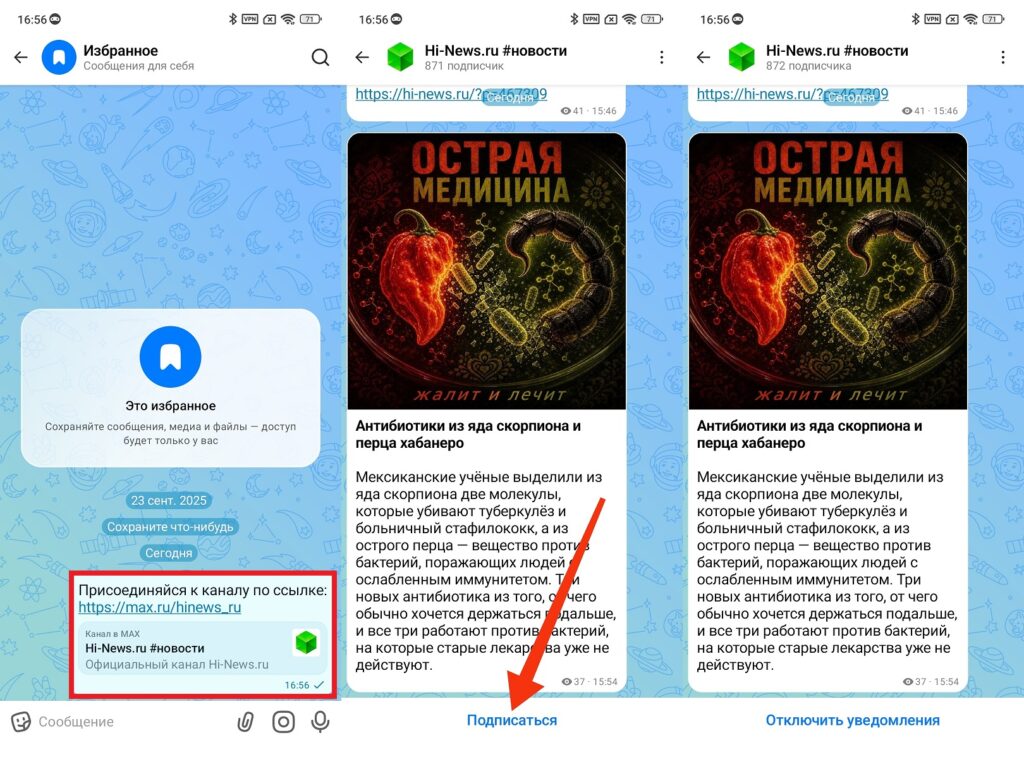
Subscribing via a direct link also works
To unsubscribe — open the channel, tap on its name at the top, and select “Unsubscribe.” If you accumulate many subscriptions, it’s convenient to organize them into folders — there’s a separate guide with all the details on how to set up folders in the MAX messenger.
Best Channels in MAX by Category
So you don’t have to search from scratch — here are several categories with specific examples of interesting channels in MAX.
News channels in MAX:
- Kommersant — one of the oldest business media outlets;
- VEDOMOSTI — a Russian business channel;
- RBC. News — a federal news feed.
Technology and Android:
- AndroidInsider.ru — our official channel in MAX, where we publish news, reviews, and guides first;
- AppleInsider.ru — a channel from our colleagues who write about Apple devices.
Entertainment and lifestyle:
- cooking channels with recipes — there are several hundred of them in MAX;
- channels with greeting cards and stickers — a separate ecosystem for congratulations.
This is far from a complete list of channels in MAX — but it’s a starting point for those who are just beginning to explore the messenger’s ecosystem. The algorithm will suggest the best channels in MAX based on your interests after a few subscriptions.
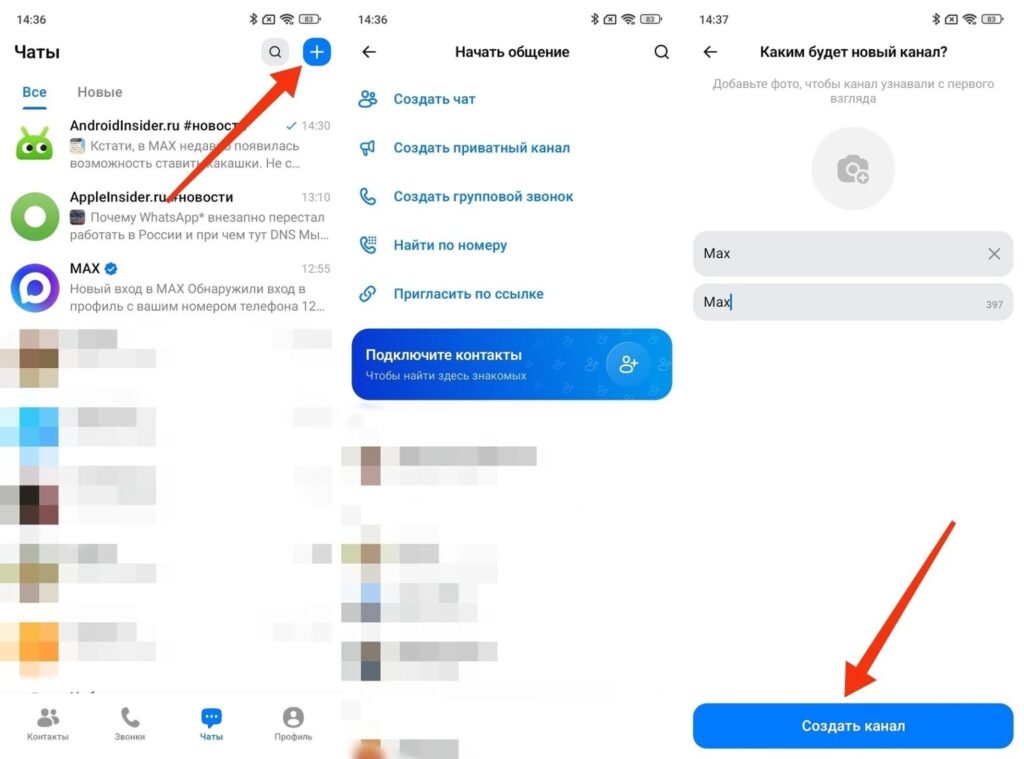
How to Create Your Own Channel in MAX
Since February 2026, any user can create a private channel in MAX without restrictions. A public one — only with the A+ mark (audience of 10,000+ subscribers and registration in the RKN registry). A detailed guide on both options is available in the article about how to create a channel in MAX. Here’s a brief overview for a private channel:
- Open MAX and tap the “+” button in the upper right corner of the “Chats” section.
- Select “Create a private channel.”
- Upload a photo, come up with a name, and add a description.
- Optionally, immediately add subscribers from your contacts.
- Tap “Create channel.”