After mobile phone billing was disabled for the Russian App Store, many people started thinking about moving their account to another country. Changing your Apple ID region is generally a fairly simple task, but if you have children under 13 in Family Sharing, things get significantly more complicated. Apple strictly blocks country switching while you’re the organizer or member of a “Family” with minors. Simply pressing “Leave Family” won’t work — the system won’t allow it. Let’s figure out how to get out of this situation without losing anything.
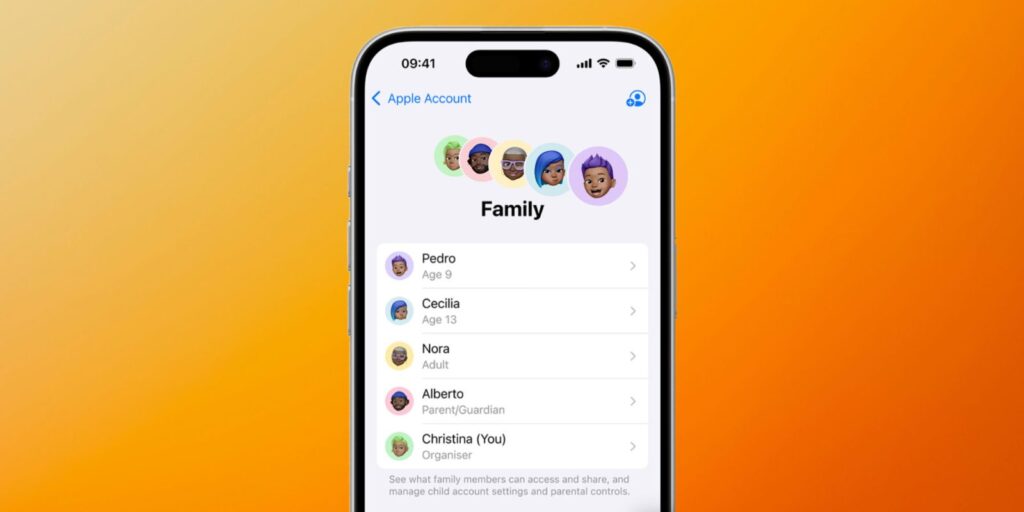
If you have minor children in your family, the process isn’t that simple
Let me clarify right away: we’re talking specifically about children under 13 whose Apple ID accounts are required to be part of a family group. With teenagers aged 13–17, the situation is simpler — they can be removed from the “Family.” But with younger kids, you’ll have to put in more effort.
Why You Can’t Change the Apple ID Region for the Entire Family
Apple requires all family group members to be in the same regional store. This is a fundamental condition — purchases and subscriptions are only shared within the same country. If you decide to move to the American or Turkish App Store while your child stays in the Russian one, you’ll no longer be able to share purchases.
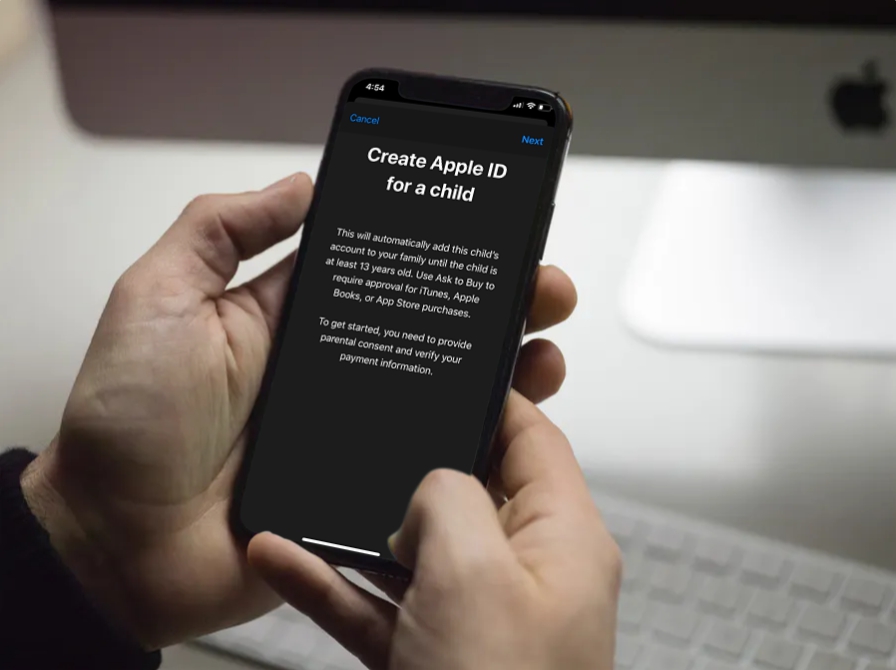
Accounts for children under 13 are created by a parent and must be strictly linked to a family
Moreover, the organizer of a group with children’s accounts cannot leave the “Family” or disband it at all. Apple physically blocks this option until the child is transferred to another family group or their Apple ID is deleted.
Ways to Change Apple ID Region If You Have a Child in the Family
You have two paths, and both are legitimate.
First option — transfer the child to another family group. This works if you have a relative or spouse with a separate Apple ID who is willing to temporarily or permanently become the organizer for the child.
Second option — delete the child’s Apple ID completely. It sounds harsh, but sometimes it’s the only way out: for example, if you’re the only adult in the group. After deleting the child’s account, they’ll automatically be removed from the “Family,” and you’ll be free to change your region.
There’s also a third path, which I personally consider the calmest: don’t touch your main account at all. Create a separate Apple ID for the country you need and use it only in the App Store to download the necessary apps. The “Family” and child stay on your main account.
Transferring a Child’s Apple ID to Another Family Group
Neither the child nor you as the current organizer initiate anything. The request must come from outside — from the organizer of another family group.
Here’s the procedure:
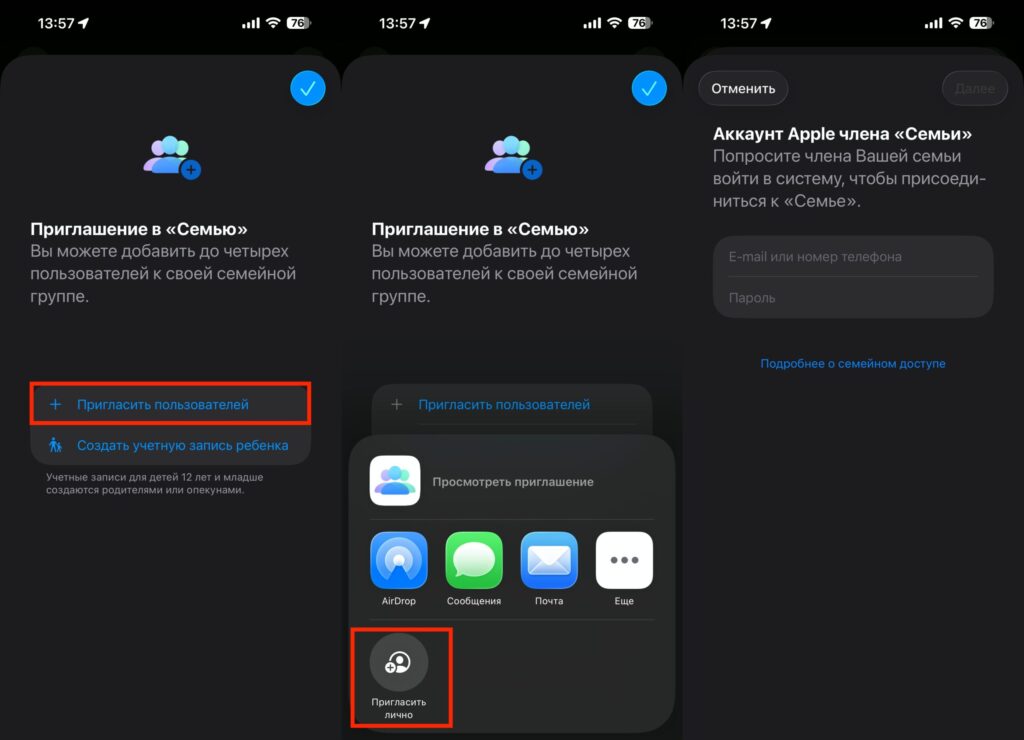
Invite the child to the new family and confirm the transfer
- The new family organizer opens Settings — Family — “Invite Member.”
- Selects the “Invite in Person” option and enters the child’s Apple ID along with the password.
- You, as the current organizer, receive a “Family Transfer Request” notification.
- You confirm the transfer.
After this, the child ends up in the new group, and you become a free person who can leave your “Family” or disband it completely.
Deleting a Child’s Apple ID: What You Need to Know
If there’s nowhere to transfer the child, you’ll have to delete their account. The deletion request is submitted by the parent or guardian through the child’s Apple ID settings. Deletion isn’t instant — the process takes up to 7 days, during which the decision can be reversed.
After the account is permanently deleted, the child automatically disappears from the family group. Only after this can the organizer disband the “Family” and proceed with changing the region, which can come with a large number of problems and difficulties.
Important: all child account data is lost upon deletion. Photos, notes, documents saved in iCloud, game progress — all of it will disappear. Before deleting, make sure to create a backup of any needed content on your computer.
How to Change Apple ID Region with Children in Family Sharing
I’m putting everything together into a single checklist for those who have decided to go all the way and change the region of their main account.
Step 1. Decide the fate of the child’s account. Either arrange to transfer the child to another family group or delete their Apple ID through settings. For children aged 13 to 17, remove them from Family Sharing like this: Settings — your name — Family — child’s name — Remove [name] from Family Sharing.
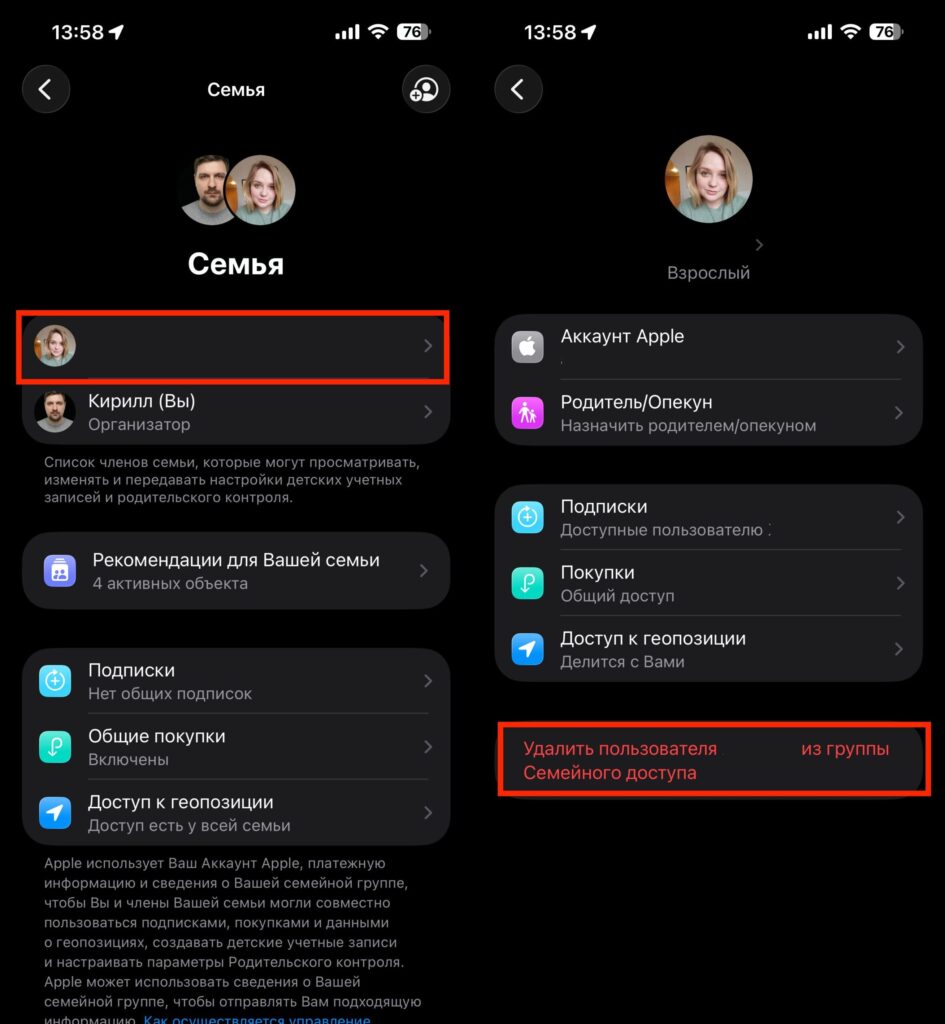
Too bad you can’t do this with children under 13
Step 2. Cancel all active subscriptions. Apple Music, iCloud+, Apple TV+, Arcade, in-app subscriptions — everything needs to be turned off. Settings — your name — “Subscriptions.”
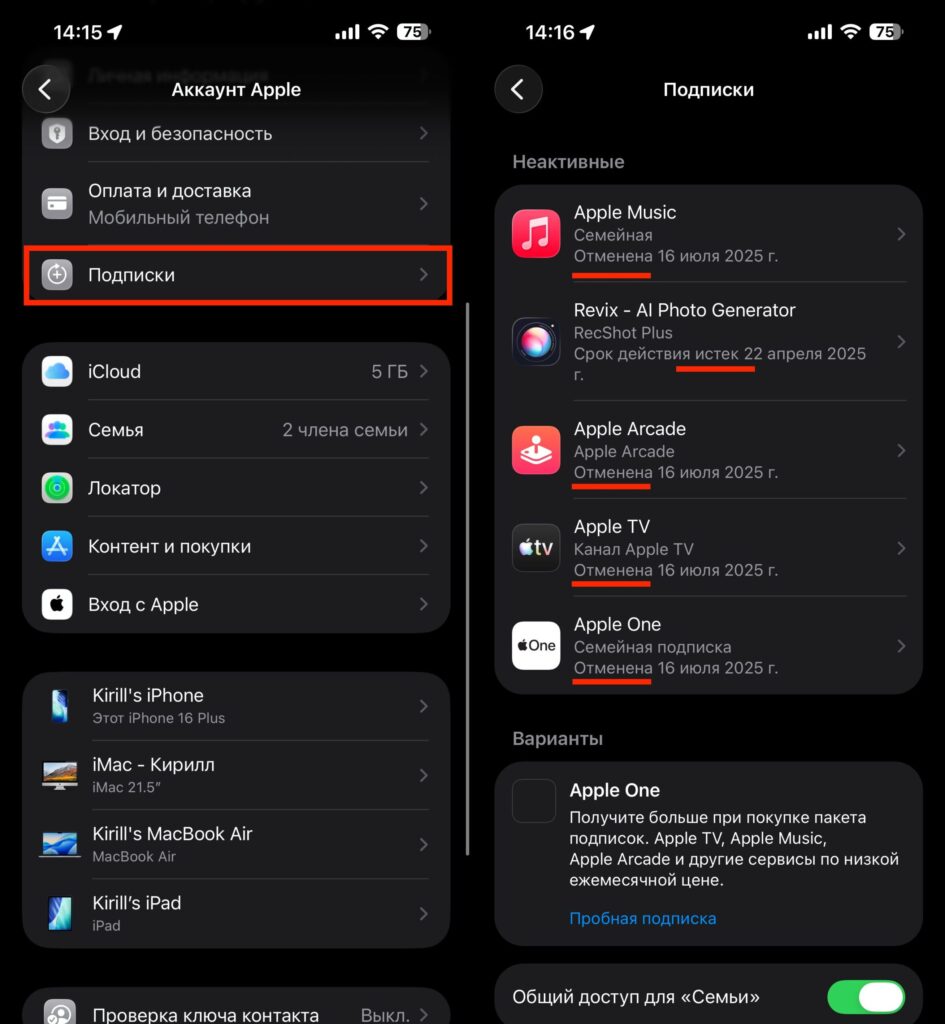
Make sure you have no active subscriptions
Step 3. Downgrade your iCloud+ plan to the free 5 GB. Or wait until the paid period ends. Otherwise, the region change won’t go through.
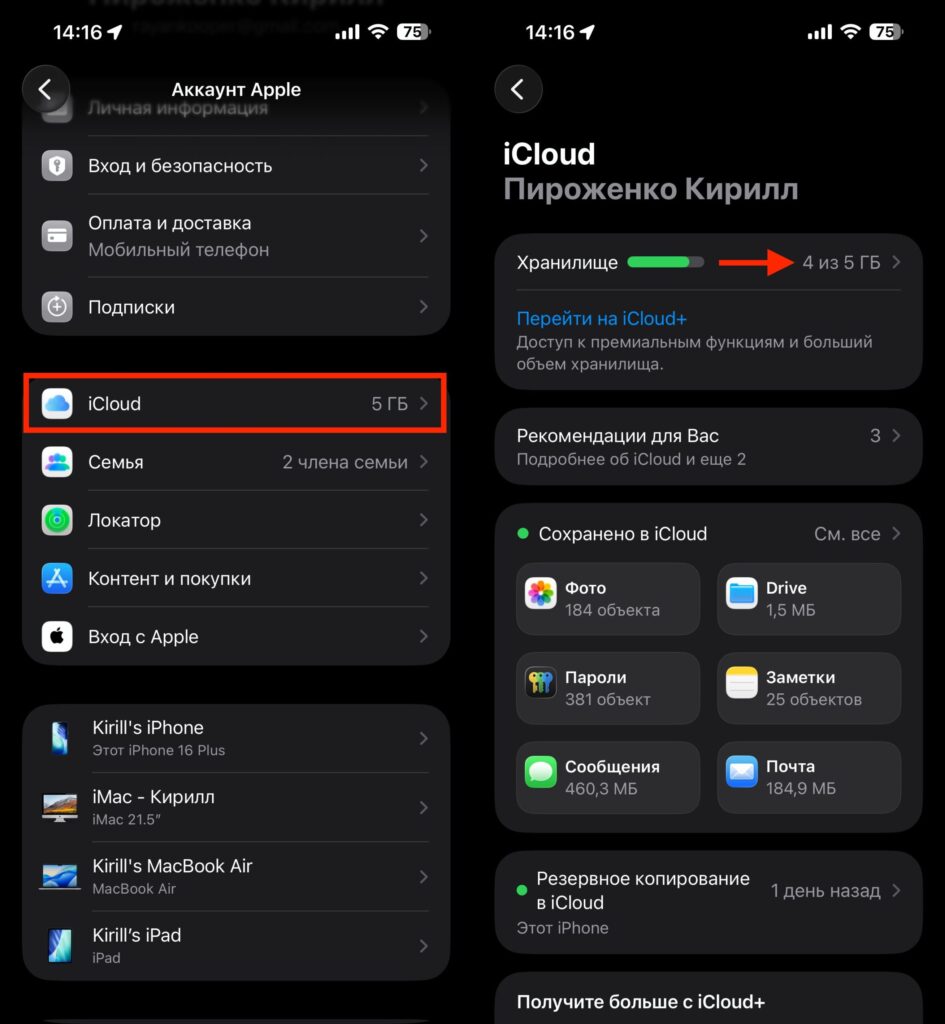
Downgrade iCloud
Step 4. Zero out your Apple ID balance. If even 1 ruble remains on your account, the system will block the switch.
Step 5. Close any pending transactions. Movie pre-orders, refunds, rentals — everything must be completed.
Step 6. Disband the “Family.” Settings —