Yes — but only during certain stages. An iOS update is not a single uninterruptible process. According to the source author, who reports installing every beta and observing the update sequence dozens of times, the iPhone goes through distinct phases, and you can safely use the phone during the early ones. The critical dividing line is the reboot: once the Apple logo and progress bar appear, the device is fully locked and any interruption risks bricking it. Here is a stage-by-stage breakdown of what you can and cannot do, plus what happens if Wi-Fi drops or the battery dies mid-update.
What you need to know
- You can use your iPhone normally — including taking calls — during the “Preparing Update” and “Verifying Update” stages before the reboot.
- Once the phone reboots and shows the Apple logo with a progress bar, it is fully locked; force-restarting at this point can brick the device.
- Wi-Fi is not needed during the final firmware-writing stage (after reboot), but losing power during that stage can cause serious problems.
- To cancel an update before installation, go to Settings → General → iPhone Storage and delete the downloaded firmware file.
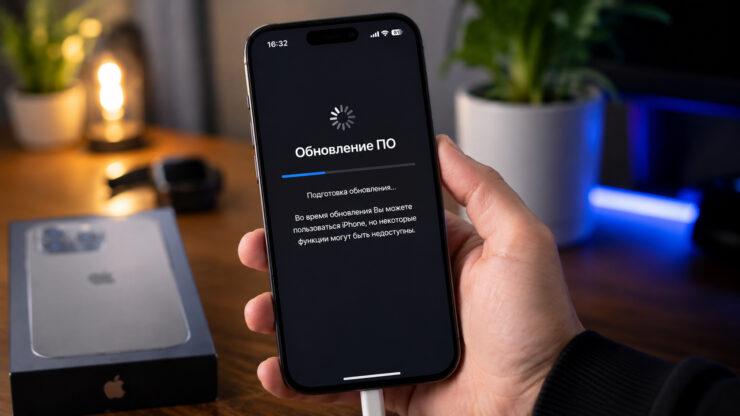
What you can and cannot do with your iPhone during an update.
What actually happens after you tap “Install”
Many people assume installation is a single, monolithic process. In reality, the iPhone passes through several distinct stages, each with different behavior.
Stage 1 — “Preparing Update.” The system unpacks the downloaded file, verifies its integrity, and prepares it for writing. The screen stays on, the phone responds to touch, and nothing alarming happens. The source author reports this stage typically takes five to twenty minutes, though major releases like iOS 27 can take longer.
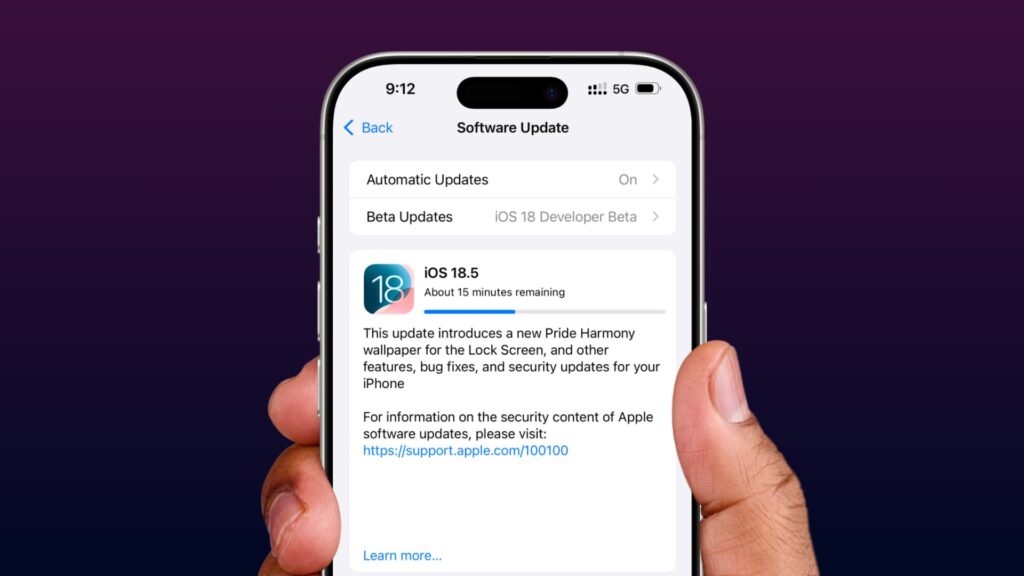
During the download and preparation stages you can still use your phone normally.
Stage 2 — “Verifying Update.” The iPhone contacts Apple’s servers to confirm the firmware version is signed and authorized for your specific device. This stage is short but depends on your internet connection more than any other.
Stage 3 — Reboot and firmware installation. The screen goes dark, the Apple logo appears with a progress bar beneath it, and the real installation begins. The system rewrites the firmware, migrates files, and rebuilds partitions. The iPhone is completely locked at this point — it does not respond to touch, calls do not come through, and messages are not delivered. The progress bar may move unevenly and sometimes appear stuck for a couple of minutes; the source author notes this is normal.
Can you take calls and use apps?
During the first two stages (Preparing and Verifying), the phone remains fully functional. You can browse, reply to messages, listen to music, and accept incoming calls as usual. The update process runs in the background.
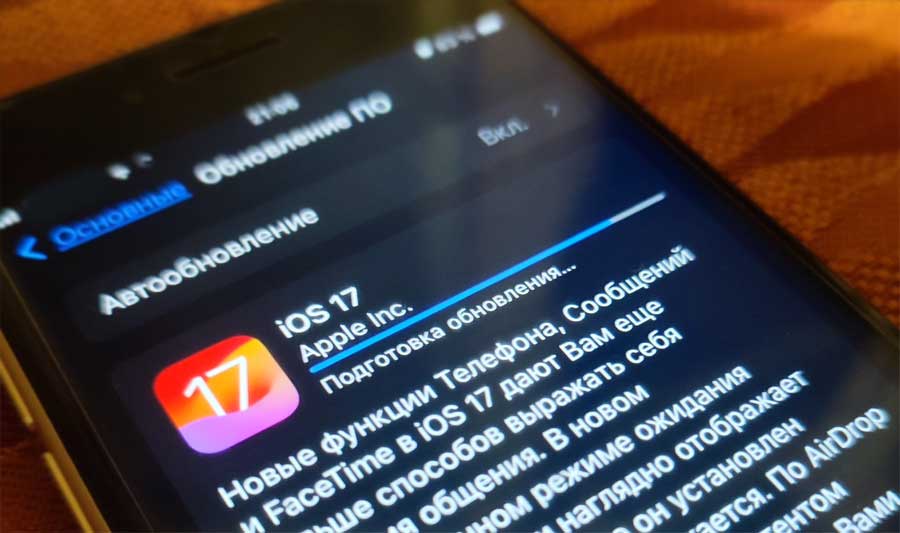
Even at the preparation stage you can still use your phone.
Once the reboot begins and the Apple logo with the progress bar is on screen, the device blocks all interaction. No calls, no messages, no way to wake the screen. If you are expecting an important call, the source author recommends waiting to install until you have roughly 40 free minutes.
One practical note from the source author: even while the screen is still active during the preparation stage, running processor-heavy tasks — such as demanding games or video recording — can slow the preparation down, because the CPU is already busy unpacking the update. Nothing will break, but the process will take longer.
How to cancel an update — and the point of no return
The word “cancel” means very different things depending on the stage.
While the update is still downloading: Go to Settings → General → iPhone Storage, find the downloaded firmware file, and delete it. The download stops and there is nothing left to install.
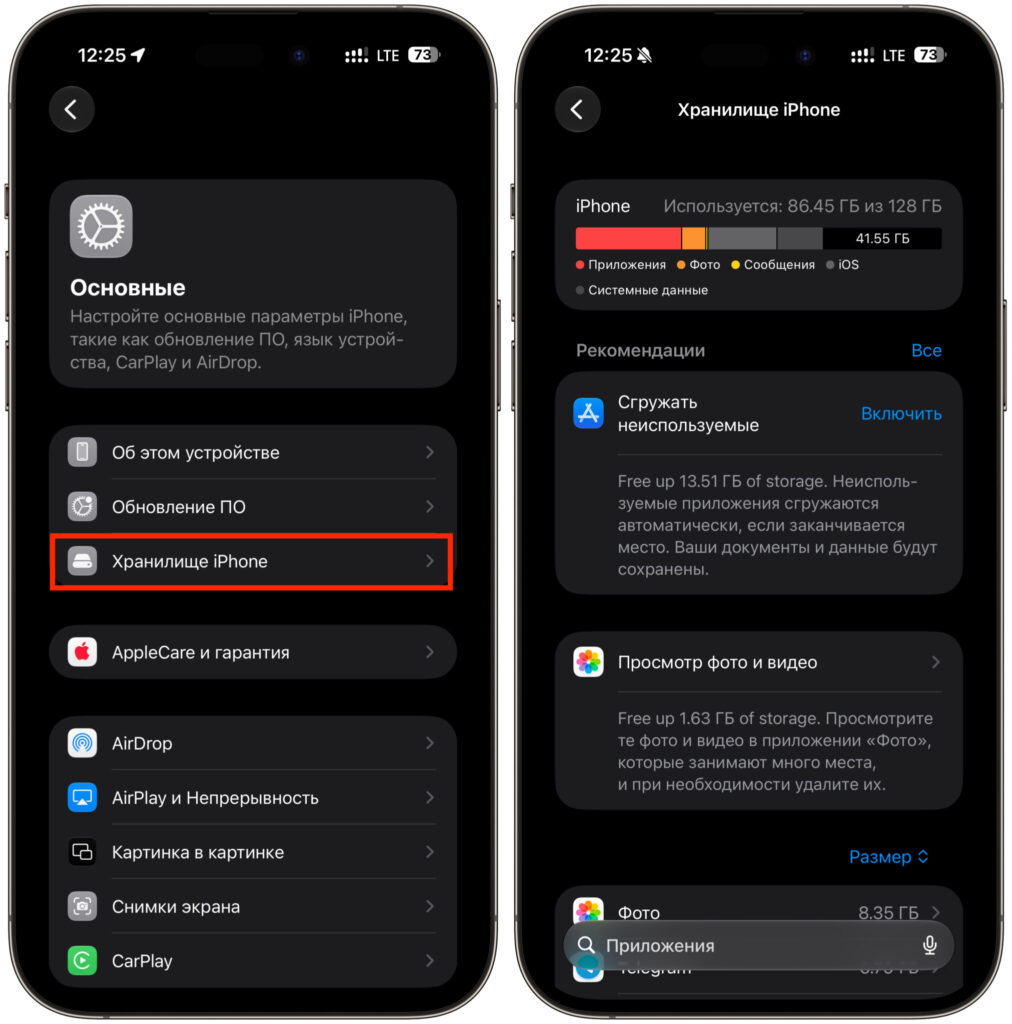
Find the firmware file in iPhone Storage and delete it to cancel.
After tapping “Install” but before the reboot: During the “Preparing” stage, it may still be possible to restart the phone and delete the downloaded package, but the source author describes this as unreliable.
After the reboot (Apple logo + progress bar): This is the point of no return. There is no “Cancel” button, and that is by design. Force-restarting the phone while firmware is being written can brick the device, potentially requiring a full restore via a computer with complete data loss.
The practical takeaway: make your decision before tapping “Install,” not after.
What happens if Wi-Fi drops or the battery dies
These are the two most common fears during an update. The consequences depend entirely on timing.
Wi-Fi loss
If the connection drops during the “Verifying Update” stage, the phone will simply hang on that screen — it needs to reach Apple’s servers and cannot proceed without a network. Reconnecting to Wi-Fi or switching to another network will let the process continue. However, once the reboot has started and firmware is being written, no network connection is needed at all. Everything required is already stored locally, and the installation will complete even in airplane mode.
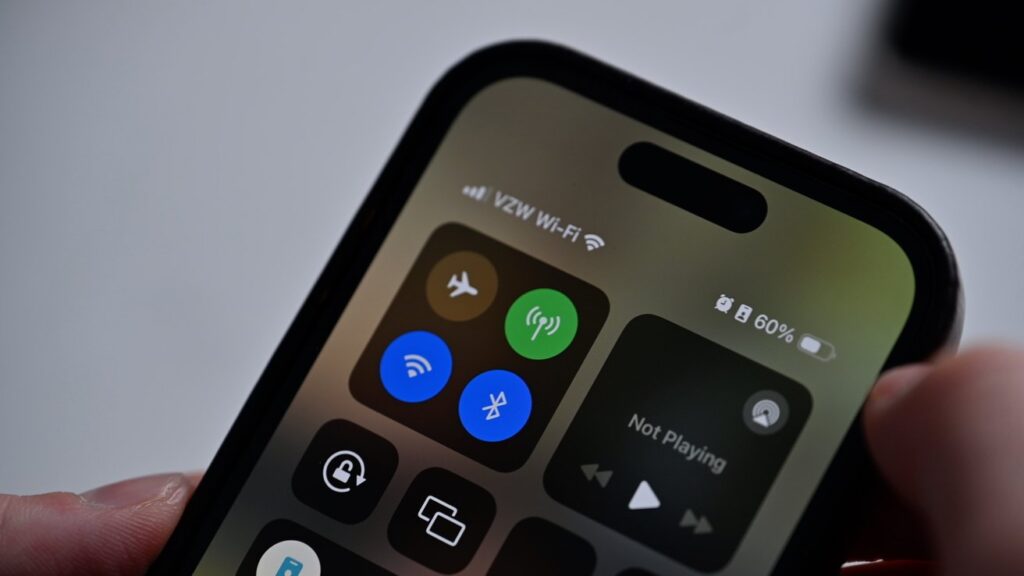
Check your Wi-Fi connection before starting the update to avoid problems.
Battery depletion
The iPhone has a built-in safeguard: it will not begin installation if the battery is too low. But if the charge runs out during the firmware-writing stage after the reboot, the consequences can range from the update restarting to a bricked device. The source author’s firm recommendation: always plug in the charger before a major update, even if the battery is full.
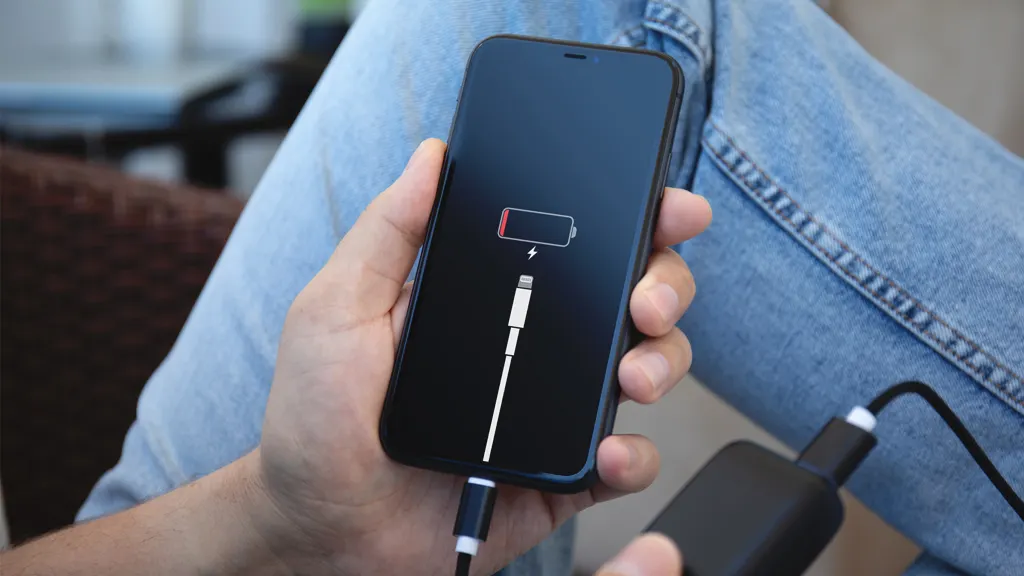
It is best to update your iPhone while it is charging.


