Incognito mode, which is quite easy to enable on Android, is commonly considered an “invisibility cloak”: open a tab, browse some sites, close it — and no traces left. In reality, things are a bit more complicated. Incognito doesn’t save history on the device itself, but that doesn’t mean your activity can’t be tracked at all. Let’s break down who can actually see the sites you visited, whether it’s possible to recover history after closing tabs, and if there’s a way to peek into incognito on someone else’s phone — and where the limits of all this lie.
Incognito is not a guaranteed protection
What Incognito Mode Actually Hides
The main misunderstanding is that incognito is confused with complete anonymity. Incognito mode doesn’t save browsing history locally — visited sites and search queries don’t end up in the regular browser history. Along with this, the browser doesn’t store cookies (they are erased when the window is closed) and doesn’t automatically log into your accounts. The main thing is to choose the right browser for Android.
But that’s where the privacy ends. There’s a common misconception that incognito completely hides online activity. In practice, your actions can be visible to the websites you visit, your internet service provider, network administrators at home, school, or work, as well as some third-party monitoring applications. Simply put, incognito hides traces from other people who might later pick up your phone, but not from those who stand between you and the internet.
Can Your ISP and Wi-Fi See Which Sites You Opened
Short answer: yes, partially. All internet activities are accessible to network administrators or ISPs — incognito mode has no effect on this. If you’re browsing through your home Wi-Fi, work, or school network, the network owner can see where you went if they want to.
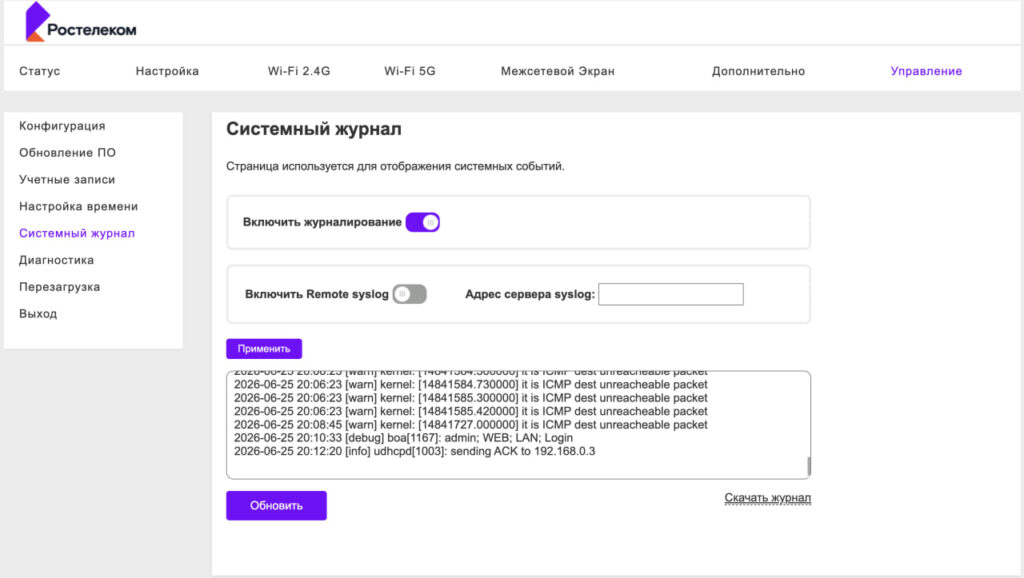
There’s an important caveat about the level of detail here. Routers typically only log the domains of visited sites, not the full page addresses. This means the logs will show that you opened, for example, a certain video service, but not the specific video. You can view this through the router settings, but only if you’re the network administrator:
As the kids say, that’s how it is for me
- Go to the address 192.168.0.1 and log in;
- Open the Management tab — System Log;
- Select Download System Log and wait for the download to finish;
- Open it and read the log history.
However, there’s a nuance. Not all router firmware records visited domains. Some — for example, ISP-provided ones — most often don’t provide this information. For instance, my router from Rostelecom only logs technical information about successful or unsuccessful connections.
Another matter is the DNS cache. A site’s IP address is saved in the device’s DNS cache with every request, including in incognito mode, because without this the browser simply can’t connect to the server. This trace remains on the device itself, but more on that below.
Can You Recover Incognito History After Closing Tabs
On a phone without additional apps — practically no. On a computer, there are a couple of workarounds, but both give an incomplete picture.
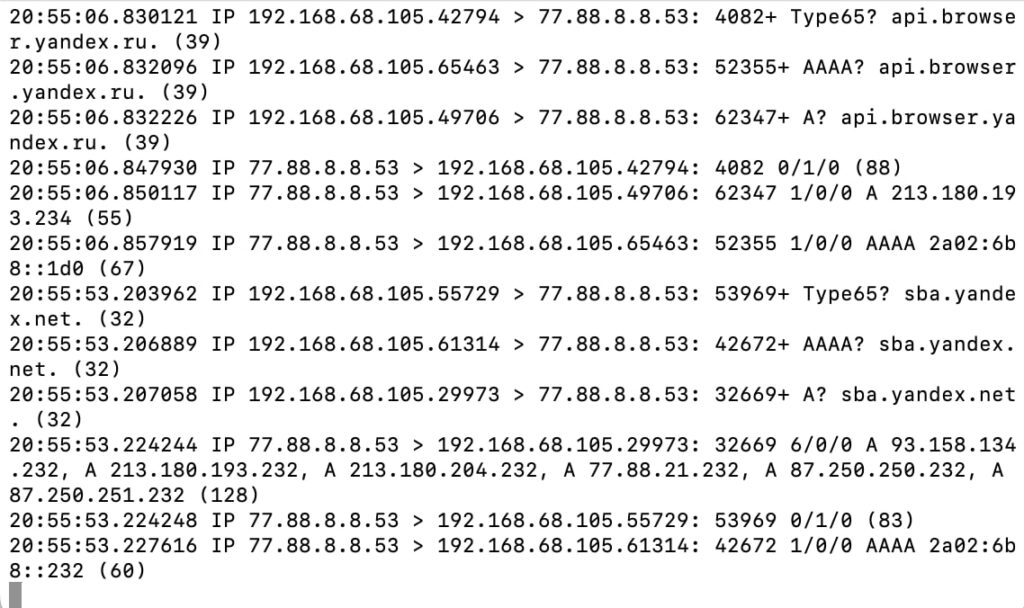
The first method is to check the DNS cache. However, on Mac you’ll need to start a listener beforehand. To do this, launch Terminal and enter the command sudo tcpdump -i any -n -l port 53. The catch is that only domain names and IP addresses are displayed, not exact page addresses. So this method isn’t suitable for precise history recovery.
This is the format you’ll get the report in
The second method is to install a browser extension in advance. For example, the extension Off The Record History saves incognito history, but with serious limitations: it stores data for up to 7 days and doesn’t record search queries in private mode. For it to work, you need to manually grant it access to incognito activity through extension management. Important point: this only works if the extension was installed beforehand. It won’t help recover an already closed session after the fact.
How to Leave No Traces in Incognito Mode on Your Phone
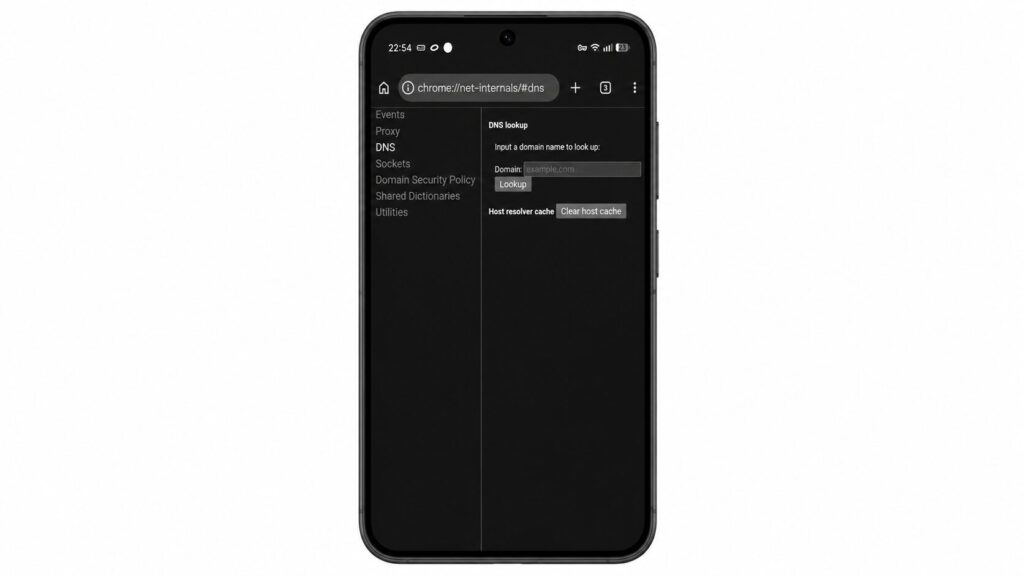
If you want to clean up the DNS cache, where IP addresses of visited sites accumulate, on Android this can be done directly through Chrome:
This feature only works in Chrome
- Enter the command chrome://net-internals/#dns in Chrome’s address bar.
- Press the clear host cache button.
On Windows, the same cache is cleared with the command ipconfig /flushdns in the command prompt run as administrator, and on Mac — with the command sudo killall -HUP mDNSResponder in Terminal. On iPhone, by the way, the chrome://net-internals method doesn’t work.
But if the goal is to truly hide which sites you open, incognito alone isn’t enough. To enhance privacy, incognito is recommended to be combined with encryption services. Among everyday details, don’t forget about the physical security of your device — if your phone or laptop ends up in someone else’s hands, it’s convenient to have data transfer and passwords set up separately from it.
What to Remember About Incognito Mode Privacy
Incognito mode solves exactly one task — it doesn’t leave history and cookies on the device itself. This is convenient if someone else uses your phone or computer. But it doesn’t make you anonymous online: your ISP and Wi-Fi owner can still see the domains you opened, and the DNS cache stores IP addresses until the first cleanup.
Recovering an already closed incognito session after the fact is practically impossible — all the “magic” methods from videos either don’t work or show scraps of data. Parental monitoring of someone else’s device is only acceptable for minor children and only with their knowledge. And if real privacy matters to you, it makes sense to use incognito together with a VPN, not instead of common sense.


