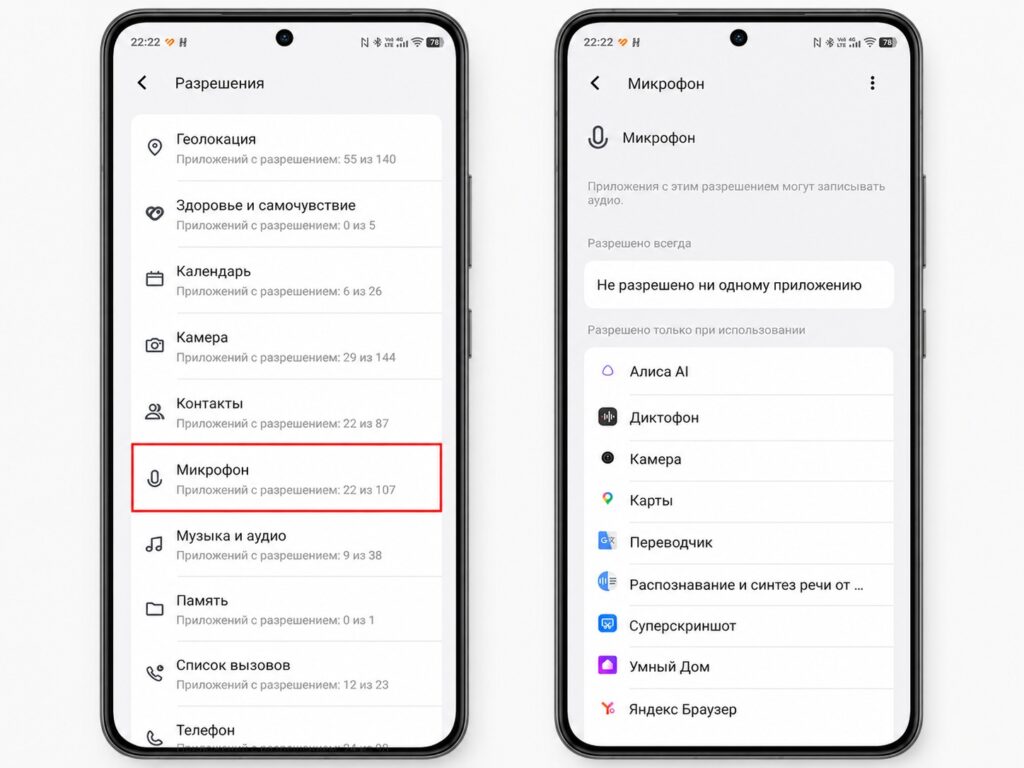
Many people don’t even suspect the real dangers of certain messaging apps and think that they can be listened to through the microphone. But before talking about specific apps, I’d like to address the basic question: is remote eavesdropping through a phone microphone even technically possible? The answer will be ambiguous, I promise.
Can we be listened to through a smartphone microphone?
Can You Remotely Turn On a Phone’s Microphone?
Short answer: without the owner’s knowledge — extremely difficult, but not impossible. On a regular Android smartphone without hacking, you cannot remotely turn on the phone’s microphone. The operating system requires explicit permission from the user for each app. Simply sending a command over the network and starting to listen — that’s not how it works.
However, there are exceptions:
- Spyware: stalkerware apps that are physically installed on a phone with direct access. They disguise themselves as system utilities and run in the background;
- Zero-day exploits: vulnerabilities in Android or apps that allow bypassing the permission system. Expensive, complex, used by intelligence agencies and high-level hackers, not on a mass scale;
- Legitimate remote access: apps like AnyDesk or TeamViewer, installed voluntarily. They provide full control including the microphone.
For the average user, the real threat is not a hacker from the internet, but a person with physical access to the phone who installed stalkerware.
How to Tell if Your Phone Is Being Tapped During a Call

There are several signs of smartphone eavesdropping
Here are indirect signs that your smartphone’s microphone is being used without your knowledge:
- The battery drains faster than usual for no apparent reason, since background audio recording consumes resources;
- The phone heats up in standby mode: the processor is active even though you’re not doing anything;
- Data is consumed with the screen off — data is being sent somewhere;
- During a call, you hear extraneous sounds, echo, or clicks (could be a technical glitch, but it’s worth being alert).
Important caveat: each of these signs individually can be explained by dozens of harmless reasons. But if all of them appear simultaneously — it’s worth checking which apps have access to the microphone. Eavesdropping on Android through legitimate apps leaves traces specifically in battery and data consumption.
Which Apps Have Access to the Microphone
Surveillance through the microphone via a legitimate app is a more common scenario than hacking. Many apps request access to the microphone and receive it (sometimes justifiably, sometimes not).
Apps with logical access to the microphone:
- Messengers (Telegram, etc.) for voice messages and calls;
- Voice assistants (Alice, Google);
- Camera uses it for recording video with sound;
- Apps for audio recording and podcasts.
Apps without logical access to the microphone:
- Games without voice chat;
- Flashlights, calculators, alarms;
- Shopping apps (microphone access for a marketplace is a red flag);
- Any utilities that objectively don’t need sound.
Spoiler: multiple microphones are needed for noise cancellation, not for surveillance. But that doesn’t mean you should grant permissions to every app indiscriminately.
What the Recording Indicator on the Android Screen Means
The green dot in the corner of the Android screen is an indicator of active microphone or camera use. It appears in Android 12 and newer. In short: if the green dot is on — some app is currently using the microphone or camera.
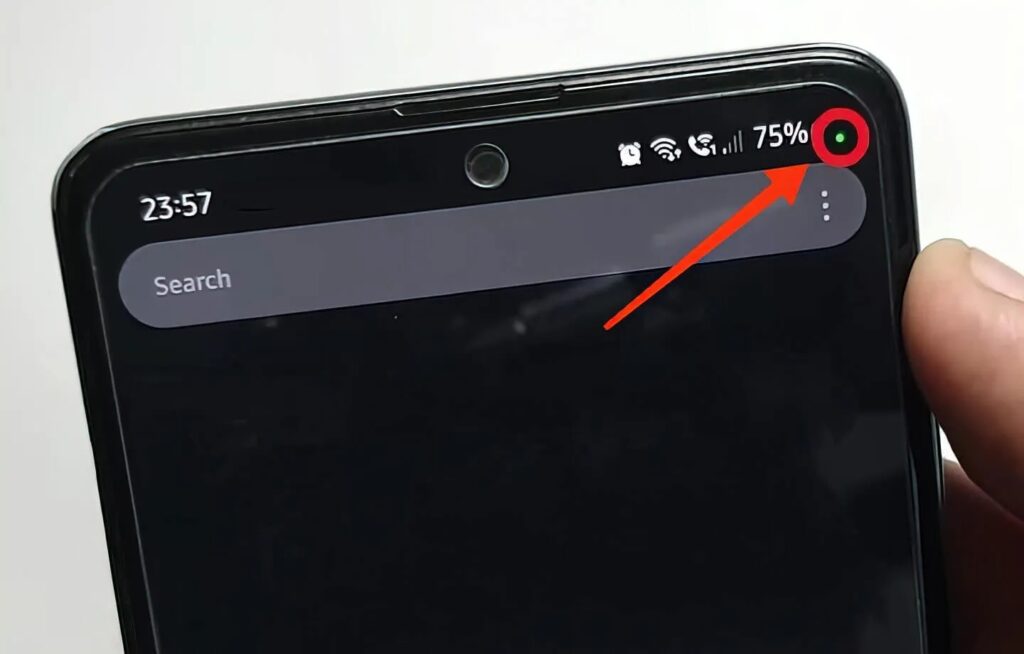
This indicator means some app is monitoring in the background
How to check which one exactly:
- Tap on the green dot (it will expand into an icon).
- Tap on the icon, which will open information about the app using the microphone or camera.
- If it’s not the app you’re currently using, that’s a reason to investigate.
Important: the dot may be on because of a voice assistant listening for the “OK, Google” command in the background. This is normal if you enabled this feature. It’s not normal if the dot is on with all apps closed and the assistant turned off.
How to Deny Apps Access to the Microphone
Surveillance on Android through legitimate apps can be addressed by configuring permissions. It will take a few minutes and will close most risks.
To check and revoke permissions for a specific app:
- Open “Settings — Apps.”
- Select the desired app.
- Tap “Permissions.”
- Find “Microphone” and select “Deny” or “Ask every time.”
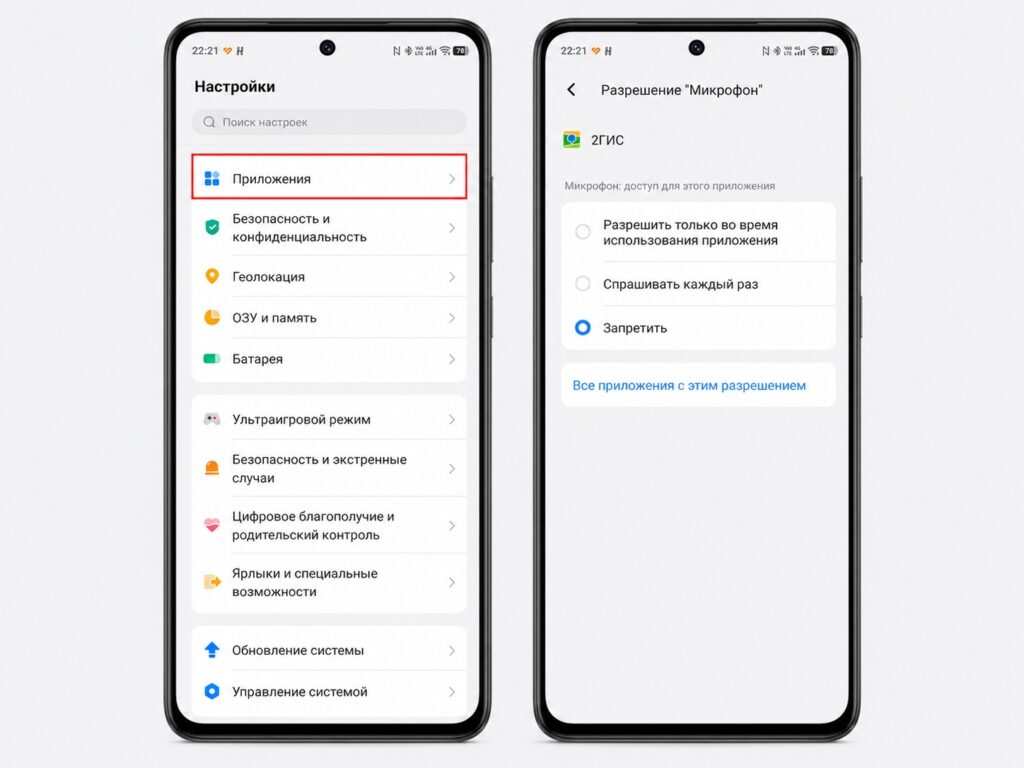
If a permission is unnecessary, it’s better to revoke it
To view all apps with microphone access at once:
- Open “Settings — Privacy — Permission Manager.”
- Select “Microphone.”
- Review the list — keep only the ones that truly need access.