Call reminder on iPhone is a built-in Phone app feature that helps you remember to call someone back in an hour, in the evening, tomorrow, or at any custom time. This is convenient if you missed a call, couldn’t answer, or already talked but need to return to the conversation later. Let’s look at this great iOS 26 feature. Below we’ll cover how to enable this function, where to find reminders, how to edit and dismiss them.
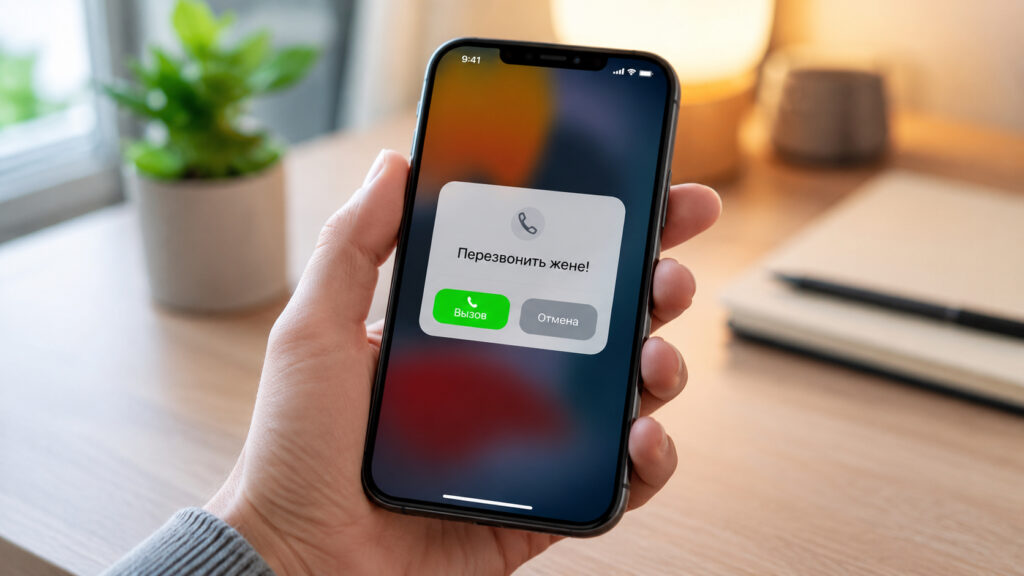
iPhone lets you set call reminders with just a couple of taps using built-in tools
Call Reminder on iPhone: Why You Need It
This is a Phone app feature that creates an entry in the standard iOS Reminders and sends a notification at the right time. Essentially, iPhone prompts you: “time to call so-and-so back.” It works for both regular cellular calls and FaceTime calls.
There are two usage scenarios. The first is when someone is calling you right now, and the incoming call screen has the “Remind Me” button: you can postpone the answer for an hour or until you leave your current location. The second is when you need to set a reminder after the call: for a missed call or a conversation that requires follow-up. The second scenario is the one users most often look for.
The main advantage: nothing extra needs to be installed — the feature is built into iOS and works on any modern iPhone.
How to Set a Call Reminder Through the Phone App
The quickest way is through the recent calls log. It works for any call: incoming, outgoing, or missed.
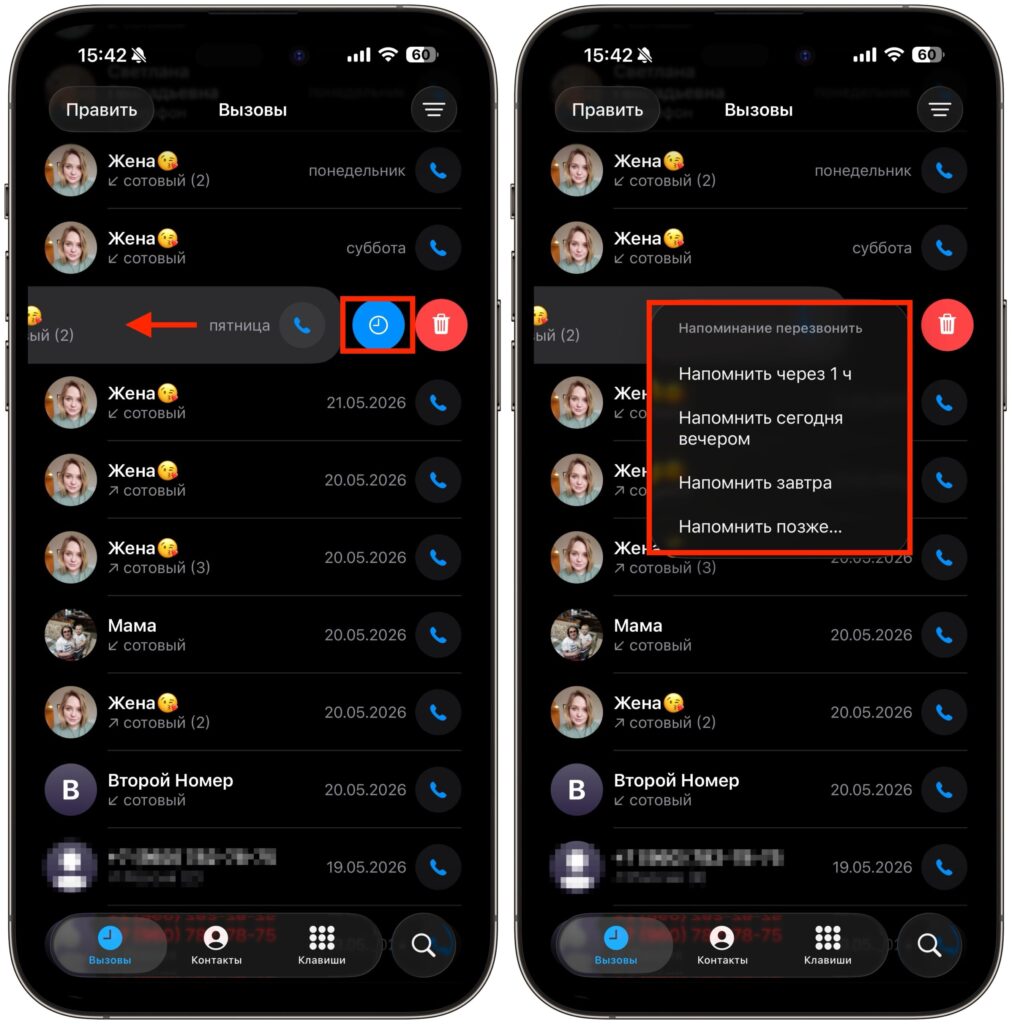
Swipe and choose the time
- Open the Phone app and go to the recent calls tab.
- Find the desired call in the list and swipe left on that entry.
- Tap the small clock icon that appears among the buttons.
- Choose one of the preset options: “In 1 hour,” “This evening,” “Tomorrow,” or “Remind me later” for a custom date and time.
If you chose “Remind me later,” iPhone will open the Reminders app interface, where you can manually set the date, exact time, and optionally add a comment — for example, “clarify about the loan” or “discuss the order.”
Reminder During an Incoming Call on iPhone
When someone calls you and the full-screen call interface appears, there’s a “Remind Me” button on the screen. Tap it and choose the “In 1 hour” option. In this case, the reminder will trigger exactly 60 minutes after the call.
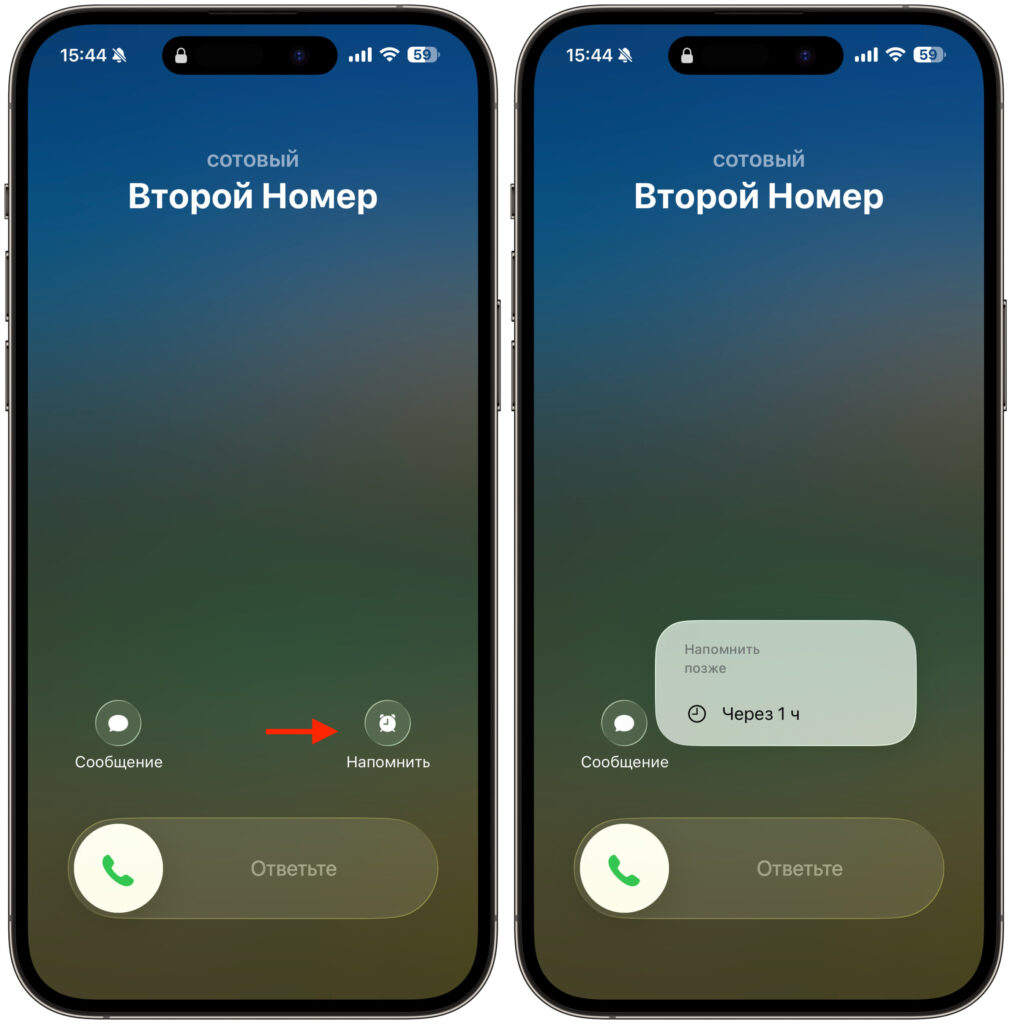
You can set a reminder right away
This option is convenient when a call catches you at a bad time: in a meeting, driving, or in a noisy place. You don’t answer the phone, but you don’t forget about the call either — the phone will remind you. If your iPhone sometimes shows incoming calls as a small banner instead of full screen, the “Remind Me” button becomes available after expanding the notification to full-screen mode.
How iPhone Notifies You About a Scheduled Call
At the designated time, a priority notification appears on your iPhone — it shows up even in Do Not Disturb mode as “urgent.” If you tap the notification, the Reminders app opens with the task containing the contact’s name.
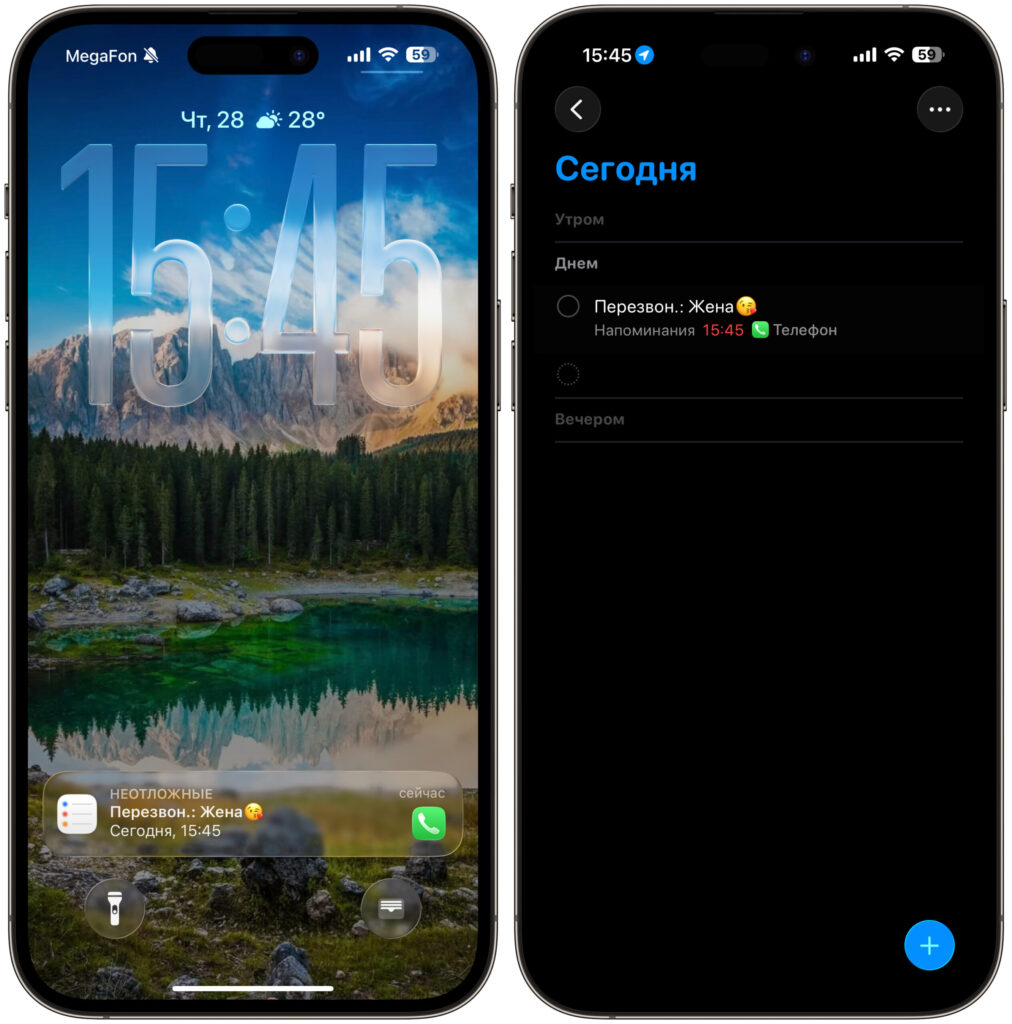
A notification arrives and you can call the contact right away
To call directly from Reminders, carefully tap the area with the phone icon next to the task. An alternative path is to tap the info button (i) next to the reminder, then tap the call button on the next screen. A long press on the notification does not offer a “Call” button — for now, Apple only provides options to snooze or mark as completed. One extra step through the Reminders app remains.
All Scheduled Calls on iPhone
The location depends on which Phone app style you’re using in iOS. In recent versions, Apple offers a new “Unified” design, but you can switch back to the classic view if you prefer.
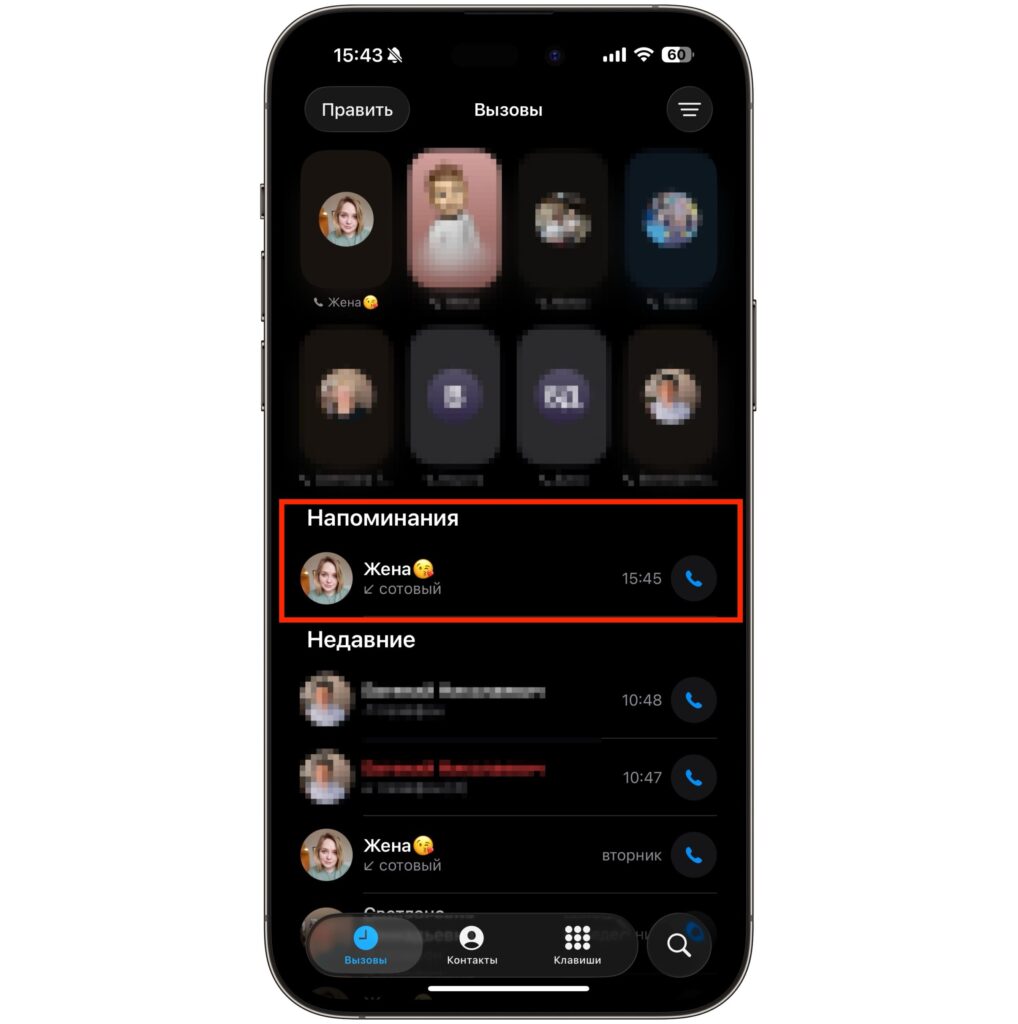
Here is the list of all scheduled calls
- Unified style (default): all your call reminders are displayed in the “Reminders” section at the top of the “Calls” tab.
- Classic style: reminders don’t appear in the Phone app — you need to find them in the Reminders app, under “Today” or “Scheduled” lists.
If you want to see reminders right in the Phone app, it’s more convenient to keep the unified design. And if you prefer the old layout with tabs like “Favorites,” “Recents,” “Contacts,” “Voicemail” — use Reminders as your main task management hub.
Changing the Time of a Scheduled Call on iPhone
You can edit a reminder in two ways. The first is through the Reminders app: open the task and change the time, date, note, or priority just like you would with any regular reminder.
The second way is faster if you’re inside the Phone app:
- Open the recent calls tab.
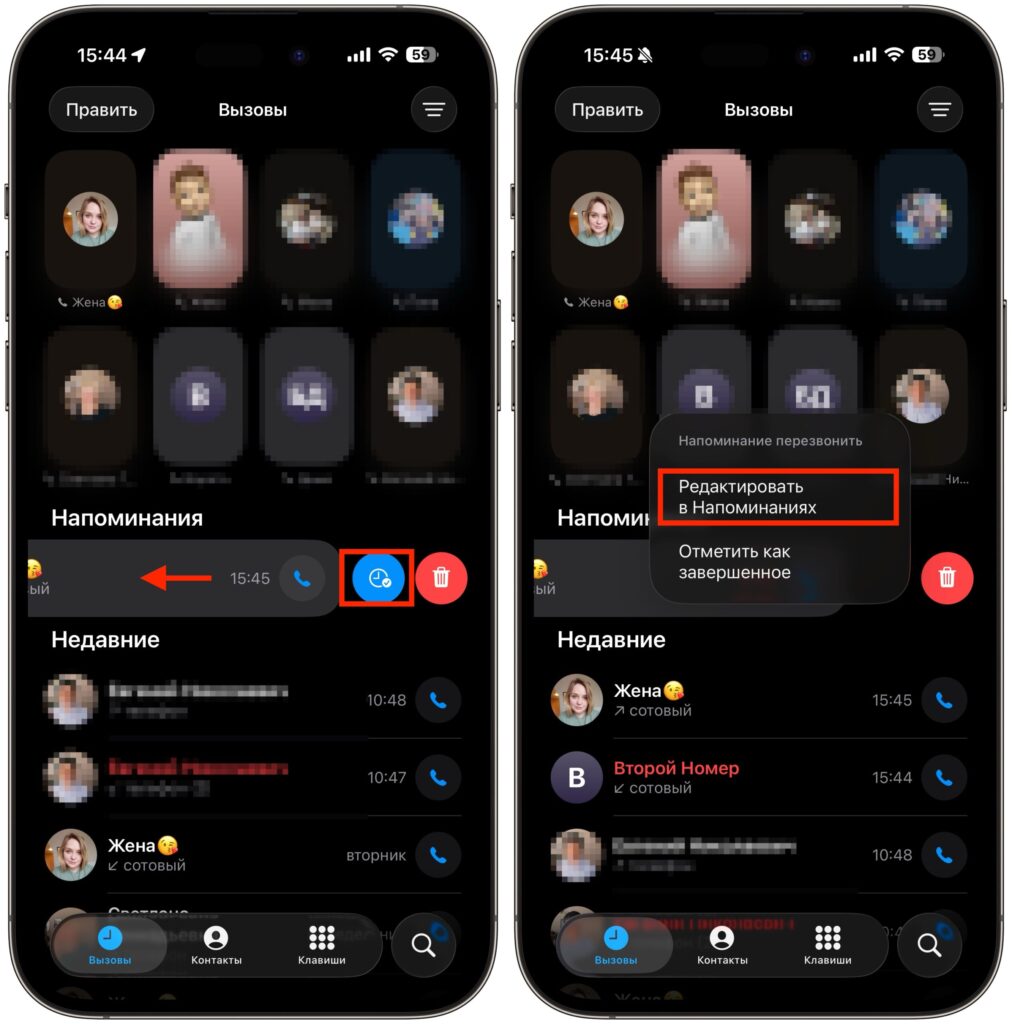
Switch to editing mode