MAX is no longer something exotic. The messenger is used by over 80 million people daily. So most people have already figured out how to install MAX on Android. Now it’s time to dive into profile customization. An avatar for the MAX messenger is the first thing your contacts see in chats and channels. You can set a regular photo, download a ready-made image, or generate something unique right inside the app. Let’s look at all the options.
Learn how to make beautiful avatars and set them in your MAX profile
How to Set an Avatar in MAX During Registration
When you first log in, the messenger offers to set up your profile right away, including setting a profile photo in MAX. You can skip this step, but with a profile photo, people will recognize you in chats and channels.
On the photo selection screen, two options are available: use one of the ready-made AI avatars generated by the messenger itself, or upload your own photo:
- After entering your phone number and confirming registration, MAX will ask you to fill in your profile (name and photo).
- Choose one of the suggested AI avatar options or tap the circle with the camera icon in the center of the screen.
- Select a photo and crop it to fit the circle.
- Tap “Next,” and the avatar will be saved and displayed in your profile.
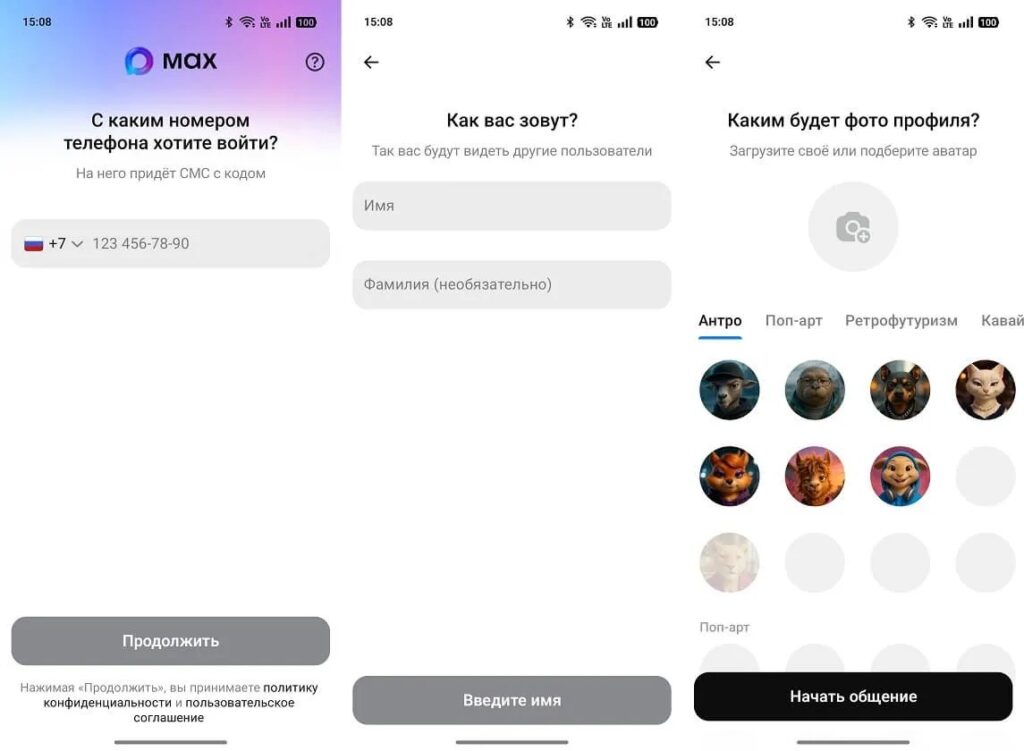
You can set an avatar during the registration stage
If you skipped this step during registration — no worries. You can set a profile photo in MAX at any time through settings, but I’ll cover that in the last section.
Where to Find Beautiful Avatars in MAX
If the standard AI options didn’t work for you and you don’t have a suitable photo of your own — the messenger itself has channels with ready-made images. Beautiful avatars in MAX are published by themed channels: there are options for different styles, moods, and interests. How to find avatars through MAX channels:
- Open search in MAX (the magnifying glass icon on the bottom panel or at the top of the screen).
- Enter a query like “avatars,” “profile pics,” or “pictures for profile.”
- Subscribe to a channel you like and find the image you need.
- Open the image.
- Tap the save image button.
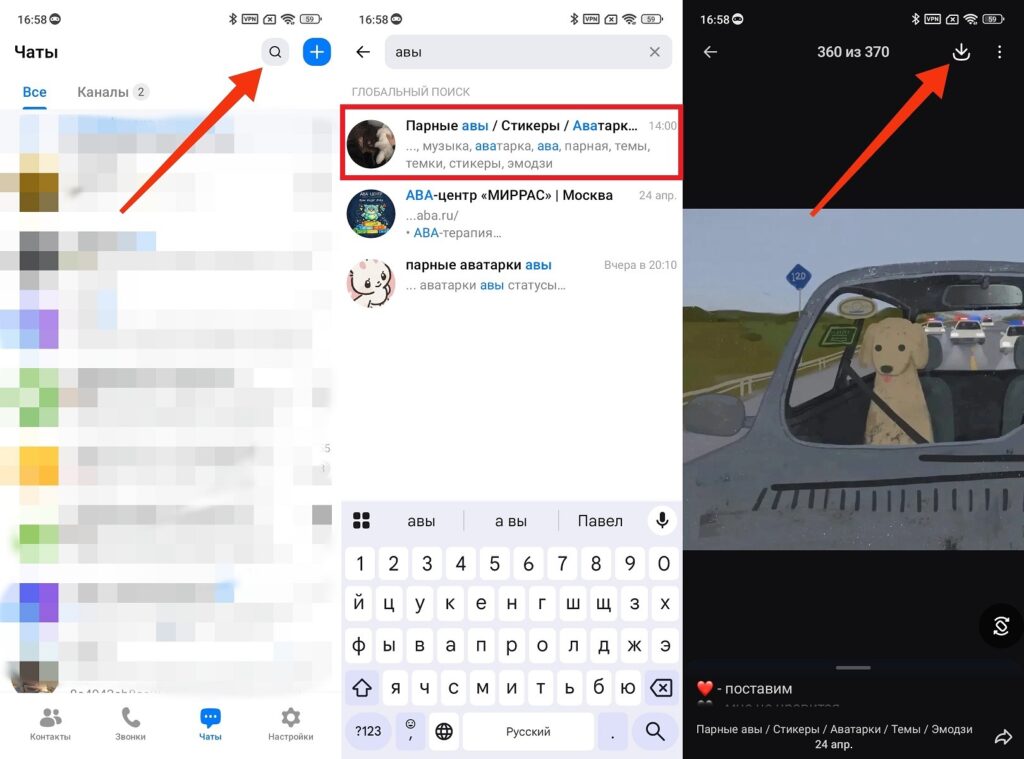
Cool avatars can be found right inside the messenger
Avatars in MAX for girls, avatars in MAX for boys, themed collections for games, anime, minimalism — all of this is available in the messenger’s channels. The search algorithm is the same: search by keyword, find a channel, save what you like.
How to Create an Avatar in MAX on Android
Here I’ll tell you about a really cool feature of the messenger. Let’s say you don’t have a photo you’d be comfortable showing in your profile. Or you want something unique rather than a typical image from a channel. Right inside the messenger there’s a GigaChat bot — an AI by Sber that can work with images. Through it, you can transform any photo into the desired style or generate cool avatars in MAX from scratch:
- Launch the GigaChat bot (it usually appears in the chat list).
- Tap the upload button and select a photo.
- To transform a ready photo, send it to the bot chat and describe the desired style: for example, “turn this photo into an anime-style avatar” or “transform into a watercolor portrait.”
- Send the photo to the bot.
- Wait for the result (GigaChat will process the request and send the finished image).
- If the result doesn’t satisfy you — refine your request and ask it to generate again.
- Save the image you like to your gallery.
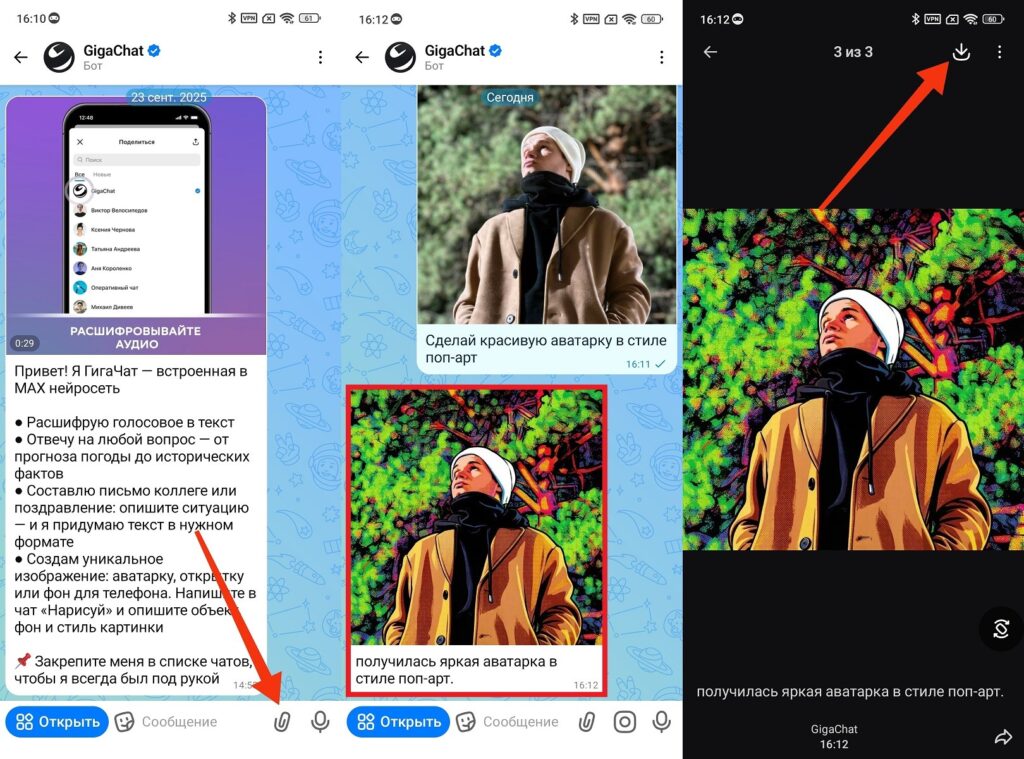
You can create a cool avatar through the GigaChat bot right in the messenger
Photo processing in MAX through GigaChat is one of the most underrated tools in the messenger. Most users don’t even know about it. Yet the results can be surprisingly good, especially if you take the time to write a proper prompt.
GigaChat inside MAX can generate avatars and process photos.
How to Change Your Avatar in MAX on Your Phone
If you already have an avatar set but want to update it — the path goes through profile settings. The interface is simple, but just in case, here’s a step-by-step guide:
- Open MAX and tap the “Settings” tab on the bottom navigation panel (the rightmost icon).
- Tap the pencil icon in the upper right corner of the screen (this takes you to profile editing mode).
- Tap the camera icon next to your current avatar or on the avatar itself if one is already set.
- Choose the option you need: upload a photo from the gallery, take a new photo with the camera, or select from built-in sets.
- After selecting a photo, crop it to the required format (move and scale the image within the frame).
- Confirm your choice, and the avatar will update automatically.
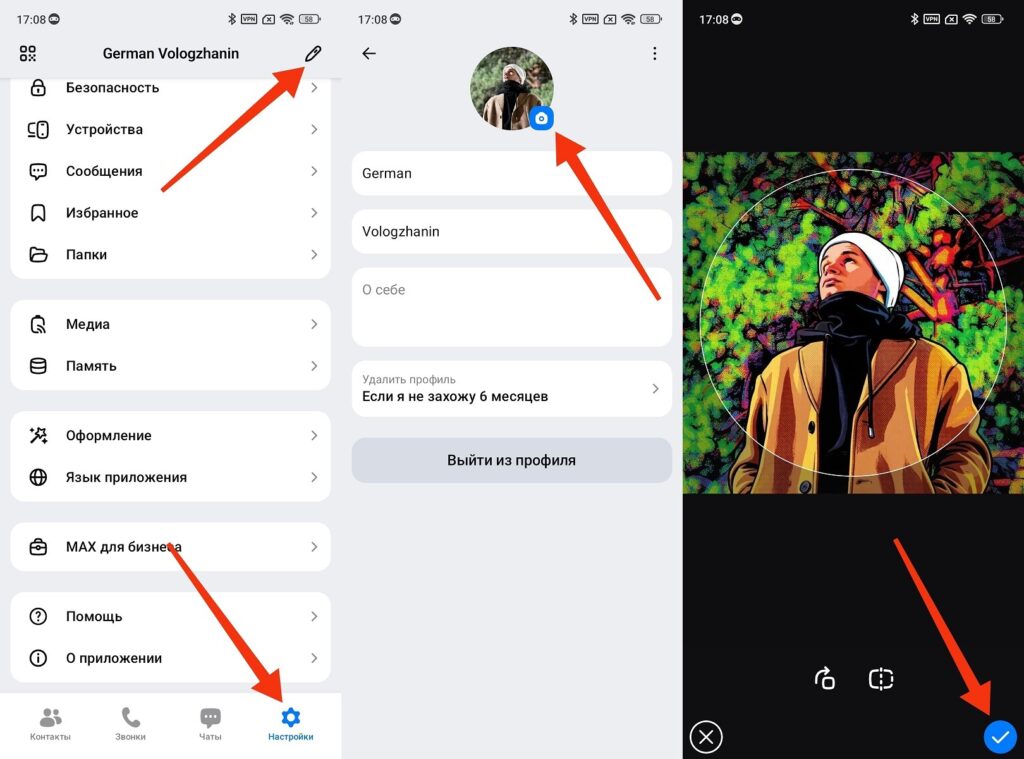
Changing your avatar is super easy
If at any step the app doesn’t open the gallery — most likely MAX hasn’t been granted permission to access files. Go to “Android Settings — Apps — MAX — Permissions” and enable access to photos and media files. After that, return to the app and try again.
The most common reason for avatar issues is the lack of permission to access the Android gallery.


