We regularly cover Telegram features on Android, compiling lists of interesting messenger capabilities. But sometimes even useful features slip under the radar. For example, the archive in Telegram is one of the most underrated features of the messenger that helps clear your feed of clutter without deleting chats or unsubscribing from channels. It’s available on all platforms and lets you flexibly manage what you see on the main screen. Below is a detailed guide on working with the archive on Android and desktop, along with useful settings many people don’t know about.

Understanding the archive in Telegram
What Is the Archive in Telegram and Why You Need It
The archive in Telegram is a separate folder where you can move any chats, groups, and channels without deleting them. Think of it as a desk drawer where you put everything you don’t need right now but might need later. Old conversations, channels you read once a month, work chats after a project is finished — all of this can be hidden from the main list.
The main practical benefit of the archive is a clean feed. If you have dozens of channels and groups with piling up unread messages, the archive eliminates visual noise. Additionally, it helps avoid duplication: if a chat is already added to one of your folders, you can move it from the main page to the archive, and it will remain accessible only through the folder.
Where to Find the Archive in Telegram on Android
By default, the Telegram archive folder is hidden. On a smartphone, it’s located on the app’s main screen but above all other chats. To make it appear, pull the screen down — you’ll see the message “Pull down to access archive.” This works the same way on both Android and iPhone.
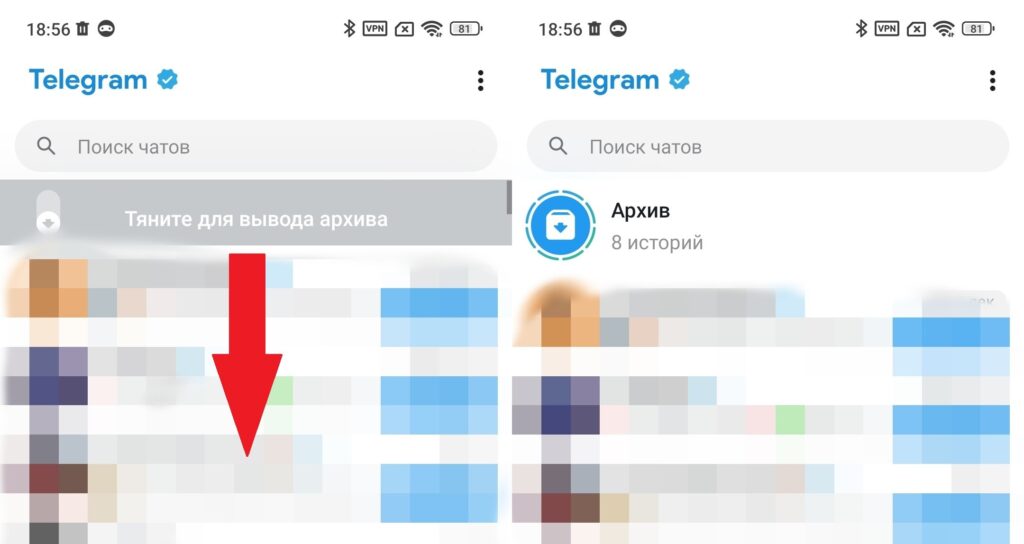
The archive is accessed by swiping down
If you prefer to always have the Telegram chat archive visible, long-press it and select “Pin to chat list.” Another way is to swipe the archive folder to the left: the first swipe pins it, the second hides it again.

The archive can be pinned to the chat list
In Telegram Desktop on a computer, the archive is also available at the top of the chat list. If you want to hide it, right-click and select “Collapse” — only the label with the unread counter will remain. You can also move the archive to the side menu by selecting “Move to main menu.”
How to Add a Chat, Group, or Channel to the Telegram Archive
The process of archiving chats in Telegram takes just a couple of seconds on any device. Here’s how it works.
On Android:
- Find the desired chat in the list.
- Press and hold it until a menu appears.
- Tap the three dots in the upper right corner.
- Select the archive icon in the top menu.
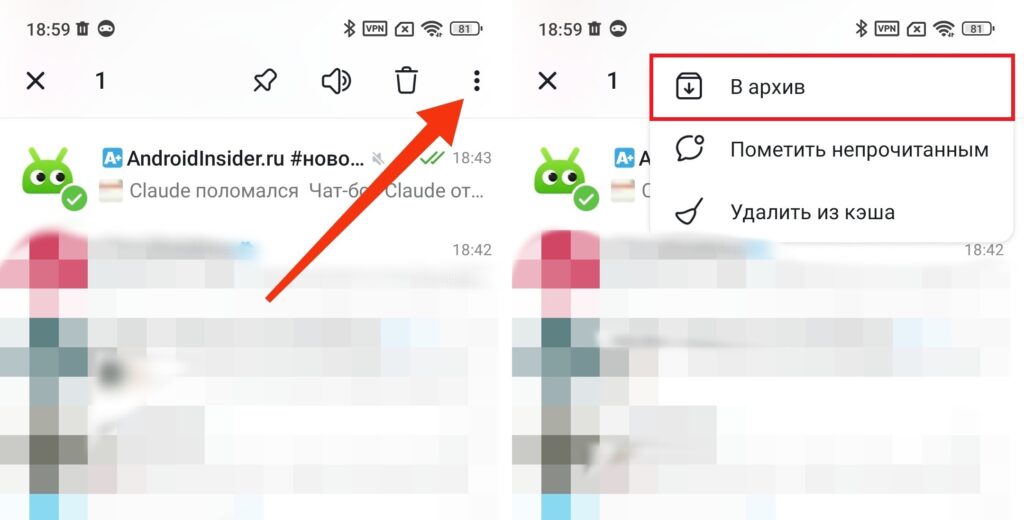
Any chat or channel can be added to the archive
Even easier — swipe left on the chat. If a different action triggers on swipe, go to chat settings and enable the archive-by-swipe option. Important note: archived chats disappear only from the main page but not from configured folders. This is worth keeping in mind if you actively use folders to organize chats.
How to Retrieve a Chat from the Telegram Archive
Returning a chat from the archive is just as easy as sending it there. Here’s a detailed guide for Android smartphones:
- Open the archive folder.
- Press and hold the desired chat until a menu appears.
- Tap the three dots and select “Unarchive.”
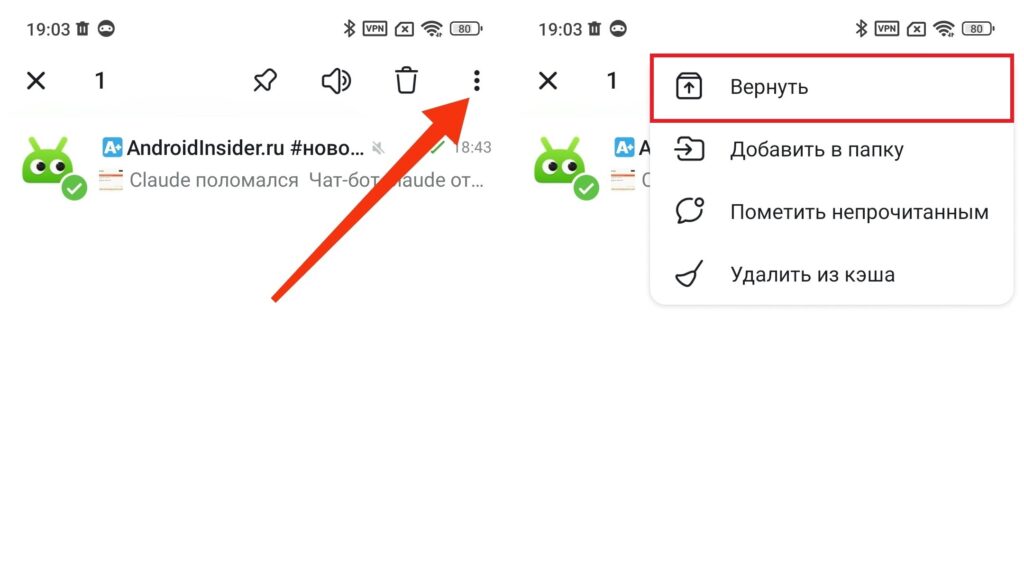
Any chat or channel can be restored
An alternative method is to simply swipe the chat from right to left directly inside the archive, after which it will reappear in the general list on the messenger’s main screen.
How to Archive and Hide Stories in Telegram
The archive in Telegram works not only with chats but also with stories. If the circles with other people’s stories above chats distract you, they can be hidden too.
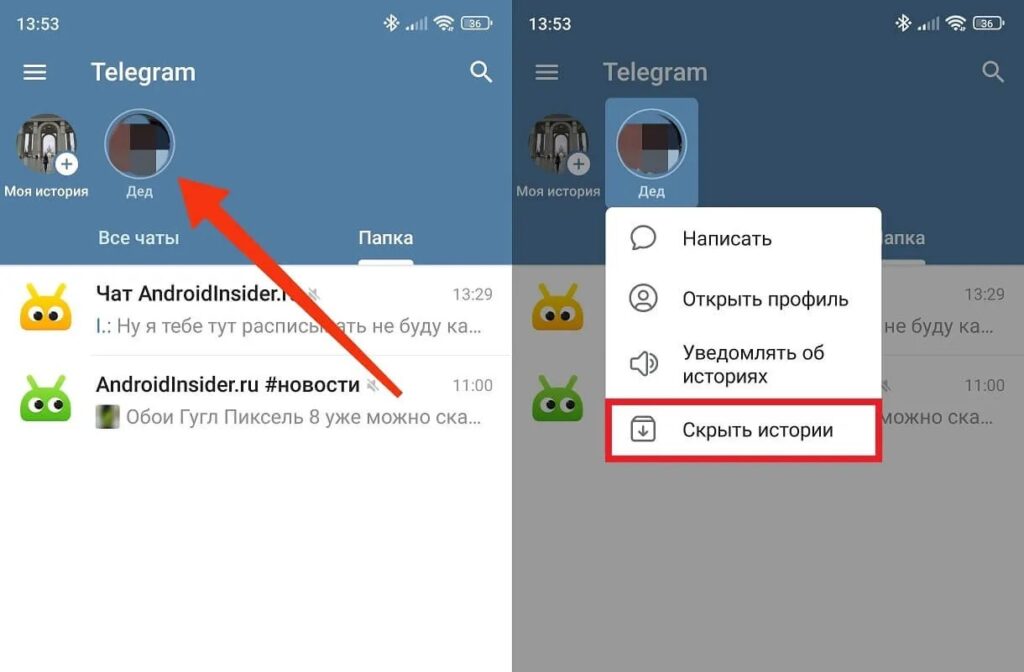
Stories can also be sent to the archive
To hide stories in Telegram, long-press the circle with the story and tap “Hide stories.” On a computer, the same is done with a right-click. All hidden stories are moved to the header of the archive folder, where they can still be viewed.
Hidden stories are stored in the archive folder and remain available for viewing.
A useful detail: if you don’t want the author to know you viewed their story, long-press the story circle and select “View anonymously” (only works with a Telegram Premium subscription). To return stories to the feed, long-press the circle in the archive and tap “Unhide stories.”
Automatic Archiving Settings in Telegram
By default, the archive doesn’t behave the way many people expect. If an archived Telegram chat had notifications enabled and a new message arrives, the chat will automatically return to the main page. The same will happen if you’re mentioned in a group chat — even with notifications turned off.


