Since early April, iPhone owners have been regularly encountering this situation: you open the App Store, want to renew a subscription or download an app — and the system says “no.” Starting April 2026, the last payment methods were disabled in the Russian segment of Apple ID, and the only reasonable way out is to move to a different region. It seems simple enough. But in practice, when changing your iPhone’s country, the system suddenly requires you to link a bank card from the new region. And the coveted “None” button simply doesn’t appear. We’ve already written about how to change your Apple ID region, but now let’s address this specific problem — why the system requires a card and how to bypass it in literally ten minutes.
Sometimes unexpected problems arise when changing the App Store region
Why Change Your Apple ID Region
In short — to continue using your iPhone normally. After mobile number payment was disabled, the Russian App Store essentially turned into a storefront where you can only browse. You can still download free apps, but paying for a subscription or buying a game is no longer possible. No Russian bank card works for this purpose.
Changing your region solves the problem entirely. You get access to the full app catalog of the chosen country, can pay for purchases using gift cards, and some services only work in certain regions. This isn’t some workaround — it’s a perfectly standard Apple feature that almost nobody used before.
What to Check in Your Apple ID Before Changing Country
Before switching regions, you need to prepare your account. If you skip even one step, the system simply won’t let you complete the process — it will either show an error or demand a card.
Here’s what you need to do:
- Cancel all active subscriptions. This refers specifically to subscriptions through Apple — Apple Music, Apple TV+, and others. Go to Settings — your name — Subscriptions and turn off each one. Wait for the paid period to end — while a subscription is active, you won’t be able to change regions.
- Zero out your account balance. Even a couple of rubles in your account will block the transition. Spend the remaining balance on any app or game. If the amount is too small for a purchase, download the “Apple Support” app and ask specialists to zero out the balance manually — they usually do it without extra questions.
- Close all pending pre-orders. Any outstanding content pre-order is also considered a tie to the current region.
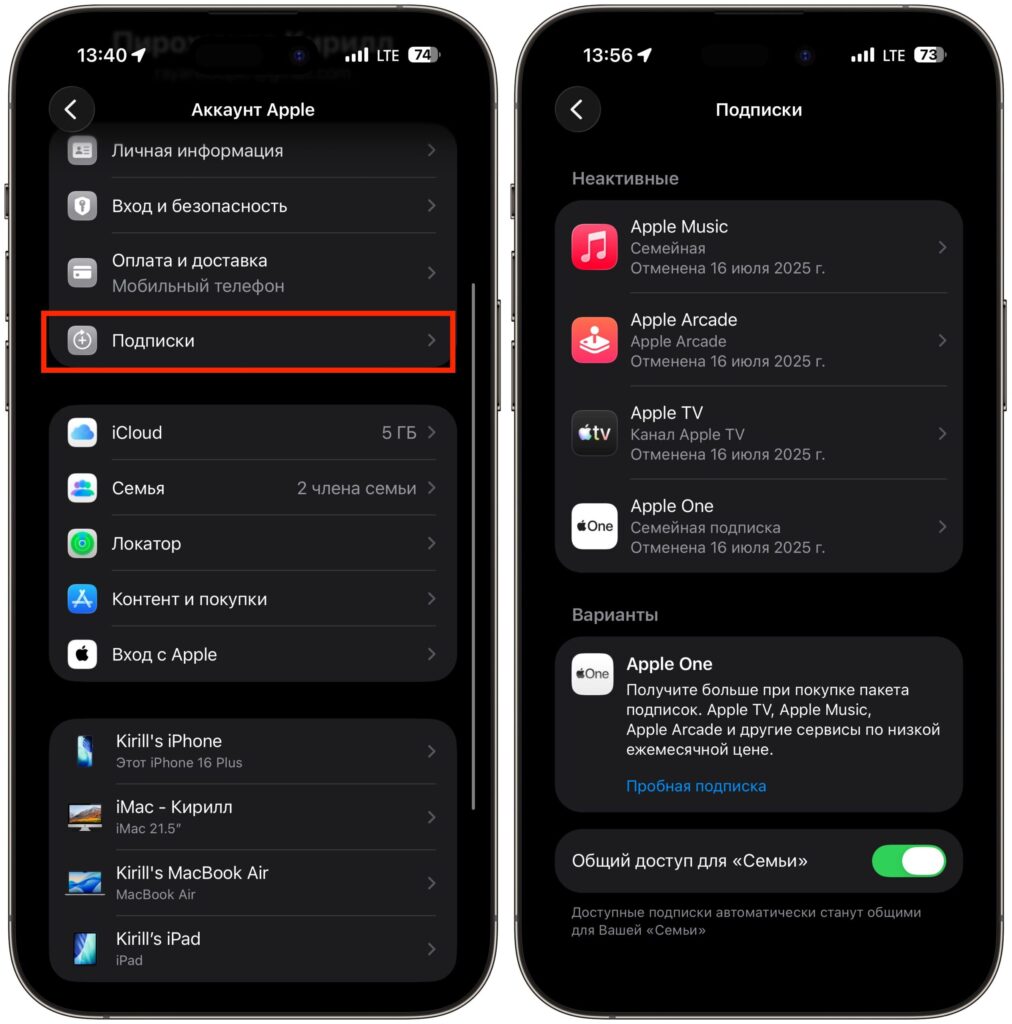
To make sure everything goes smoothly, disable all subscriptions. You can keep iCloud+
These are the basic conditions that Apple explicitly states on its support page. But even after completing them, the “None” button may not appear. And this is where it gets interesting.
Family Sharing Prevents Changing Country in Apple ID
The most common reason the system stubbornly requires a card is active Family Sharing. The problem specifically affects the group organizer. If you once set up Family Sharing on your iPhone and forgot about it, Apple will consider you financially responsible for all members and won’t let you proceed without a payment method.
The solution is to disband the family group entirely. To do this:
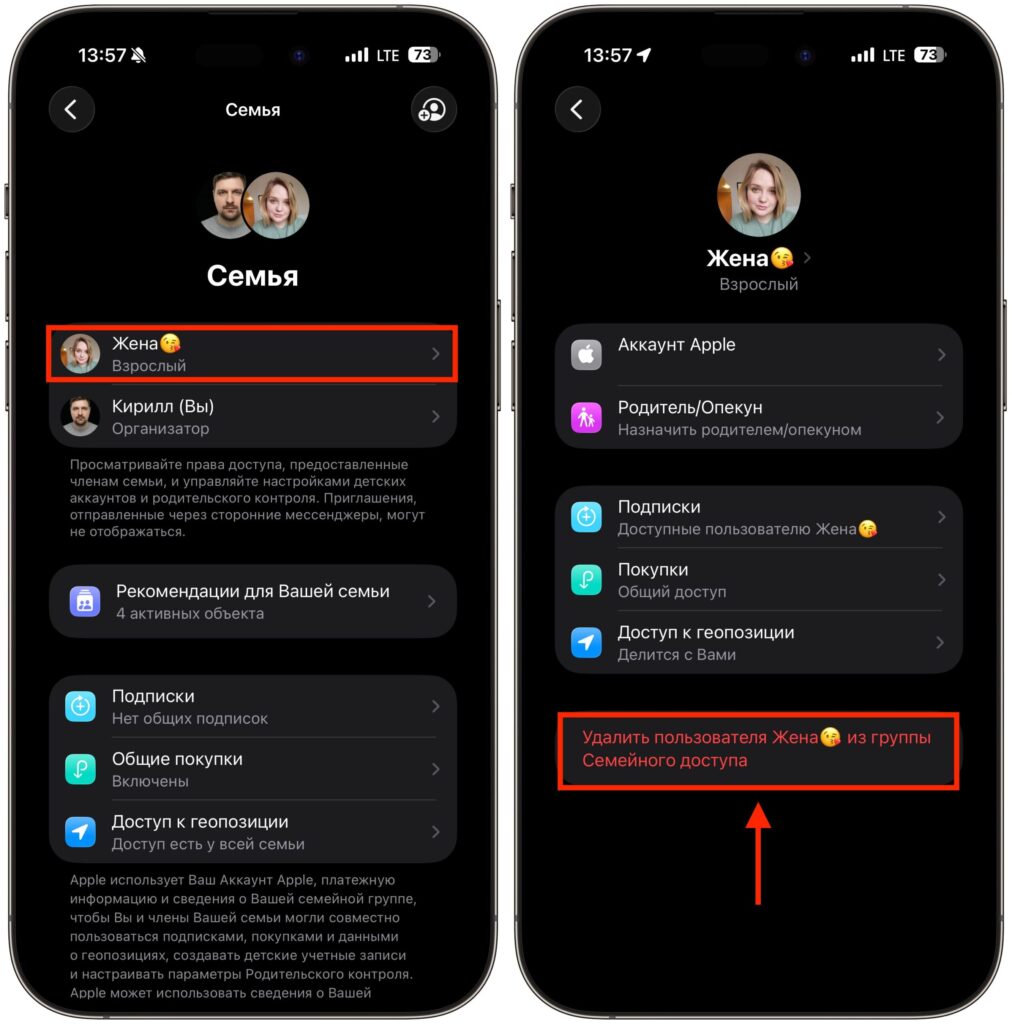
Remove all users from Family Sharing
- Open Settings and tap your name at the top of the screen.
- Go to the “Family” section.
- Remove all members from the group one by one.
- After that, tap “Stop Using Family Sharing.”
If you’re not the organizer but a member — leave the family on your own through the same section. Without completely exiting Family Sharing, changing regions will be blocked in most cases.
How to Remove a Payment Method from Apple ID on iPhone
The second most popular reason is outdated payment methods linked to the account. Even if the card has long been blocked or the phone number is no longer used for payments, Apple still sees this link and won’t show the “None” option.
To clean up your payment details:
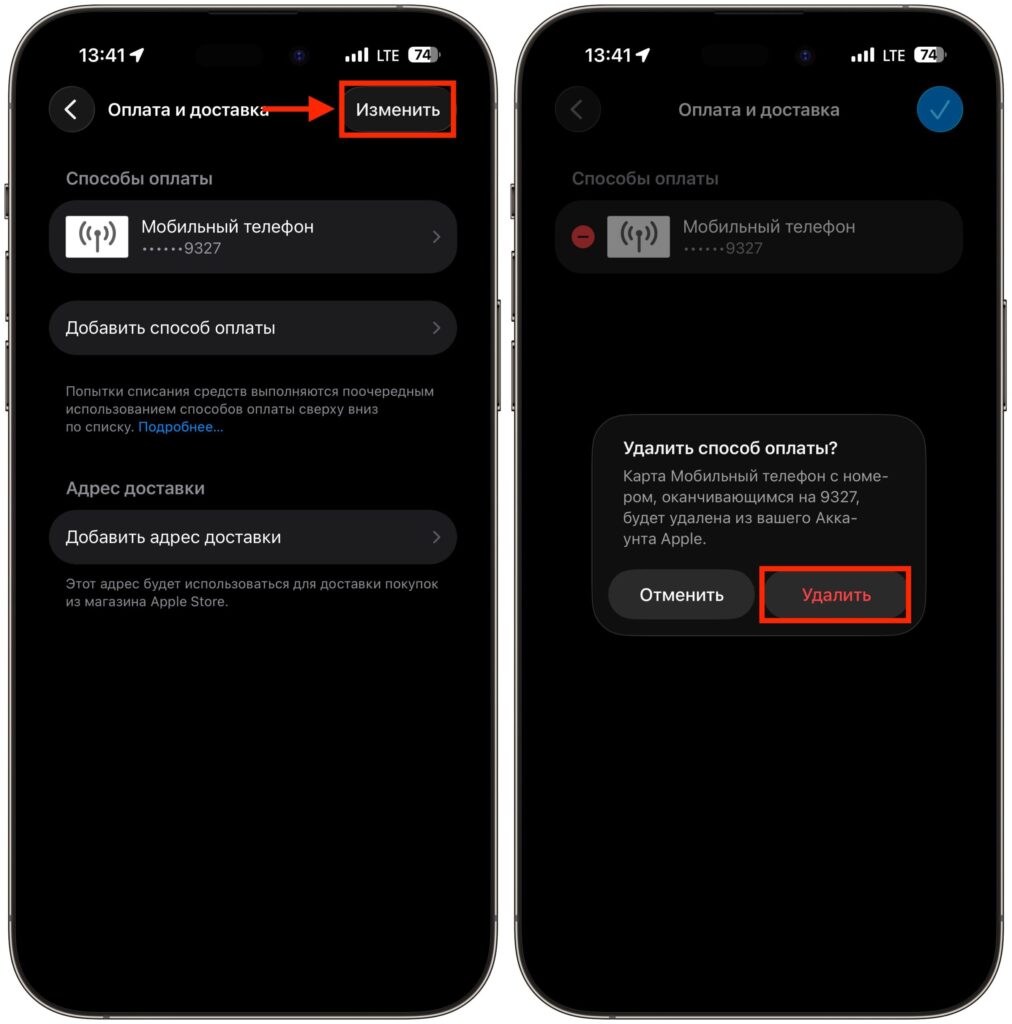
Delete all payment details that were in your account
- Open Settings — your name — “Payment & Shipping.”
- Delete all saved cards — one by one.
- Make sure there are no links through a phone number or PayPal.
Only after a complete cleanup will the system properly handle the region change request and offer the option without payment.
Change Country in App Store Without a Bank Card
When the account is prepared — subscriptions cancelled, balance zeroed out, Family Sharing disabled and payment details removed — you can proceed with the actual switch. The entire process takes a couple of minutes and is done right from your iPhone, without a computer.
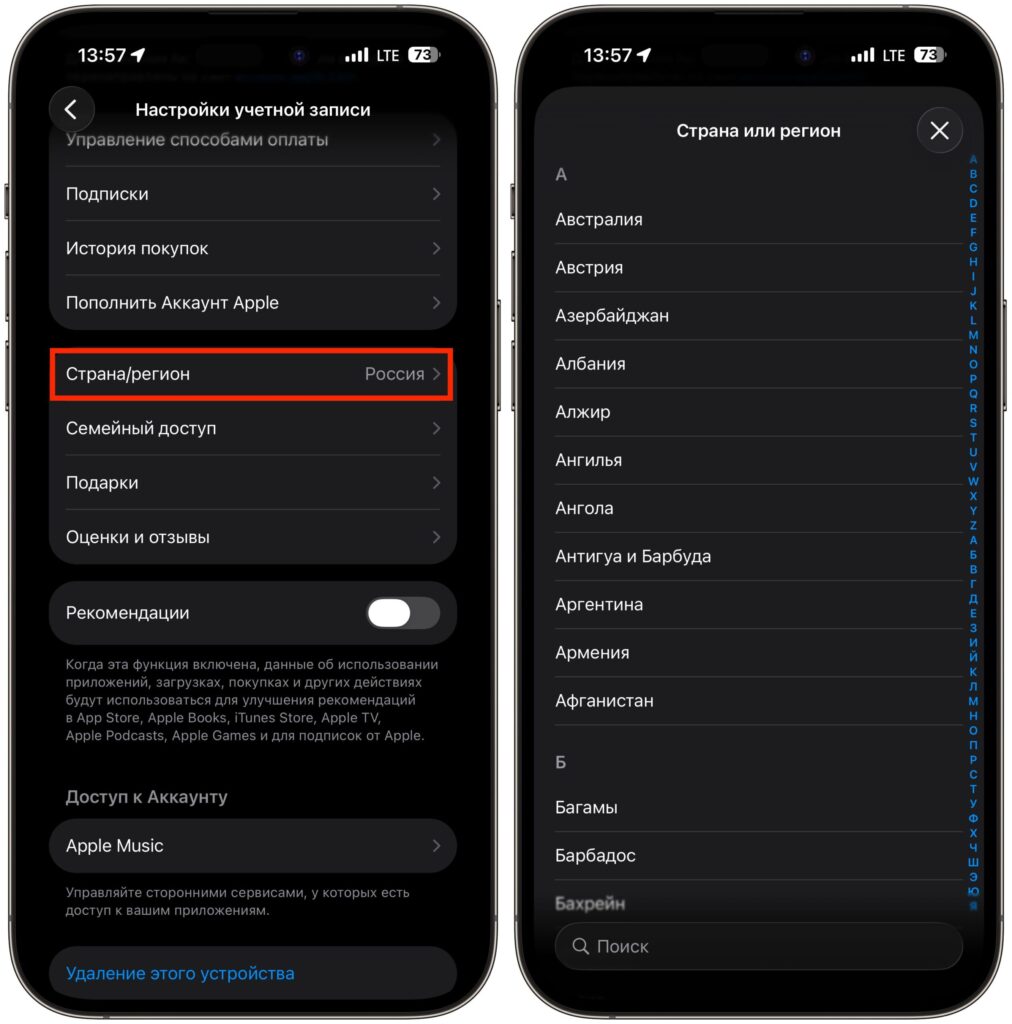
Switch the region to the one you need
- Open Settings and tap your name at the top of the screen.
- Select “Media & Purchases.”
- Tap your account and select “Country/Region.”
- Specify the new country.
- When choosing a payment method, tap None.
- Enter an address for the new region. You can use any real address — Apple doesn’t verify it strictly, but the zip code and state (or city) should match.
- Confirm the changes.
If you chose the USA, pay attention to the state. In some states, a tax is added to every purchase, increasing the final price. To avoid this, select states with no tax on digital goods — for example, Oregon (zip code 97201), Montana (59001), or Delaware (19720). This is a legal feature, not a trick.
USA, Turkey, or India: Which Apple ID Region to Choose
I would consider either the USA or Turkey


