If an Android app has quietly stopped sending notifications even though it is still installed, connected to the internet and allowed to notify you, Android itself may be the cause. Modern versions of the system can automatically pause rarely used apps. This can revoke their permissions, stop background activity and block their notifications. The feature exists for security and to save resources, but it can interfere with apps you seldom open yet still rely on, such as home camera software. You can exempt individual apps instead of disabling the feature across the whole phone.
What you need to know
- Android can automatically revoke permissions, stop background activity, block notifications and delete temporary files for apps it considers unused. The app itself stays installed.
- You can protect a specific app by turning off its toggle for pausing activity during periods of inactivity. The name and location of this setting depend on the Android version and the manufacturer’s interface.
- Manufacturers’ own battery-saving systems can still delay notifications. Samsung’s deep-sleep list and Xiaomi’s background activity settings are examples.
- The source advises against exempting every app, because automatic pausing is useful for abandoned apps and unlimited background work can increase battery drain.
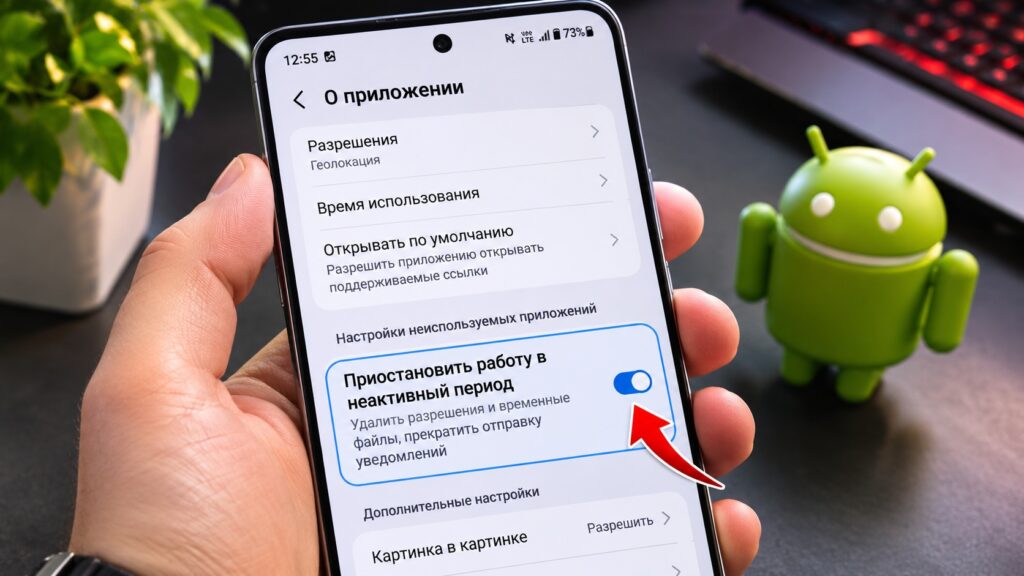
The Android setting that pauses apps
How Android pauses apps without warning
The source author describes a common scenario. They installed a home camera app, set up motion alerts and then stopped thinking about it. Some time later, the alerts stopped arriving. The app had not been removed, the internet connection worked and notifications appeared to be allowed.
According to the source, modern versions of Android include a mechanism for managing unused apps. If you have not opened an app for a long time, the system may decide you no longer need it and restrict it. This goes beyond saving battery. Android can automatically:
- revoke permissions for the camera, microphone, location and other data;
- stop the app’s background activity;
- stop notifications from the unused app;
- delete temporary files to free up storage.
The app remains installed and its icon stays in place. When you open it again, it may ask for the permissions it needs. This is why the problem is easy to miss. A home camera app may only need to be opened occasionally, yet you want its alerts all the time. Android, however, may classify it as unused.
How to stop Android from pausing a specific app
You do not need to turn the feature off for the entire phone. You can pick an individual app that should stay active no matter how rarely you open it. The source gives these steps:

- Open your phone’s Settings.
- Go to Apps, then to the app manager section.
- Select the app that Android should not pause.
- Turn off the toggle for pausing app activity during periods of inactivity.
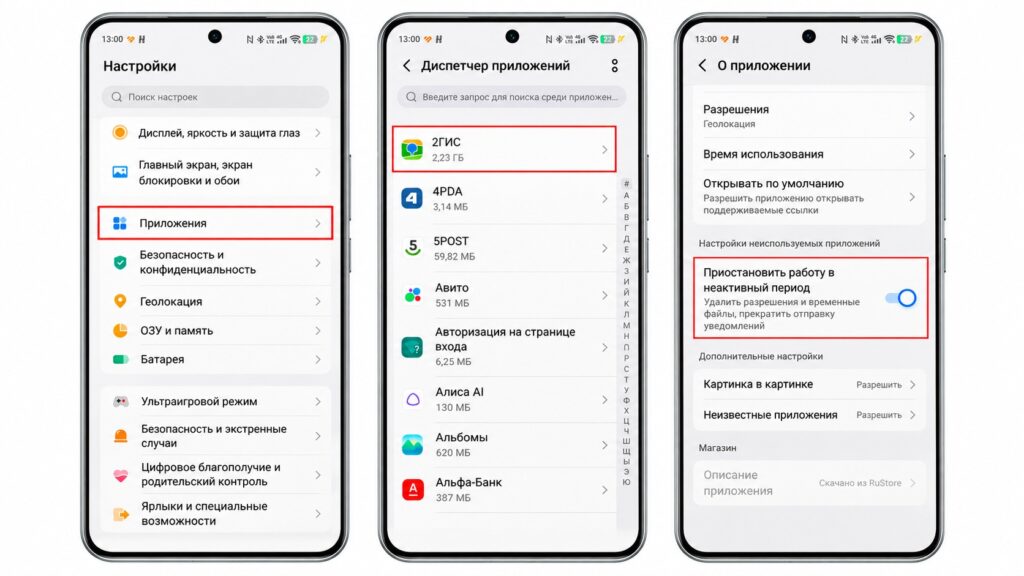
Turning off forced pausing for an app
The setting’s name and location vary
On some phones, the option is labeled along the lines of “Remove permissions and free up space.” On others, it appears directly on the app’s info page. The source notes that both the name and the location depend on the Android version and the manufacturer’s interface.
Once the toggle is off, the system should no longer automatically pause that app because it has not been opened for a long time. All other apps will still be managed under the usual rules.
Check which apps Android already considers unused
Android can also show you a list of apps it has already classified as unused. On phones that run close-to-stock Android, the source says you can find it under Settings > Apps > Unused apps. If your phone has this section, open it and check whether any apps you need are on the list.
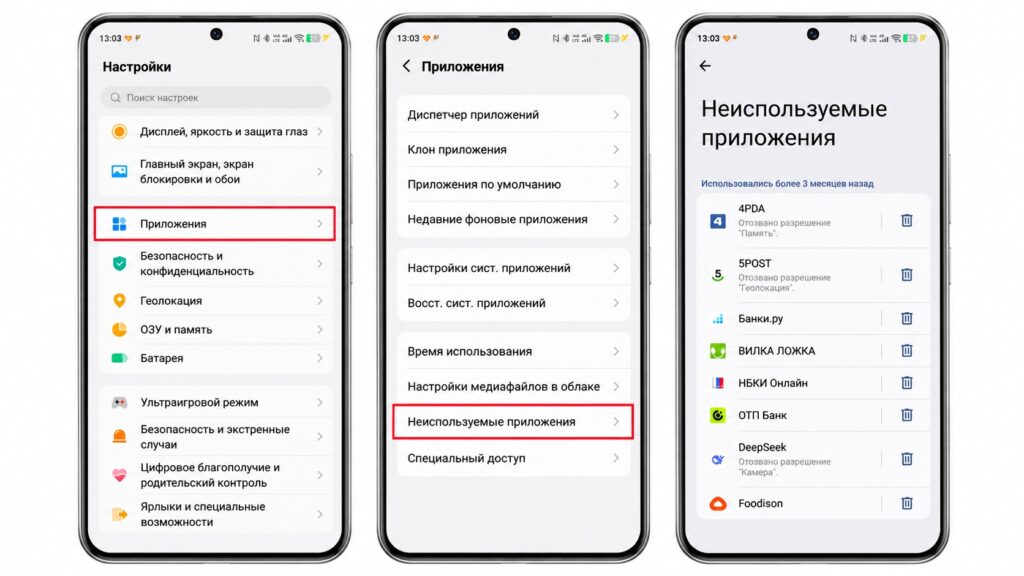
Checking unused apps
The source author recommends paying particular attention to home camera apps, smart home apps and other services you expect to notify you without opening them regularly. The author also cautions against disabling automatic pausing for every app. The feature is genuinely useful for long-abandoned games, photo editors and other apps that have no reason to run in the background.

Manufacturer battery restrictions can still delay notifications
Even after you stop Android from pausing an app, notifications may still arrive late. According to the source, smartphone makers use their own battery-saving mechanisms. If the problem persists, the source author suggests these additional checks:
- Open the battery settings for the app and look for restrictions on background activity.
- For a genuinely important app, choose the unrestricted mode if your phone offers one.
- Go to the app’s notification settings and make sure the relevant notification categories are allowed.
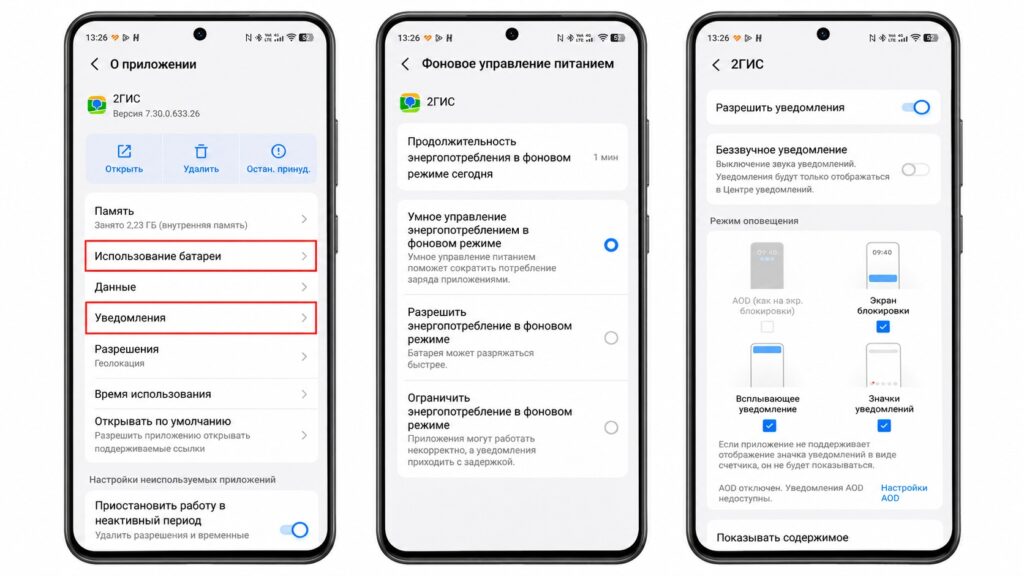
Checking an app’s background activity and notifications
The source also suggests checking the list of apps in deep sleep on Samsung phones and the background activity settings on Xiaomi phones. However, you should not allow every app to run without restrictions, as this can increase battery consumption.
Not every app needs protection
The source author considers automatic pausing useful overall. If an app goes unused for months, it has no reason to keep all its permissions or keep running in the background. Pausing it helps limit unnecessary activity and access to personal data. The author would make an exception for home cameras, some smart home devices and other services that need to report events on their own.
The key is to disable pausing only for the apps that need it, rather than trying to keep all installed software running in the background. That way, you keep Android’s protective behavior and still receive important notifications.
Automatic pausing is only one possible cause of missing alerts. If notifications still do not return, the source recommends looking further. Check the device’s connection, the app’s own settings and its server-side notifications.