Recently we looked into why notifications don’t arrive on Android — that was about technical reasons. But today we’re talking about a different problem: a notification came in, you accidentally swiped it away — and that’s it, the notification is gone. A bank code, a delivery address, a messenger message. Most people at this point go digging through the app to find it manually. There’s an easier way — and it’s built into Android by default.
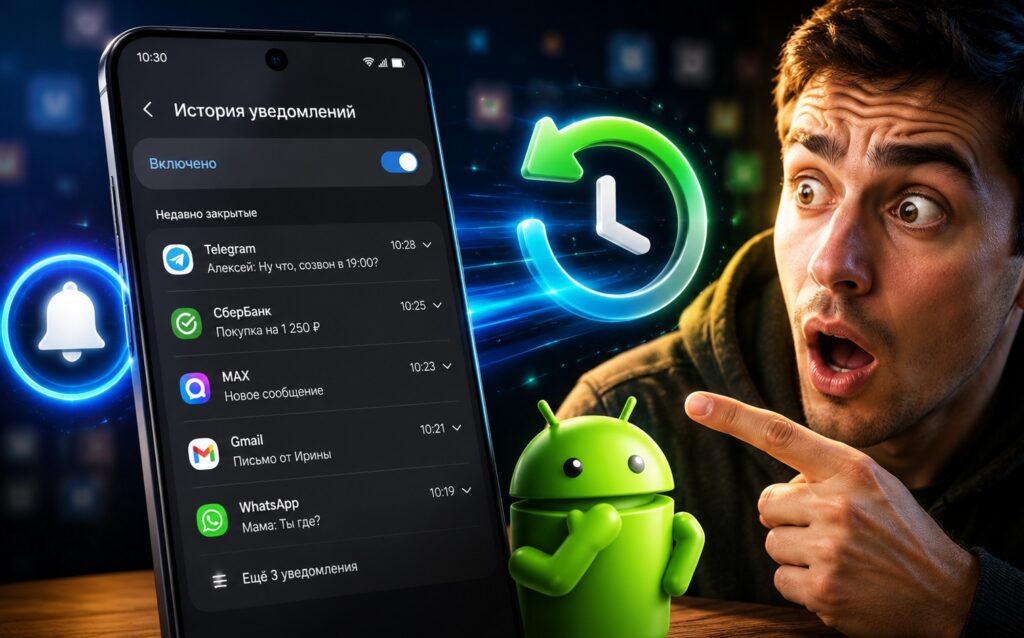
Showing notification history on Android
What Is Notification History on Android
Notification history is a built-in log of all push notifications that came to your phone over the last 24 hours. Android saves them automatically — even if you swiped the notification from the shade, deleted them all at once, or simply didn’t have time to read them.
This isn’t a third-party app or a clever trick. This is an official Android feature that appeared in Android 11 and works on all modern smartphones. It’s just that almost nobody talks about it — it’s buried deeper than most settings.
Why You Need Notification History
Everyday scenarios where this saves you:
- you swiped away a confirmation code from your bank or government services — no need to request it again;
- you missed a delivery notification with the courier’s arrival time;
- you accidentally cleared the entire notification shade and didn’t see a messenger message;
- your taxi arrived, and you didn’t have time to read the car number and driver’s name;
- a marketplace sent you a package tracking number, and you dismissed it.
I personally use this feature almost every day (especially often for confirmation codes). Swiped it out of habit, opened the history — the code is right there. How to disable unnecessary notifications on your phone so the shade doesn’t turn into junk — that’s a separate topic worth reading about. But first, make sure the history is enabled.
How to Enable Notification History on Android
On my vivo X300 smartphone, here’s how it’s done:
- Open “Settings.”
- Go to “Notifications and status bar.”
- Find the “Notification history” option and turn on the toggle.
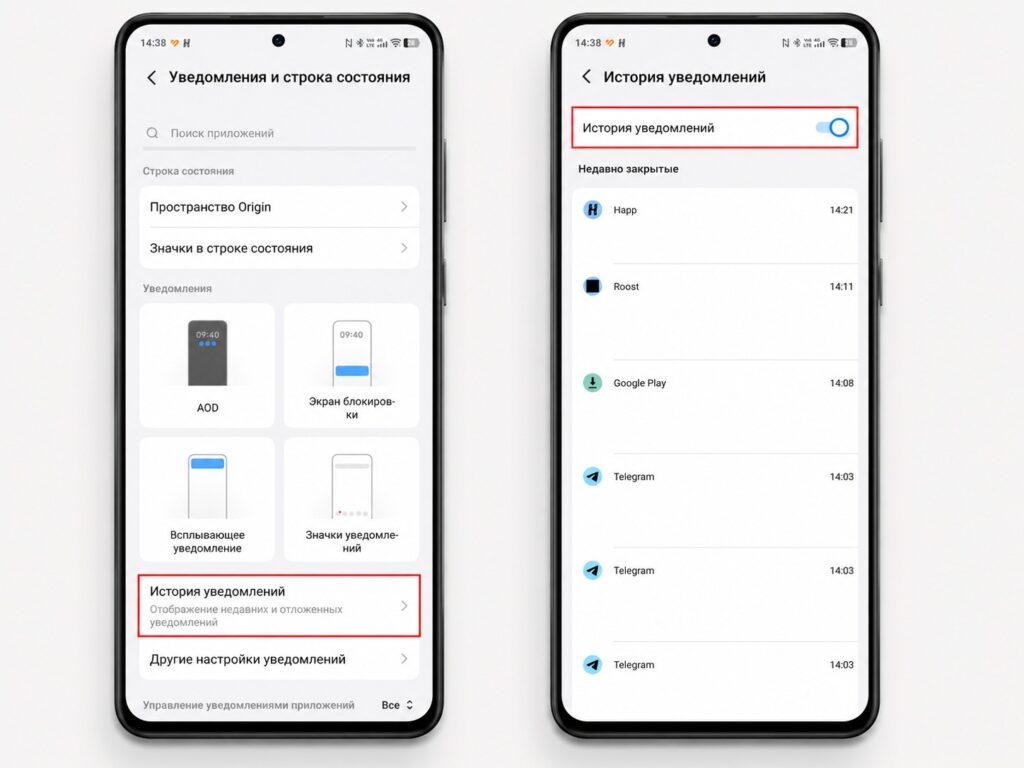
Notification history needs to be enabled first
On different Android skins, the path varies slightly:
- Samsung One UI: “Settings — Notifications — Advanced settings — Notification history”;
- Xiaomi HyperOS / MIUI: “Settings — Notifications and status bar — Notification history”;
- realme UI: “Settings — Notifications — Notification history”;
- HONOR MagicOS: “Settings — Notifications — Notification history”;
- Google Pixel: “Settings — Notifications — Notification history”.
If you can’t find it, type “notification history” in the settings search. It’s faster than scrolling through menus.
How to View Deleted Notifications on Android
After enabling the feature, you can view notifications on your phone from the history in two ways. Through settings:
- Open “Settings — Notifications and status bar — Notification history.”
- You’ll see a list of all push notifications from the last 24 hours, grouped by app.
- Tap on any notification — its full text will open.
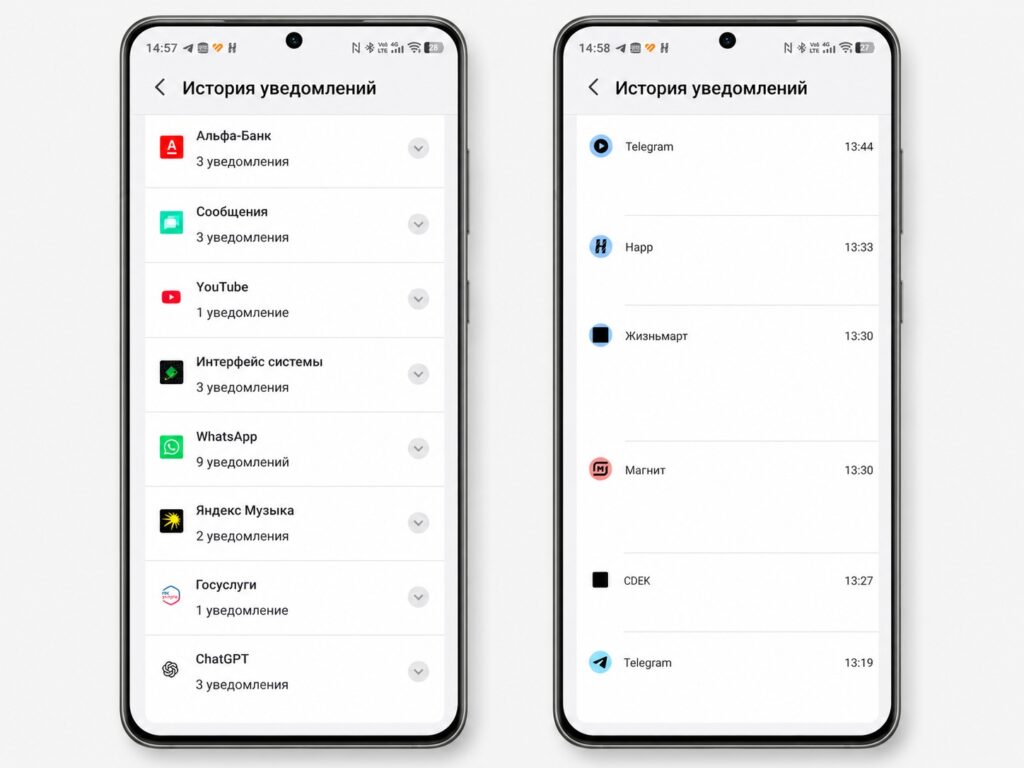
Notification history is located here
Through a widget on the home screen (not available everywhere):
- Long-press on an empty area on the home screen.
- Select “Widgets.”
- Find the “Notification history” widget from the Android system.
- Drag it to your home screen — now the history is always one tap away.
The second method is more convenient for daily use. Deleted notifications on your phone in the history are grouped by app and time — it’s easy to find the one you need even if dozens of push notifications came in during the day.
Why Notification History Isn’t Working
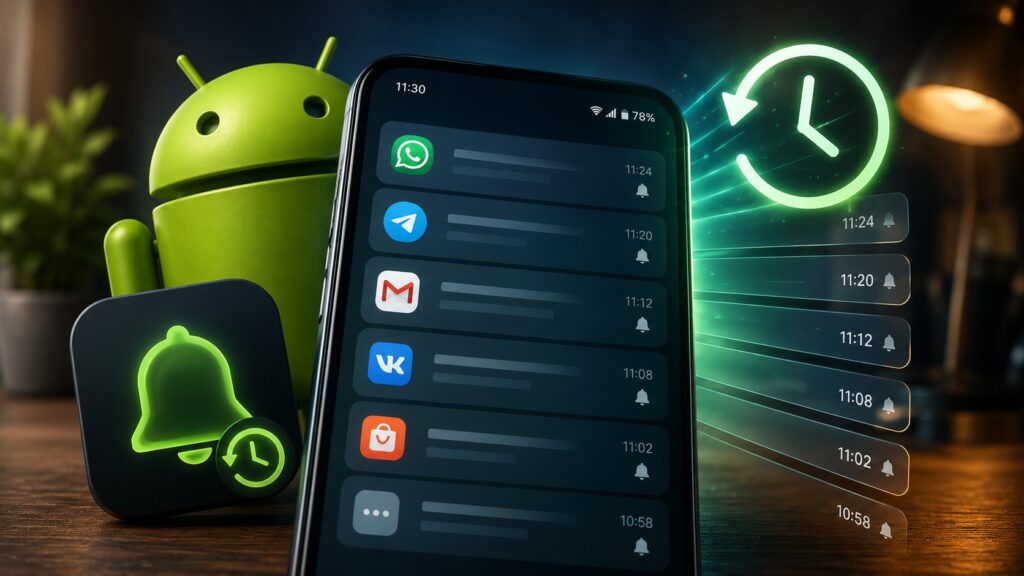
Most likely, you haven’t enabled it
If notification history isn’t working, there are several reasons:
- The feature is turned off. The most common reason. Check that the toggle is on — history isn’t recorded retroactively, only from the moment of activation.
- Notifications from the app are blocked. If an app doesn’t have permission to show notifications — its push notifications won’t appear in the history. Check permissions in “Settings — Notifications — Apps.”
- Aggressive battery saving. On Xiaomi and some other Android skins, aggressive battery-saving mode can clear notification history earlier than 24 hours. Check battery settings for system components.
- The app hides content. Banking apps and some messengers intentionally hide notification text for security reasons. In the history, you’ll see that a notification arrived, but not its content.
- More than 24 hours have passed. Notification history on the phone stores push notifications only for the last 24 hours — you won’t find anything older than that.
Should You Enable Notification History on Android
Definitely yes, if you regularly miss push notifications or accidentally clear the notification shade. The feature is free, built-in, and doesn’t affect performance or battery life.
The only privacy consideration: if someone gets access to your unlocked phone — they can browse the notification history and see what messages you received, what codes came in, and from which services. This is worth considering if your phone regularly ends up in other people’s hands.


