Android Auto only lets certain categories of apps appear on a car’s screen, so an ordinary video player, file manager, or game usually cannot be opened there, even in a parked car. A free, open-source tool called Android Auto Maker works around part of this restriction. It repackages standard Android apps so that Android Auto treats them as games for parked cars. Compatibility is not guaranteed, the modified apps have to be installed manually from APK files, and they are intended for use only while the car is stationary.
What you need to know
- Android Auto Maker modifies APK and XAPK files so that Android Auto recognizes the app as a parked-car game.
- The tool itself runs on Android 8.0 and later, but displaying the modified apps in a car requires a phone running Android 15 or newer. The main method does not require root.
- The modified APK is signed with a new key. You usually have to uninstall the original app first, which may delete its local settings and data, and Google Play updates will not install over the modified version.
- Banking apps may refuse to run, DRM-protected video may be blocked, and complex interfaces may display incorrectly.
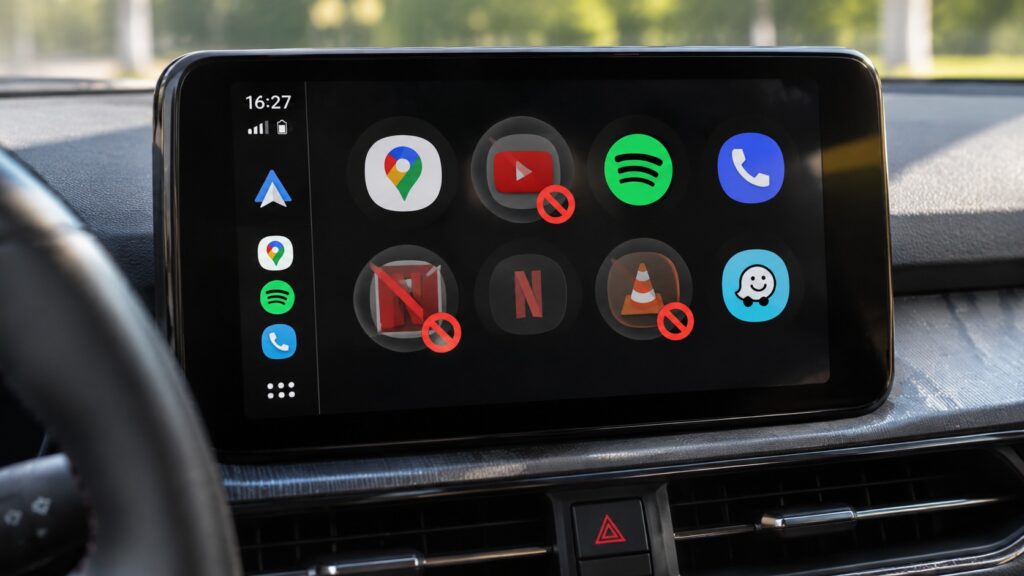
Unsupported apps in Android Auto
Why many apps do not appear on the car screen
Android Auto deliberately limits the categories of apps that can be shown on a car display. While the car is moving, that limit makes sense, because watching video or playing games behind the wheel is dangerous. However, the same restrictions also apply to apps people might reasonably want to use while parked.
Google officially supports games for parked cars, for example, but developers have to adapt them specifically for Android Auto. You cannot simply install any game from Google Play and open it on the car’s head unit.
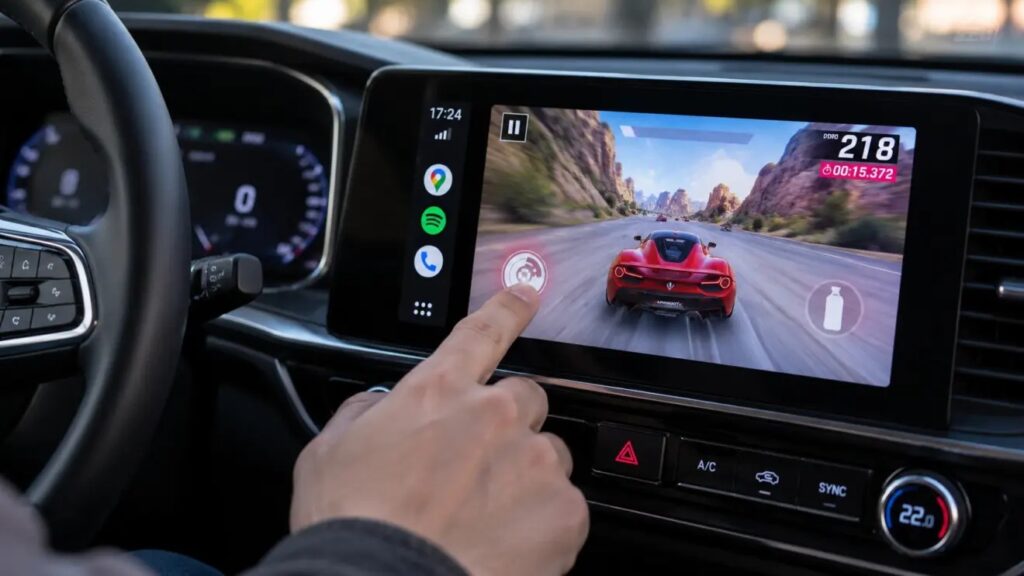
A game on the Android Auto screen
Android Auto Maker is a free, open-source project that tries to fill this gap. It modifies an app’s installation file so that the car system recognizes the app as belonging to the parked-car games category. The project is available on GitHub.
With this approach, you can try putting the following on a car screen:

- video players, for watching clips while parked;
- games, to pass the time while waiting;
- file managers, for working with files;
- other utilities that have no official Android Auto version.
Compatibility is not guaranteed. Some apps will not launch after modification, and others display incorrectly on a wide car screen.
How Android Auto Maker converts a regular APK
The tool works with APK and XAPK installation files. It adds the required compatibility parameters and produces a new APK that can be installed on the phone. Android Auto Maker itself runs on Android 8.0 and later, but showing the prepared apps in the car requires a smartphone running Android 15 or newer. The main method does not require root access.
The process looks like this. The button names below are English translations and may be worded differently in the app:
- Open the Android Auto Maker releases page on GitHub.
- Download the tool’s installation APK and install it on your phone.
- Prepare the APK or XAPK of the app you want to run in the car.
- In Android Auto Maker, tap “Select APK or XAPK” and choose the file.
- Leave the “Parked game” mode selected and tap “Create Android Auto package.”
- Save the resulting APK and install it.
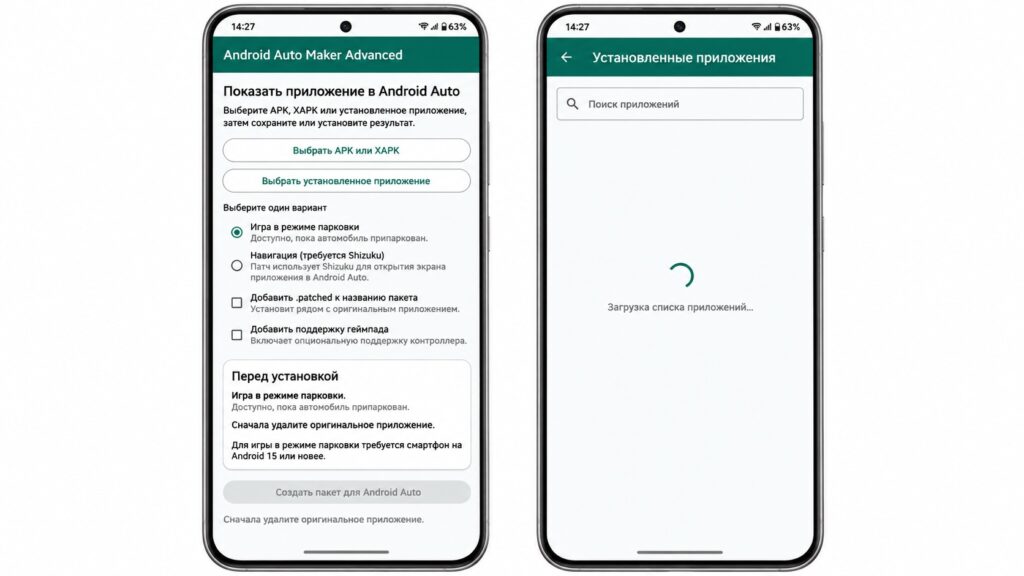
Preparing apps with Android Auto Maker
The catch: a new signature and possible data loss
The tool signs the modified APK with a new digital key. As a result, you usually cannot install it over the regular version of the app. You first have to uninstall the original, and its local settings and saved data may be lost along with it. For a first attempt, the original article’s author suggests choosing a simple app with nothing to lose.
Some phones need Android Auto’s hidden developer settings
A modified app will not necessarily appear in Android Auto right after installation, because the system may restrict apps that did not come from Google Play. It is worth checking Android Auto’s own developer settings, which are separate from the phone’s regular developer options:

- Open your phone’s settings and find the Android Auto section.
- Scroll down to the “Version” entry.
- Tap it repeatedly until the system offers to enable developer mode.
- Open the Android Auto developer menu.
- Turn on “Unknown sources” if the option is available.
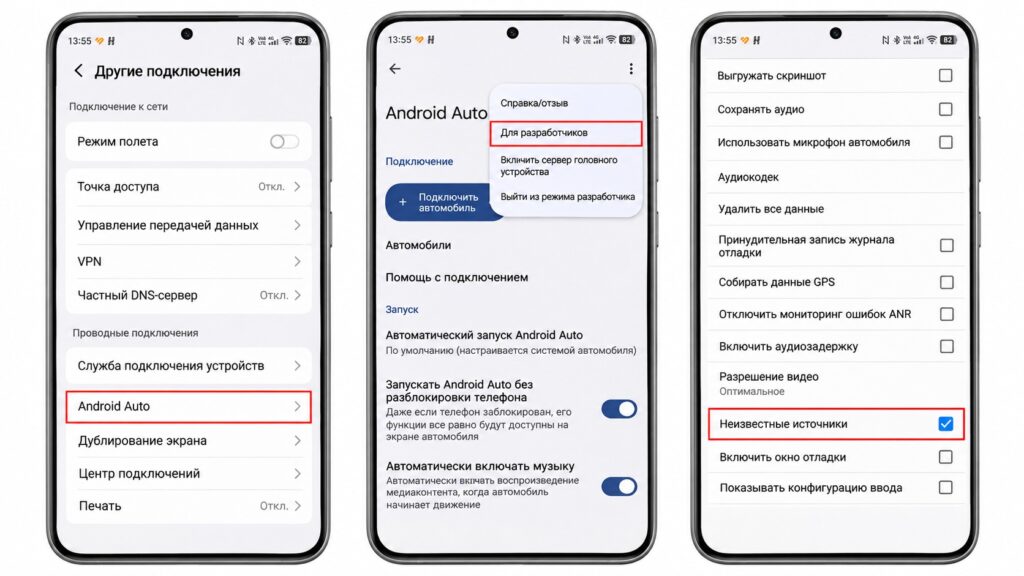
Allowing unknown sources in Android Auto
Even after these steps, the modified app may still not appear on the car screen. Such restrictions are especially common on some Chinese Android skins, so a working result is not guaranteed.
Why some apps will still refuse to run
The main limitation is that Android Auto Maker changes how an app registers itself with the system but does not make the app fully compatible with the car interface. There are several restrictions:
- banking apps may detect the changed digital signature and refuse to work;
- video services with DRM may block playback of protected content;
- Google Play updates will not install over the modified version;
- complex interfaces may display incorrectly on the car display.
Parking only: the standard Android Auto Maker mode is designed for stationary use. When the car starts moving, the system is supposed to block access to these apps. The developer also offers an experimental mode for navigation apps, but it requires additional tools such as Shizuku. The original article’s author would not experiment with that mode for everyday driving.
Many apps can run, but caution is warranted
The appeal of Android Auto Maker is its idea: instead of waiting for a developer to add official Android Auto support, users can try putting an app on the big screen themselves. However, the method is not a full replacement for Google Play. It involves handling APK files, sometimes uninstalling original apps, and tracking updates manually.
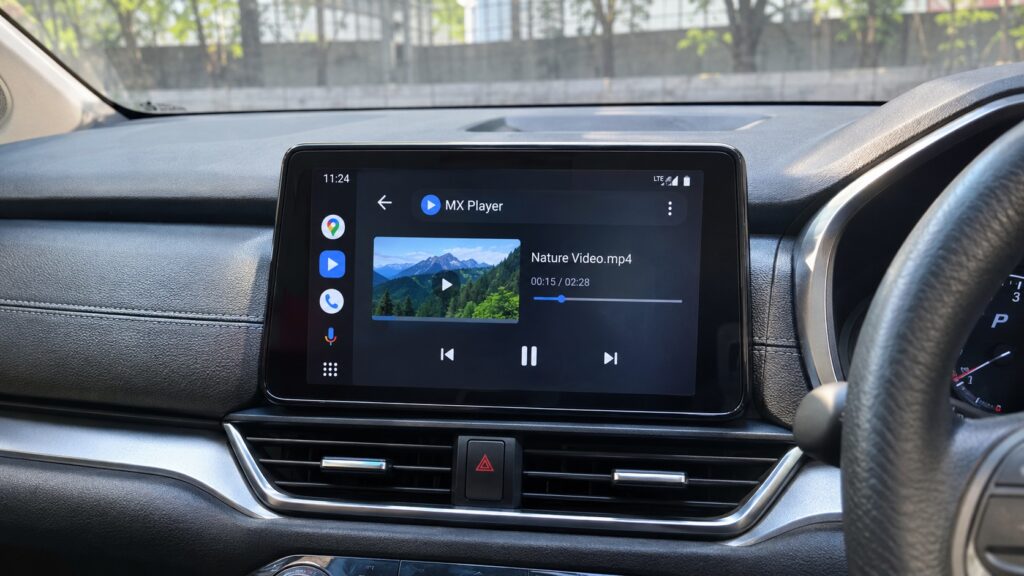
MX Player on the Android Auto screen
The tool is best suited to simple apps that are useful while parked, such as watching a saved video while waiting for a passenger. Navigation, music, and calls are better left to Android Auto’s built-in apps. After all, the car system’s main job is to help the driver, not to turn the head unit into another smartphone full of distracting apps.