If Android Auto freezes when you start a route, check three things first: the cable, any wireless adapter and the video resolution setting in Android Auto’s developer menu. Typical symptoms are a frozen map, stuttering music, or a connection that drops and reconnects on its own. The phone, cable or car can be at fault. Sometimes, though, the cause is a setting the driver once raised to sharpen the picture and then forgot about. Higher resolutions make the video stream heavier, and some head units and wireless adapters cannot keep up.
What you need to know
- Android Auto renders the interface on the phone and sends it to the car as a video stream. The head unit only decodes and displays it.
- Google’s help page advises against extension cords, USB hubs and cables longer than one metre (about 3.3 feet) for Android Auto.
- According to XDA, a wireless adapter’s buffer can overflow when the map redraws sharply at a high video resolution, causing freezes and disconnections.
- For most cars, the “Optimal” option in Android Auto’s “Video resolution” developer setting is the most reliable choice, because the head unit tells the phone which resolution it can handle.
The feature that can make Android Auto lag
Why the picture freezes
Android Auto works differently from how many drivers assume. The smartphone draws the interface, maps and buttons, then sends them to the car as ready-made video. The head unit only decodes that stream and shows it on screen. If any link in this chain lacks speed or processing power, the picture starts to stutter and freeze.
Heat is a factor too. In the car, the phone runs navigation, plays music, maintains the link to the head unit and charges, all at once. As a result, it heats up, and a hot phone lowers its clock speeds and slows down. If the phone stays cool and the freezes continue, look further along the chain.
A cable longer than one metre is the first suspect
With a wired connection, the video stream travels through the cable, and a poor cable may not cope with it. Google’s Android Auto help page explicitly advises against using extension cords, USB hubs and cables longer than one metre. The cable that came with the phone is the best option.
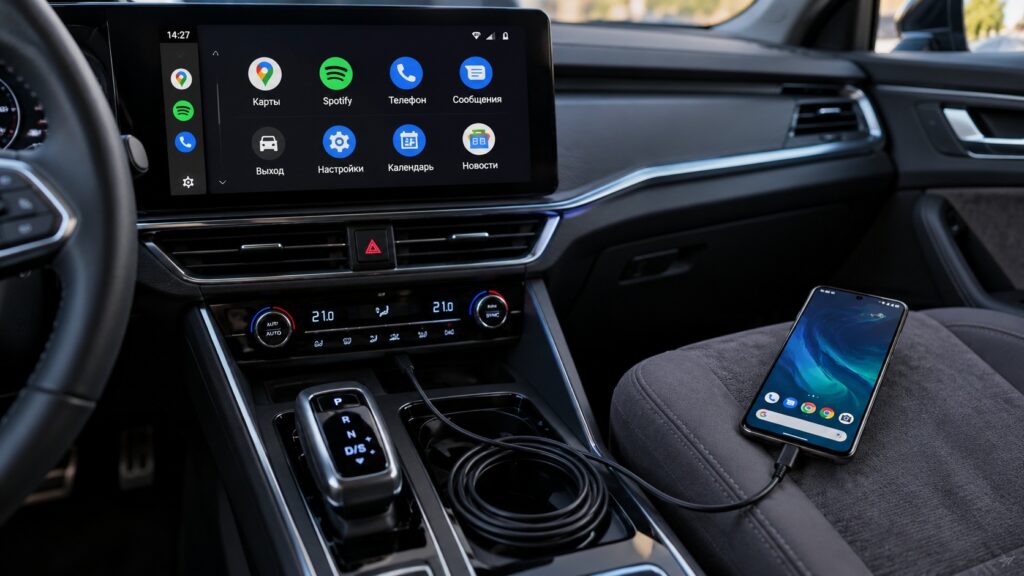
A smartphone connected to Android Auto with a long cable
If you no longer have the original cable, a certified cable from a well-known manufacturer will do. A cheap cable may charge the phone without problems and still interrupt data transfer. That is why swapping the cable should be the first step whenever freezes occur: it is the most common cause and the cheapest to fix.

Restart the head unit and update its firmware
A head unit is a computer too, and it can start to misbehave after running for a long time. Restart it, and if you have an aftermarket head unit, check the manufacturer’s website for firmware updates.
If that does not help, you can pair the phone and the car again from scratch:
- Disconnect the smartphone from the car.
- Open Settings, then “Other connections”, then “Android Auto”.
- Go to the “Cars” section.
- Open the three-dot menu in the top-right corner and choose “Delete history”.
- Reconnect the smartphone to the car and set up Android Auto again.
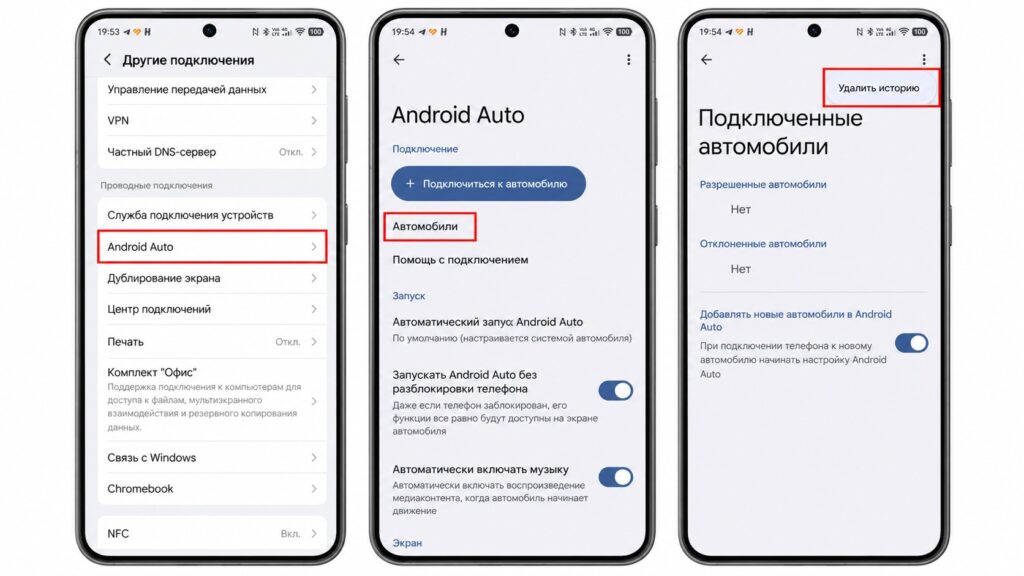
Deleting the Android Auto connection history
On Samsung, Xiaomi and other phones, the path to Android Auto settings may differ slightly. The easiest way to find them is the search bar in the Settings app.
While you are there, update both the Android Auto app and the phone’s system software: Google recommends running the latest version of Android.
A wireless adapter is an extra link in the chain
Many cars support Android Auto only over a cable, so some owners install wireless adapters. Such a box receives video from the phone over Wi-Fi and passes it to the head unit over a cable. That adds one more link that may fail to keep up with the stream, especially while high-quality music is playing at the same time.
Phone settings can also interfere with a wireless connection, including power saving, battery restrictions and automatic Wi-Fi switching. If the picture still stutters after you address these, the next place to look is a menu that is hidden by default.

When sharpness hurts stability
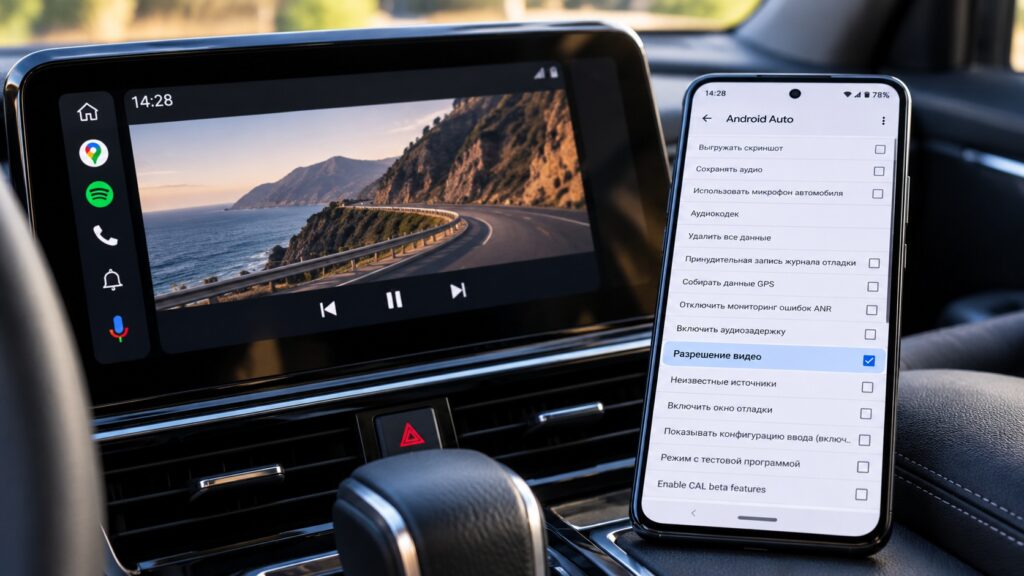
Android Auto’s developer menu includes a “Video resolution” option. It is often recommended as a way to make maps look sharper on the car screen, but the tip has a downside.
The higher the resolution, the heavier the video stream the phone sends to the car. While the picture is calm, everything works. But when the map redraws sharply, for example at the start of a route, the amount of data spikes. As XDA explains, the wireless adapter’s buffer overflows and the head unit cannot decode the stream in time. That leads to freezes and sudden disconnections.
Recent versions of the app offer options up to 4K, even though most car screens cannot display that resolution.
How to restore the default resolution
- Open Android Auto settings and scroll down to the “Version” line.
- Tap it about 10 times in a row until a warning appears.
- Go back to the top, open the three-dot menu and choose “Developer settings”.
- Tap “Video resolution”.
- Select “Optimal”.
- Reconnect the phone to the car.
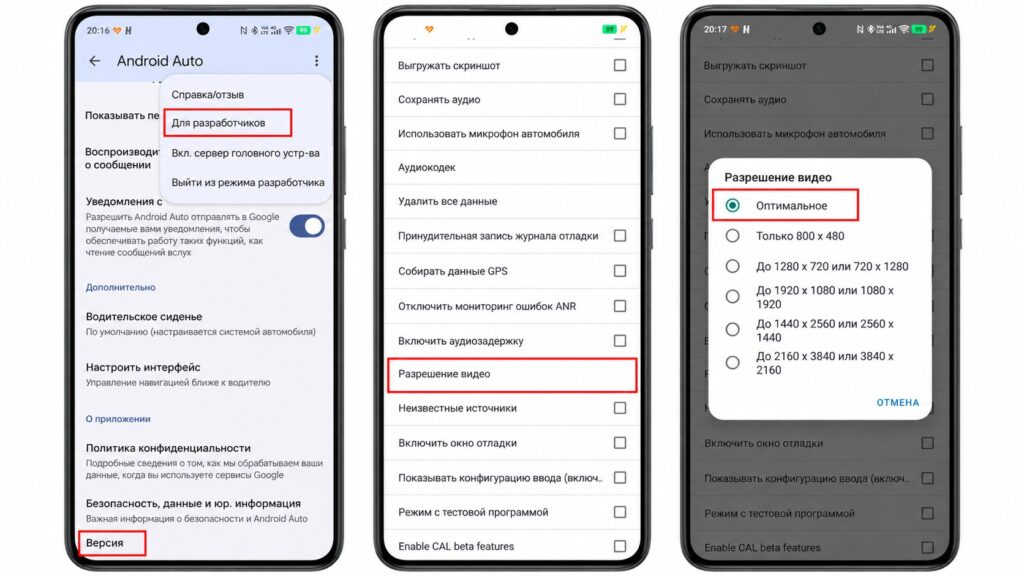
Android Auto’s video resolution setting
If the developer menu is already enabled, you can skip the first two steps.
The head unit itself tells the phone which resolution it can handle, so for most cars the optimal option is the most reliable choice.
If you want a sharper picture
Raise the resolution one step at a time and test each step on a drive with an active route. If the freezes return, the head unit or adapter has reached its limit.