Android’s Accessibility menu was built for screen readers, large text and motor assistance, but a handful of its switches can make any phone feel quicker without deleting apps, resetting settings or touching Developer options. The source author reports that after enabling three toggles there — the floating Accessibility menu, the “Remove animations” switch and high-contrast text — their own phone felt noticeably faster. The catch, which the author stresses repeatedly, is that the hardware does not speed up at all: you simply spend less time waiting for transitions and reaching for the top of the screen.
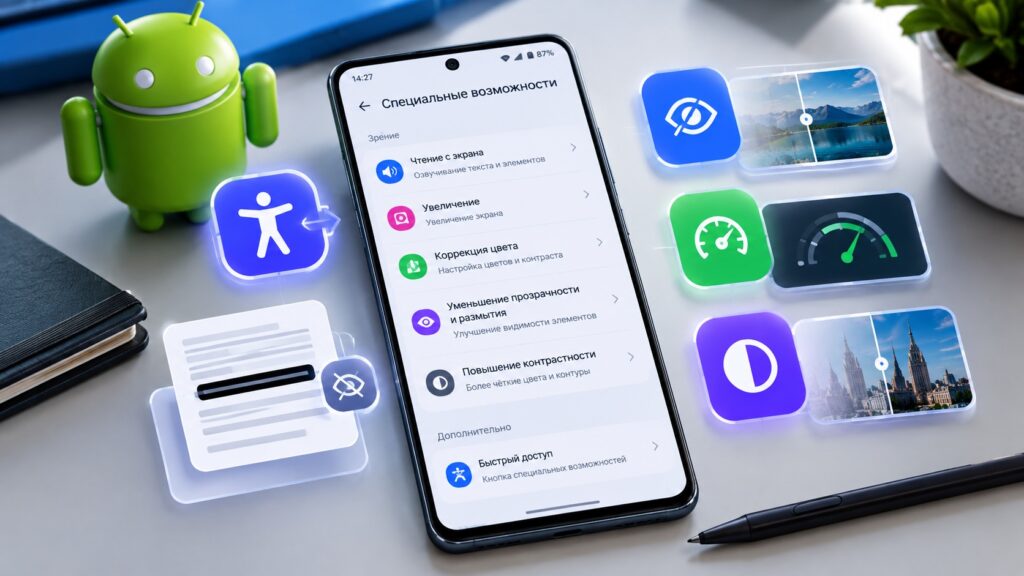
Android accessibility settings that make a phone feel faster
What you need to know
- The biggest effect comes from the “Remove animations” toggle in Accessibility, which disables transitions that the Developer-options animation sliders may leave in place.
- The floating Accessibility menu offers one-tap screenshots and Quick Settings, cutting out button combos and top-edge swipes.
- Samsung One UI adds a “Reduce transparency and blur” option that stock Android and Pixel phones do not have under that name.
- None of these changes affect processing speed, benchmark scores or battery life — the gain is only in perceived responsiveness.
The Accessibility menu was not designed for speed
The Accessibility section exists for people who need screen readers such as TalkBack, larger text or help with motor difficulties. That remains its main purpose. But some of the switches inside are useful to everyone, because they cut steps out of actions performed a hundred times a day.
The principle matters: the phone will not process data any faster. What shrinks is the time you spend waiting for the interface to finish its visual flourishes, or stretching a finger to the top edge of the display. Each individual saving is a fraction of a second, but over a day those moments add up to hundreds.
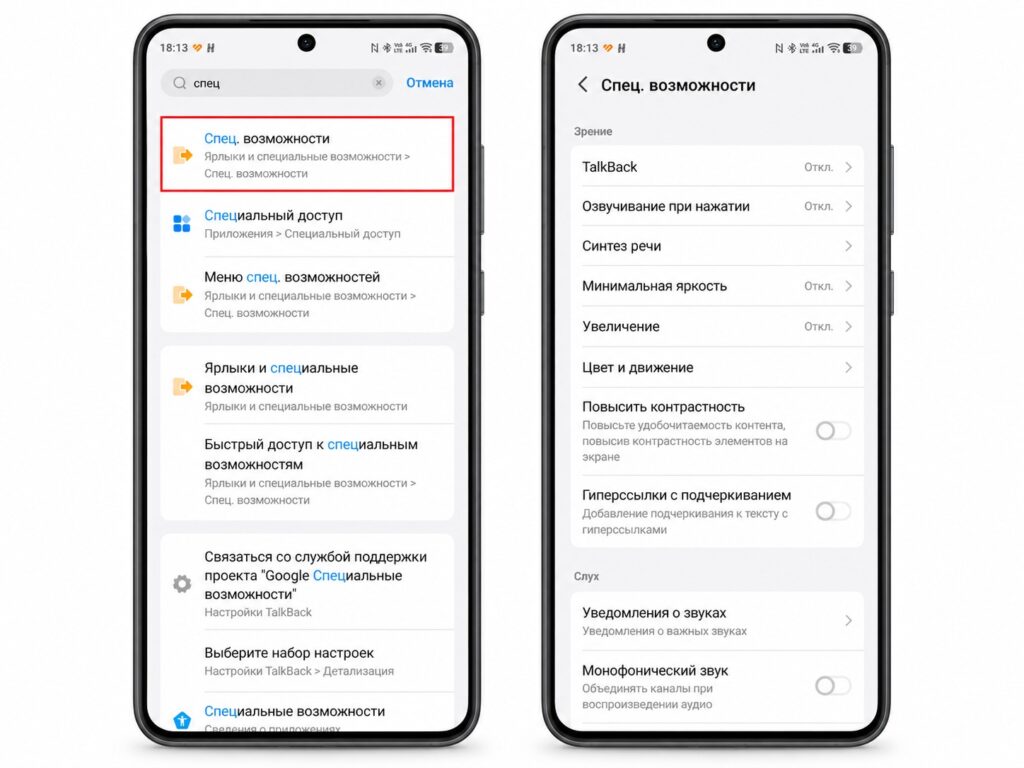
Opening Accessibility through Android settings
One caveat before the steps: the exact names of these items depend on your Android version and the manufacturer’s software. The wording below follows what the source author saw on their own device, so you may need to look for slightly different labels on another phone.
One-tap screenshots and Quick Settings
The first thing worth enabling is the Accessibility menu itself. It is a floating button that opens a panel of large icons for frequently used actions, including Screenshot and Quick Settings.

Why bother when the phone has buttons? A screenshot from the menu avoids the power-plus-volume combination, which the author admits to fumbling regularly — changing the volume instead of capturing the screen. Quick Settings opens with a single tap rather than a swipe from the top edge, which is noticeably more comfortable on a large phone used one-handed.
- Open your phone’s Settings and go to Accessibility.
- Find the Accessibility menu item and open it.
- Turn on the shortcut: a button or gesture for summoning the menu will appear on screen.
- Call up the menu and tap Screenshot or Quick Settings — the action runs immediately.
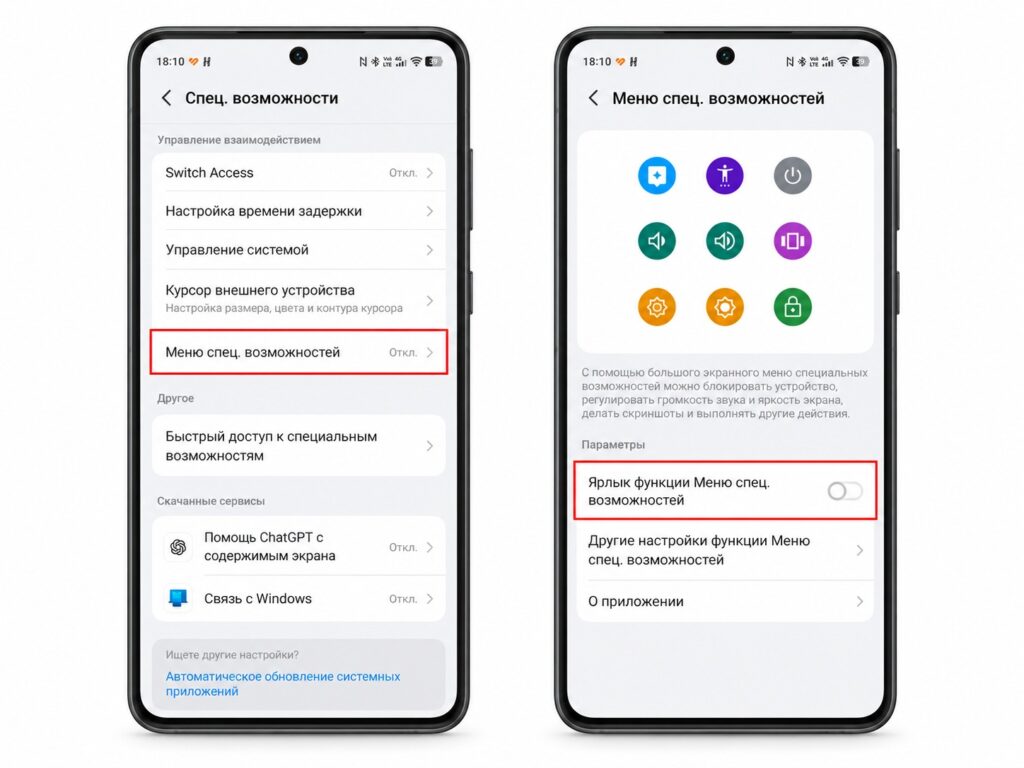
Enabling the Android Accessibility button
To repeat: the phone does not get faster. You do, because you accomplish the same thing in fewer movements.
Removing animations eliminates the wait between actions
This is the headline item, and if you try only one thing, start here. Many users know about the animation-scale sliders in Developer options, but according to the source they do not disable every transition: some animations still slip through, depending on the phone model and system version. Accessibility has a separate switch that handles this without Developer options at all.
- Open Settings and go to Accessibility.
- Open the “Text and display” or “Color and motion” section (the name varies by Android version).
- Turn on “Remove animations.”
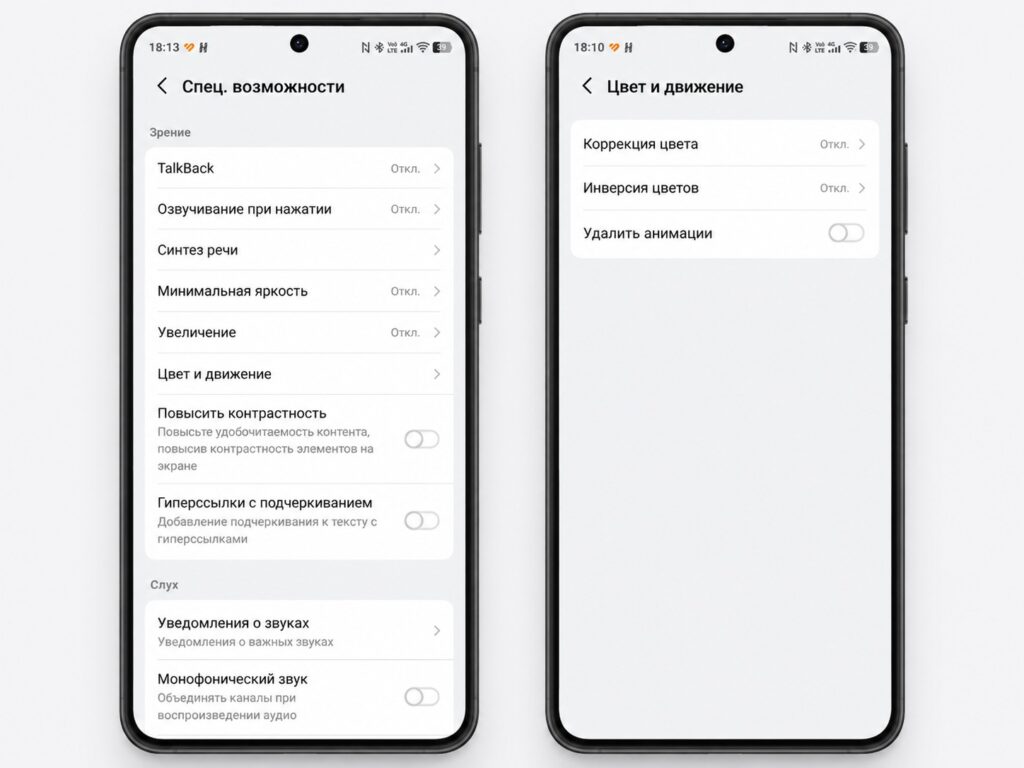
Disabling animations through the Accessibility menu
What changes: computing speed stays the same, but you no longer watch an app window unfold from its icon or a menu glide into view. As soon as you tap, you can tap again. Each saving is a few instants, yet the effect is noticeable immediately, especially in the small transitions that no spec sheet ever captures.
Samsung phones also offer reduced transparency and blur
Galaxy owners get an extra setting that stock Android and Pixel phones do not have under this name. It strips out some of the visual effects behind the Quick Settings panel, the notification shade and app pop-ups. The interface becomes cleaner and calmer, and you are not waiting for semi-transparent layers to render.

- Open Settings and go to Accessibility.
- Select “Visibility enhancements.”
- Turn on “Reduce transparency and blur.”
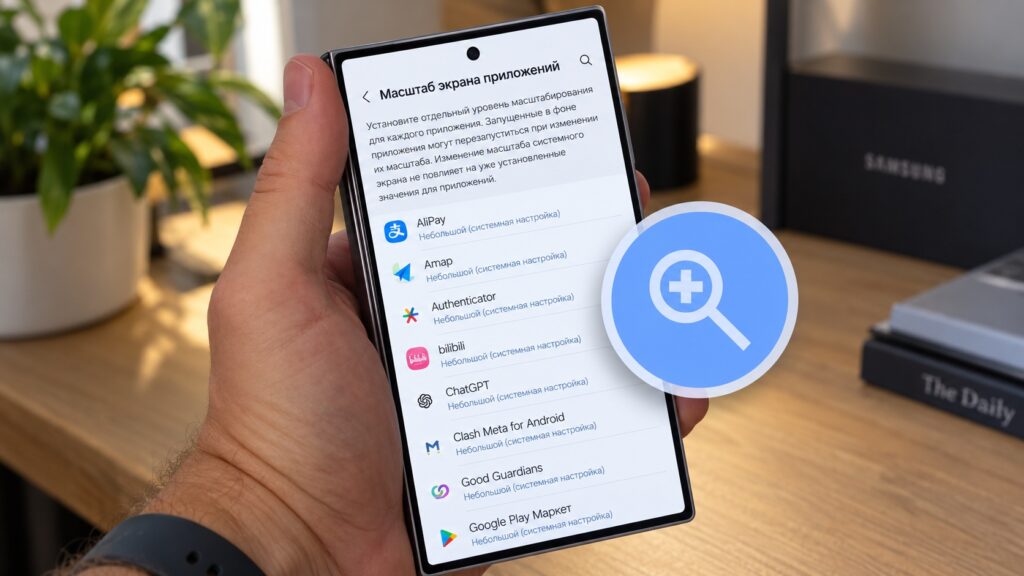
Reduce transparency and blur, a setting found only on Samsung
The logic is the same as with animations: fewer effects on screen means less time until the next tap registers. This is specifically a One UI setting, so there is no point looking for it on Xiaomi, Pixel or other devices — they may have something similar, but under a different name and in a different place.
High-contrast text speeds up reading
This is the most debatable entry on the list. High-contrast text — called “Outline text” in Android 16 and later — has nothing to do with performance. It simply thickens the outline of letters so that text is easier to read against any background.
- Open Settings and go to Accessibility.
- Open “Text and display.”
- Turn on “High contrast text” or “Outline text” (depending on your Android version).
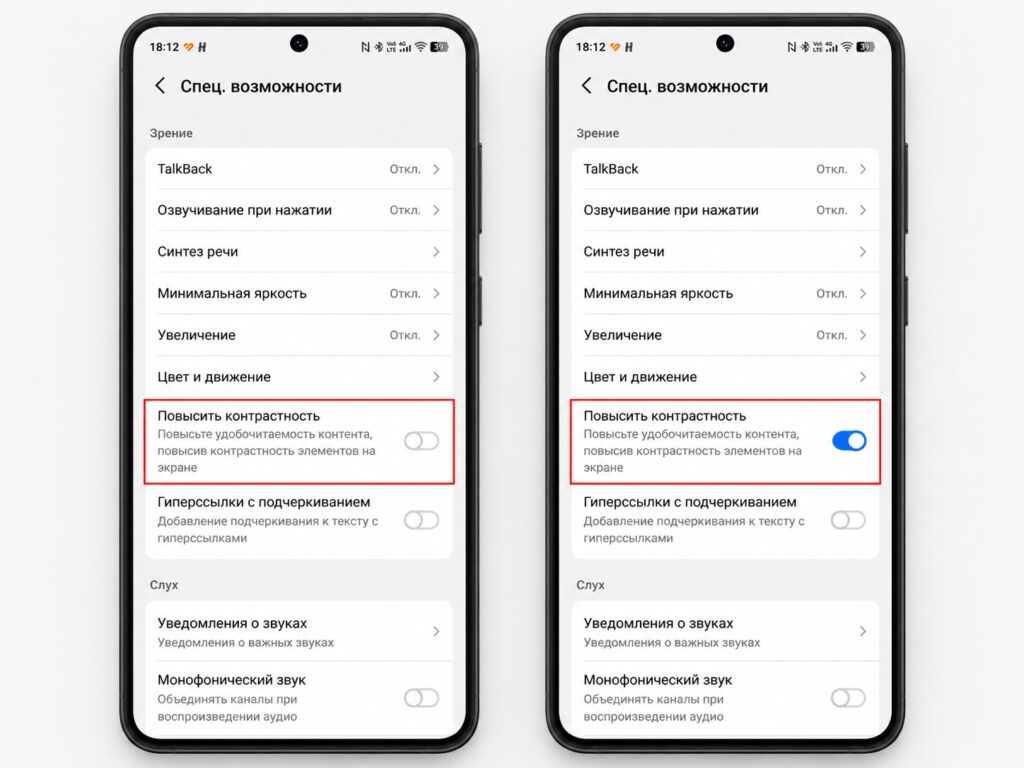
Enabling high-contrast text through Accessibility
The source author’s reasoning for enabling it anyway: reading faster means reacting faster. If a button or menu item is recognized half a second sooner, the rest of the interaction moves half a second sooner too. The gain is smaller than from removing animations, and not everyone will like the look, but combined with the other settings it contributes to the overall sense of speed.
Benchmarks will not notice any of this
A fair warning: running AnTuTu after these changes will not move the score by a single point. Benchmarks measure the processor and hardware optimization, while these settings only touch what sits between you and the result — transitions, blur and small text. Nor will any of this help battery life. The gain in day-to-day use, however, is real.
Removing animations gets tasks finished faster and is the most noticeable effect. Contrast text is a small but genuine addition that many people will not need. The Accessibility menu saves movements. Together they create the impression of a snappier phone even though the hardware is unchanged — and, per the source, that holds on a budget device as much as on a flagship.


