Not everyone decides to buy a smartphone for their child, and those who do take this step create a child’s Google account. That’s because parental controls on Android work through it. In the latest version of the operating system, released recently, Google has built screen time management tools right into the system settings, so a separate app is no longer needed for basic restrictions. Let’s break down what exactly can be configured and whether it’s worth using.
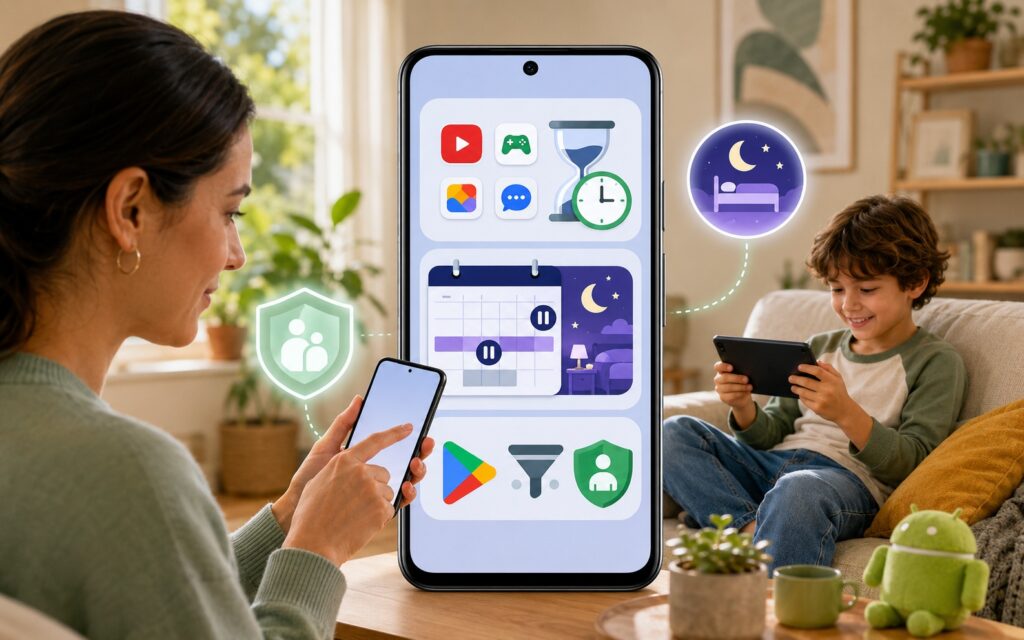
Overview of new parental control features on Android
What Changed in Android 17 Parental Controls
Previously, built-in parental controls were tied to Pixel smartphones. Google is expanding them to all devices that update to Android 17. Essentially, the feature that was shown only on Pixel a year ago is now becoming part of the system for everyone.
The idea is simple: managing a child’s screen time and finding a balance between online and offline activities are now built into the operating system itself. It’s a section in settings that works on top of familiar Google tools.
Where to Find Android Parental Control Settings
Parental controls are located right in the Android settings and combine built-in device tools and Google Family Link in one place. This means you no longer need to jump between different sections: everything is gathered in a single entry point.
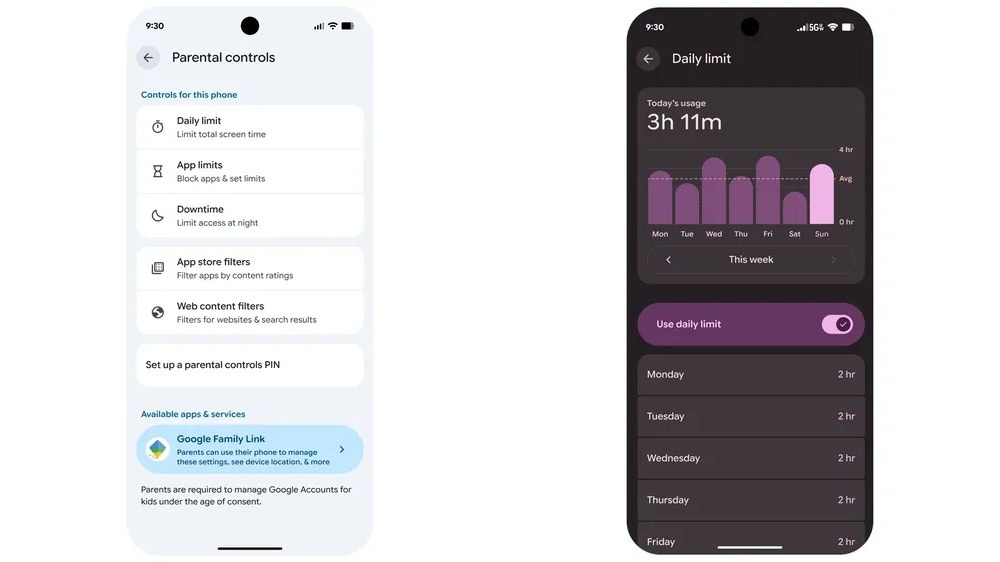
New features are available right in Android settings
An important point for parents: these settings on the device are protected by a simple PIN code. This means a child won’t be able to quickly disable restrictions without knowing the code. How reliable this protection is in practice isn’t specified by the source, but the very presence of a PIN code is a basic guarantee against easy bypassing.
Parental Control Features in Android 17
The set of tools covers the main scenarios that parents typically need. Right in the device settings, you can:
- set how much daily screen time a child can spend on the device to form healthy habits;
- create “quiet time” schedules so the device automatically locks at night and doesn’t interfere with sleep;
- configure filters in Google Play by age rating, restricting what content can be downloaded;
- limit time in specific apps or completely block them.
There’s nothing revolutionary here, and similar features have long been available in third-party solutions and in Family Link. But being built right into the system removes an extra step: there’s no need to install separate programs and figure out unfamiliar interfaces.
Who Should Enable the New Parental Controls
The built-in controls don’t replace Family Link but complement it. From parental controls, you can quickly navigate to Google Family Link settings in the app on the parent’s phone. The key difference: built-in tools work on the child’s device itself, while Family Link provides remote management.
If your child uses an Android smartphone or tablet, updating to Android 17 provides a convenient built-in way to limit screen time without third-party programs. The main value isn’t new features, but the fact that everything is gathered in one place in settings and protected by a PIN code. For deeper control like geolocation and purchase approval, Family Link is still needed, and the specific availability of features in your region depends on your device and configured Google services.


