On a Samsung Galaxy S25 Ultra, Always On Display (AOD) was consuming 8–10% of the battery every day, according to the author of the original report. Rather than switching the feature off entirely, the author changed one setting so that AOD only appears when the screen is tapped. The result, they report, was screen-on time rising from roughly four hours to more than five on many days. The exact figures apply to one phone and one usage pattern, but the underlying reason AOD drains power applies to almost any Android phone with an OLED screen, from Samsung to Xiaomi.
What you need to know
- Samsung’s battery statistics showed Always On Display responsible for a steady 8–10% of daily consumption on the author’s Galaxy S25 Ultra.
- The author switched AOD to “Tap to show” instead of disabling it; no other settings such as power saving, refresh rate or 5G were changed.
- After the change, AOD disappeared from the list of notable battery consumers and screen time rose from about four hours to over five.
- Other Android brands name the feature differently and may lack a tap-to-show option; check battery statistics first to confirm AOD is actually a problem.
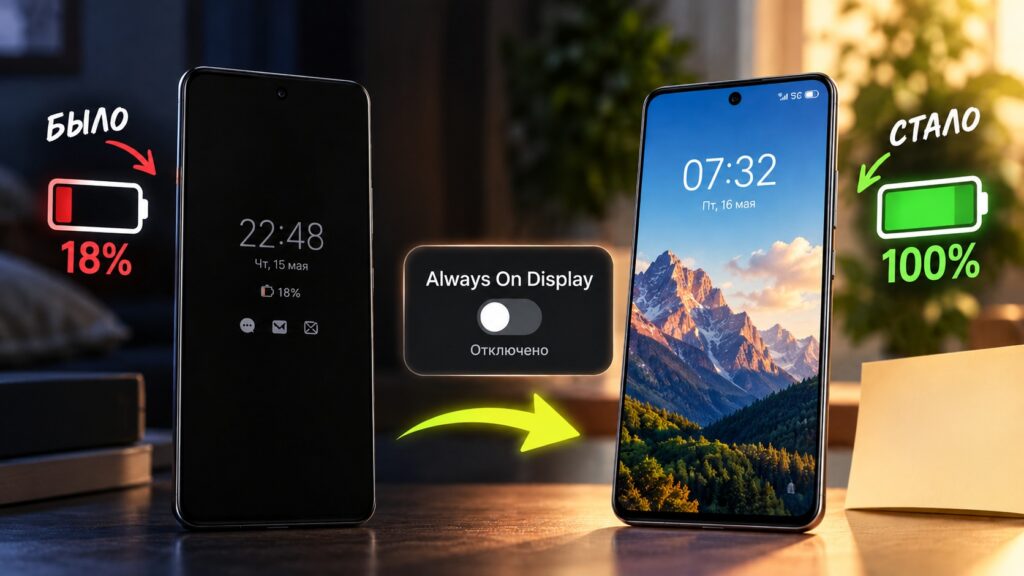
The impact of Always On Display on battery charge
The always-on screen was eating up to 10% of the charge
The S25 Ultra’s battery life was not disastrous, the author says, but by evening they were routinely hunting for a charger. Standard advice such as enabling power saving mode either did little or introduced unwelcome trade-offs, including delayed notifications. Changing familiar One UI settings for a gain of a couple of percent did not seem worthwhile.
Before touching anything, the author opened the Battery section in Settings to see where the energy was actually going. Always On Display consistently accounted for 8–10% of daily consumption. For a feature that simply shows a clock and notification icons, that is a surprisingly large share.
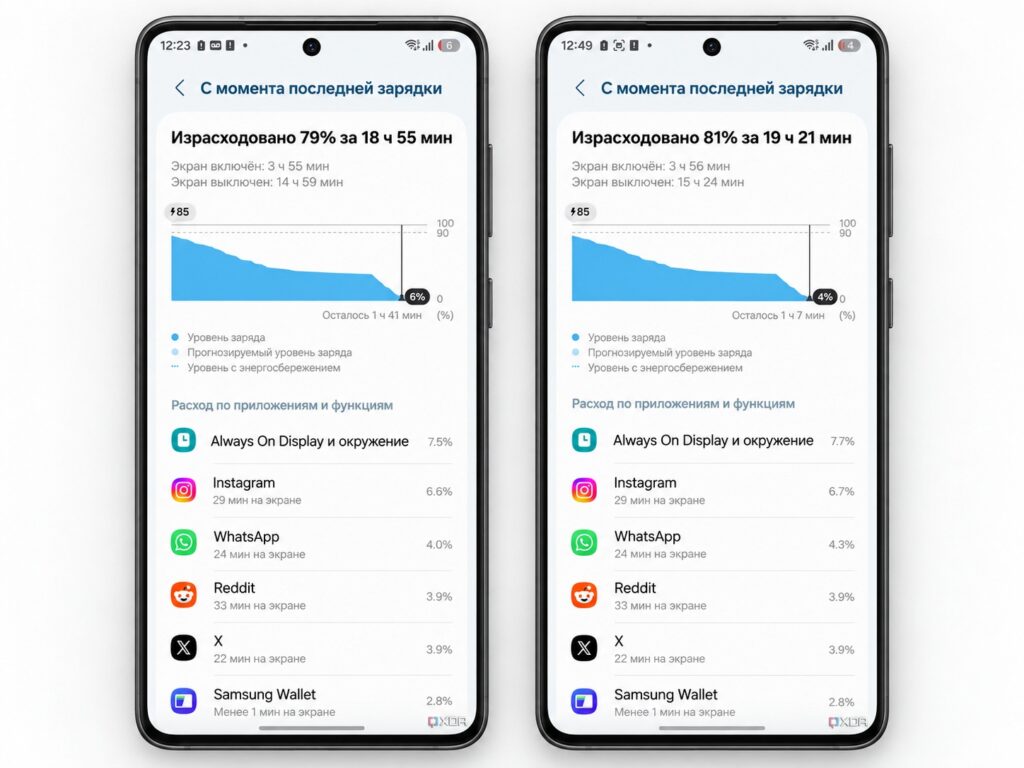
AOD’s heavy consumption shown in Android battery statistics

One important piece of context: the author caps charging at 90% to prolong battery lifespan. When the phone runs down to 5%, the 10% lost to AOD is precisely the difference between making it to the evening and looking for an outlet. Screen-on time at that point was around four hours.
Why Always On Display drains the battery
At first glance, AOD seems harmless: on an OLED panel, only a handful of pixels showing the clock are lit, and the rest are off. But the phone is not truly asleep. The display remains active, and the ambient light sensor and processor wake up periodically to update the time, redraw notifications or react to movement.
Each wake-up costs only a tiny amount of energy. However, the author had AOD running on a schedule from 10 a.m. to 2 a.m. — nearly all waking hours. Over 16 hours, those small costs add up to the 8–10% seen in the statistics. And for most of that time, the author was not even looking at the screen: the phone was lying on a desk or sitting in a pocket.
Tap-to-show mode instead of switching AOD off completely
Samsung offers several configuration options: AOD can stay on permanently, appear only for new notifications, run on a schedule, or show up when the screen is tapped. The author chose the last option and changed nothing else — not power saving, refresh rate, 5G, or app restrictions. On Samsung phones running One UI, the path is:
- Open Settings and go to Lock screen and AOD.
- Tap Always On Display.
- Select When to show.
- Choose Tap to show.
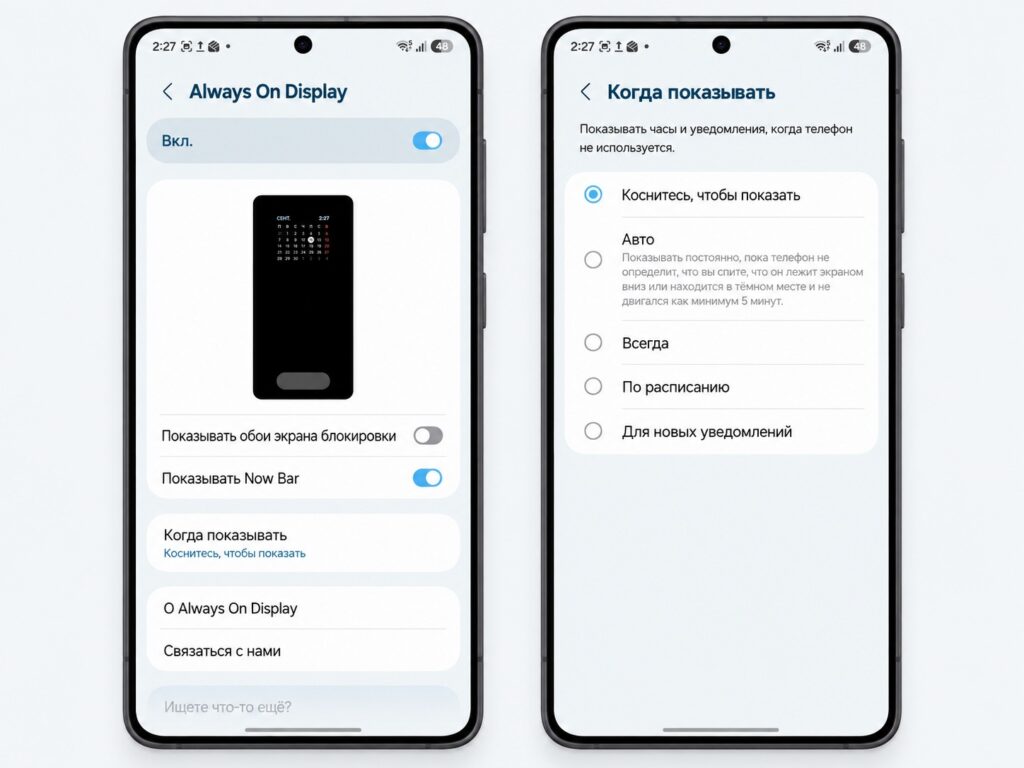
The Always On Display setting that saves energy
If you want to disable the feature entirely, the same Lock screen and AOD section has a toggle next to Always On Display. The author nonetheless recommends starting with tap-to-show: it preserves the familiar experience while consuming almost no power.

What changed after the switch
The author reports barely noticing any loss of convenience. One tap on the dark screen brings up the time, notifications, calendar and widgets — everything that previously stayed on permanently. The only difference is that the information appears when it is actually being looked at, rather than around the clock for no one.
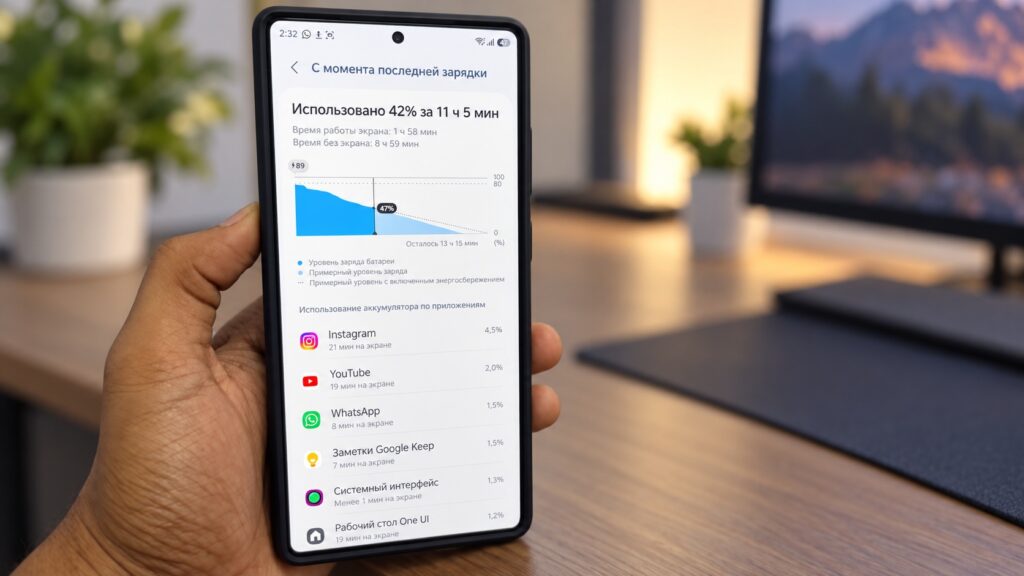
Battery consumption statistics after changing Always On Display
In the battery statistics, Always On Display stopped appearing among the notable consumers. On many days, screen-on time now exceeds five hours, compared with the previous four. An extra hour may look modest on paper, but in practice, the author says, it is the margin that lets the charger stay at home instead of travelling in a bag.
On other Android phones the setting has a different name
The principle is not limited to Galaxy devices. An always-on screen exists on Pixel, Xiaomi, OnePlus and nearly every phone with an OLED panel, and it consumes power for the same reason everywhere. The naming varies from brand to brand — it may be listed as an “active” or “ambient” display, or as an option to show the time and information on the lock screen — but the setting is usually found under Display, Lock screen, or Always On Display.
Not every manufacturer offers an equivalent of tap-to-show; on some firmware the choice is limited to on, off, and scheduled. In that case, a reasonable compromise is a schedule covering working hours only, or disabling the feature entirely and checking the time with a press of the power button. Above all, look at the battery statistics first: if AOD does not show up in the list, it is not the culprit, and changing the setting will not help.


