Russian banks have long been playing cat and mouse with Apple: their apps get removed from the App Store, and they come back under new names. And here we go again — Alfa-Bank has appeared in the store under the name Holder. If you’ve been looking for a way to install Alfa-Bank on iPhone in 2026, here’s the simplest method right now — while the app hasn’t been removed yet. It’s especially useful for those who haven’t updated in a long time or recently purchased a new iPhone. No more dealing with the web version.
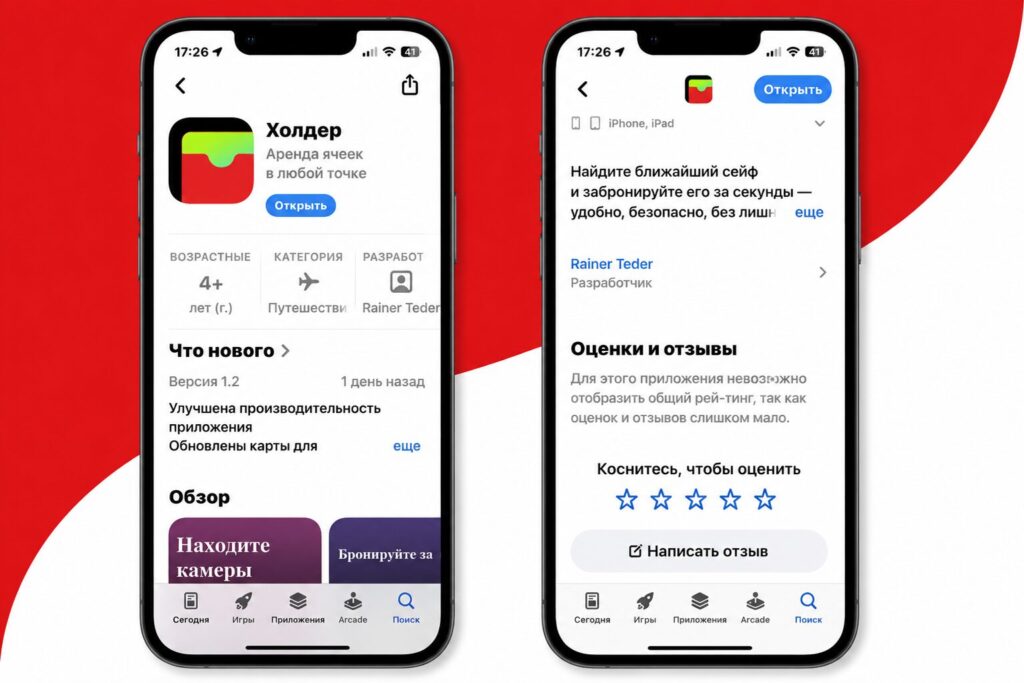
A new Alfa-Bank is temporarily available in the App Store
Holder — the New Alfa-Bank for iPhone
Since there are essentially no alternatives to the App Store on iPhone in our country, you’ll have to download the new Alfa-Bank from there. The app is available at this link — go ahead and install it on your smartphone or tablet. And here’s the key point: it’s best to do this as soon as possible.
The thing is, the banking client can’t get into Apple’s store under its real name, so it’s disguised. This time — as a safe deposit box and vault rental service: the description says nothing about a bank, the category is “Travel,” and the developer is Rainer Teder. Cupertino’s moderators usually detect such apps within 24 hours, sometimes even within a couple of hours. So Alfa-Bank in the App Store is a short-lived guest, and you shouldn’t delay downloading it.
New Alfa-Bank App — Differences from the Old One
You won’t find any vault rentals there, of course. After installing and logging in with your credentials, you’ll be greeted by the familiar Alfa-Bank app for iPhone — with the same interface as in previous versions. The menu is divided into familiar tabs: “Home” with accounts and quick transfers by phone number, “Payments” for utility bills and transfers by bank details, “Benefits” with cashback and promotions, transaction “History” with filters, and “Chats” for contacting support.
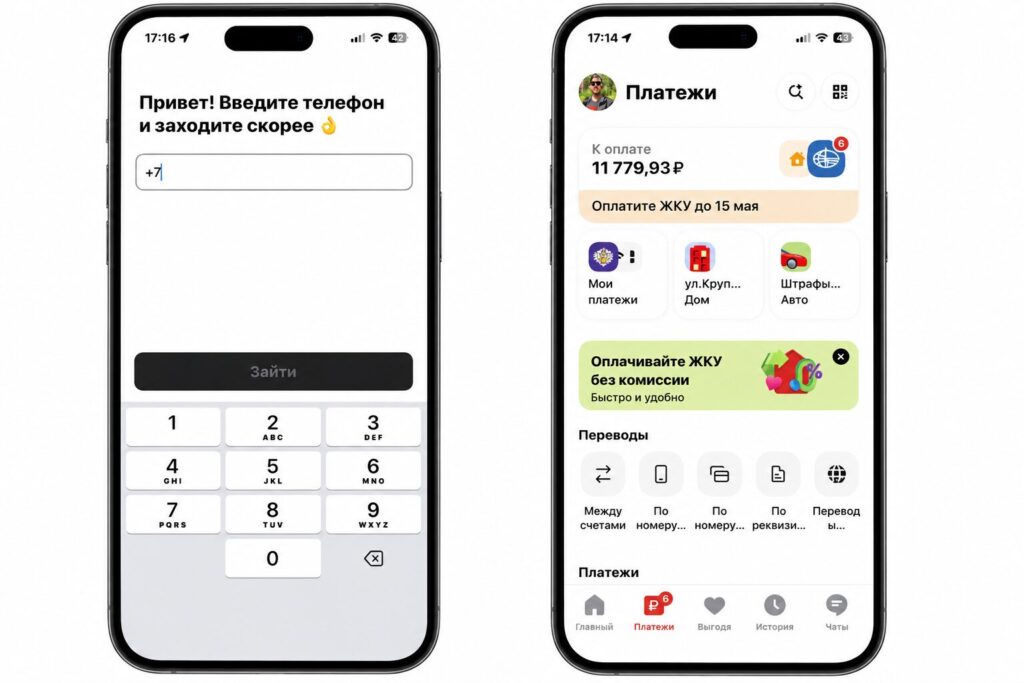
Login is traditionally done by phone number
So in fact, this is a full-fledged Alfa-Bank for iOS, just under a different label. The name doesn’t affect functionality at all — all the operations you used to perform remain in place. There are really no visual differences, so the appearance of Alfa in the App Store is more of an opportunity to download the banking app on a new iPhone.
How to Pay with iPhone Without Apple Pay
The main reason to catch these apps immediately is contactless payment support with an Alfa card. The bank taught its apps to pay with a smartphone without a card via Bluetooth, and this feature works in Holder as well. On first launch, the app will ask for Bluetooth access. If you accidentally declined the request, enabling it is easy.
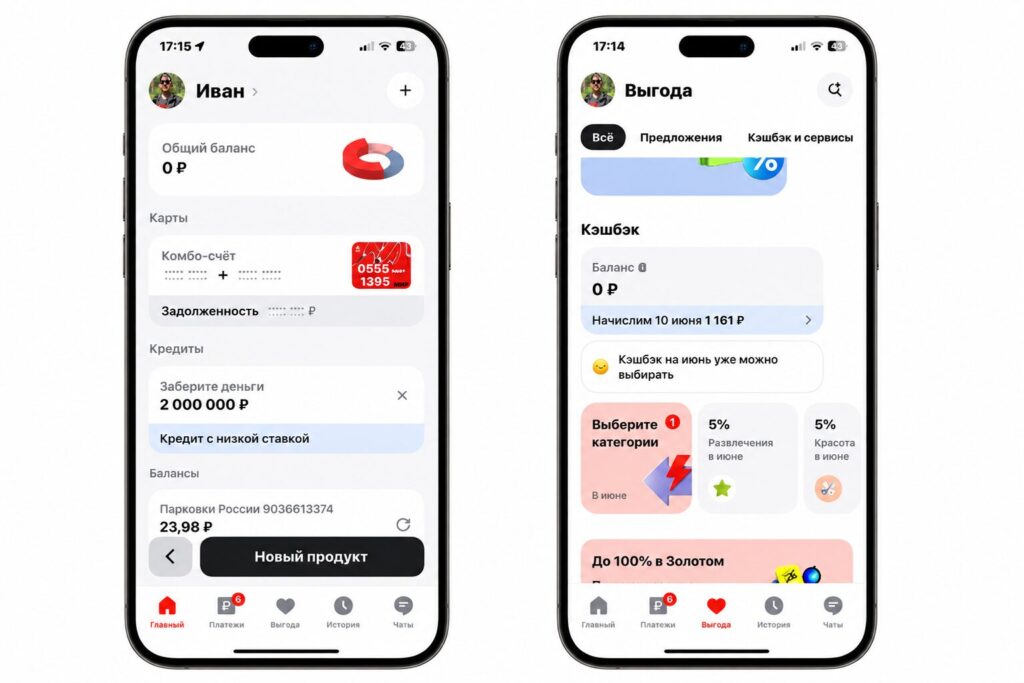
There are no visual differences from the old version
- Open iPhone Settings and go to the “Apps” section.
- Find the installed Holder app there.
- Toggle on the Bluetooth switch.
- After that, return to the app itself and on the main screen tap the button with waves — all that’s left is to hold your smartphone up to the terminal.
Everything works surprisingly simply, and the setup is even easier.
Why You Should Download Alfa-Bank on iPhone
The Holder app from Alfa-Bank is another temporary window while Alfa-Bank has been returned to the App Store. That means you can download it the old-fashioned way: without web versions or third-party certificates. Download it now: even if the app gets removed, the already installed client will continue to work on your device.


