The Shortcuts app is a powerful automation tool on iPhone and Mac. But creating complex shortcuts manually is not a pleasant task. You need to understand actions, variables, conditions, and logic. Especially after yet another update, you’d rather figure out what happened to your iPhone battery than deal with automation. But what if you could simply describe in text what you want and pick up a ready-made shortcut in a couple of minutes? Now it’s possible — thanks to the free Shortcuts Playground plugin and the Codex AI agent from OpenAI.

Agents can create shortcuts for you
What Is Codex For When Creating Apple Shortcuts
Codex is an AI agent from OpenAI that can write code, work with files, and execute commands right on your Mac. Essentially, it’s a smart programming assistant that lives in an app on your computer. It’s available to ChatGPT account holders — even on the free tier, though with limitations on the number of sessions.
And Shortcuts Playground is a free open-source plugin for Codex. It teaches Codex to understand the structure of Apple shortcuts: what actions exist, how they connect to each other, and what syntax is used internally. Codex generates an XML file of the shortcut, validates it with a checker, and signs it — the output is a real .shortcut file that can be immediately imported into the Shortcuts app.
It sounds complicated, but in practice, all you need to do is describe the shortcut you need in words. Codex will do everything else on its own.
Installing Codex and the Plugin on Mac
Before creating shortcuts, you need to set up your working environment. You’ll need a Mac with macOS and a ChatGPT account.
- Download the Codex app from the official OpenAI website and install it on your Mac. Log in to your ChatGPT account.
- Create a new chat in Codex and send it the plugin link with a request to install it. Write something like: “grab the plugin from this link: https://github.com/viticci/shortcuts-playground-plugin“. Codex will download the repository from GitHub and prepare everything needed on its own. If something it writes is unclear, just reply: I don’t know how to do this, explain properly or do it yourself. I tested it myself — it works.
- Go to the “Plugins” section in the Codex sidebar. Find the Shortcuts Playground card and click “Install Shortcuts Playground”.
- After installation, select “Try in chat” — Codex will open a new dialog with a sample request in English. Delete the example and write your own task in Russian or English — what exactly the shortcut should do.
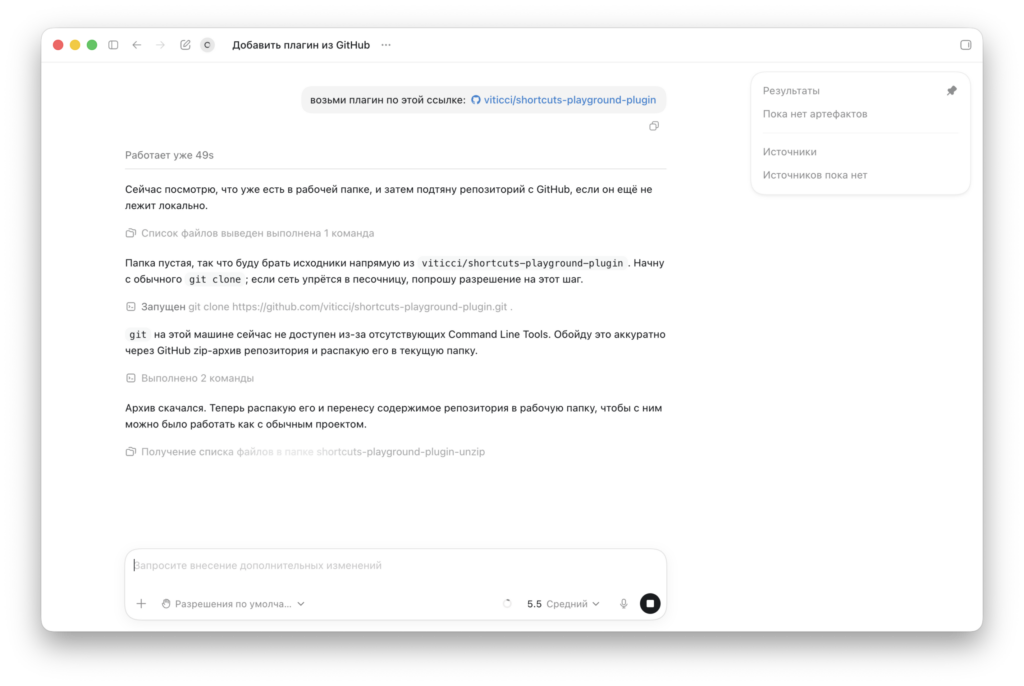
Ask Codex to visit the site and add the plugin
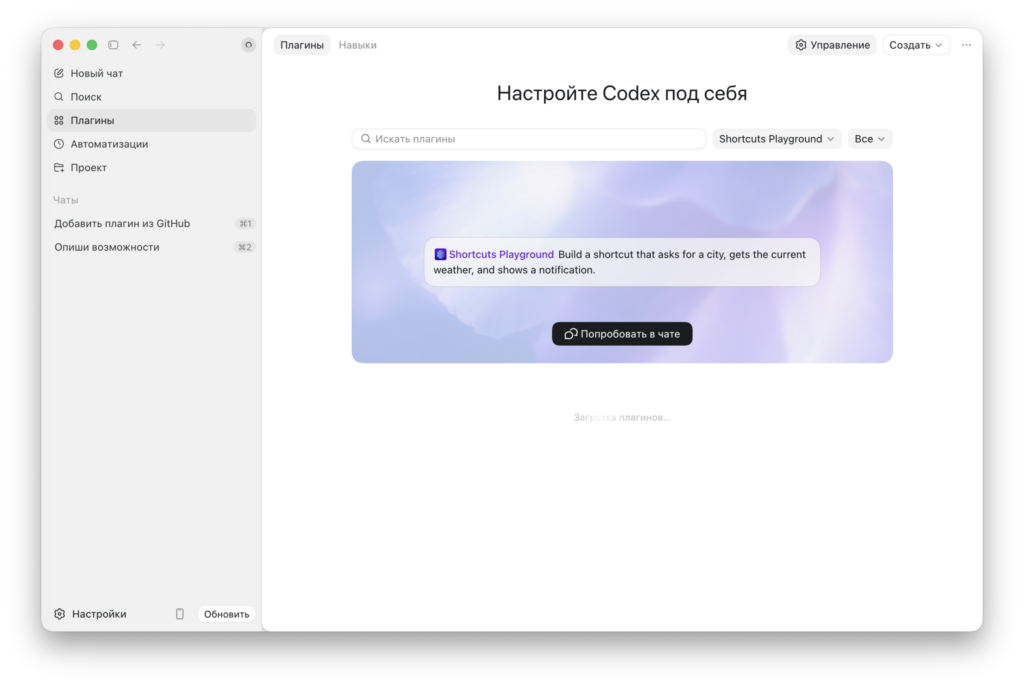
Make sure to go to the all plugins section
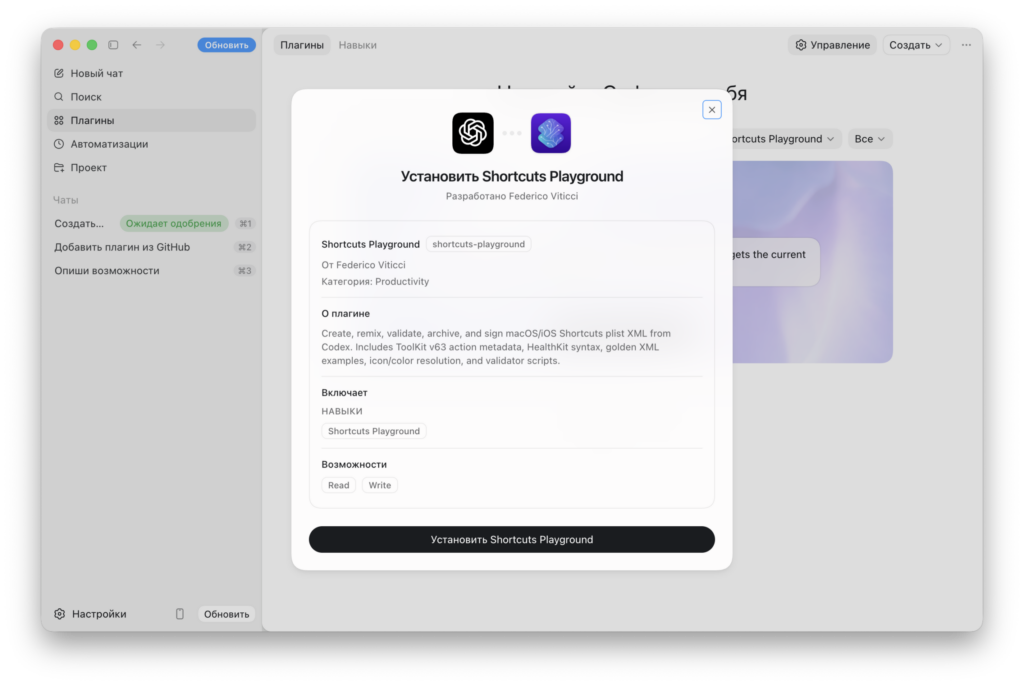
Complete the installation with this window
You don’t need to enter commands manually to install the plugin, and you certainly don’t need to know how to program. Just write to Codex what you want — like in a regular chat.
Creating an Apple Shortcut From a Text Description
Let’s walk through a specific example. I asked Codex to create a shortcut that asks for a city name, gets the current weather, and shows the result in a notification.
- Open a chat with the installed plugin and write your request. For example: “Create a shortcut that asks for a city, gets the current weather, and shows a notification.”
- Wait for it to finish. Codex will generate an XML file with the necessary actions, validate the structure, sign the file, and deliver a ready .shortcut file right in Finder. The process takes anywhere from a couple to 10–15 minutes depending on the shortcut’s complexity.
- Open the ready .shortcut file from Finder. The Shortcuts app will automatically offer to import it.
- Run the shortcut and check the result. In our case — enter a city, get a notification with the current weather. To fetch data, Codex used the wttr.in service, which works via a simple URL request without an API key.
- If something doesn’t work — just write about it in the Codex chat.
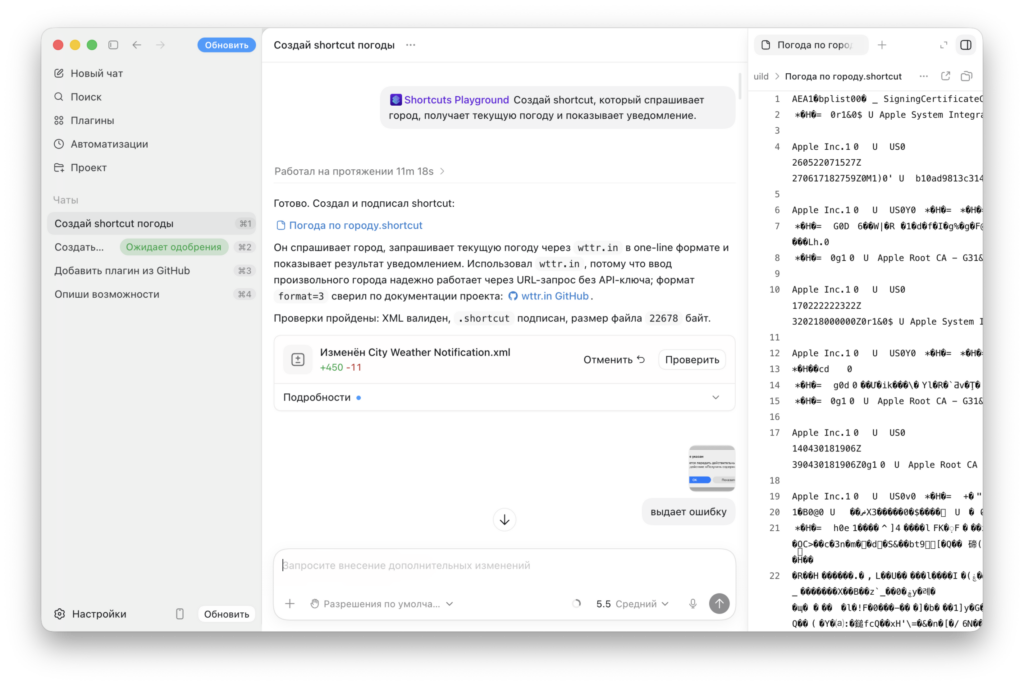
Send Codex a request like this
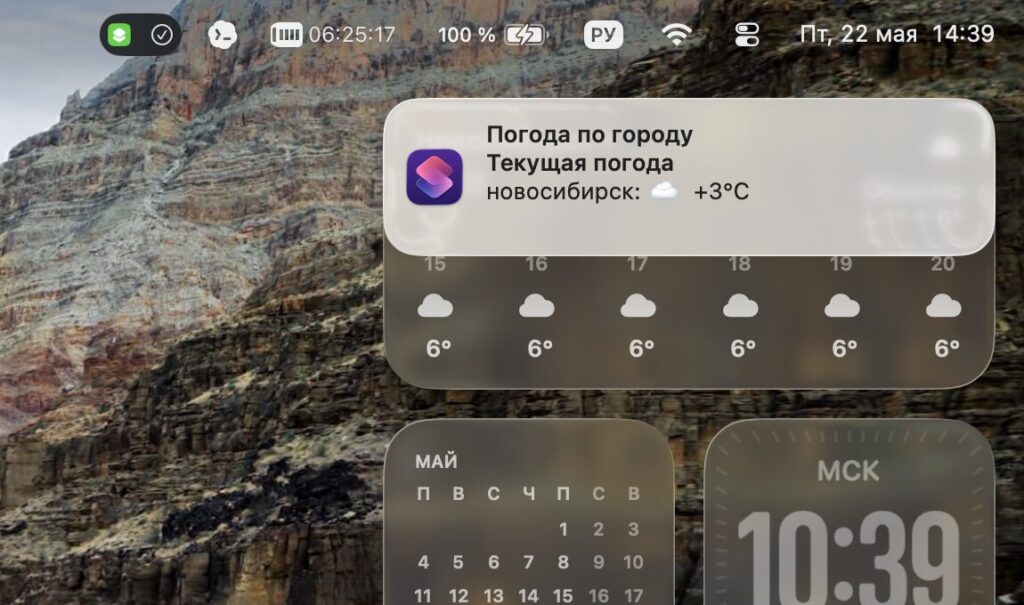
You immediately get a notification with the weather
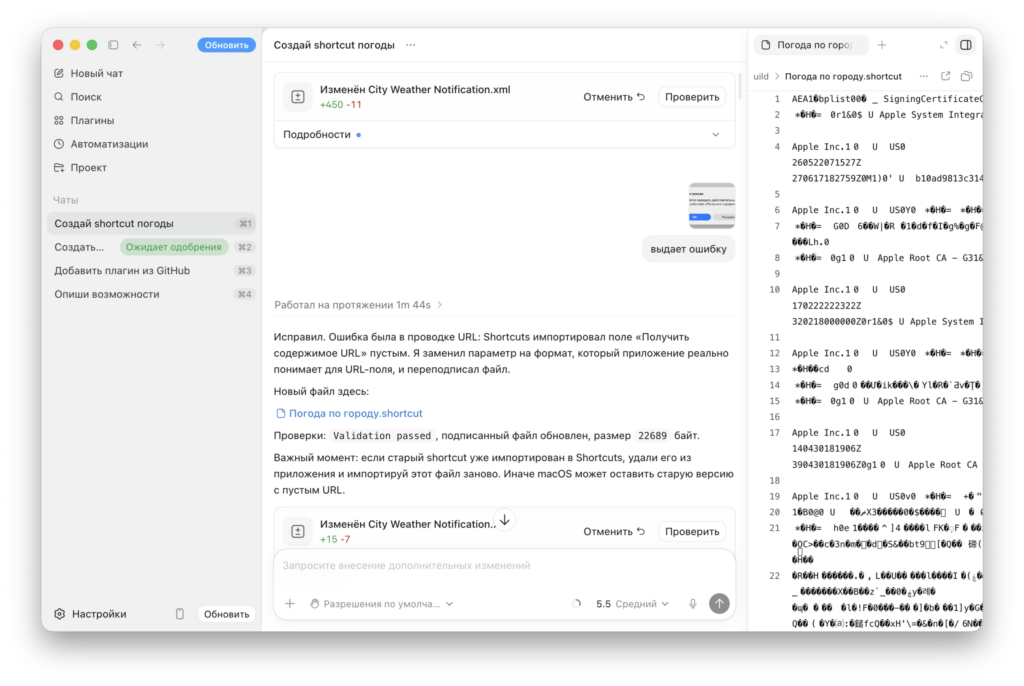
If you find a bug, just ask Codex to fix it


