The front-camera cutout on an Android phone can double as a virtual button. A free Google Play app called Action Notch watches for taps in that area and treats a single tap, a double tap and a long press as three separate triggers, each of which can be mapped to an action such as scrolling to the top of a page or taking a screenshot. According to the source author, it works on any Android phone with a display cutout or notch, including Samsung and Xiaomi devices, and the one-time setup takes a couple of minutes.
What you need to know
- Action Notch recognizes three gestures on the camera cutout: single tap, double tap and long press. All three are available in the free version.
- The app offers more than 50 actions, ranging from toggling the flashlight to launching MacroDroid automation scenarios.
- A paid tier adds extra gestures and per-app rules, so the same tap can do different things in different apps. The source does not state the subscription price.
- The main drawback of the free version is advertising, including full-screen ads that, according to Android Authority, have become more frequent.
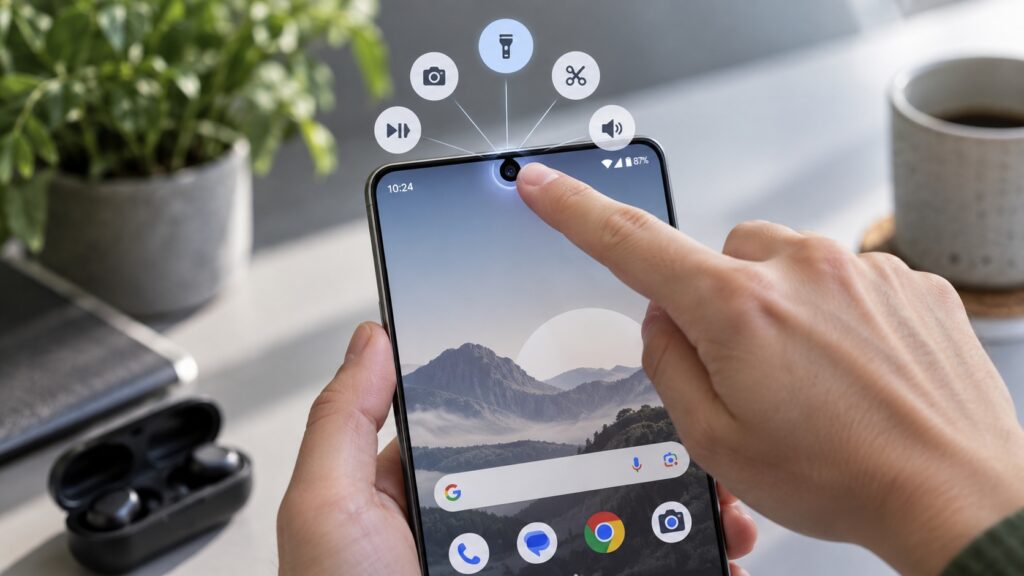
Controlling a smartphone by tapping the front camera cutout
How Action Notch works
Almost every modern Android phone has a cutout in the display for the front camera. Action Notch monitors touches in that zone and interprets them as button presses. Three gestures are recognized: a single tap, a double tap and a long hold. Each can be assigned its own action, for example a screenshot on a single tap.
The list of available actions runs to more than 50 items, from switching on the flashlight to triggering scenarios in MacroDroid, a separate Android automation app. The free version of Action Notch unlocks the three gestures. The paid version adds further gestures and lets you create rules, so the same tap behaves differently depending on the app in the foreground: a screenshot in the browser, say, and the flashlight on the home screen. The source does not give the subscription price.
Three gestures that the free version covers
The source author says they learned about the app from Android Authority, whose writer Yash Wate has used Action Notch for several years and settled on three gestures: single tap, double tap and long press. All are free, and the author reports copying that layout unchanged:
- Single tap: “Scroll to top.” On the iPhone, tapping the top of the screen returns you to the beginning of a page; Android has no built-in equivalent. Action Notch adds it to any app, so tapping the cutout jumps to the top of a feed or article.
- Double tap: “Scroll to bottom.” The author finds this handy in long messenger conversations, comment threads and lengthy web pages where navigation controls are buried in the footer.
- Long press: screenshot. Pressing the power and volume buttons simultaneously takes some dexterity; holding a finger on the cutout is simpler, and the difference is noticeable if you take many screenshots a day.
App shortcuts and automations
The action list goes beyond scrolling and screenshots. One action opens shortcuts inside other apps, such as scanning a document in Google Drive, searching for a song via the Google app or jumping to a specific chat in a messenger.
Another action, “Launch automation,” starts MacroDroid scenarios that have no automatic trigger condition of their own. Instead of hunting for the right macro inside MacroDroid, you fire it with a tap on the cutout. Users who do not rely on automation can simply skip this option.

Installation and setup
Setup is a one-time process: install the app from Google Play, grant the requested permissions and assign actions to gestures. The steps described in the source are:
- Install Action Notch from Google Play and open it.
- Follow the on-screen prompts to grant the requested permissions.
- In the list of gestures that appears, tap “Single tap.”
- Scroll to the “Device controls” section and select “Turn on flashlight” if you want a single tap to toggle the flashlight.
- Assign actions to the double tap and long press in the same way.
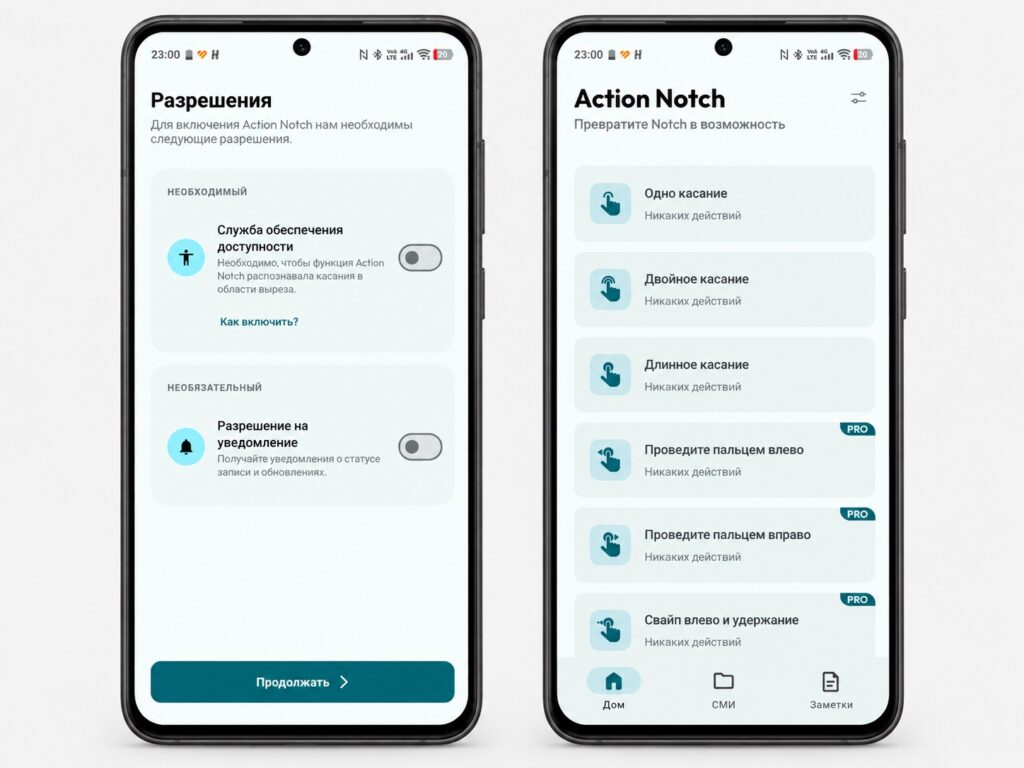
Initial setup of the Action Notch app
Once configured, the app runs in the background and waits for gestures. When it recognizes a configured touch, it performs the linked action; you do not need to open the app itself in day-to-day use.
Settings that prevent accidental triggers
The settings are reached via the slider icon in the top-right corner, then the “Settings” entry. There you can widen the active zone from the cutout to the entire status bar, shift the cutout position if the app detected it inaccurately, toggle vibration feedback on touch, and disable battery optimization so the system does not unload the app from memory.
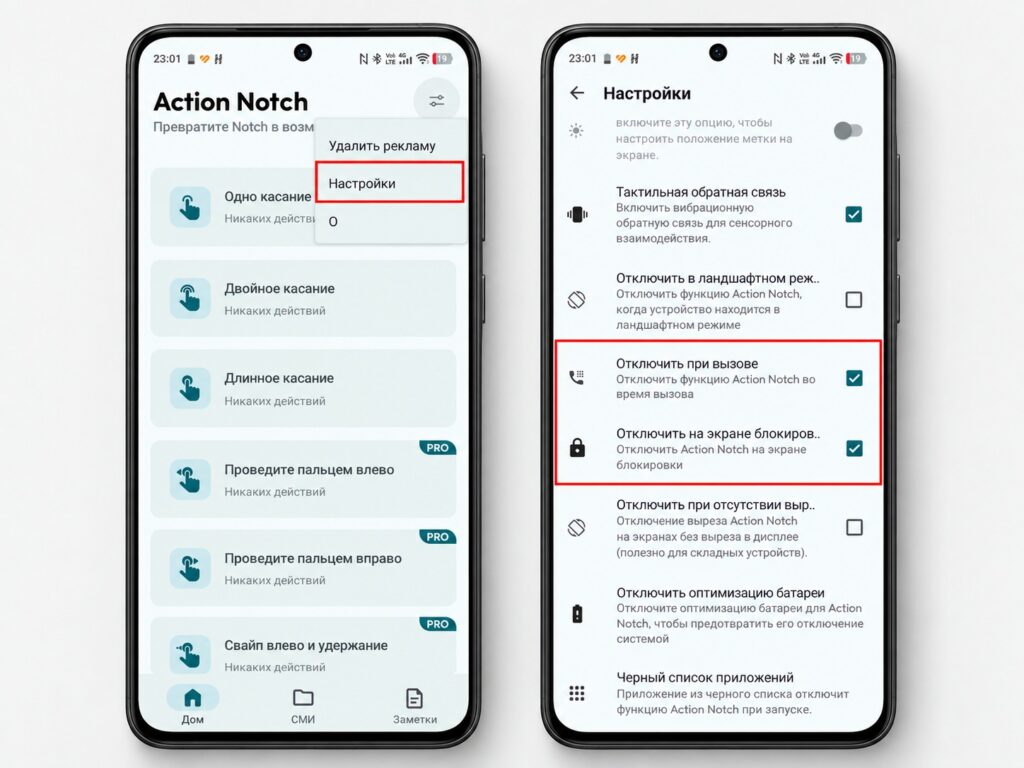
Additional settings in the Action Notch app
The first options the source author enabled were “Disable during calls” and “Disable on the lock screen”; without them, the virtual button fires on accidental touches. The second measure was the app blacklist, which stops Action Notch from responding to gestures inside selected apps. Games and apps with menus at the top of the screen are the obvious candidates.
Ads are the main drawback
Action Notch is not the only app that turns the cutout into a button, but its key advantages, according to the source author, are three gestures without payment and a long list of actions, several of which are genuinely useful.
The catch is advertising. The free version shows banners throughout the interface, and full-screen ads have, according to the Android Authority writer, become noticeably more frequent recently. They get in the way when navigating menus and configuring even the free gestures. The source author argues this is easier to tolerate than it sounds: configuration happens once, after which the app lives in the background and you rarely encounter the ads again.


