Discussions about which browser is the best on Android have been going on for years. But today, for those tired of ads on YouTube, there is a clear favorite. The DuckDuckGo browser has learned to block ad insertions that appear before and in the middle of videos. The feature already works by default on iPhone, Windows, and Mac, but on Android it still needs to be enabled manually. Let’s break down how to set it up, how it differs from DuckDuckGo’s built-in player, and where the main limitation lies.
Now you can watch YouTube without ads
YouTube Ad Blocking — How DuckDuckGo Does It
The developers have added a dedicated video ad blocking feature to the browser. It removes pre-roll and mid-roll ads, leaving the familiar YouTube experience without ad breaks. At the same time, the service’s regular functions continue to work: watch history and playlist positions are preserved.
In addition to YouTube, the browser has long protected against intrusive ads on other fronts. DuckDuckGo blocks ads with trackers before they even load, and it can also dismiss cookie consent pop-ups for you so they don’t get in the way.
How to Enable YouTube Ad Blocking on Android
There is an important nuance for Android smartphone owners. On Android, the feature is not yet enabled by default, meaning you need to activate it yourself, although the developers promise to make it automatic soon. To enable blocking manually:
- Update the DuckDuckGo app to the latest version.
- Open the browser settings and find the Ad Blocking section.
- Enable the YouTube ad blocking option.
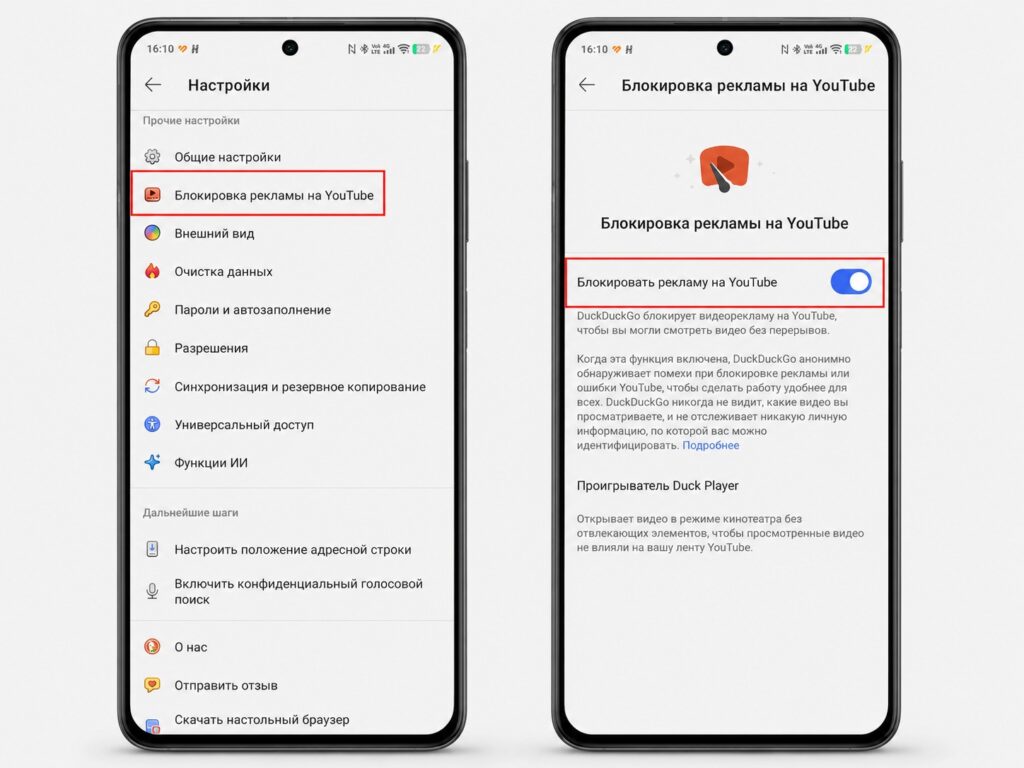
Ad blocking is enabled through the browser settings
If the option is not available in the settings, you most likely have an outdated version of the app — try updating it. You can disable or re-enable the feature at any time in the same settings, including while watching a video.
Why Ads Are Not Blocked in the YouTube App
This is the key limitation you should know about in advance. The blocking only works on the YouTube website inside the DuckDuckGo browser, not in the standalone YouTube app.
On your phone, links to videos open in the YouTube app by default, so ads will remain there. To get ad-free video, you need to open the YouTube website specifically in the DuckDuckGo browser. The feature does not work in the service’s own app — this is worth keeping in mind for those who are used to watching videos through the official app.
What Is Duck Player
The browser has a similar tool called Duck Player, and the two are easy to confuse. It is a built-in player that shows videos in a theater mode without distracting elements and applies the strictest YouTube privacy settings to the embedded video.
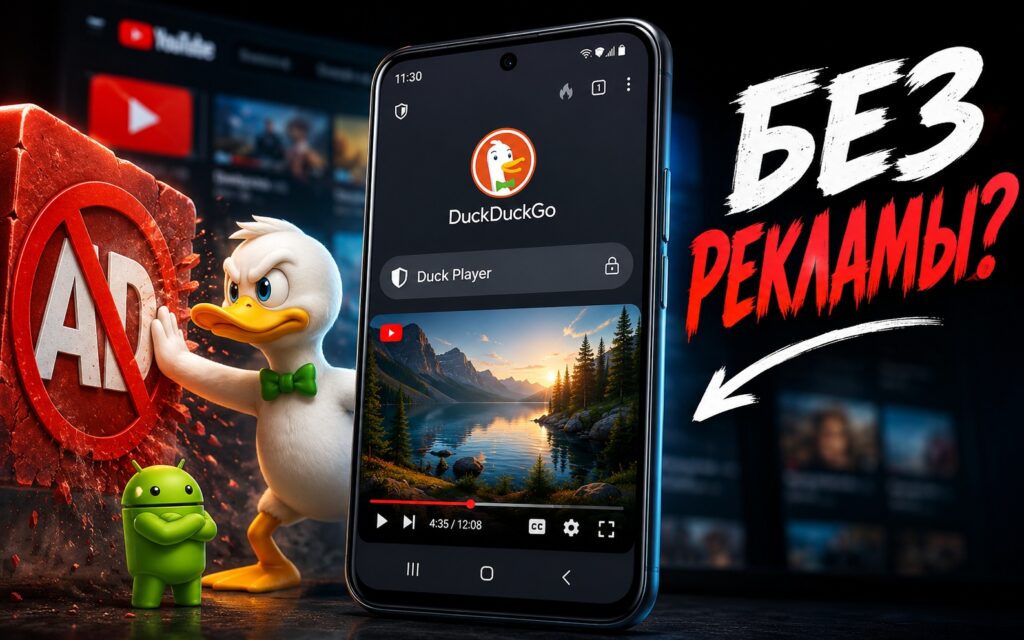
Duck Player works differently
The difference is in the details: Duck Player does not affect your YouTube recommendations, but it also does not save your history or remember your position in playlists. Regular ad blocking, on the other hand, keeps the familiar YouTube experience with all its features — just without the ads. If you want, you can keep both modes enabled at the same time.
Is DuckDuckGo Worth Using in 2026
Let’s be honest about the downsides. To identify and block ads, DuckDuckGo uses open filter lists from the uBlock Origin project, which are maintained by the community and regularly updated to keep up with changes on YouTube’s side.
From a practical standpoint: videos may take longer to buffer before starting, but once loaded, ads will no longer interrupt you. The wording “blocks most video ads” also speaks for itself — the developers do not guarantee that ads will disappear on every single video every time.


