In iOS 27, Apple updated Safari in several directions at once. The main change isn’t about one headline feature, but rather many small annoyances that had been plaguing the browser for years: confusing buttons, hidden bookmarks, and tab chaos. Some of the new features work for everyone, while others are only available on devices with Apple Intelligence. iOS 27 brought many new features, and some of them made it to Safari. Below, let’s look at what changes in everyday use and who should look forward to the update.
Safari also got plenty of new features
Where Are Bookmarks in Safari on iOS 27
Previously, to get to bookmarks, reading list, or history, you had to dig into a separate menu. In iOS 27, when opening a new tab, a section switcher appears at the top of the screen. This is faster and more convenient than the old approach, especially if you frequently return to saved pages.
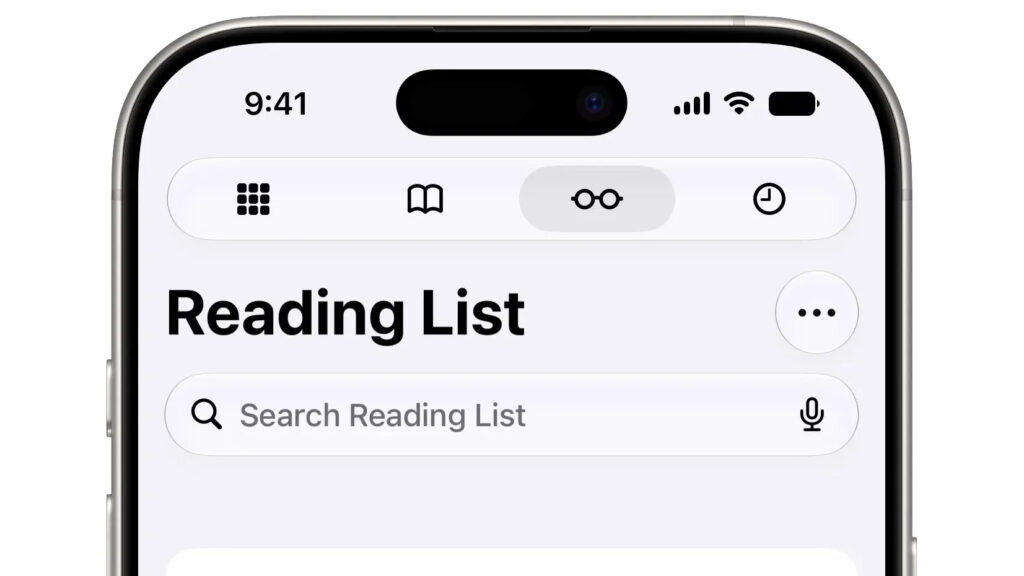
You can access bookmarks from the start page
One caveat: at the time of the announcement, the feature is only available on iPhone and iPad; it’s not on Mac yet. It may appear there later, but for now this feature is absent and that’s worth keeping in mind.
Where Is the Tabs Button in Safari iOS 27
Apple reshuffled the buttons in the browser’s compact mode. The “More” button on the right has been replaced with a “Tabs” button. Previously, you could switch to the tab overview by swiping up on the address bar, but that gesture wasn’t obvious. Now the action is in plain sight.

Buttons in compact mode have been reshuffled
There is a downside: the “Share” button has become harder to find. To reach it, you need to tap the page menu to the left of the address bar or press and hold the bar itself. And if you long-press the “Tabs” button, a menu for switching between tab groups will open.
For those who find the new layout inconvenient, you can restore the full-size toolbar in settings: open “Settings,” then the “Apps” section, then “Safari.”
How to Create an Extension for Safari on iPhone
This is one of the most interesting new features, but it only works on devices with Apple Intelligence: that’s iPhone 15 Pro and newer, as well as iPhone 16 and newer. An extension is essentially a small add-on that gives the browser new capabilities on websites.
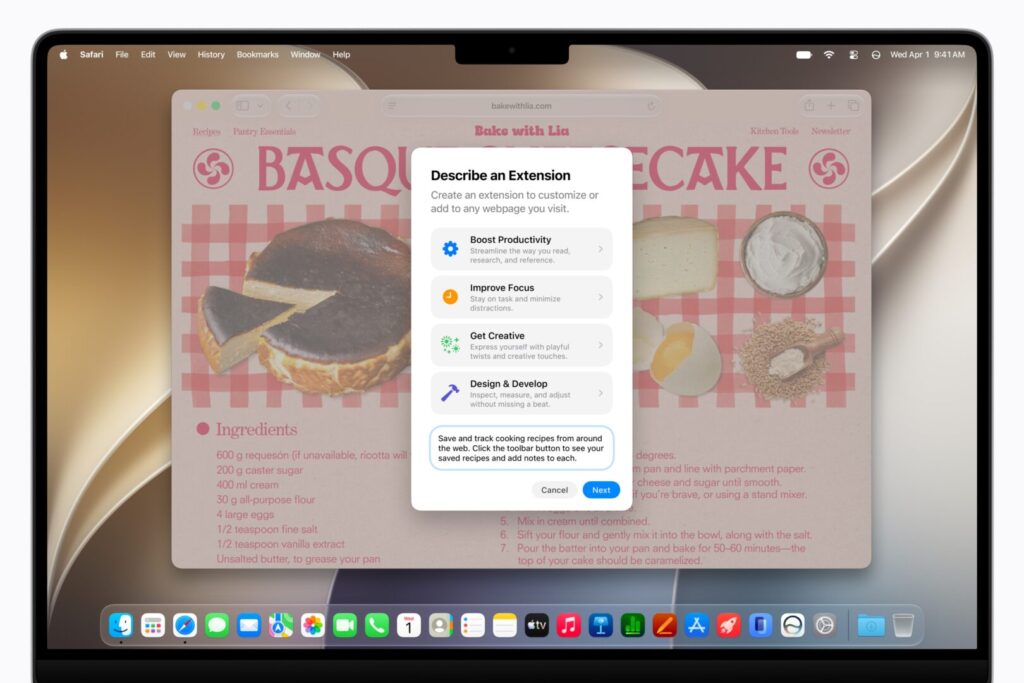
You can now create extensions yourself
Now you can create such an extension right in Safari simply by describing in words what you need. To do this, tap the page menu to the left of the address bar and select “Describe Extension.” The original author, for example, created an extension that adds an “Open in Apple News” button on articles from The Verge, The Washington Post, and The Wall Street Journal — a convenient way to read content via an Apple News+ subscription.
It sounds powerful, but in practice this will primarily benefit those who have a specific recurring task on websites. Most people probably won’t need this feature.
Page Change Notifications in Safari on iPhone
Sometimes you need to wait for a product to come back in stock or for ticket sales to open. Previously, you had to manually refresh the page for this. In iOS 27, Safari can monitor changes on its own and send a notification: the feature is called “Notify Me” and also works in macOS 27.
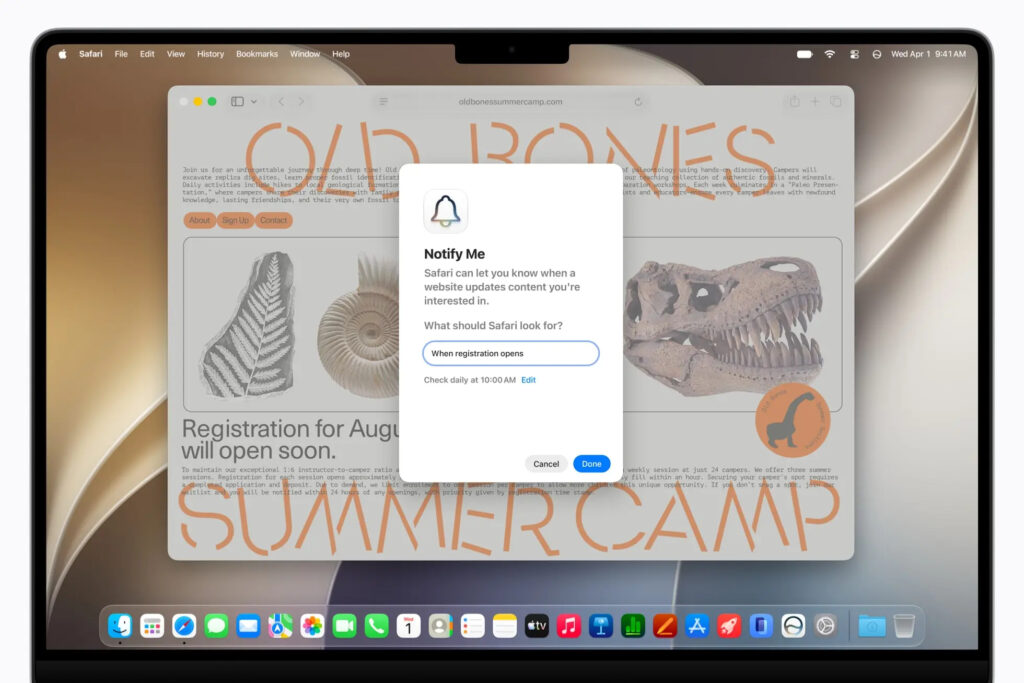
Safari will track changes itself and send a notification
To enable tracking, tap the page menu to the left of the address bar and select “Notify Me,” then describe in words what you’re waiting for — for example, “when the product is back in stock” or “when a new podcast episode is released.” This feature also requires Apple Intelligence, so it won’t be available on older iPhones.
Automatic Tab Sorting in Safari
If you always have dozens of tabs open, this feature is for you. Safari in iOS 27 automatically groups tabs by topic, and this is another capability powered by Apple Intelligence. On the browser’s start page, it even groups iCloud tabs open on other devices by topic.
The idea is simple: it’s easier to find the page you need when you can tap a category rather than scrolling through a long list of dozens of tabs. This truly benefits “tab collectors” — if you keep only two or three pages open, you’ll barely notice the difference.
What Changed in Safari’s Menu on iPhone
The beautiful pop-up page menu panel in iOS 27 is gone. In its place is a regular scrollable context menu, like when you long-press an app icon. Previously, Apple showed a neat grid with large buttons here; now it’s a vertical list of items. It looks less visual and more dense than before, and you’ll need to get used to the new look.
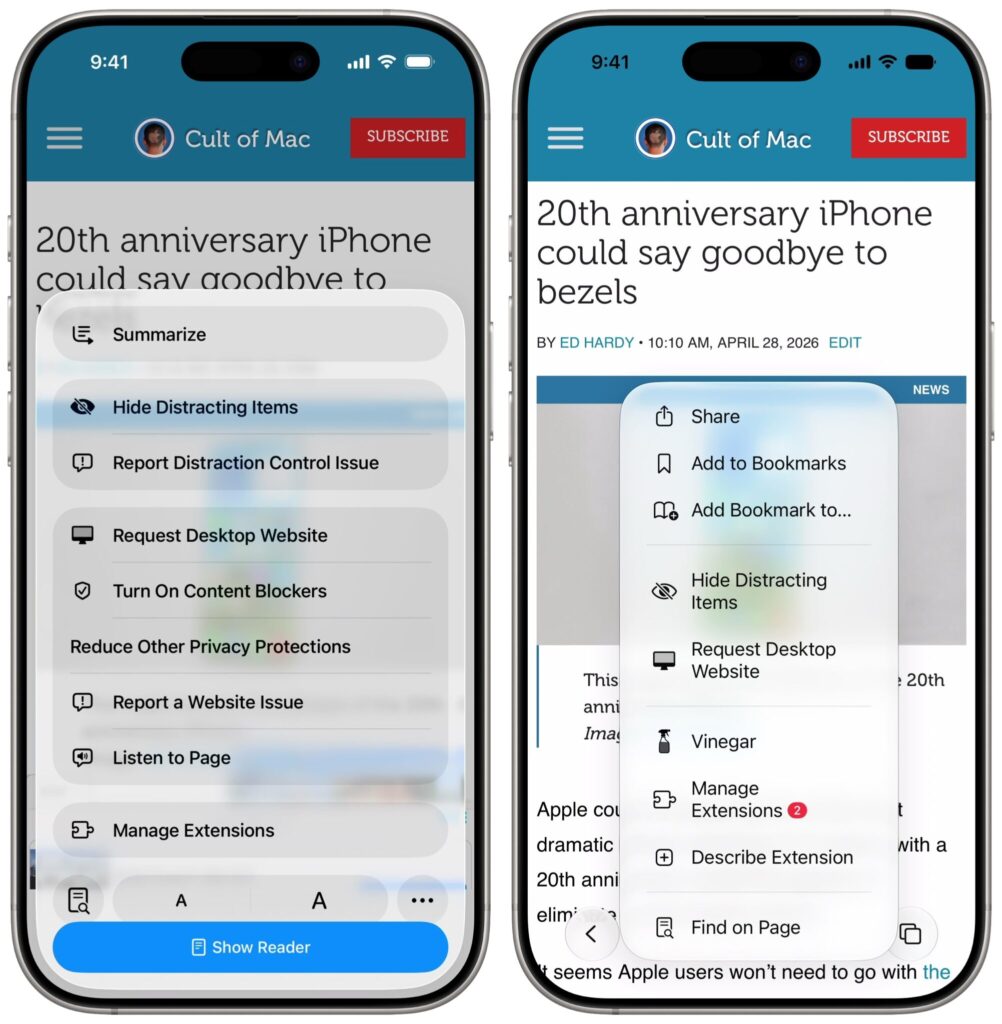
Left: iOS 26, right: iOS 27
However, this approach has a practical advantage: all controls are accessible immediately. Reader mode, page change tracking, extension creation, and other options are all in one list, with nothing hidden behind a second menu. Previously, some settings required extra steps to reach.