Samsung’s phone shell adds many convenient features, like those that came with the One UI 8.5 update, but some of them run in the background and drain the battery even when you barely use them. Using my aging Galaxy S21 FE with a 4,500 mAh battery as an example, I’ve gathered six Samsung settings that you can disable to help your phone last longer on a single charge. Below, we break down each one and explain who really needs it and who can safely turn it off.
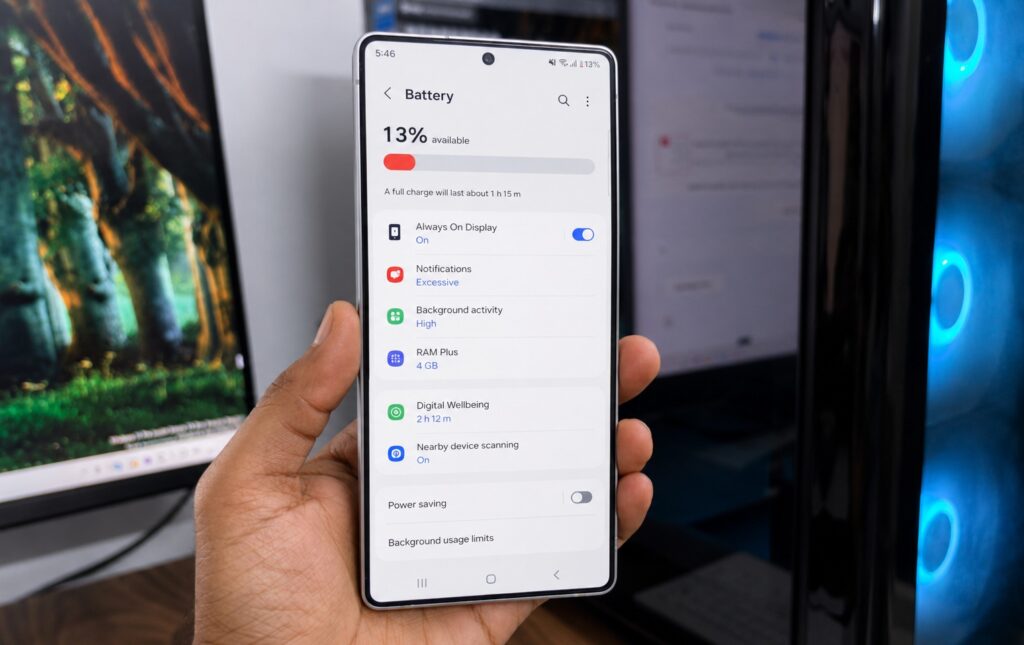
Here’s what you need to disable to save battery
Android Digital Wellbeing and Why You Should Disable It
Digital Wellbeing constantly monitors how much time you spend in each app. The feature is useful for parental controls when a child uses the phone and you want to track screen time. But if you never look at these statistics, the background data collection just wastes battery for nothing.
To disable usage data access:
- Open “Settings,” then the “Digital Wellbeing and parental controls” section.
- Tap the three-dot button.
- Go to “Settings,” then “Usage data access,” and then “Settings” again.
- Disable the permission.
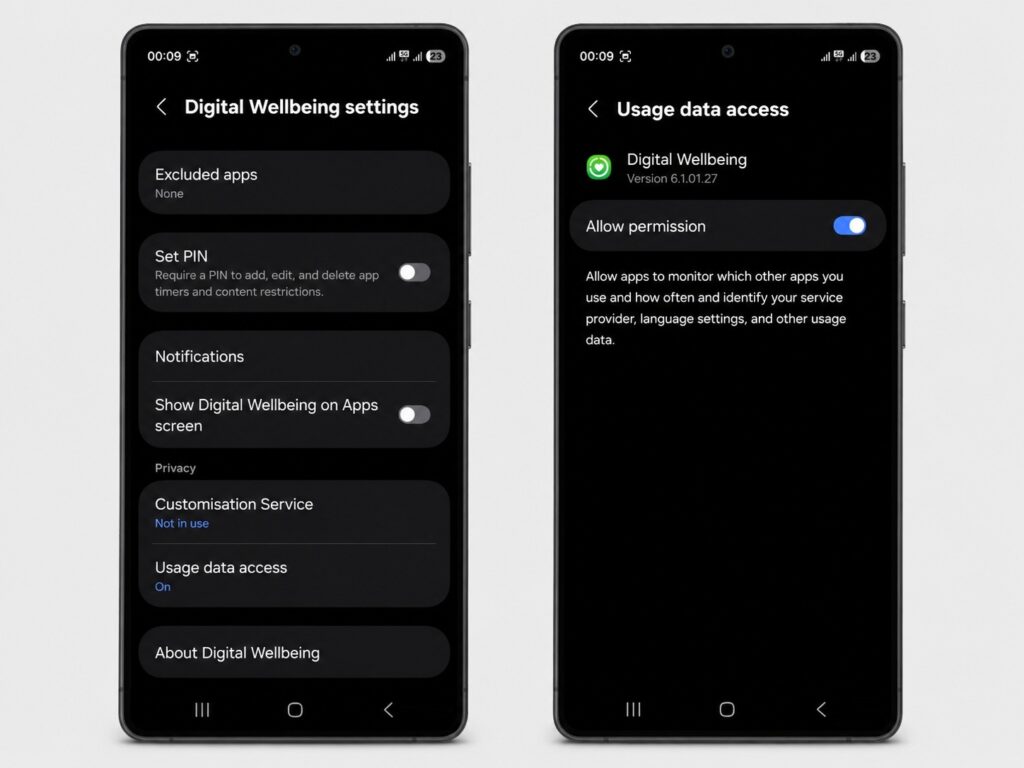
Digital Wellbeing provides little benefit and significantly drains the battery
After this, the system will stop keeping a log until you manually set up the feature again. It’s better not to turn it back on in the future.
Nearby Device Scanning in the Background — What’s Wrong With It
Nearby device scanning makes your phone constantly scan the surroundings looking for devices to connect to. Print services do roughly the same thing. If you don’t connect your phone to a printer or search for nearby devices every day, these constant checks only waste battery.
Here’s how to disable them:
- Open “Settings,” then “Connections,” then “More connection settings.”
- Turn off “Nearby device scanning.”
- Open “Printing” and disable all available print services.
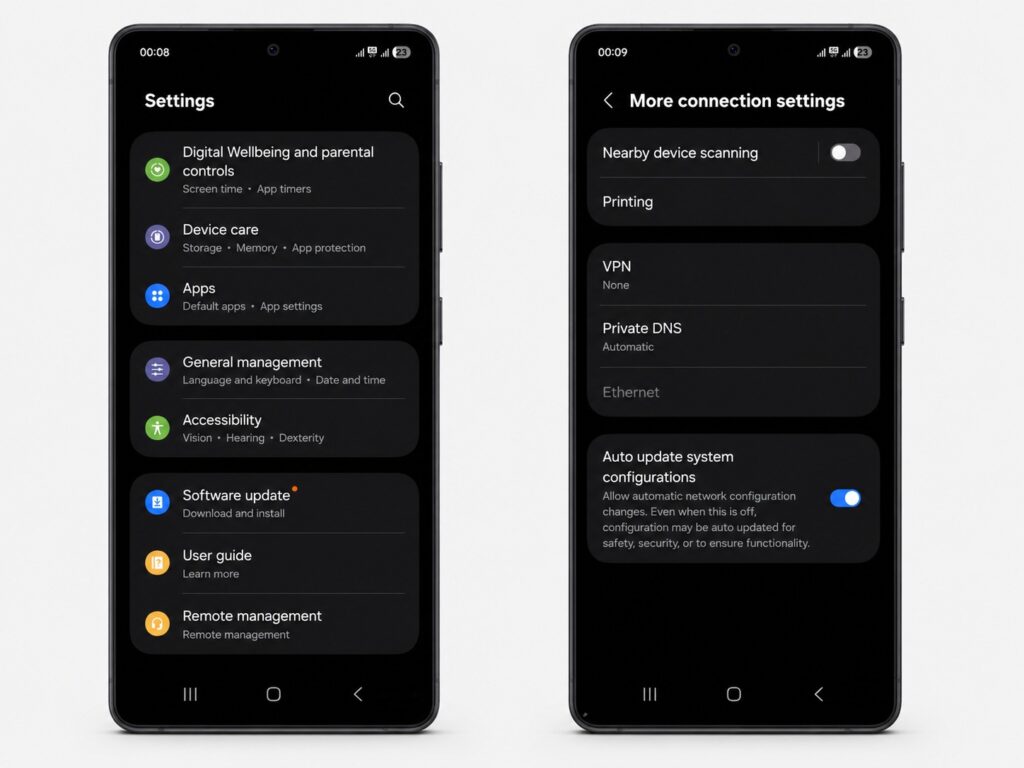
An absolutely useless feature for everyday use
You can also disable NFC if you don’t pay through Samsung Pay. But be careful here: NFC is needed for other payment and data transfer scenarios, so only disable it consciously.
Why You Should Disable RAM Extension on Samsung
RAM Plus is a feature that uses part of the internal storage as additional RAM so that apps stay alive in the background longer. In practice, no one on our editorial team noticed any difference in multitasking after disabling it, so the extra memory buffer isn’t needed.
To turn it off:
- Open “Settings,” then “Device care.”
- Go to “Memory,” then “RAM Plus.”
- Disable the feature and tap “Restart.”
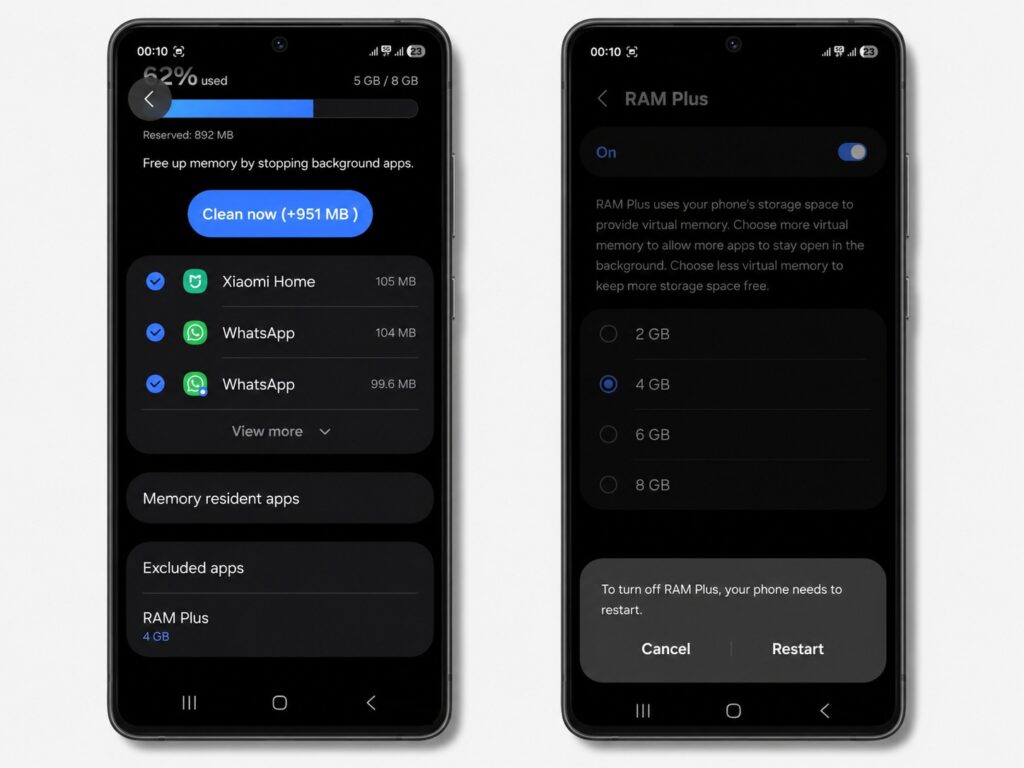
Definitely disable RAM extension
After restarting, multitasking works just the same as before. Keep in mind that this is a subjective observation on a specific model: on smartphones with a smaller amount of RAM, the effect may be different.
Deep Sleep for Apps, or How to Limit Background Activity in One UI
After installation, an app continues to run in the background: social networks check for new posts and messages, other programs look for updates. The problem is that not all apps need this background access, and some of them drain the battery even if you barely use them.
One UI can put unused apps to sleep, but it still allows them periodic background activity. A stricter option is to manually send unnecessary programs into deep sleep mode, which completely prohibits background activity:
- Open “Settings,” then “Battery,” then “Background usage limits.”
- Tap “Deep sleeping apps.”
- Tap “+” and select apps from the list.
- Tap “Add.”
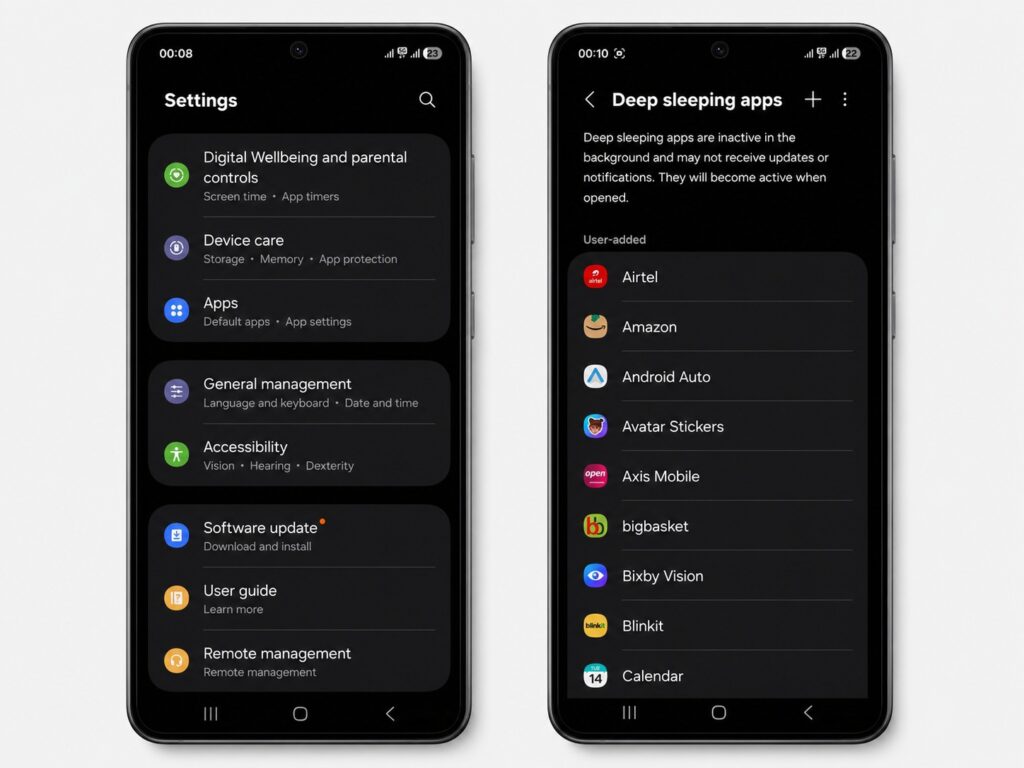
Send all unnecessary apps into deep sleep
I also recommend putting pre-installed Samsung apps into deep sleep if they can’t be uninstalled the usual way without ADB tools. Just don’t send messengers and apps you expect notifications from there — otherwise, you risk missing an important message.
Always On Display — Why It Drains the Battery
Always On Display lights up only part of the screen and shows the clock, date, and notifications without unlocking the phone. The feature is economical by nature, but it still uses a bit of battery by constantly keeping a widget on the screen.